
Sometimes users need to delete partitions for some reasons. Then how to remove partition in Windows 10? In fact, to delete partition in Windows 10 is very simple as long as you use professional partition management utility. This article will show you how to remove partition Windows 10 with free partition magic - MiniTool Partition Wizard.
In computer hard disk managements, we not only need to create partitions and resize partitions but also need to remove some unnecessary partition. However, some users reflect that they don’t know how to delete partition in Windows 10 and some don’t know how to delete partition on USB flash drive when Disk Management is unable to do.
Here, I suggest using a free partition magic MiniTool Partition Wizard to help you delete partition. Firstly, I want to introduce you what MiniTool Partition Wizard is and the principles of deleting partitions with MiniTool Partition Wizard.
Principle of Deleting Partitions with MiniTool Partition Wizard
MiniTool Partition Wizard is a professional partition magic with powerful functions. It not only can help us remove partitions but also help us extend partition, merge partitions, format partitions, and perform other partition management functions that Disk Management doesn’t offer.
Hard disk partition information is mainly recorded by hard disk partition table of the MBR and the boot record of operating system. MiniTool Partition Wizard empties the partition record information in hard disk partition table, and operating system will not find out the partition information in hard disk partition table and operating system boot record, so this partition cannot be displayed. At this time, we say this partition is removed.
With MiniTool Partition Wizard, you can remove any partition. Next, I will briefly demonstrate how to remove system partition with MiniTool Partition Wizard.
Remove Partition Windows 10 with MiniTool Partition Wizard Free Edition
Step 1: Download MiniTool Partition Wizard Free Edition by clicking the following button firstly. Install it on any partition except the one you are going to remove. And launch it to get the main interface.
MiniTool Partition Wizard FreeClick to Download100%Clean & Safe
Step 2. The main interface has listed all partition information. Select the partition that you want to delete and choose Delete Partition feature from the left pane.
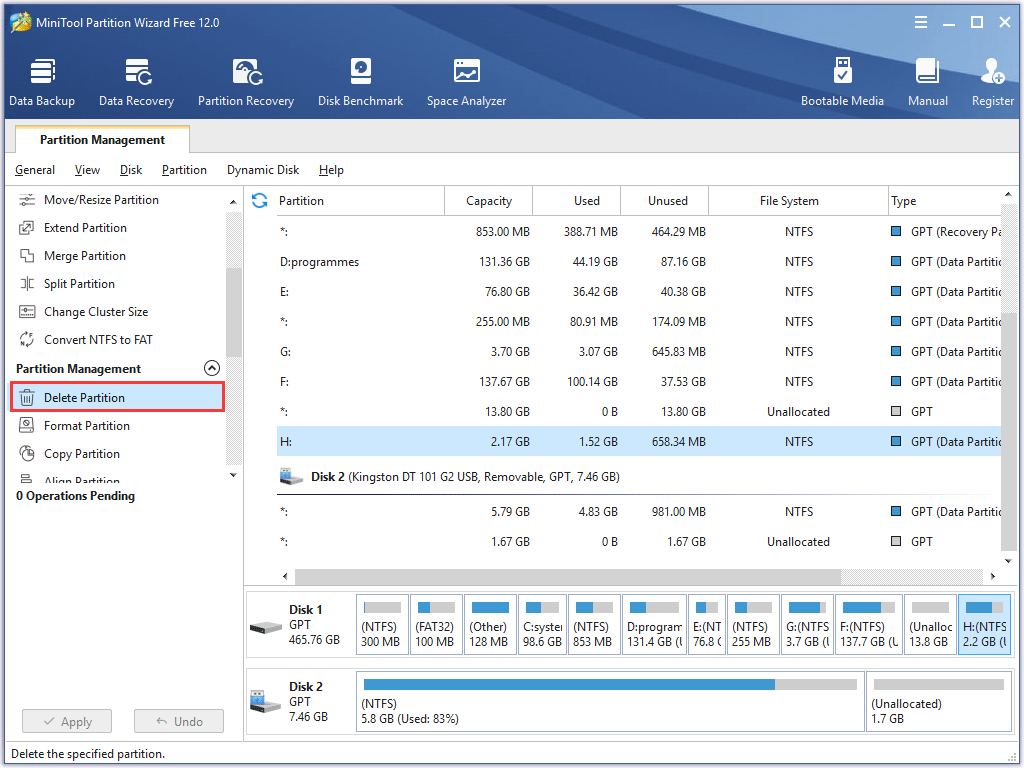
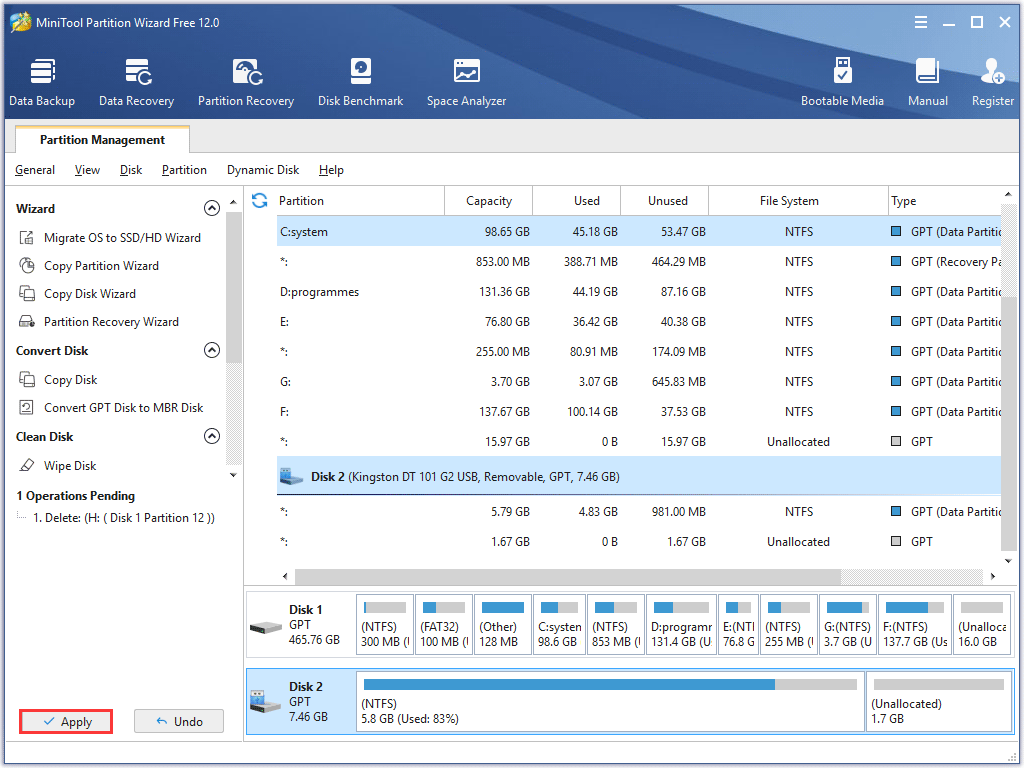
Step 3. Then, you will go back to the main interface after clicking Delete Partition. At this time, you can see that the partition you just deleted has become unallocated space. However, this is just a preview this partition magic offers. To realize final operations, you need to click Apply button on the upper left corner to allow the change.
This is how I remove partition Windows 10 with a free partition magic, which is very convenient and effortless. However, for people who do not want to resort to a third-party software, I will offer you another method to delete partition Windows 10 – Disk Management.
Windows 10 Delete Partition with Disk Management
With Windows built-in disk management tool, you can remove partition Windows 10 as well. Both of them are free but Disk Management does not provide so many features like MiniTool Partition Wizard. Now let’s see the detailed steps.
Step 1. Right-click Windows Start menu and choose Disk Management.
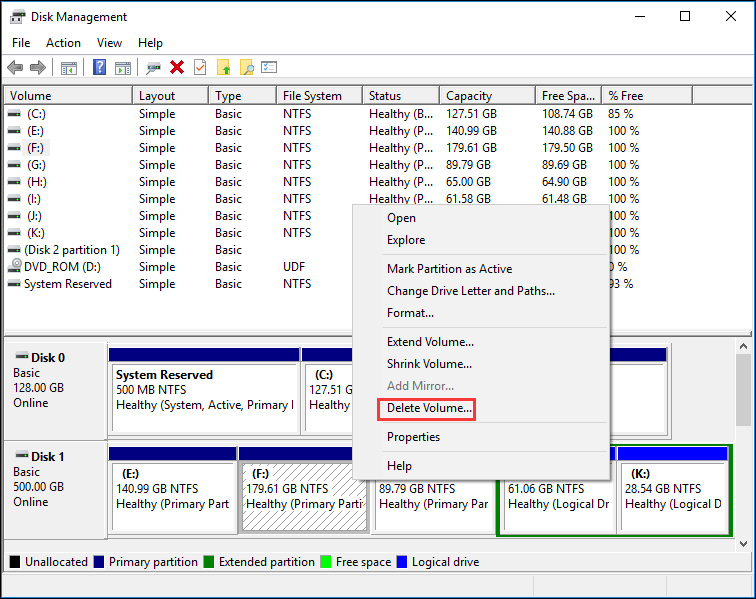
Step 2. Right-click the volume that you want to delete and choose Delete Volume function. As you can see from this page, the features that Disk Management provides are very limited.
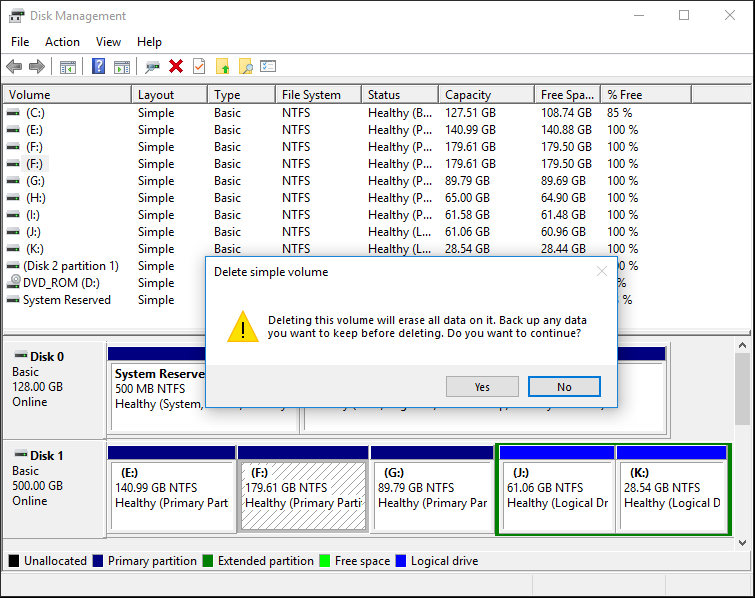
Step 3. A pop-up window will come out after you click Delete Volume. Then read the note and click Yes to go on.
Step 4. Now, you can see the partition has become unallocated space.
Although Disk Management can help you delete partition Windows 10 to some extent, some users reflect that Windows 10 Disk Management can become stuck while loading disk configuration or Disk Management crashes due to some reasons.
In this case, the best way to remove partition Windows 10 is to use the professional partition manager – MiniTool Partition Wizard. Get one by clicking the following button and try it now!
MiniTool Partition Wizard FreeClick to Download100%Clean & Safe
Conclusion
After reading this post, you can delete partition Windows 10 with MiniTool Partition Wizard or Disk Management. I recommend you to use MiniTool Partition Wizard since it is free and it provides more functions than Disk Management.
If you have any question about how to delete partition in Windows 10 with MiniTool partition Wizard, just leave a message on the following comment zone, and we will reply as soon as possible. If you have any suggestion toward MiniTool Partition Wizard or if you need any help when using MiniTool software, you can contact us via [email protected].
User Comments :