
Splitting BitLocker encrypted drive allows you to create a new partition from existing disk space while keeping your data protected. This guide explains how to unlock a BitLocker drive and split the partition using Windows built-in tools or MiniTool Partition Wizard.
Splitting a partition on a BitLocker-encrypted drive can help you manage disk space more effectively. For example, you can create a new data partition or reorganize your disk layout.
The following guide explains how to unlock the BitLocker drive and split the partition using either built-in Windows tools or MiniTool Partition Wizard.
Can You Split BitLocker Encrypted Drive?
Before splitting a partition on a BitLocker-encrypted drive, you may first unlock the drive.
BitLocker encrypts and protects the data on the drive. When the drive is locked, the system or partitioning tools generally cannot access the data, making it impossible to adjust partitions.
You need to unlock the drive using a password, PIN, or BitLocker recovery key to proceed.
Once unlocked, you can shrink the current partition to free up unallocated space and then use that space to create a new partition.
You can perform this task using Windows’ built-in Disk Management tool or utilize third-party partitioning software for greater flexibility in adjusting partitions.
Here are the detailed steps to split BitLocker encrypted drive on Windows.
How to Split BitLocker Encrypted Drive
If your drive is protected by BitLocker, you may wonder whether it is still possible to resize or split the partition. The answer is yes, but the drive needs to be unlocked first.
Below are two practical methods to split BitLocker partition safely.
Method 1: Use MiniTool Partition Wizard
The easiest method to split a BitLocker encrypted drive is using MiniTool Partition Wizard, which can unlock the BitLocker encrypted partition and then help you split it into two partitions with ease.
The following guide uses MiniTool Partition Wizard to demonstrate how to split BitLocker encrypted drive.
MiniTool Partition Wizard FreeClick to Download100%Clean & Safe
Step 1: Open MiniTool Partition Wizard to its main interface.
Step 2: Right-click the target drive and click BitLocker Manager from the menu.
Step 3: Click Unlock in the pop-up window.
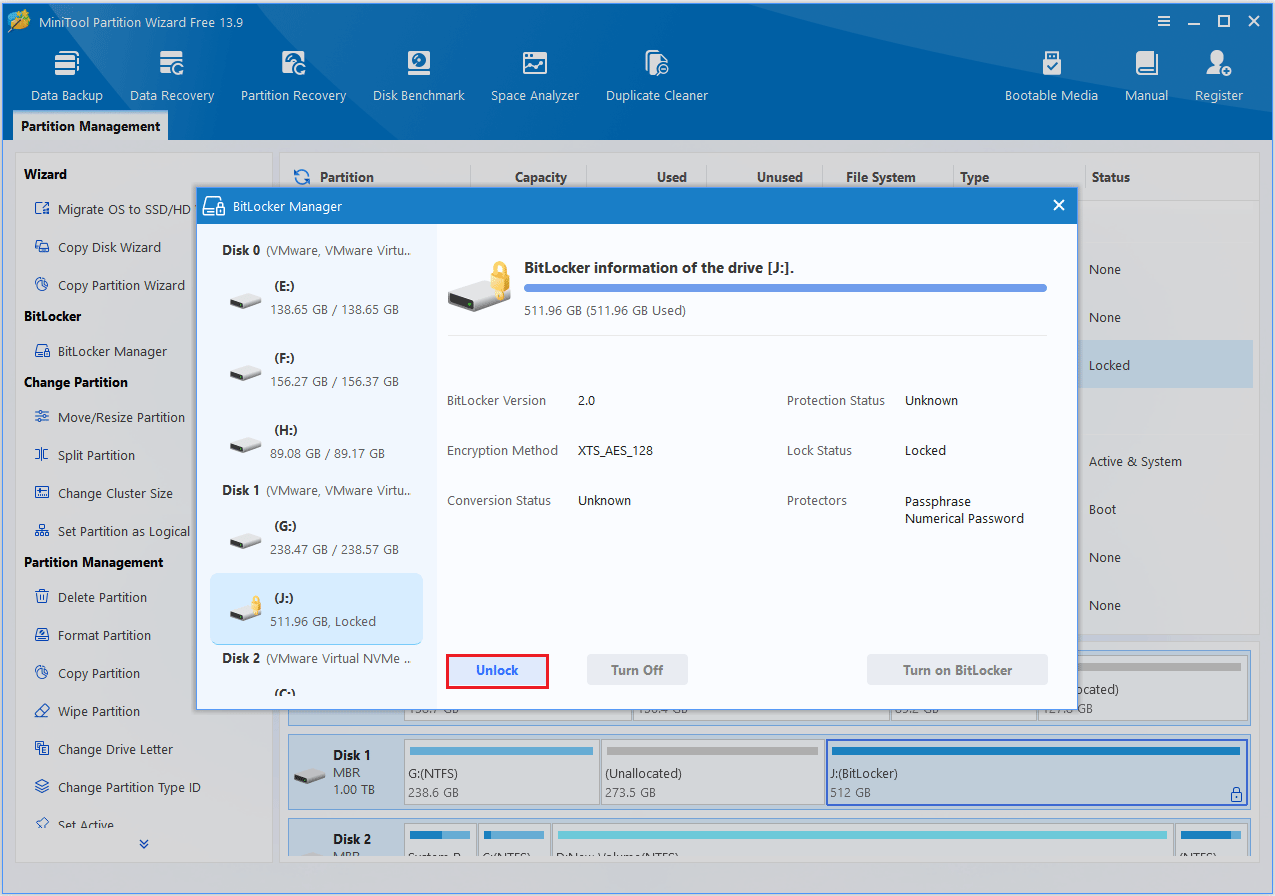
Step 4: In the small pop-up window, enter the password and click Unlock.
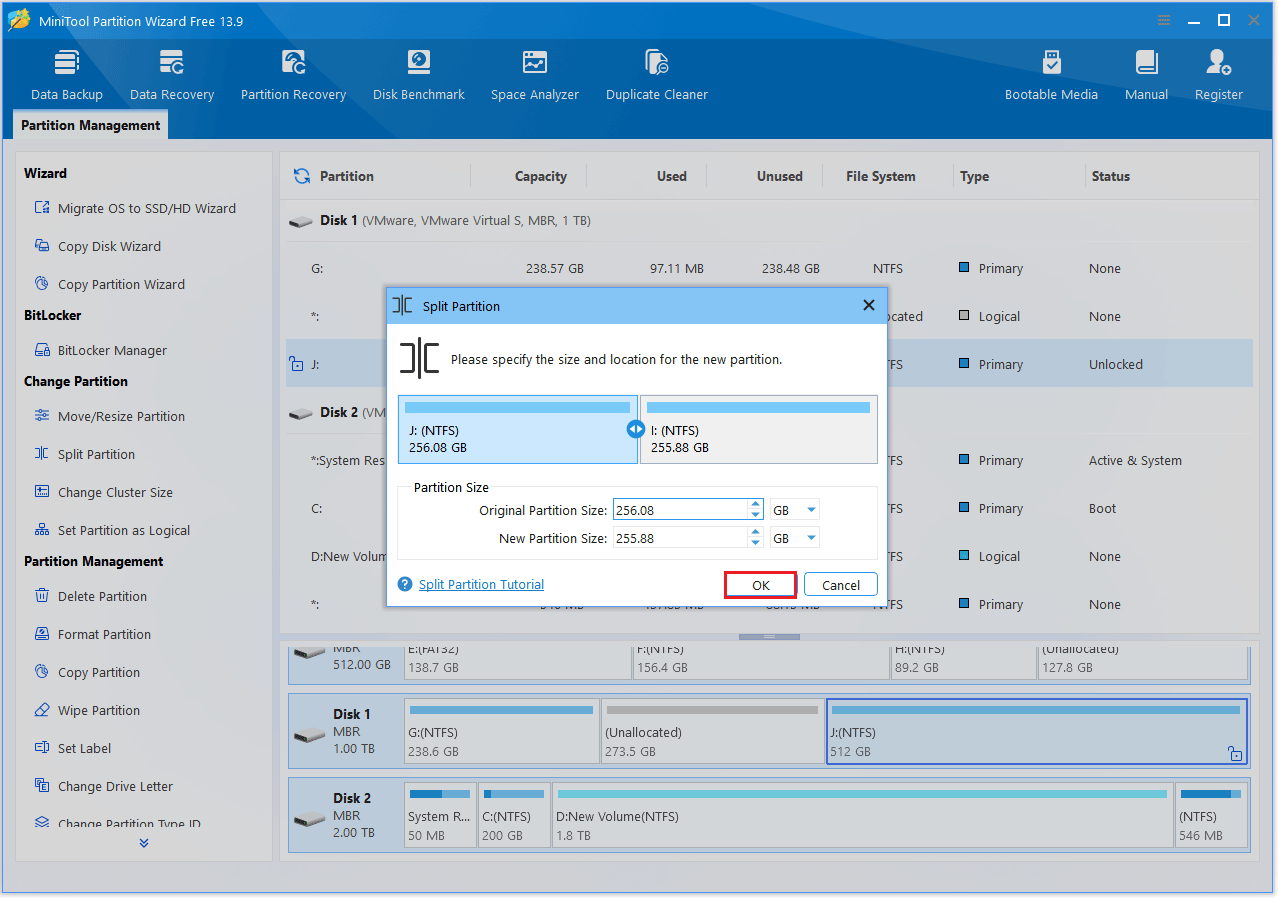
Step 5: Then, select the unlocked partition, and click the Split Partition function on the left.
Step 6: In the Split Partition window, drag the slider to adjust the size of the new partition. You can also enter a specific size manually in the partition size field. Once you are satisfied with the settings, click OK to proceed.
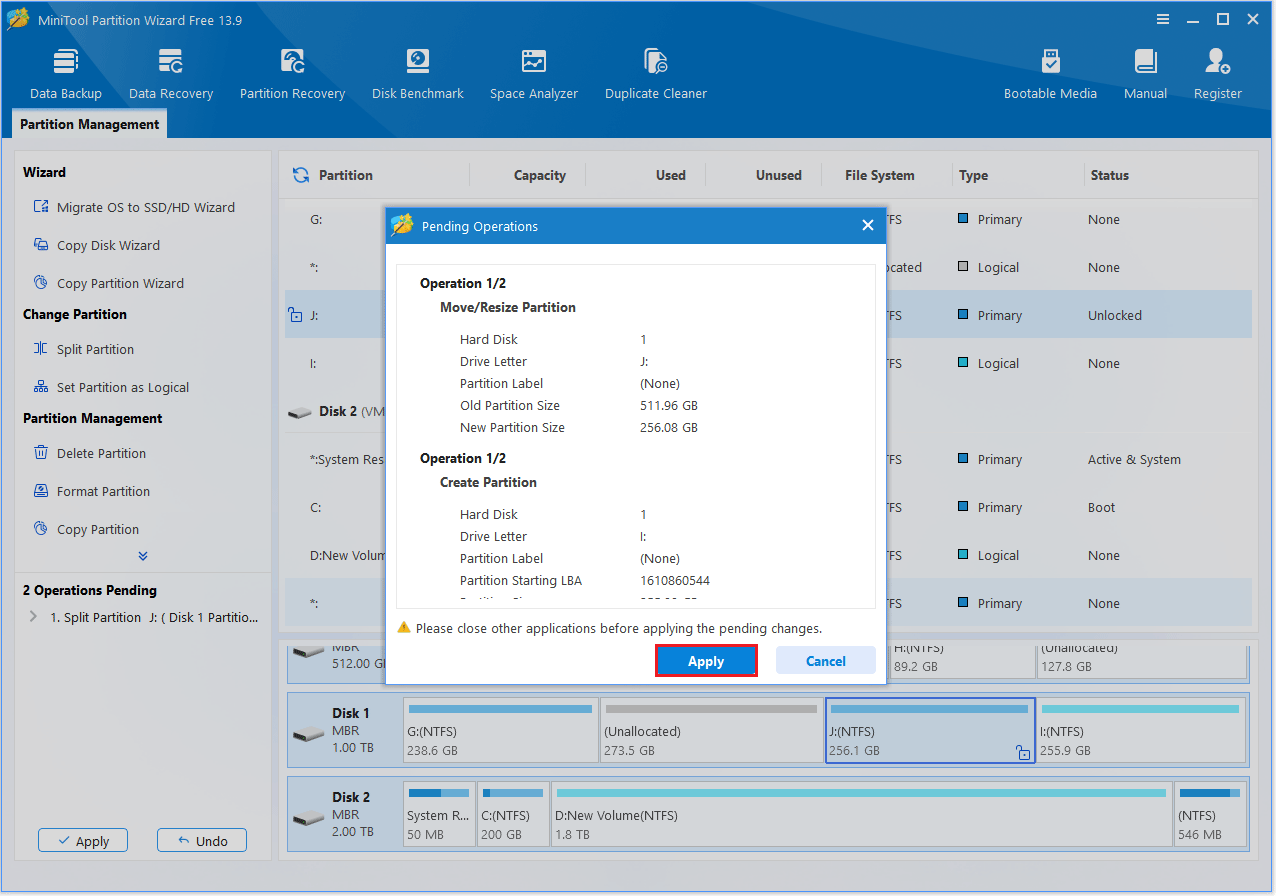
Step 7: You can preview how the original partition will be split into two smaller partitions. If everything looks correct, click Apply to execute the pending changes.
Method 2: Use Windows Built-in Tools
If you prefer not to install third-party software, Windows also provides built-in tools to split a BitLocker encrypted drive.
Here are the full steps:
Step 1: Press the Win + R key to open the Run box, and then type control in it and hit Enter to open the Control Panel.
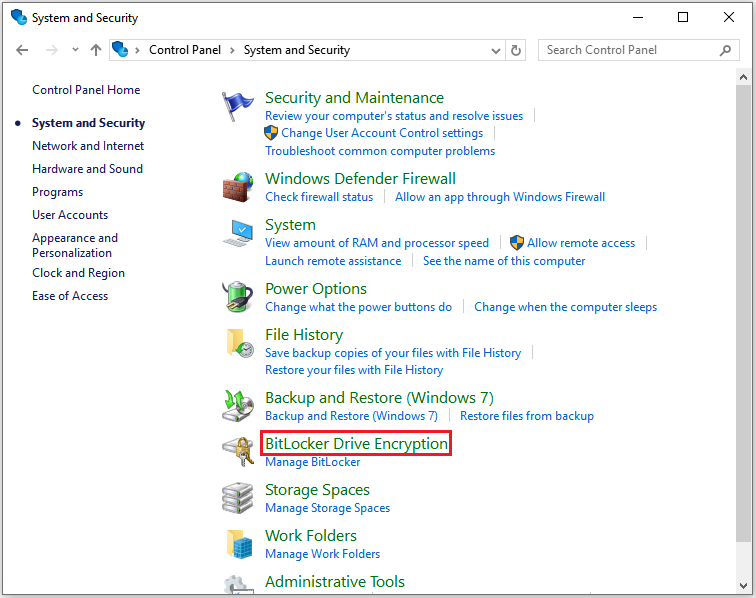
Step 2: Change the View by type to Category and select System and Security > BitLocker Drive Encryption.
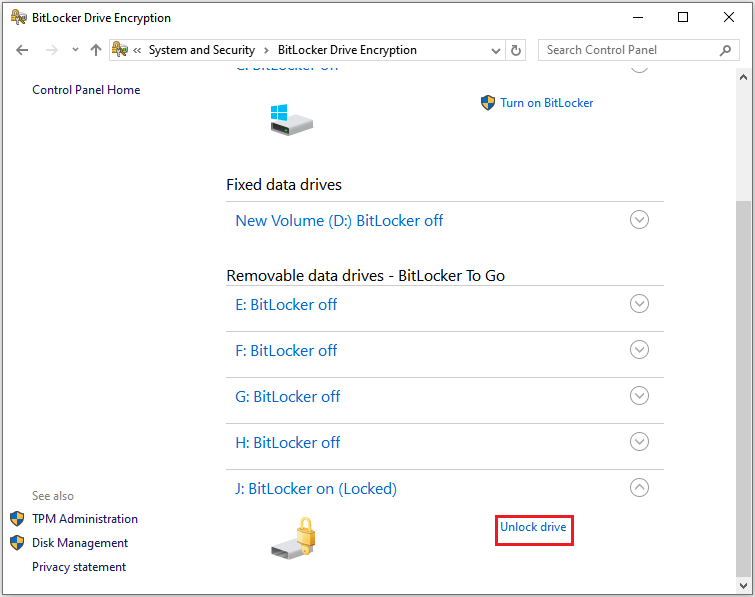
Step 3: Locate the encrypted drive, click on it, and then click Unlock drive. In the new pop-up window, type the password and then click Unlock.
Step 4: Right-click the Start icon and choose Disk Management.
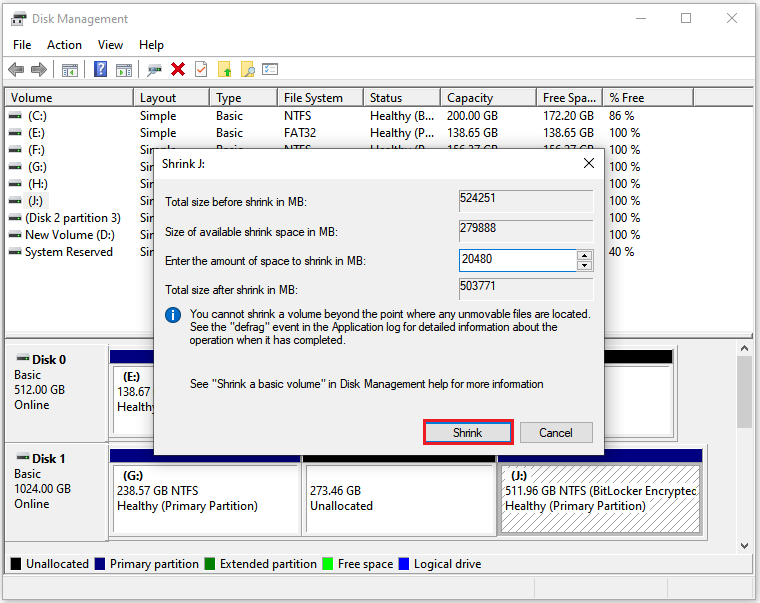
Step 5: Right-click the unlock partition and choose Shrink Volume. You can enter the amount of space to shrink in MB. After that, click the Shrink button to start the shrinking process.
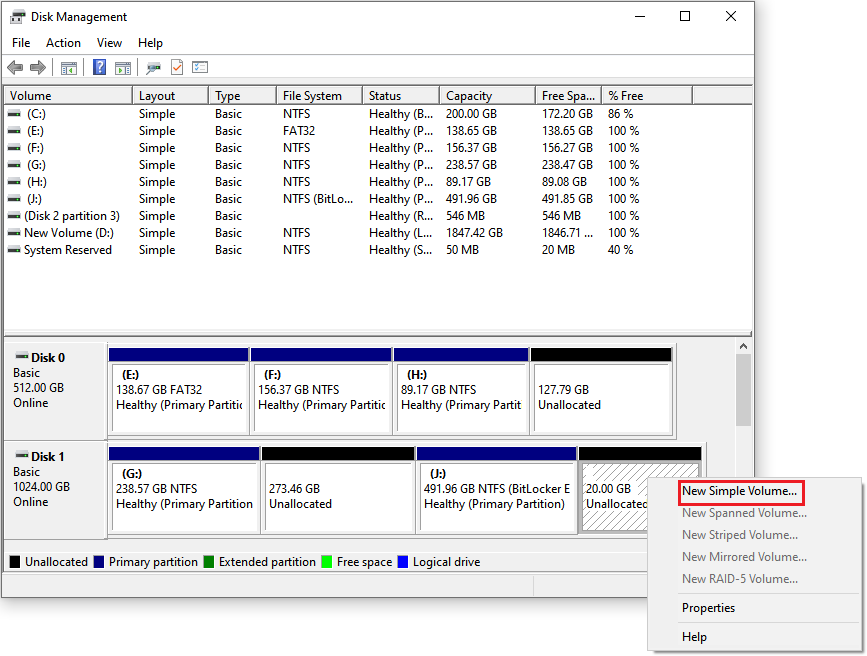
Step 6: Now you will get the Unallocated space. Right-click it and choose New Simple Volume, then follow the on-screen instructions to create the partition.
![Can I Resize BitLocker Partition & How to Do That? [Answered]](https://images.minitool.com/partitionwizard.com/images/uploads/2023/07/can-i-resize-bitlocker-partition-thumbnail.jpg)
Split BitLocker Encrypted Drive FAQ
Bottom Line
Splitting a BitLocker encrypted drive is a simple approach to better manage your disk space. Before splitting the partition, make sure the BitLocker drive is unlocked. You can then use MiniTool Partition Wizard to split the partition.
If you have any questions or feedback about MiniTool Partition Wizard, feel free to contact our support team at [email protected] for additional help.
User Comments :