
This MiniTool Partition Wizard guide compares MBR and GPT in terms of partition numbers, disk capacity, boot mode, and system compatibility. It helps you understand which partition table fits an SSD and offers methods to convert an SSD to MBR or GPT in Windows 11/10.
While initializing a new SSD, it is essential to choose between MBR (Master Boot Record) and GPT (GUID Partition Table).
When choosing MBR or GPT for SSD, it helps to compare their features first.
GPT or MBR for SSD: What’s the Difference
The key differences involve partition numbers, disk capacity, boot mode, data security, and operating system compatibility.
#1. Partition Numbers
In Windows, MBR supports a maximum of 4 primary partitions, or 3 primary partitions plus 1 extended partition (which can be further divided into numerous logical drives).
GPT supports up to 128 primary partitions. Unlike MBR, GPT doesn’t use extended or logical partitions. All partitions are primary partitions.
#2. Disk Capacity
MBR is limited to a maximum disk size of 2TB as it uses 32-bit Logical Block Addressing (LBA) to locate sectors.
GPT doesn’t have such a limit, and it can handle a disk up to 9.4ZB (Zettabytes).
#3. Boot Mode
GPT works with modern UEFI (Unified Extensible Firmware Interface), while MBR works with Legacy BIOS.
#4. Data Security
Compared to MBR, GPT provides significantly superior data security due to its redundant structure (backup header), CRC32 checksums, and protective MBR.
MBR stores partition and data in a 512-byte sector. If corrupted, data may be inaccessible, and the operating system becomes unbootable.
#5. System Compatibility
MBR works with all Windows versions (even older ones), including the 32-bit systems, whereas GPT is required for Windows 11 and supports Windows 10, macOS, and modern Linux.
How to Choose Between MBR and GPT for SSD
Choosing between MBR and GPT for an SSD depends on the drive capacity, system firmware, and system compatibility.
The following are common use cases.
When to Use GPT
For modern computers and SSDs, GPT is the recommended partition table. It is designed to replace the older MBR standard, offering larger capacities, greater flexibility, and better reliability.
Use GPT in the following cases:
- You use an NVMe SSD: NVMe drives are designed to function optimally with UEFI and GPT. Legacy BIOS/MBR lacks native boot support for NVMe drives, making them difficult to use as boot drives.
- An SSD is larger than 2 TB: If you initialize a 3TB SSD to MBR, only 2TB is usable, and the remaining space shows as unallocated. GPT removes the limitation.
- You need to install Windows 11: GPT is a strict, mandatory system requirement for Windows 11 as it relies on Secure Boot and UEFI.
- You need a reliable partition table: GPT stores a primary partition table at the beginning of the disk and a backup copy at the end. If the primary table is corrupted, the system can automatically restore it from the backup.
- Your PC uses UEFI firmware: GPT works natively with UEFI, offering faster boot times, enhanced security (like the Secure Boot feature), and better support for modern hardware.
When to Use MBR
In a few specific scenarios, choose MBR for an SSD.
- You use a very old computer: If the PC uses Legacy BIOS rather than modern UEFI firmware, MBR should be used to make the drive bootable.
- You want to install an older operating system: If you install Windows 7, Windows XP, or older Linux distributions, an MBR disk is required.
How to Check if an SSD is GPT or MBR
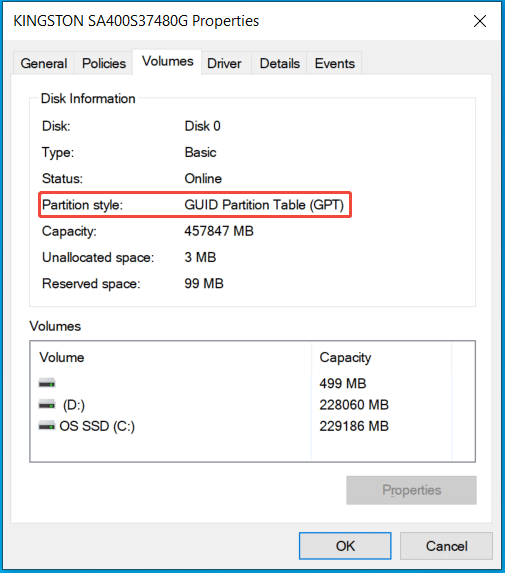
To check whether your SSD uses MBR or GPT, run Disk Management.
Follow these steps:
Step 1: Press Win + X and choose Disk Management in Windows 11/10.
Step 2: Right-click on the SSD and select Properties.
Step 3: Head to the Volumes tab and check Partition style.
How to Convert an SSD to MBR or GPT
Sometimes, it is necessary to convert your SSD to MBR or GPT to match the system firmware or overcome storage capacity limitations.
For example, convert MBR to GPT if using larger than 2TB drives or creating more than 4 primary partitions, or convert GPT to MBR for older computers.
The following are 3 approaches to make the conversion.
Option 1: Use MiniTool Partition Wizard
MiniTool Partition Wizard is a free partition manager that helps effectively manage disks and partitions, such as converting a disk between MBR and GPT without data loss.
MiniTool Partition Wizard FreeClick to Download100%Clean & Safe
Step 1: Launch MiniTool Partition Wizard to access its main interface.
Step 2: Right-click on the SSD and choose Convert GPT Disk to MBR Disk or Convert MBR Disk to GPT Disk.
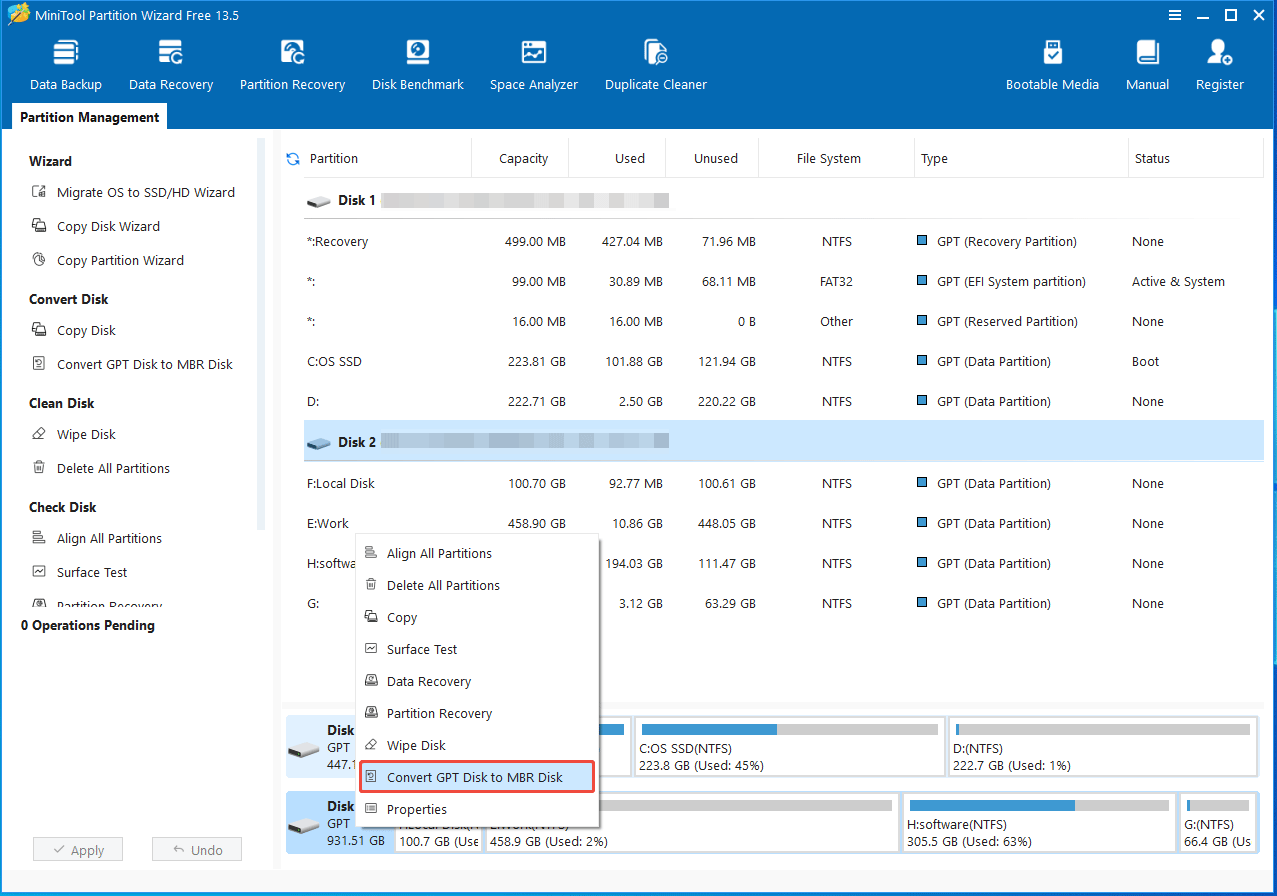
Step 3: Click Apply to put the change into effect.
Option 2: Run Disk Management
Alternatively, Disk Management can help convert a disk between MBR and GPT. However, this method requires you to delete all volumes from an SSD, resulting in data loss.
MiniTool ShadowMaker TrialClick to Download100%Clean & Safe
Follow the instructions:
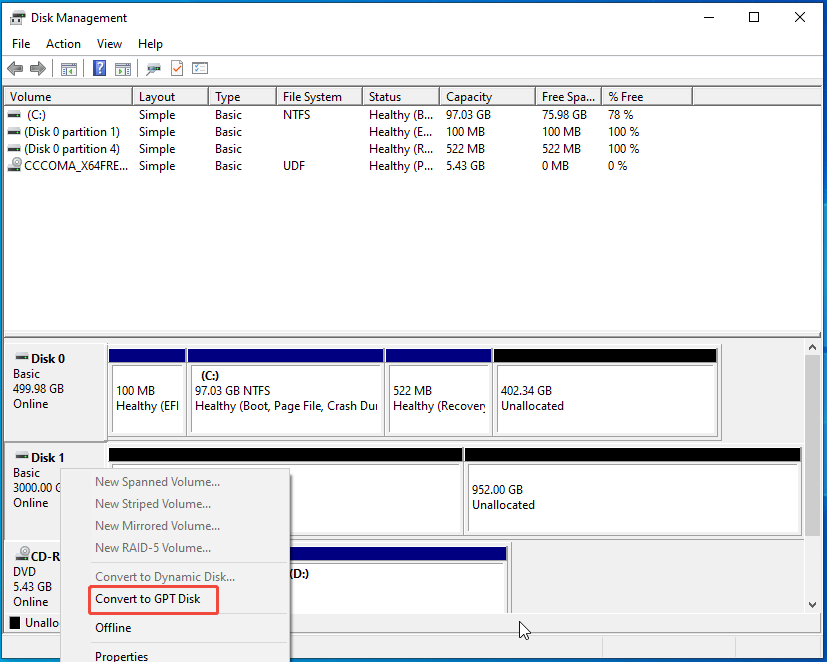
Step 1: Open Disk Management via the Win + X menu.
Step 2: Right-click the partition on the SSD and choose Delete Volume. Repeat this step to delete all partitions.
Step 3: Locate the SSD, right-click on it, and select Convert to GPT Disk or Convert to MBR Disk.
Option 3: Execute Diskpart Command
Diskpart is a command-line tool that can manage disks and partitions with ease. To convert an SSD to MBR or GPT, deleting all volumes is required.
Follow these steps:
Step 1: Run Command Prompt with admin rights.
Step 2: Type diskpart and press Enter to open the Diskpart utility.
Step 3: Run the following commands one by one:
list disk
select disk n (n refers to the disk number)
clean
convert GPT or convert MBR
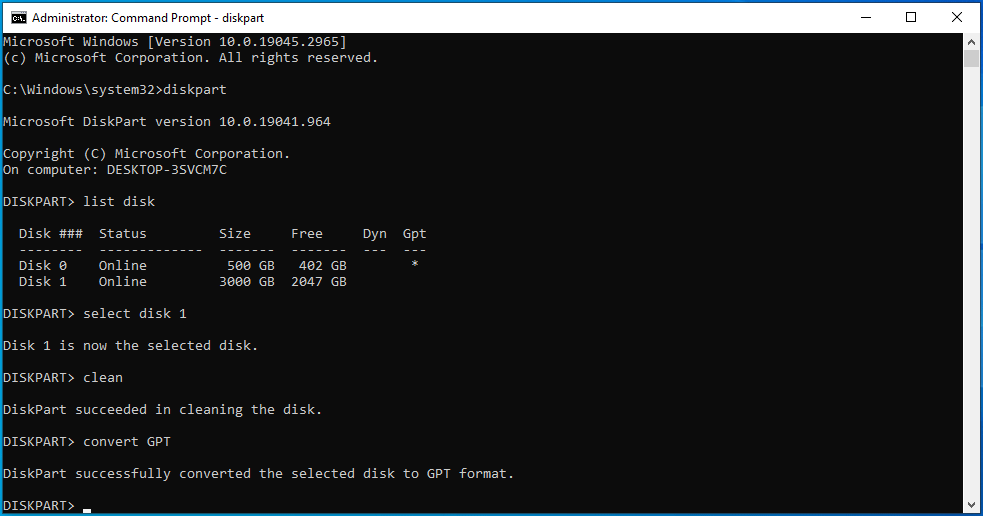
Now, the SSD is converted to GPT or MBR.
Bottom Line
From this guide on MBR or GPT for SSD, you can learn what the difference between MBR and GPT is and when to use them.
If necessary, use MiniTool Partition Wizard, Disk Management, or Diskpart to convert the SSD to GPT or MBR.
When encountering issues with MiniTool software, contact us at [email protected].
MBR or GPT for SSD FAQ
However, when paired with UEFI, GPT is generally faster at booting.
About The Author

Position: Columnist
Vera has been working at the MiniTool Team for over 10 years as a technical editor and content writer. She mainly focuses on disk and partition management, data recovery, Windows backup and restore, and PC troubleshooting. Through in-depth software testing and hands-on experience, she has helped users solve a wide range of computer problems and better protect their data on Windows devices.
User Comments :