
Windows cannot be installed to this hard disk space due to an improper partition selection. Don’t worry. This post offers 5 methods to help you fix the issue quickly: choosing another partition, deleting the partition, cleaning the disk, turning off BitLocker encryption, and converting dynamic disk to basic using MiniTool Partition Wizard.
When you clean install Windows from a USB drive, you may encounter the “Windows cannot be installed to this hard disk space” error, preventing you from installing Windows onto the partition you choose.
This error is usually followed by its causes, such as:
- Windows must be installed to a partition formatted as NTFS.
- The partition is of an unrecognized type.
- The partition was reserved by the computer’s Original Equipment Manufacturer (OEM).
- The partition is a Microsoft Recovery partition.
- The partition is an EFI system partition (ESP).
- The partition is a Microsoft Reserved (MSR) partition.
- The partition contains one or more dynamic volumes that are not supported for installation.
- BitLocker Drive Encryption is enabled on the selected partition. Suspend (also referred to as disable) BitLocker in the Control Panel, and then restart the installation.
When you encounter the above errors, try the following fixes.
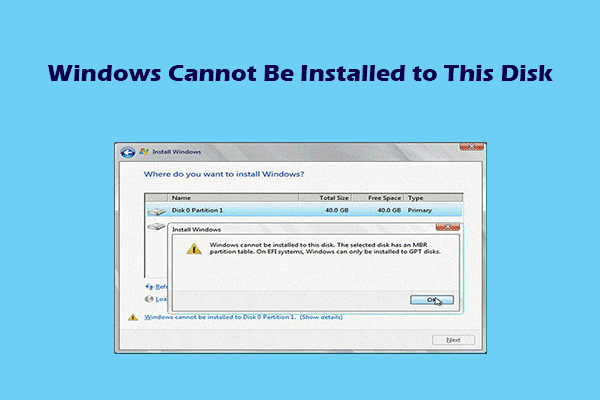
Fix 1. Choose Another Partition for Installation
The root cause of the “Windows cannot be installed to this hard disk space” error is that you have chosen an improper partition to install Windows. If there’s no compelling reason to choose this partition, you can try installing Windows on a different partition.
Fix 2. Delete the Partition
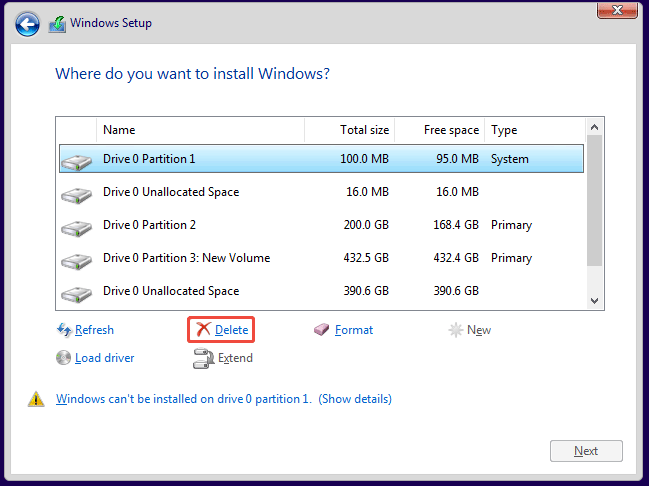
If you encounter the Windows installation issue because the selected partition is an OEM partition, a Recovery partition, an ESP partition, an MSR partition, a BitLocker encrypted partition, a non-NTFS partition, or uses unrecognized type, try deleting this partition directly.
During the Windows installation, select the partition and then click the Delete button. The partition will be removed immediately. Then, select the Unallocated Space to install Windows.
Fix 3. DiskPart Clean the Disk
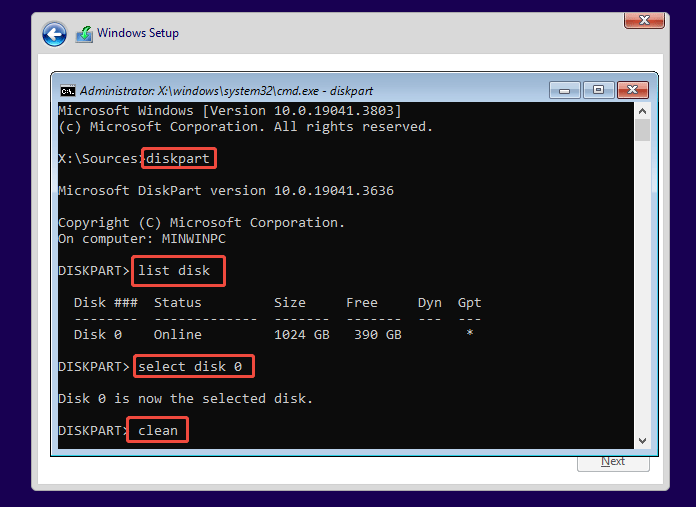
This method can solve the “Windows cannot be installed to this hard disk space” error, almost regardless of whatever causes. The only downside is that all data on the entire disk will be deleted. Here is the guide:
- During the Windows installation, press Shift + F10 to open Command Prompt.
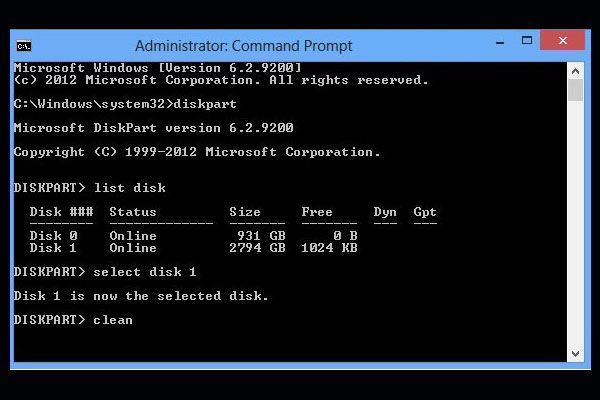
- Type “diskpart” and press Enter.
- Type “list disk” and press Enter.
- Type “select disk *” and press Enter. * is the number of the disk where Windows is to be installed.
- Type “clean” and press Enter.
- Close Command Prompt and go back to the Windows installation interface. You will see that all the partitions have been deleted, becoming unallocated space.
- Select the unallocated space to install Windows installation.
Fix 4. Turn off BitLocker
If the Windows cannot be installed to this hard disk space because BitLocker Drive Encryption is enabled on the selected partition, another solution is to suspend (also referred to as disable) BitLocker, and then restart the installation.
Here is how to turn off BitLocker in Windows.
MiniTool Partition Wizard FreeClick to Download100%Clean & Safe
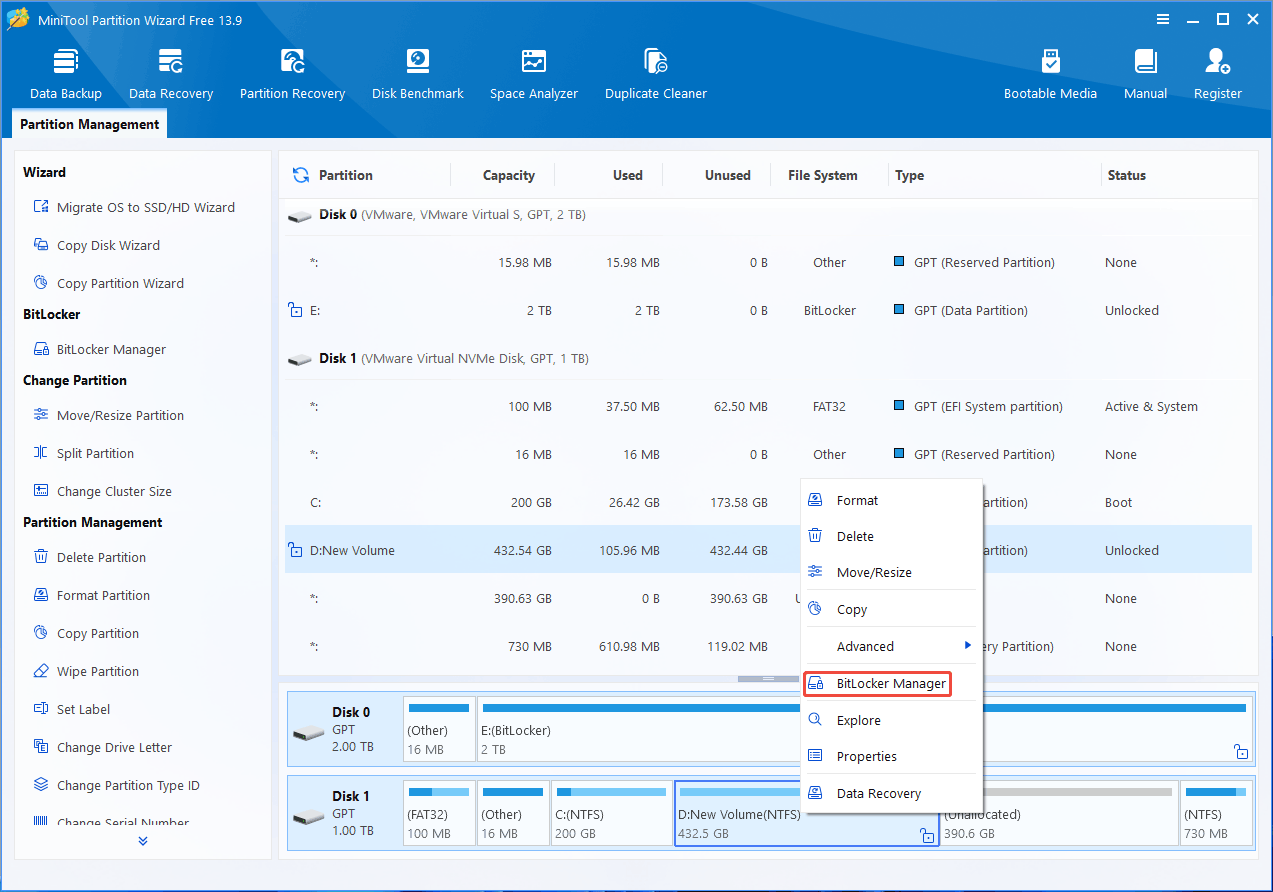
Step 1: Launch MiniTool Partition Wizard. Right-click the BitLocker partition and choose BitLocker Manager.
Step 2: In the pop-up window, click the Turn Off button. Click Yes to confirm the operation.
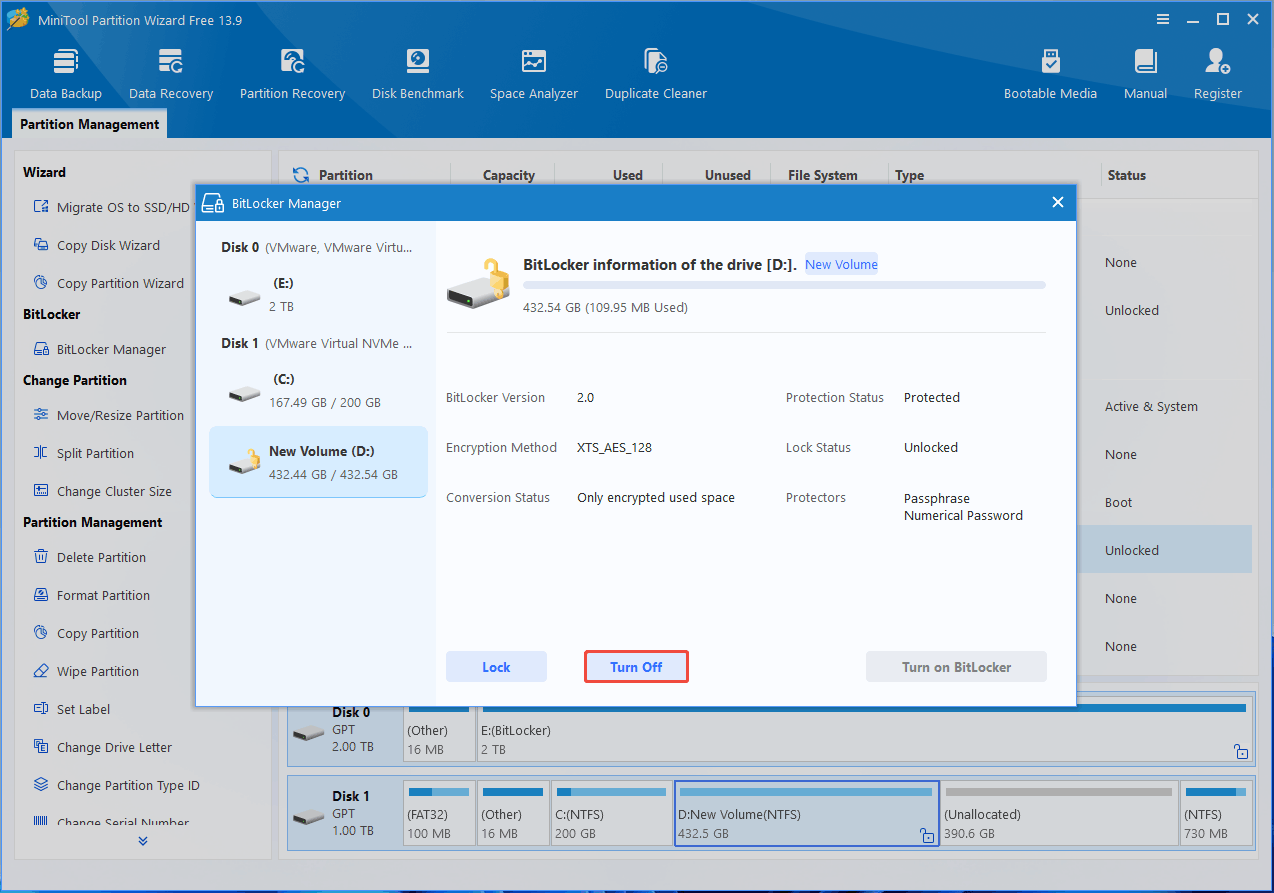
Once the drive is BitLocker off, you can then reinstall Windows.
Fix 5. Convert Dynamic Disk to Basic
You may reinstall Windows after converting the system disk to a dynamic disk. In this case, if you select a partition other than the C: drive to install the system, you will get the “The partition contains one or more dynamic volumes that are not supported for installation” error.
The DiskPart clean command can solve the issue by deleting all partitions and converting the disk to a basic one.
However, if you want to keep the partitions and data, use MiniTool Partition Wizard to convert the dynamic disk to basic. Here is the guide.
MiniTool Partition Wizard DemoClick to Download100%Clean & Safe
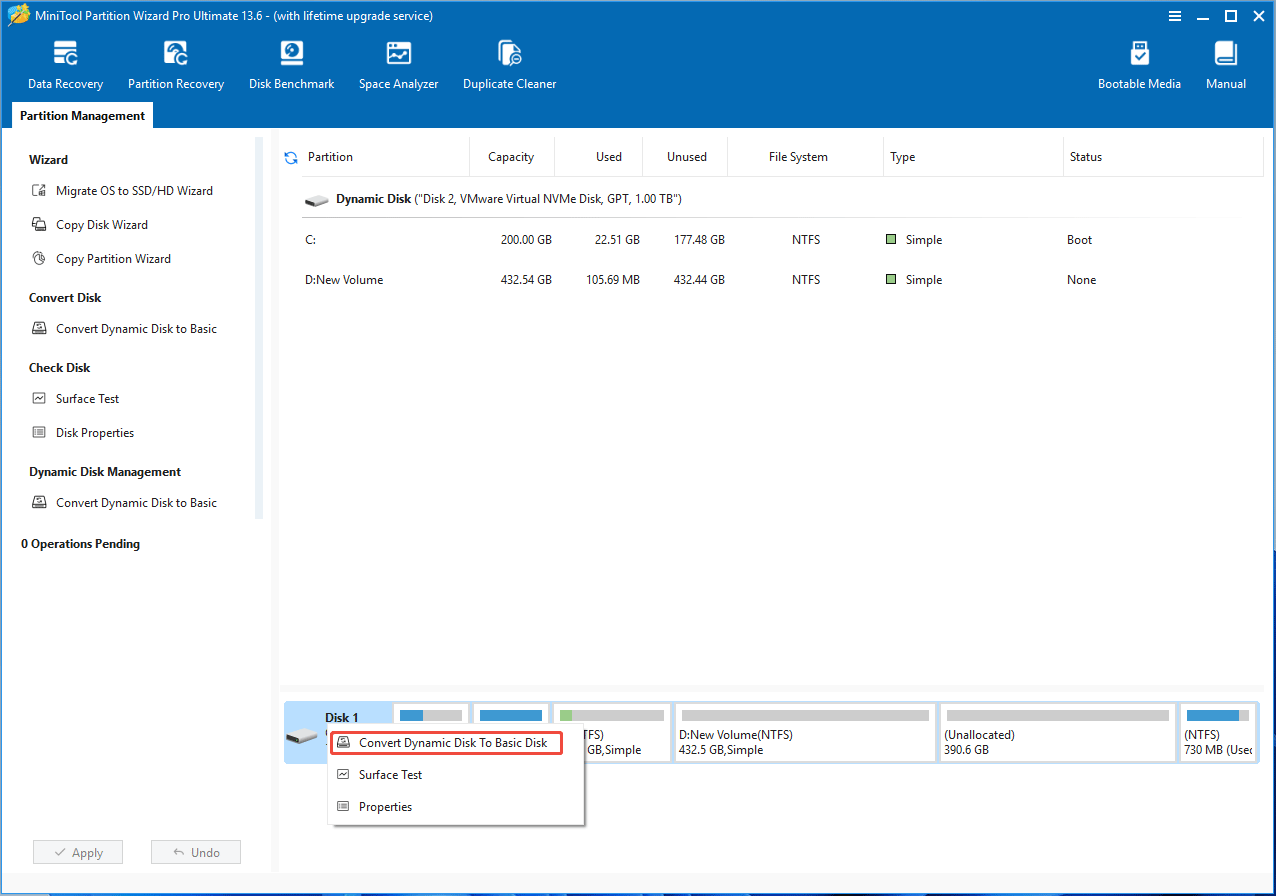
Step 1: Install and launch MiniTool Partition Wizard. In the main interface, right-click the dynamic disk and choose Convert Dynamic Disk to Basic Disk.
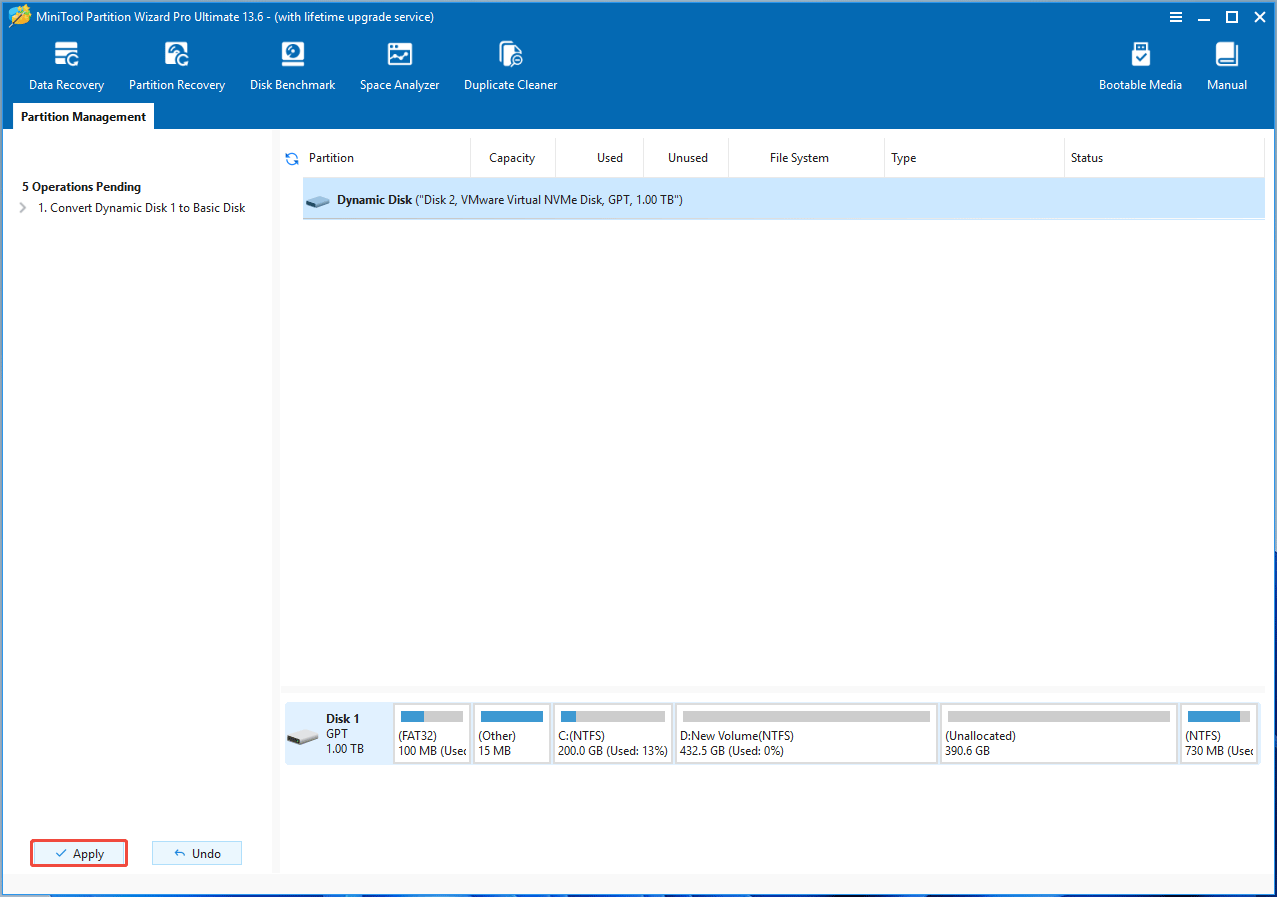
Step 2: Click Apply to execute this operation. Click Yes to confirm the apply operation. Click Restart Now when the Notice window pops up. Then, wait for the conversion to be completed. After that, install Windows again to see if the issue has been solved.

Bottom Line
In most cases, the “Windows cannot be installed to this hard disk space” error is because the selected partition is not a basic NTFS data partition.
This post offers 5 quick solutions, including the partition selection switch, partition deletion, DiskPart clean, BitLocker encryption shutdown, and the dynamic disk to basic disk conversion. The latter requires MiniTool Partition Wizard. If you encounter issues when using this software, send an email to [email protected] for assistance.
About The Author

Position: Columnist
Linda has been an editor at MiniTool for seven years. She continuously learns about computers and puts her knowledge into practice. Moreover, she is particularly knowledgeable in disk management, data recovery, system installation, and PDF editing. Her articles typically reference multiple examples or are based on her own experience, providing users with the most suitable solutions.
User Comments :