
BitLocker is a built-in Windows encryption feature that protects your data from unauthorized access.
However, if the encrypted drive becomes corrupted, inaccessible, or starts showing file system errors, you may wonder whether it can still be repaired without losing your files.
Fortunately, this post provides 2 methods to repair a BitLocker encrypted drive.
Can You Repair a BitLocker Encrypted Drive?
Yes, a BitLocker encrypted drive can be repaired with the following tools:
- MiniTool Partition Wizard: With the graphical interface, this tool can repair BitLocker encrypted drive by unlocking the drive and then checking the file system errors. It is ideal for beginners.
- Command Prompt: With the text-based interface, this tool can repair BitLocker encrypted drive by using the repair-bde command. It is ideal for advanced users.
A BitLocker-encrypted drive is normally in a locked state. When it is “locked,” the data is completely unreadable. Once unlocked, you can access the files and folders as normal.
So, to repair a BitLocker encrypted drive, you need to unlock the drive and then repair it.
Now, follow the steps below to repair it.
Method 1. Repair BitLocker Encrypted Drive via MiniTool Partition Wizard
MiniTool Partition Wizard is a feature-rich program that can help you repair BitLocker encrypted drive.
Its new feature, called BitLocker Manager, can help you unlock the encrypted drive, and the Check File System feature can help you check file system errors.
In addition, this software is a free partition manager that helps you to manage disks/partitions with a few clicks.
Now, let’s know how to repair BitLocker encrypted drive using MiniTool Partition Wizard.
MiniTool Partition Wizard DemoClick to Download100%Clean & Safe
Stage 1. Unlock the BitLocker Encrypted Drive
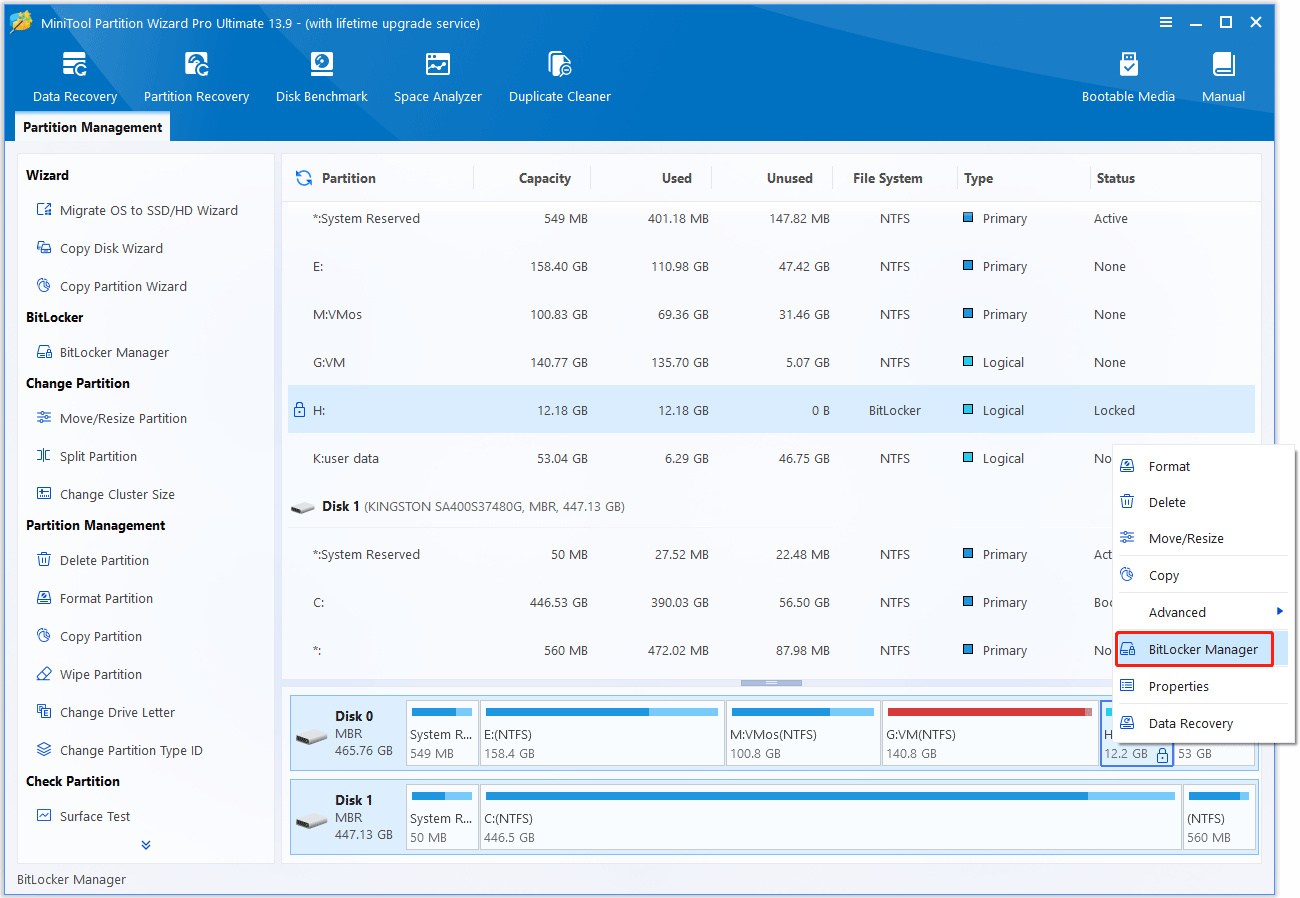
Step 1. Launch MiniTool Partition Wizard to enter its main interface. Right-click the BitLocker encrypted drive and select BitLocker Manager.
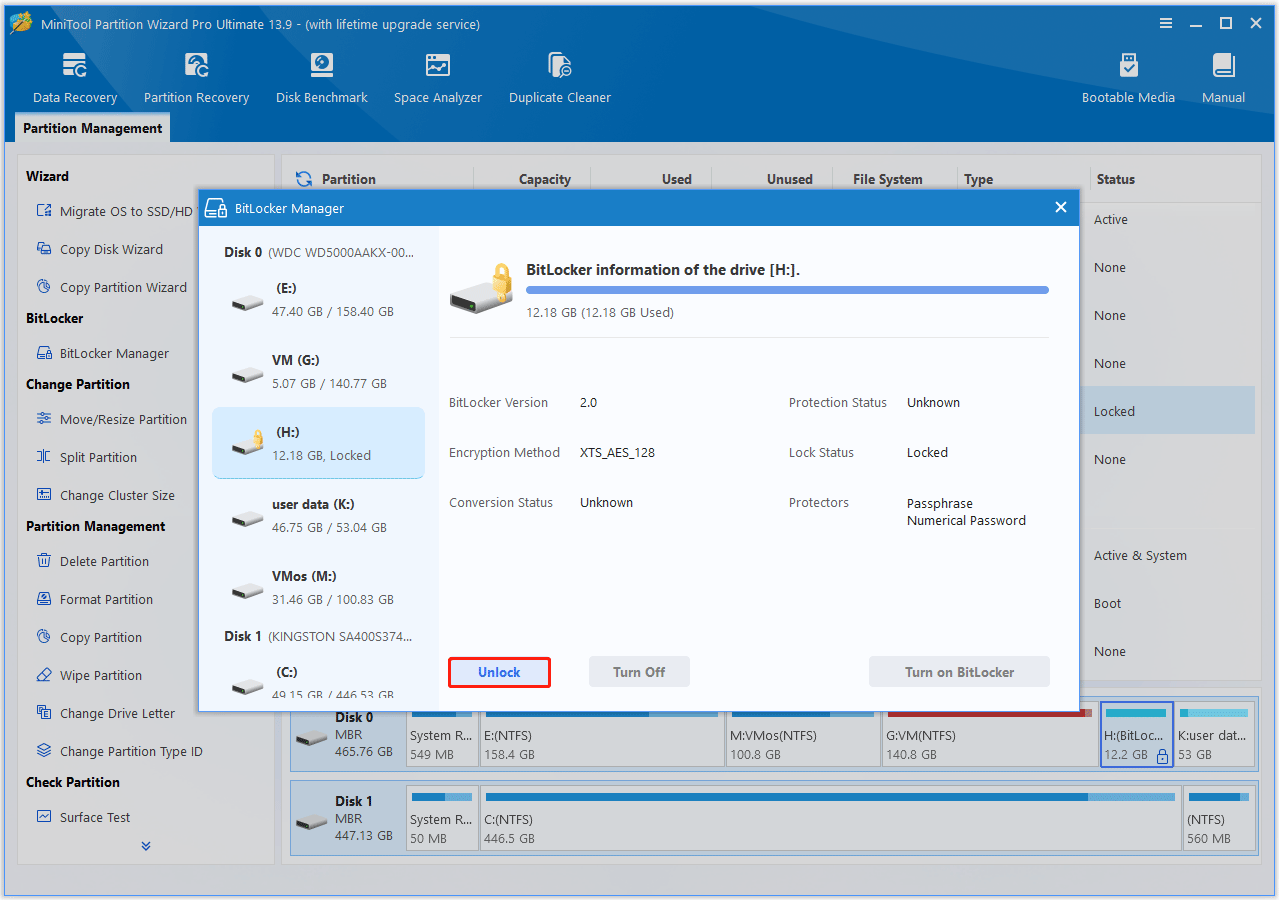
Step 2. Click the Unlock button in the pop-up window.
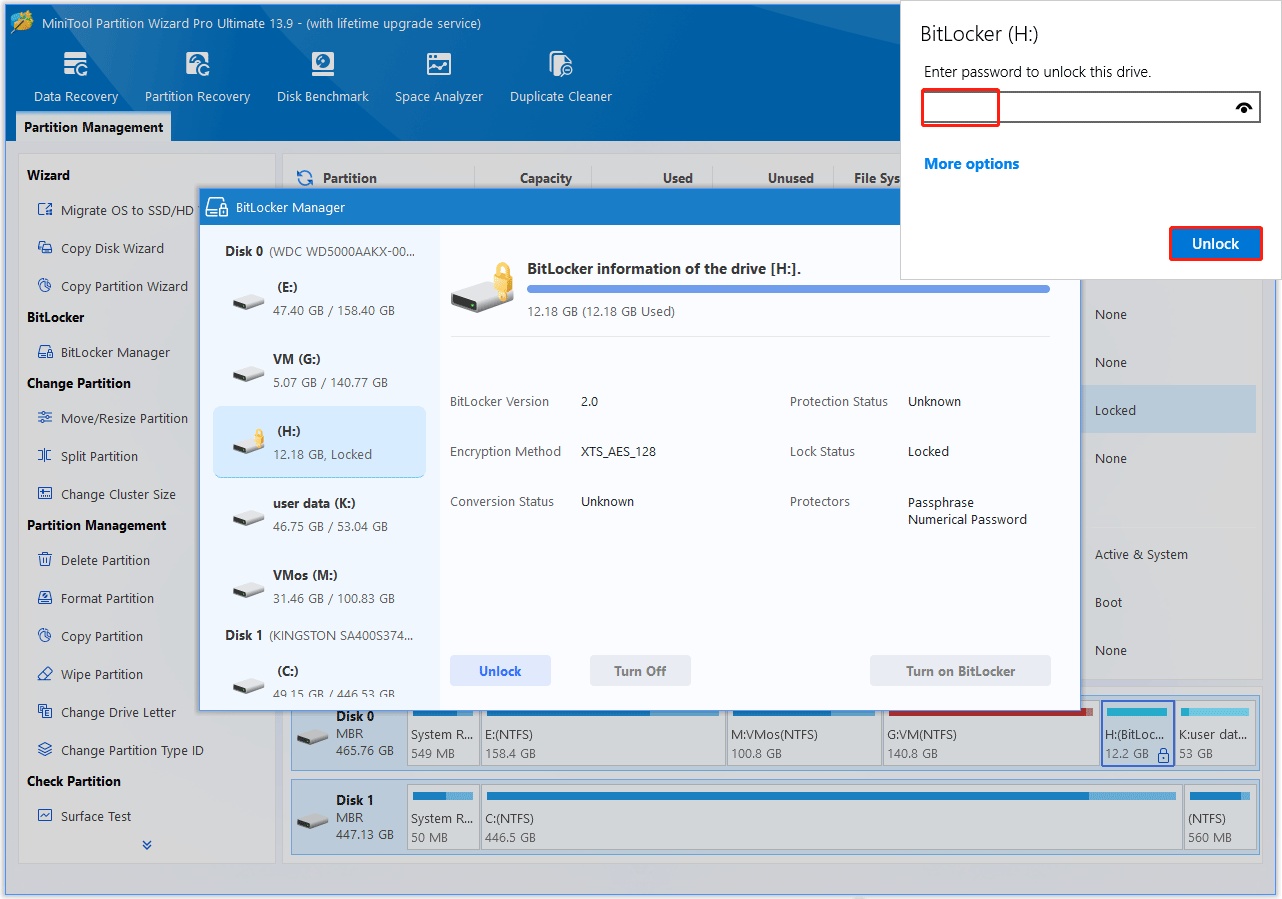
Step 3. In the small pop-up window, enter the password and click Unlock. Then, press the refresh button, and the lock icon will change to an unlocked state.
Stage 2. Check File System Errors for the Drive
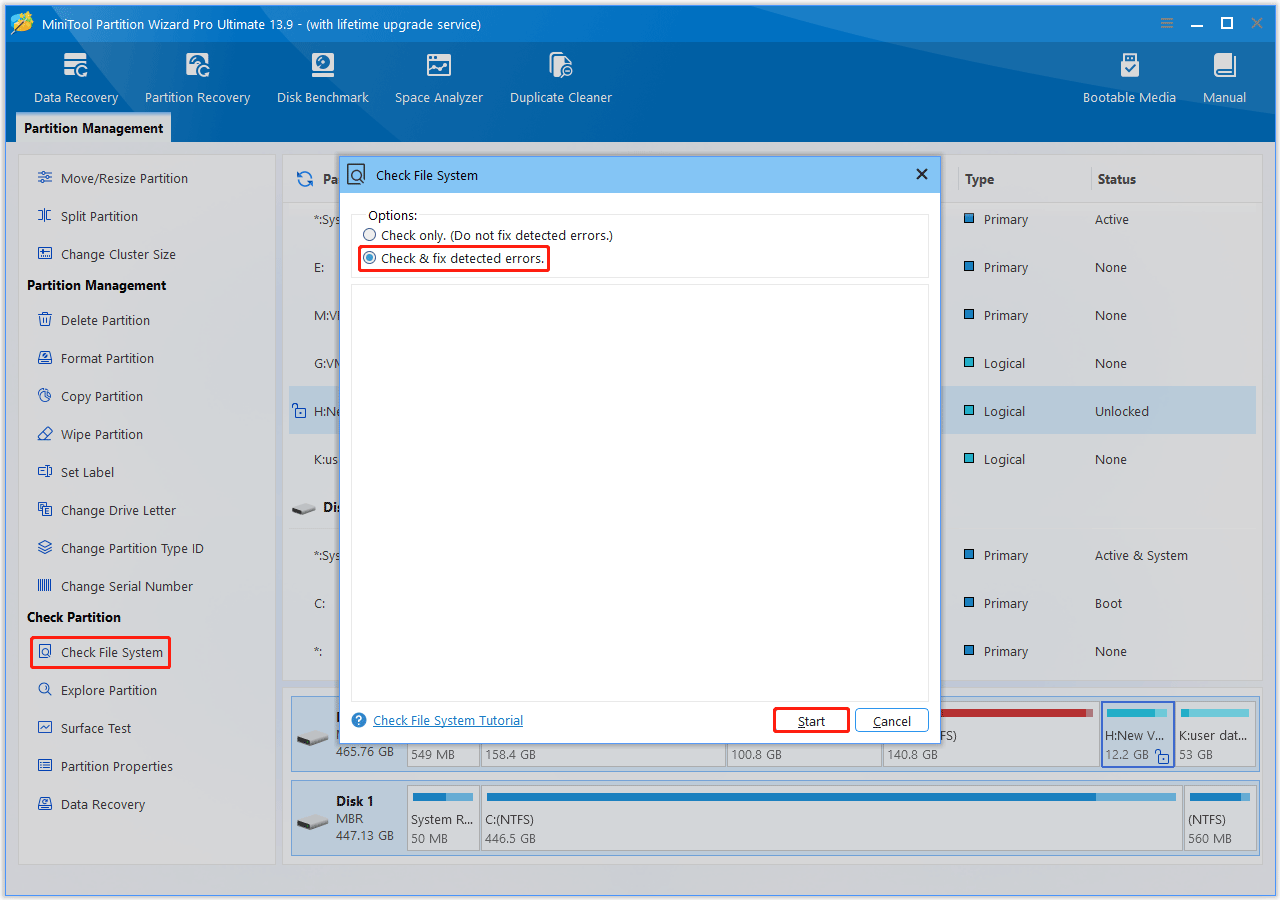
- In the main interface, highlight the target partition and choose Check File System from the left action panel.
- In the pop-up window, choose Check & fix detected errors to scan the drive and fix any file system errors found. Then click Start.
Method 2. Repair BitLocker Encrypted Drive via Command Prompt
To repair a corrupted BitLocker drive using the Command Prompt, you need to use the built-in repair-bde utility. This tool does not fix the broken drive in-place. Instead, it decrypts the damaged drive and extracts your files onto a separate, empty target drive of equal or larger size.
Here is the guide:
Step 1. Gather your tools and keys.
- A healthy destination drive: Must have an equal or larger storage capacity than your corrupted drive. Note that any data currently on this drive will be completely erased during the repair.
- BitLocker Recovery Key: The 48-digit numerical password. If you don’t have it on hand, check your Microsoft Account Recovery Key Page or any USB drives where you saved it.
Step 2. Run the BitLocker repair tool.
- Click the Start menu, type cmd, right-click Command Prompt, and select Run as Administrator.
- Identify the drive letters assigned to both your corrupted drive (e.g., D:) and your empty destination drive (e.g., E:).
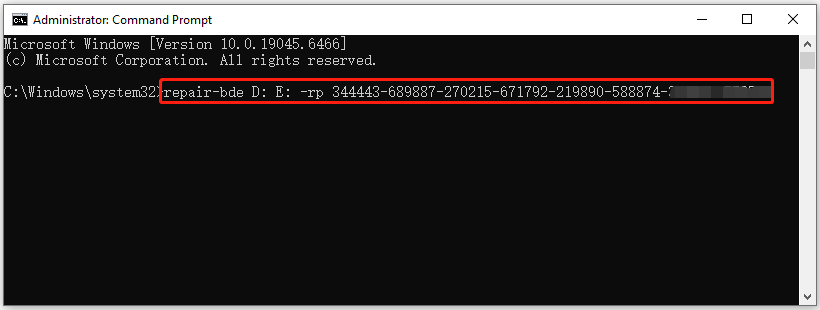
- Type the following command (substituting the correct drive letters and your 48-digit recovery password): repair-bde D: E: -RecoveryPassword YOUR-48-DIGIT-RECOVERY-KEY
- Press Enter. The tool will start scanning the sectors and decrypting the readable data to your destination drive. Wait patiently for it to reach 100%.
Step 3. Check for file system errors.
After the decryption process finishes, your recovered files might have minor indexing errors.
- Stay in the elevated Command Prompt and run a check on the destination drive: chkdsk E: /f
- Once the scan is complete, open the destination drive (e.g., E:) in File Explorer to access your recovered files.
How to repair BitLocker encrypted drive? This post offers 2 methods to repair it.Click to Tweet
Repair BitLocker Encrypted Drive FAQ
Other common triggers include physical bad sectors on the drive, malware infections, and critical file system errors in the underlying partition table.
This prompt means Windows cannot read the partition’s file system, usually because BitLocker’s metadata or headers are corrupted. Formatting will create a blank file system, which destroys the encryption markers and makes data recovery significantly harder.
Bottom Line
A damaged BitLocker encrypted drive doesn’t necessarily mean your data is lost. In many cases, you can unlock the drive and repair file system errors using MiniTool Partition Wizard.
If the BitLocker metadata is corrupted, Repair-bde may help recover the encrypted data to another drive.
For any questions or suggestions about MiniTool Partition Wizard, contact us via [email protected]. We’ll reply as soon as possible.
User Comments :