
Duplicate PowerPoint files can clutter storage and disrupt organization. This guide explains how to find and remove duplicate PowerPoint files from PC using MiniTool Partition Wizard or Windows File Explorer, helping you safely delete unnecessary copies without losing important presentations.
What Are Duplicate PowerPoint Files and Why Remove Them
Duplicate PowerPoint files, such as those with names like “(1)” or “- Copy,” are presentations saved multiple times. They often result from versioning, backups, or safety copies. Over time, these duplicates can waste disk space, slow searches and backups, and create version confusion.
Why should you delete duplicate PowerPoint files from PC? Here are some advantages:
- Free up storage space: PowerPoint files can be large, especially those containing high-resolution images and embedded media. Deleting duplicates directly frees up disk space.
- Speed up file searching and backups: Fewer unnecessary files mean less data to index, search, and back up, so these tasks can finish faster.
- Boost productivity: A cleaner file structure helps you find the right version quickly and avoids confusion between similar filenames.
Quick Comparison: MiniTool Partition Wizard vs. File Explorer
Before you start, here is a quick comparison of the two tools:
| Feature | MiniTool Partition Wizard | File Explorer |
| Method | MD5/SHA-1 content hashing | Manual visual sorting |
| Ease of Use | Automatic | Manual |
| Accuracy | High | Moderate |
| Speed | Fast | Slow |
| Cost | Free | Free |
| Best for | Many PPT files across drives or folders | A few files in one folder |
Method 1. Remove Duplicate PowerPoint Files Using MiniTool Partition Wizard
MiniTool Partition Wizard is a practical choice for removing duplicate PowerPoint files in bulk. Its built-in Duplicate Cleaner feature compares file content with hash algorithms (MD5/SHA-1) instead of file names, so it can find duplicate PPT and PPTX files even when they are named differently.
Now, let’s see how to find and remove duplicate PowerPoint files from PC using MiniTool Partition Wizard.
MiniTool Partition Wizard FreeClick to Download100%Clean & Safe
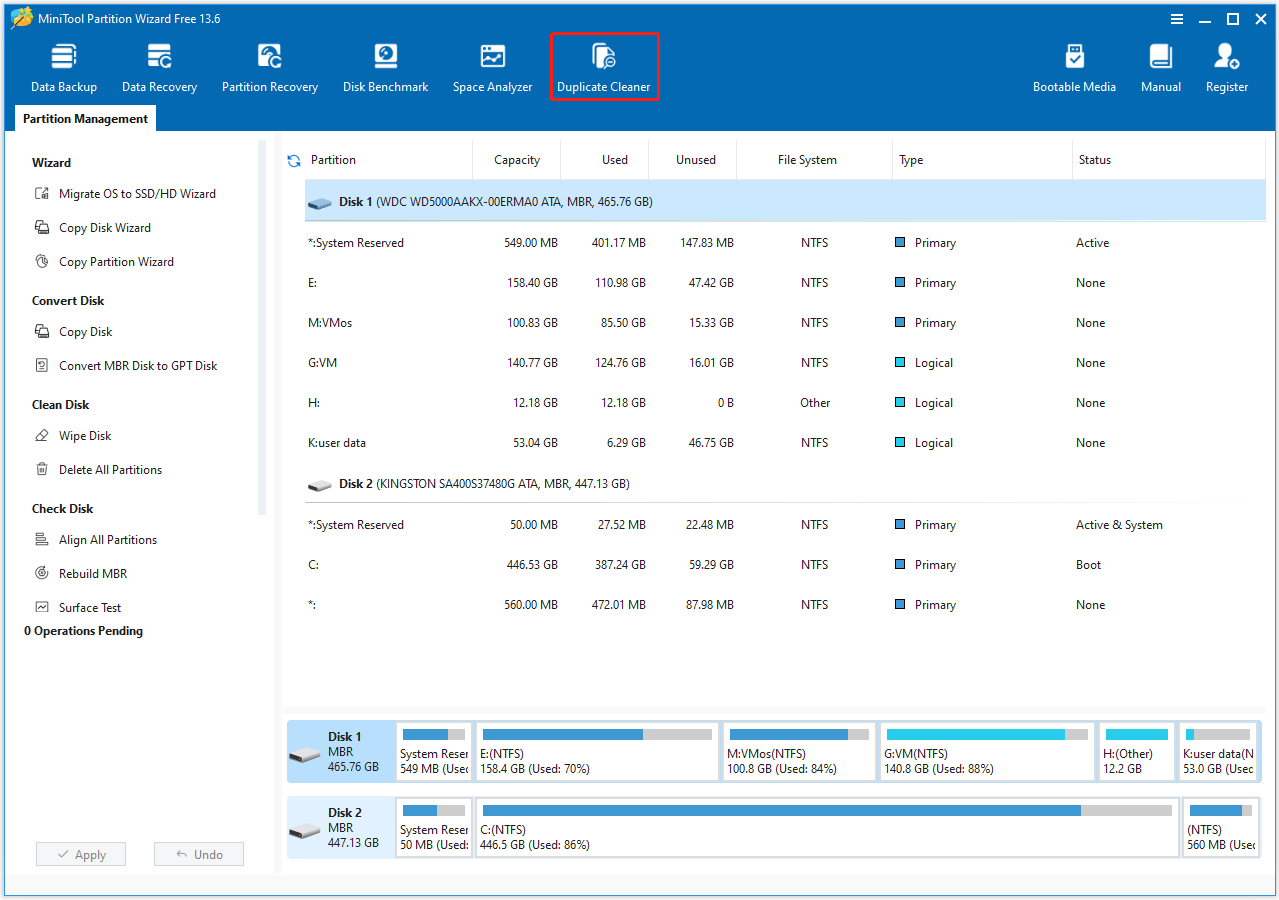
Step 1. Launch this free duplicate file cleaner to enter its main interface. Then click Duplicate Cleaner on the top toolbar.
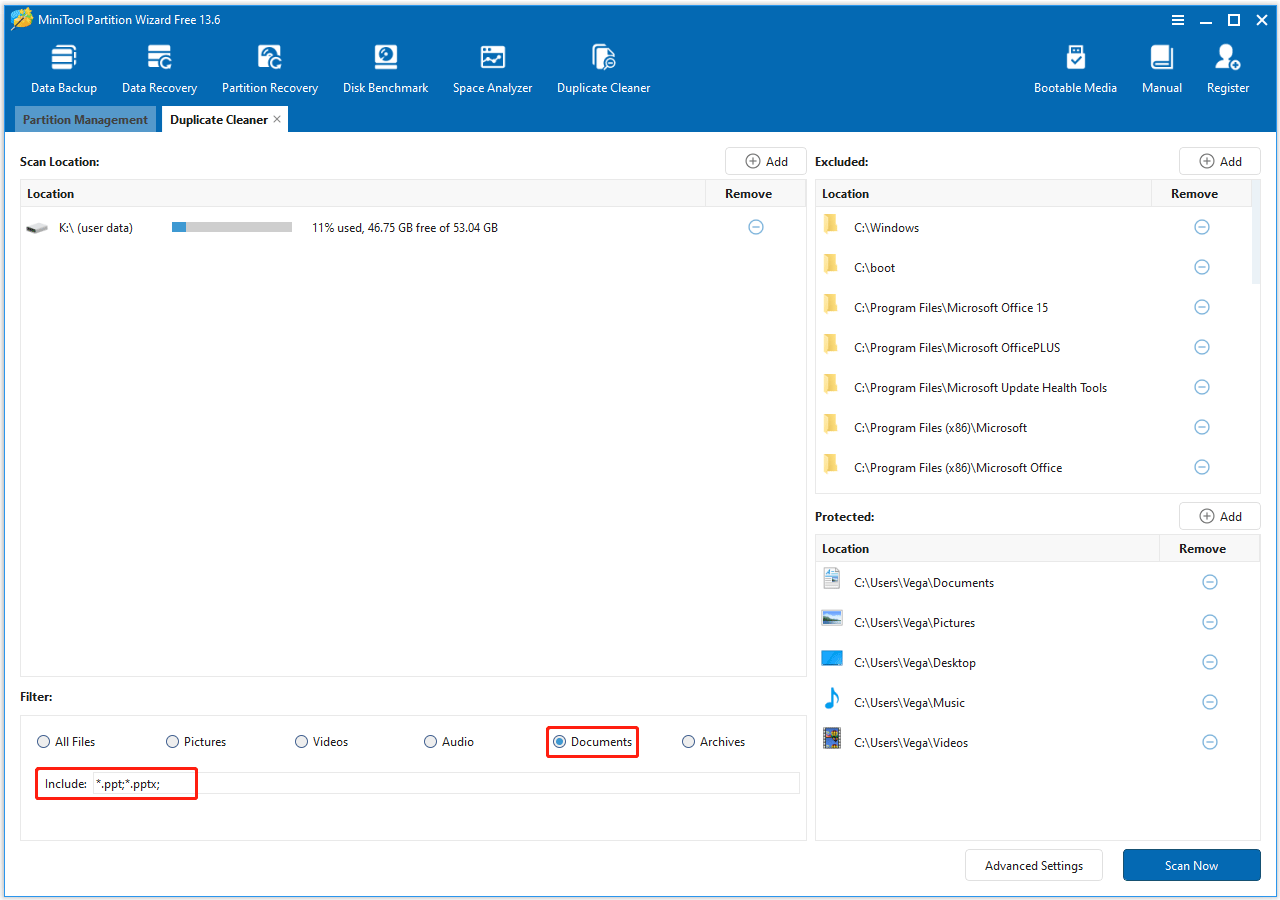
Step 2. In the new window, configure the following scan settings for precision, and then click Scan Now.
- Scan Locations: Click the Add icon to select the drives or specific folders where your PowerPoint files are stored. You can click the minus icon to remove unnecessary locations.
- Filter for PowerPoint files: Under the Filter section, choose Document, and then only leave the PowerPoint file extension (.ppt; .pptx) in the Include box.
- Advanced settings: Set a file size range, choose a hash comparison method, and set file protection options.
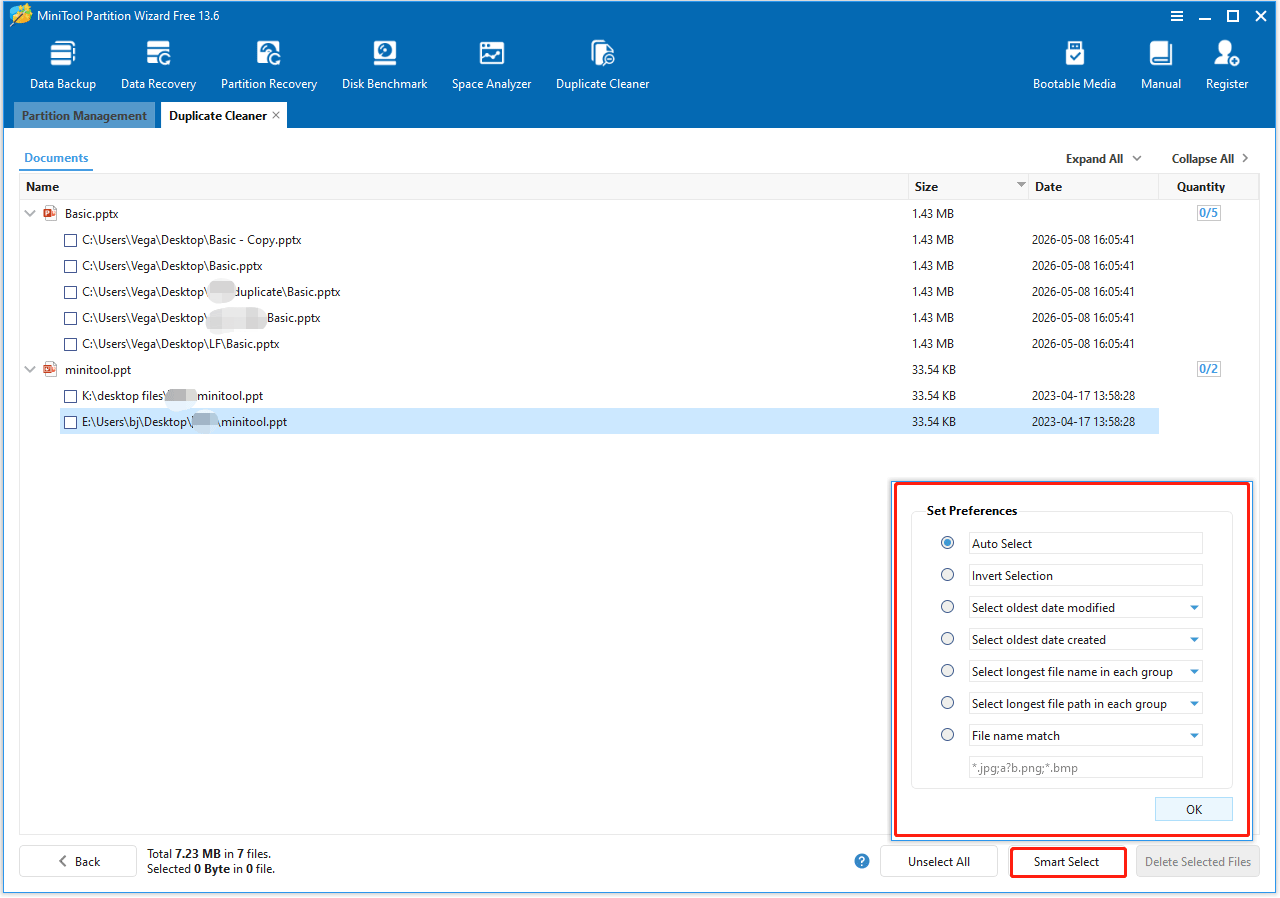
Step 3. Wait for the scanning process to complete. Then click Smart Select and choose a selection method. To view the full path, click Expand All.
Before deleting, expand the groups and check each file’s path and modified date to make sure at least one copy of every presentation is kept.
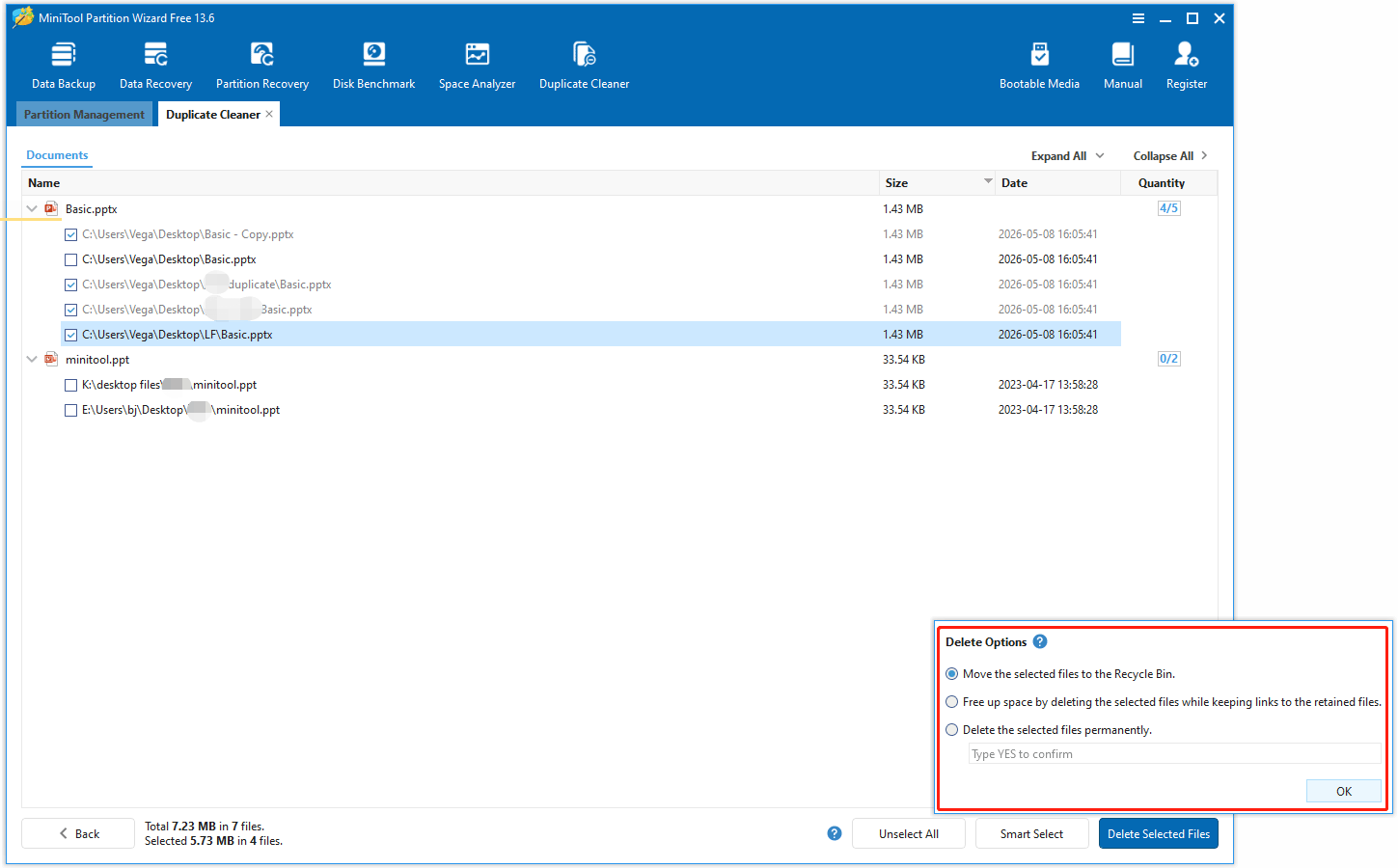
Step 4. Click Delete Selected Files to choose different deletion options. Then click OK to start the deletion of duplicate files.
Method 2. Remove Duplicate PowerPoint Files Using File Explorer
Windows does not have a built-in duplicate file scanner, but you can find and remove duplicate PowerPoint files manually with File Explorer. This method works best when you only need to check a small number of PPT files.
Here are the specific steps:
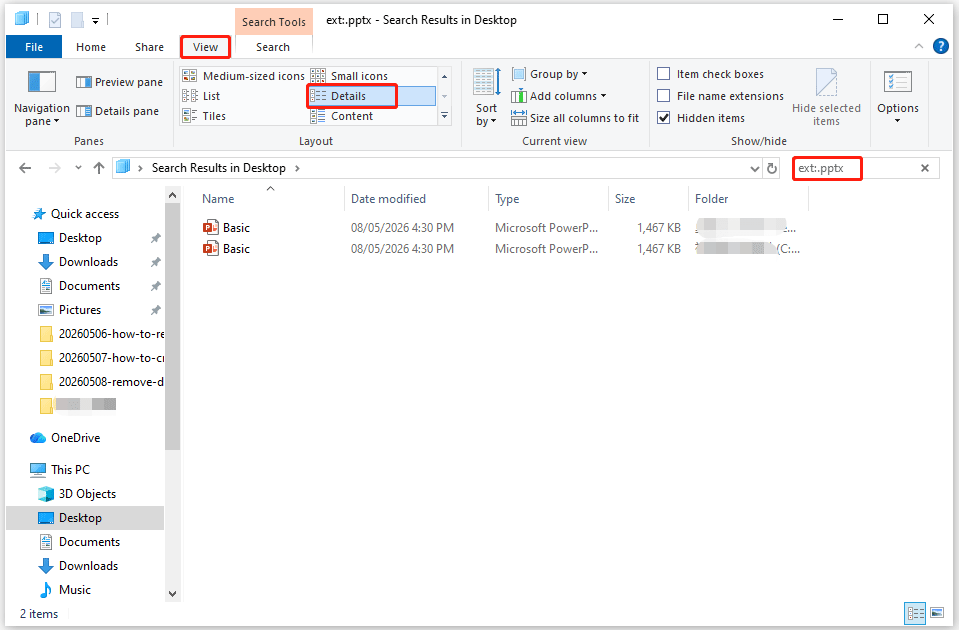
Step 1. Open File Explorer and navigate to the drive or the specific folder where you store your presentations.
Step 2. In the search bar, type ext:.pptx or ext:.ppt. This will show only PowerPoint files.
Step 3. Click the View tab at the top and select Details to sort the PPT files by name and file size.
- Sort by Name: This groups files with similar titles. Look for files ending in “- Copy”, “(1)”, or “(2)”.
- Sort by Size: If two PowerPoint files have the same size, they are highly likely to be duplicates.
Step 4. Press Alt + P to enable the Preview Pane. Click on a file to see the title slide without opening the full application. This helps you quickly verify if two files with different names are actually the same presentation.
Step 5. Select the extra copies and press Delete to move them to the Recycle Bin, or press Shift + Delete to remove them permanently. Using Delete is safer because you can restore a file if you delete the wrong one.
Remove Duplicate PowerPoint Files from PC FAQ
Bottom Line
Duplicate PowerPoint files waste disk space and make it harder to find the right version of a presentation.
This post introduces 2 methods to remove duplicate PowerPoint files from PC: MiniTool Partition Wizard for fast, content-based bulk cleanup, and File Explorer for manually checking a few files.
For most users, MiniTool Partition Wizard is the better choice because it’s faster and simpler to use. If you have questions about MiniTool Partition Wizard, contact the MiniTool support team at [email protected].
About The Author

Position: Columnist
Charlotte is a technology columnist with a strong focus on the Windows operating system, specializing in disk management, backup, and data recovery. She is passionate about analyzing computer errors, identifying root causes, and delivering practical solutions. In her free time, she stays updated on the latest developments in computer systems and hardware while continuously learning new technologies to broaden her expertise. Her writing style is clear and easy to understand, making complex technical topics accessible even to users with limited computer knowledge.
User Comments :