
BitLocker is a built-in Windows encryption tool designed to protect data confidentiality on internal and external storage devices. When enabled on an external hard drive, it encrypts all stored files and requires a password or recovery key to access the data on any device.
While BitLocker encryption effectively prevents data leakage and unauthorized access, many users need to remove BitLocker from external hard drives for daily use scenarios.
For example, frequent file sharing with multiple devices, slow file transfer speeds caused by real-time encryption and decryption processes, or redundant encryption protection for non-sensitive personal data.
This guide covers the following 3 methods to remove BitLocker from external hard drives.
- MiniTool Partition Wizard: Choose it if you want the easiest and most comprehensive solution. Besides removing BitLocker from an external hard drive, you can also manage encryption, resize partitions, clone disks, migrate Windows to an SSD/HDD, recover lost data, and perform many other disk management tasks from a single interface.
- Control Panel: Choose it if you simply need to decrypt an external drive and prefer using Windows’ built-in graphical tools.
- Command Prompt: Choose it if you’re comfortable with command-line operations or need to automate BitLocker management across multiple devices.
Remove BitLocker from External Hard Drive Using MiniTool Partition Wizard
MiniTool Partition Wizard’s BitLocker Manager offers the best balance of simplicity and functionality. It makes removing BitLocker from an external hard drive straightforward while also providing a complete suite of disk management tools that Windows’ built-in BitLocker utility does not include.
MiniTool Partition Wizard DemoClick to Download100%Clean & Safe
If the encrypted drive is locked, you can’t turn off BitLocker directly. Therefore, you need to unlock it first, and then turn off BitLocker on external hard drive. Here are the steps to unlock the encrypted drive:
- Connect the external hard drive to your PC.
- Right-click the target drive and select BitLocker Manager.
- Click Unlock in the pop-up window.
- In the small pop-up window, enter the password and click Unlock.
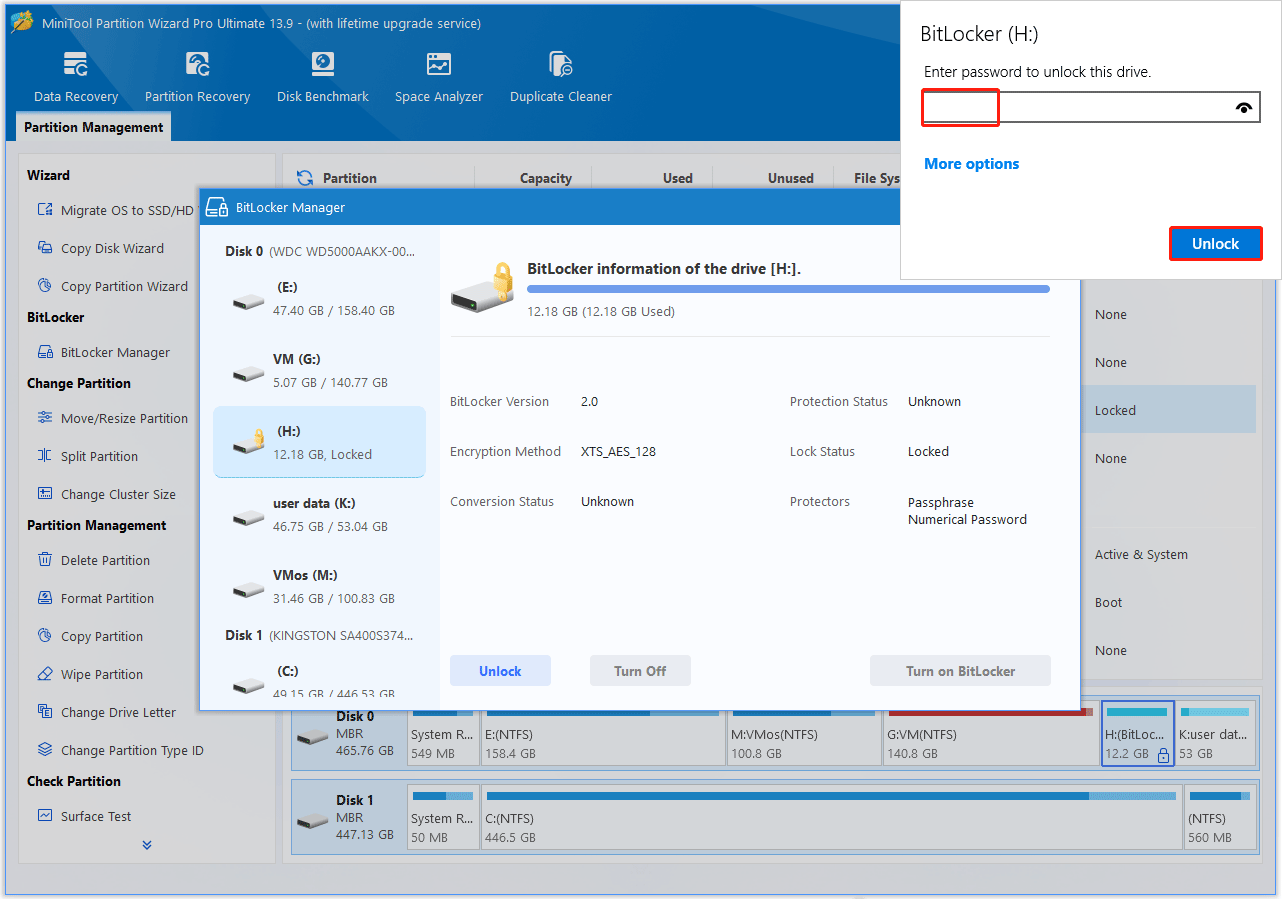
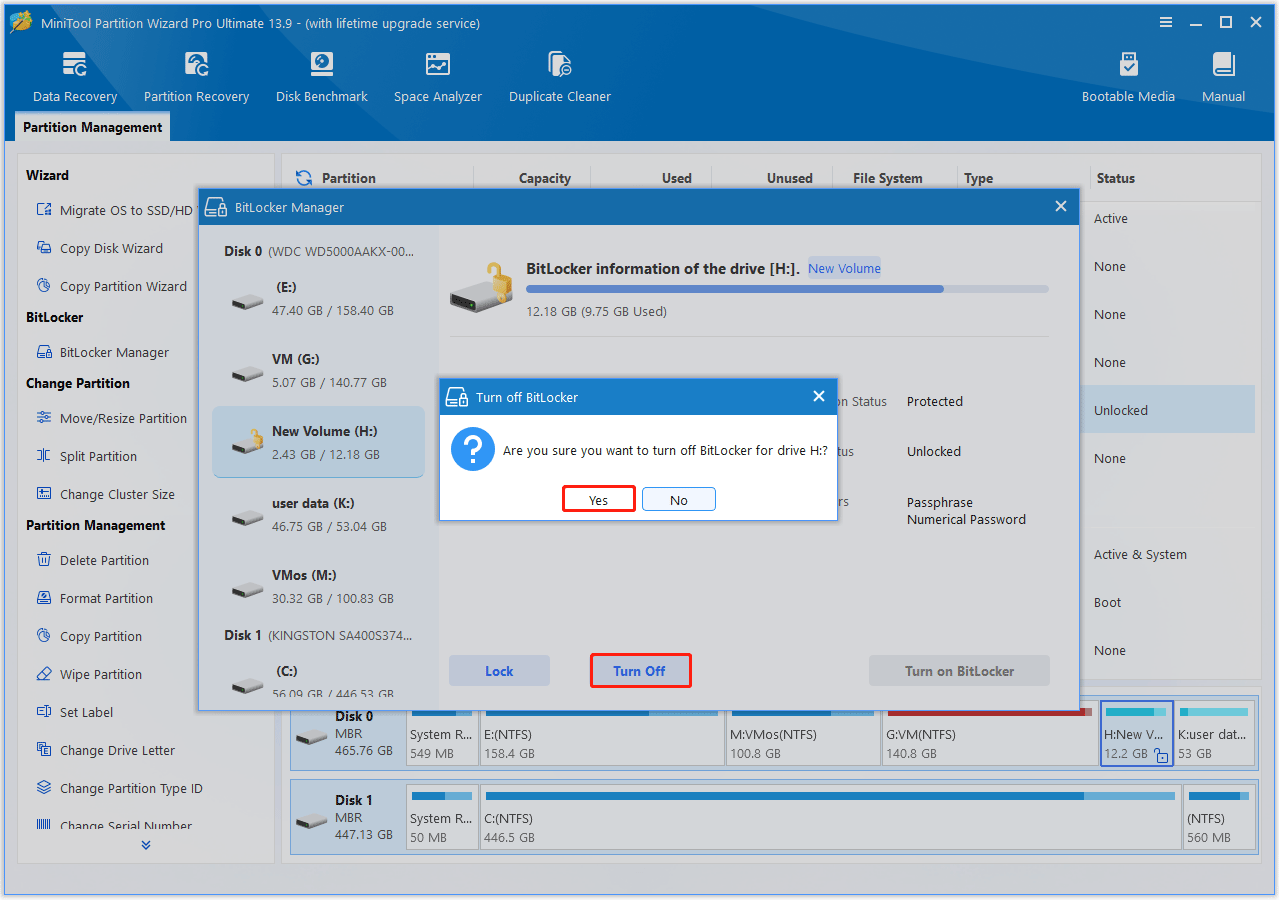
Now, let’s see how to remove BitLocker from external hard drive.
- Right-click the target drive and select BitLocker Manager.
- In the pop-up interface, click Turn Off.
- Click Yes to confirm the operation.
Remove BitLocker from External Hard Drive Using Control Panel
Control Panel remains a convenient built-in option for occasional use. It applies to all unlocked or locked BitLocker external hard drives.
To remove BitLocker for external drive, here are the steps:
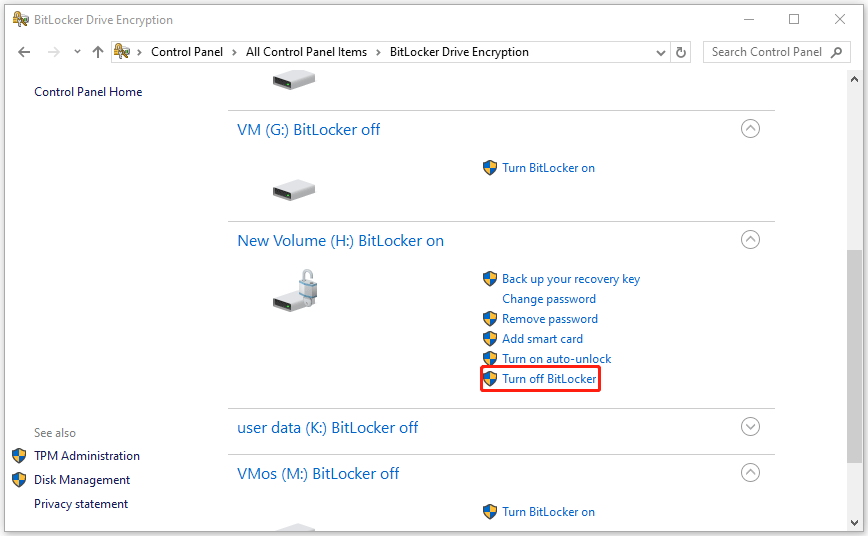
- Open Control Panel from the Windows Search.
- In Control Panel, set View by: to Large icons in the top right.
- Click BitLocker Drive Encryption.
- Locate your external hard drive and click Turn off BitLocker.
- Confirm the prompt by clicking Turn off BitLocker.
- Wait for the decryption to finish.
Remove BitLocker from External Hard Drive Using Command Prompt
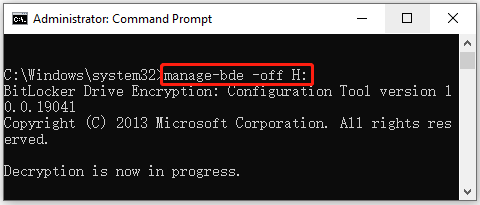
If you prefer command-line tools, you can force the decryption process using Command Prompt. Here is the guide:
- Click the Start menu, type cmd.
- Right-click Command Prompt and choose Run as administrator.
- Enter the following command, making sure to replace “drive_letter” with your actual drive letter (e.g., H): manage-bde -off drive_letter:
- The decryption will begin silently in the background. You can check its progress by typing manage-bde -status drive_letter:.
Remove BitLocker from External Hard Drive FAQ
Bottom Line
Removing BitLocker from an external hard drive is a simple process once you unlock the drive. This post provides several ways to remove BitLocker from external hard drive, including MiniTool Partition Wizard, Control Panel, and Command Prompt.
If you also want to resize partitions, clone disks, recover data, or optimize storage after removing BitLocker, MiniTool Partition Wizard is a practical all-in-one disk management solution that simplifies these tasks.
For any questions or suggestions about MiniTool Partition Wizard, contact us via [email protected]. We’ll reply as soon as possible.
User Comments :