
If your drive is protected by BitLocker, you’ll need to unlock it before you can access the files on it. Depending on how BitLocker is configured, you can unlock the drive using a password or a 48-digit recovery key.
This guide covers all available methods for unlocking a BitLocker drive in Windows 10/11.
How to unlock a BitLocker drive? Try the following methods:
| Feature | MiniTool Partition Wizard | File Explorer | Control Panel | Command Prompt |
| Cost | Free | Free | Free | Free |
| Interface | Graphical (GUI) | Graphical (GUI) | Graphical (GUI) | Command-Line |
| Best for | Multi-partition layouts | Fast everyday access | Manage save keys | Bypassing OS glitches |
![How to Fix the BitLocker Recovery Screen [8 Working Solutions]](https://images.minitool.com/partitionwizard.com/images/uploads/2022/04/bitlocker-recovery-key-bypass-thumbnail.jpg)
Method 1. Unlock BitLocker Drive with MiniTool Partition Wizard
If you prefer a graphical interface, MiniTool Partition Wizard provides a convenient BitLocker Manager feature.
It allows you to:
- Unlock BitLocker drives
- Lock BitLocker drives
- Turn BitLocker on
- Turn BitLocker off
- Manage multiple encrypted drives in one place
Beyond BitLocker management, the main advantage of MiniTool Partition Wizard is that it serves as a comprehensive, all-in-one disk management toolkit. It can perform partition resizing, MBR to GPT conversion, FAT32 to NTFS (and vice versa), OS migration & drive cloning, and more.
MiniTool Partition Wizard FreeClick to Download100%Clean & Safe
Now, let’s learn how to unlock BitLocker with password or recovery key.
Step 1. Install and launch MiniTool Partition Wizard.
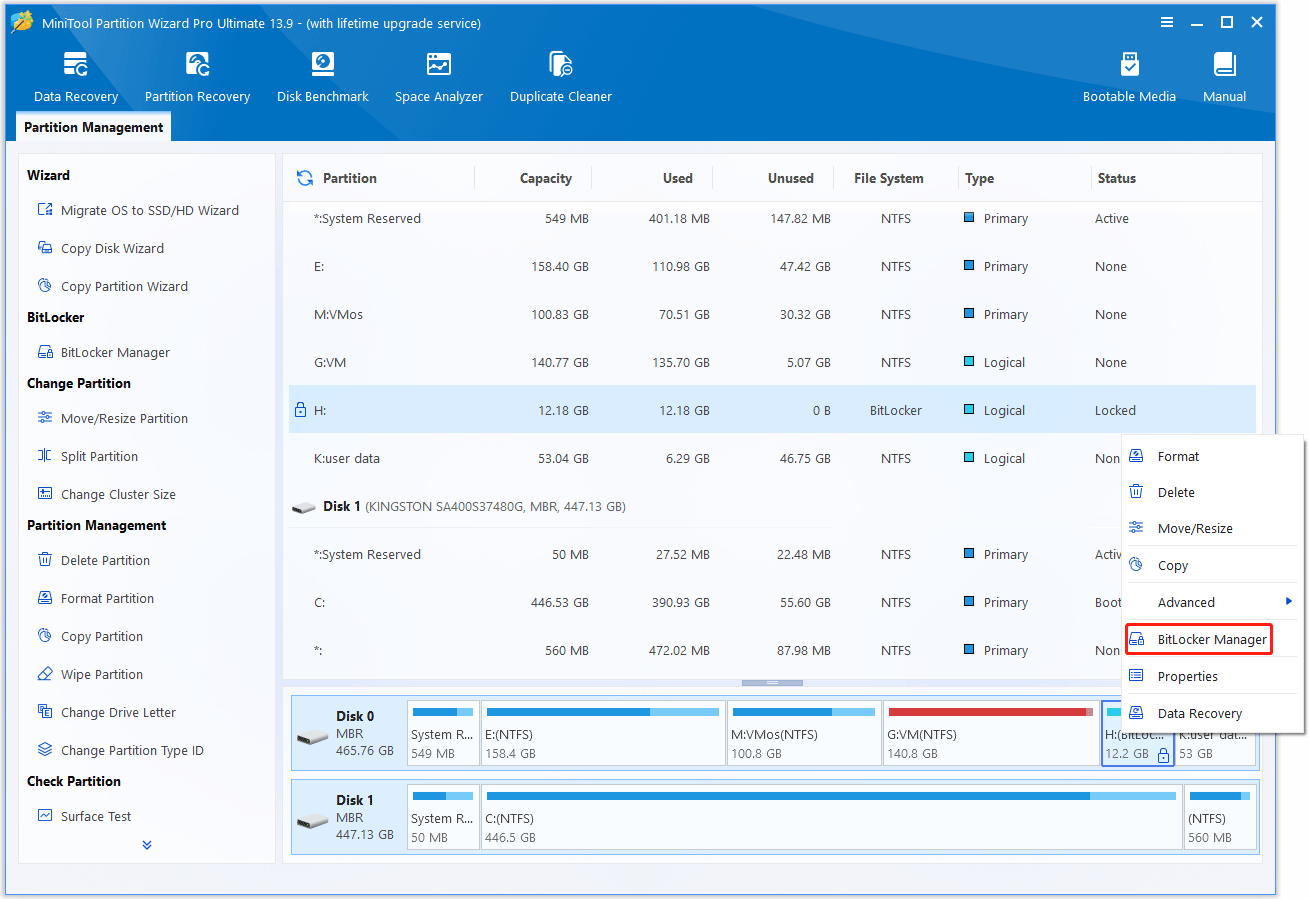
Step 2. In the main interface, right-click the BitLocker-encrypted drive and select BitLocker Manager.
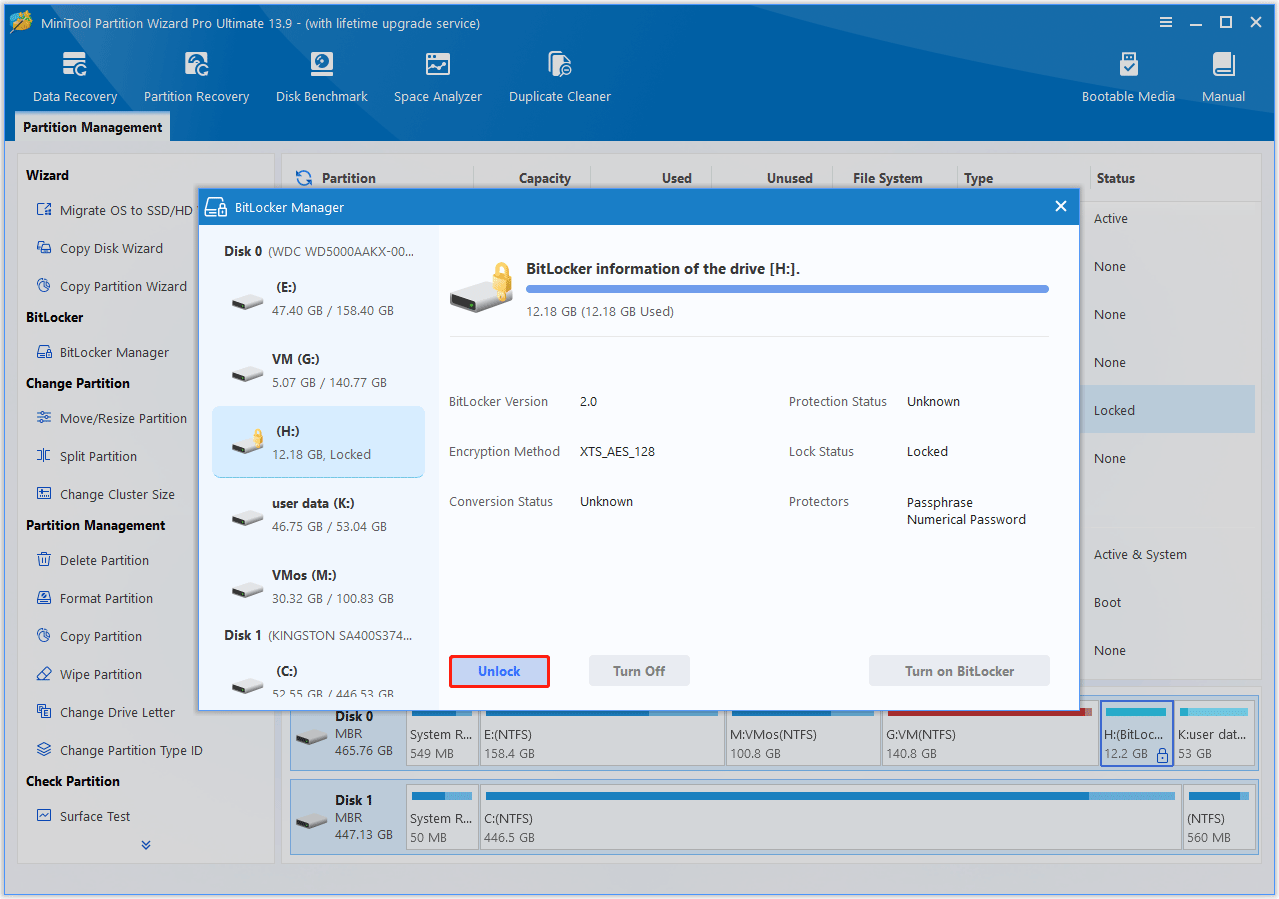
Step 3. In the BitLocker Manager window, click Unlock.
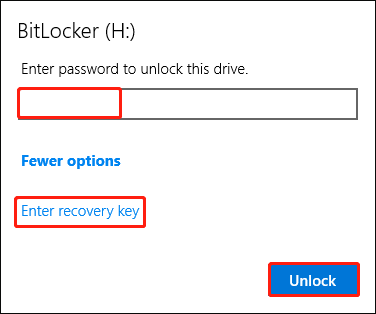
Step 4. In the small pop-up window, enter the password and click Unlock.
Method 2. Unlock BitLocker Drive with File Explorer
This is the standard, most immediate way to unlock a BitLocker drive on a Windows PC. Here are the steps:
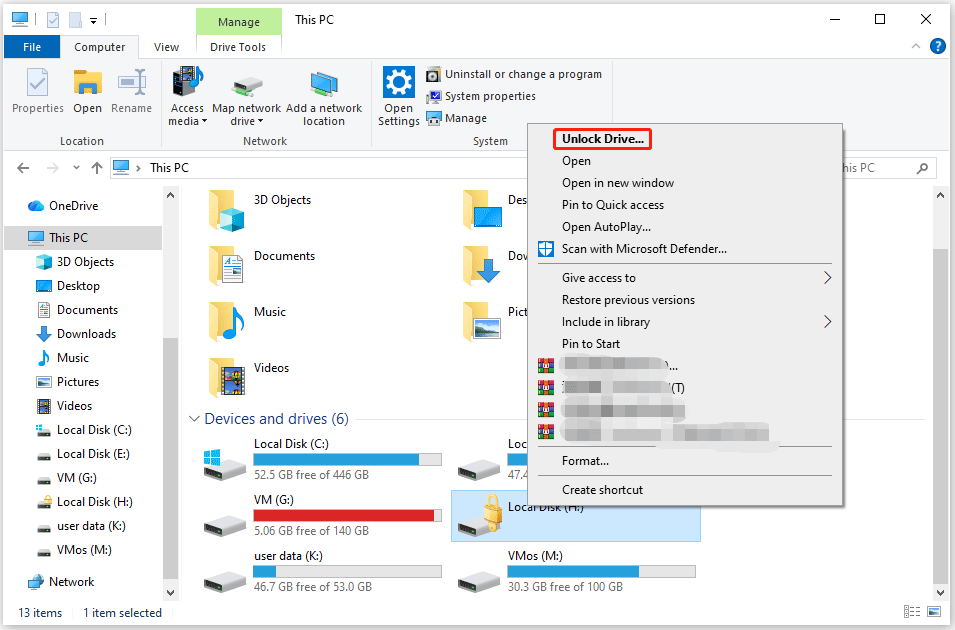
- Open This PC in File Explorer.
- Right-click the locked drive with the yellow padlock icon.
- Select Unlock Drive.
- Type your password or click More options to select Enter recovery key.
- Click Unlock.
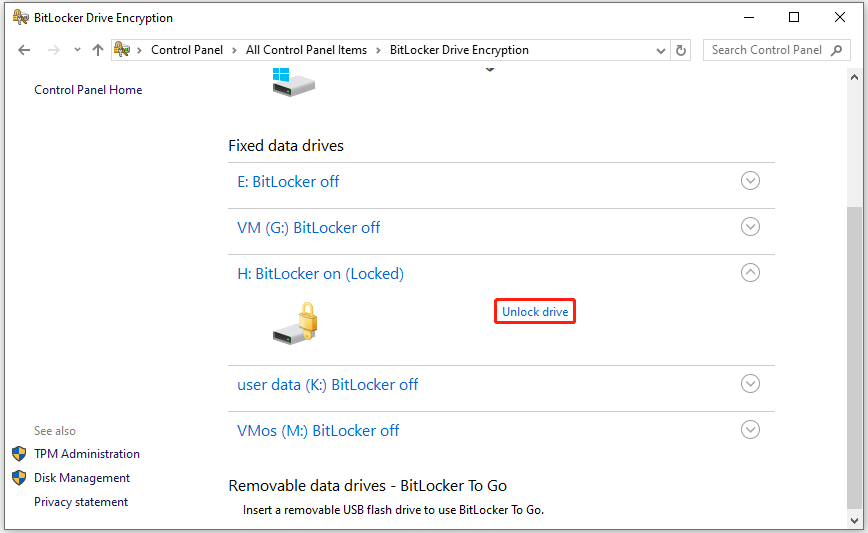
Method 3. Unlock BitLocker Drive with Control Panel
Control Panel provides a dedicated interface that is useful if the automatic File Explorer pop-up fails to trigger.
- Open the Control Panel and select BitLocker Drive Encryption.
- Find the locked drive in the list.
- Click Unlock drive
- Enter your password or recovery key and click Unlock.
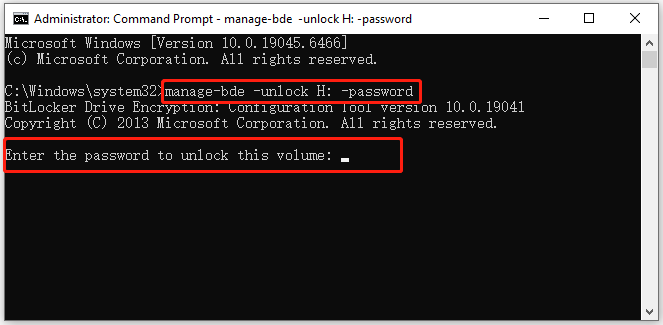
Method 4. Unlock BitLocker Drive with Command Prompt
Using cmd is the ultimate fallback method if Windows is corrupted, stuck in a boot loop, or running in a bare-bones Recovery Environment (WinRE).
Step 1. Type CMD in the Search box and choose Run as administrator to open Command Prompt as an administrator.
Step 2.To unlock with password, type manage-bde -unlock E: -password (Replace E: with your drive letter) and press Enter. Then Windows prompts you to enter the password.
Further reading:
What to do if your Windows computer keeps asking for your BitLocker recovery key in a repeating loop? Even when you enter the correct key, the system accepts it but then asks for it again instead of starting Windows.
This BitLocker loop can occur when:
- Windows updates change security settings.
- Your computer’s hardware configuration changes.
- There’s a temporary communication issue between BitLocker and Windows.
How to fix the BitLocker Recovery key loop? You need to temporarily turn off BitLocker protection in Command Prompt, restart your computer, and then turn BitLocker protection back on.
How to Unlock BitLocker FAQ
Unlocking only allows temporary access to encrypted files.
Turning BitLocker off decrypts the drive completely and removes encryption.
Entering the recovery key verifies ownership of the device.
1. Your Microsoft Account
2. A USB Flash Drive
3. A printed copy
4. A text file
Bottom Line
Unlocking a BitLocker drive is straightforward when you have the correct authentication method. Whether you use File Explorer, Control Panel, Command Prompt, or a graphical tool like MiniTool Partition Wizard, Windows provides several secure ways to access encrypted drives.
If you’ve forgotten your password, your 48-digit recovery key is the safest and most reliable way to regain access.
For any questions or suggestions about MiniTool Partition Wizard, contact us via [email protected]. We’ll reply as soon as possible.
User Comments :