
Quick Answer
To find duplicate files after transferring data to a new PC, scan the folders that received the transferred data with a content-based duplicate finder. The easiest option is MiniTool Partition Wizard’s Duplicate Cleaner, which compares file hashes and can identify duplicates even when their names, dates, or folders differ.
For a quick manual check, use File Explorer to locate files with names such as “copy,” “(1),” or “- Copy.” For a more reliable check on a limited folder, PowerShell can calculate each file’s SHA-256 hash and group files with identical hashes.
Why Are There Duplicate Files After Transferring Data to a New PC
Moving to a new computer rarely happens in one clean step. Most people use several tools and multiple rounds of copying, and each extra round creates more copies. The most common causes are:
- Repeated file transfers: Copying the same folders more than once creates additional copies on the new PC.
- Different transfer methods: Files transferred through an external drive, a network, and cloud storage may overlap.
- Backup folders: Restoring a backup while keeping the manually transferred files can create duplicates.
- Cloud synchronization: Files downloaded from a cloud service may duplicate files already copied from the old PC.
- Renamed files: Files with identical content but different names may be difficult to identify manually.
These duplicates are not just clutter. Duplicate photos, videos, and documents waste storage on a new drive that may be smaller than your old one, slow down backups, and make it harder to find the right version of a file.
Are you also experiencing this situation right now? The following methods can help identify these duplicates on Windows 10 and Windows 11.
How to Find Duplicate Files After Transferring Data to a New PC
There are three practical methods to find duplicate files on Windows 10 and Windows 11. Choose a method based on the number of files, the desired level of automation, and whether additional software is acceptable.
Method 1. Find Duplicate Files with MiniTool Partition Wizard
MiniTool Partition Wizard provides a Duplicate Cleaner feature that scans selected drives and folders for duplicate files. It compares file contents using hash values, allowing it to identify identical files even when their names or locations differ.
This method is suitable for finding duplicate photos, videos, documents, archives, and other common file types after a PC transfer.
Step 1. Download, install, and launch MiniTool Partition Wizard on the new PC.
MiniTool Partition Wizard FreeClick to Download100%Clean & Safe
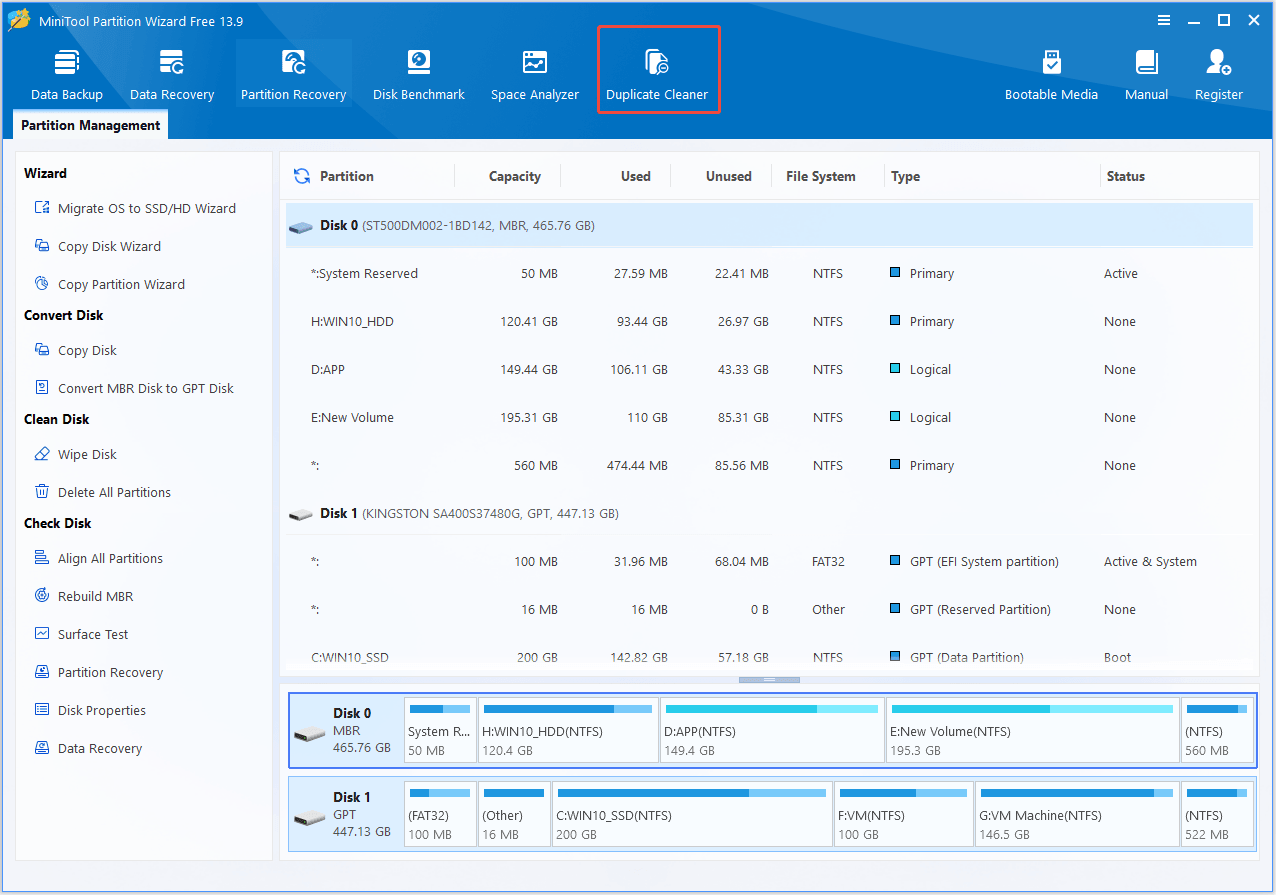
Step 2. Select Duplicate Cleaner from the top toolbar to open the scanning interface.
Step 3. Configure the scan locations and file types.
- Under Scan Locations, keep the drives containing transferred files or add specific folders using the Add option. Remove unrelated locations to narrow the scan and reduce scanning time.
- Under Filter, select specific categories, such as Pictures, Videos, Audio, Documents, or Archives, if only certain file types need to be checked.
- Open Advanced Settings to adjust file size limits and the hash comparison method if necessary.
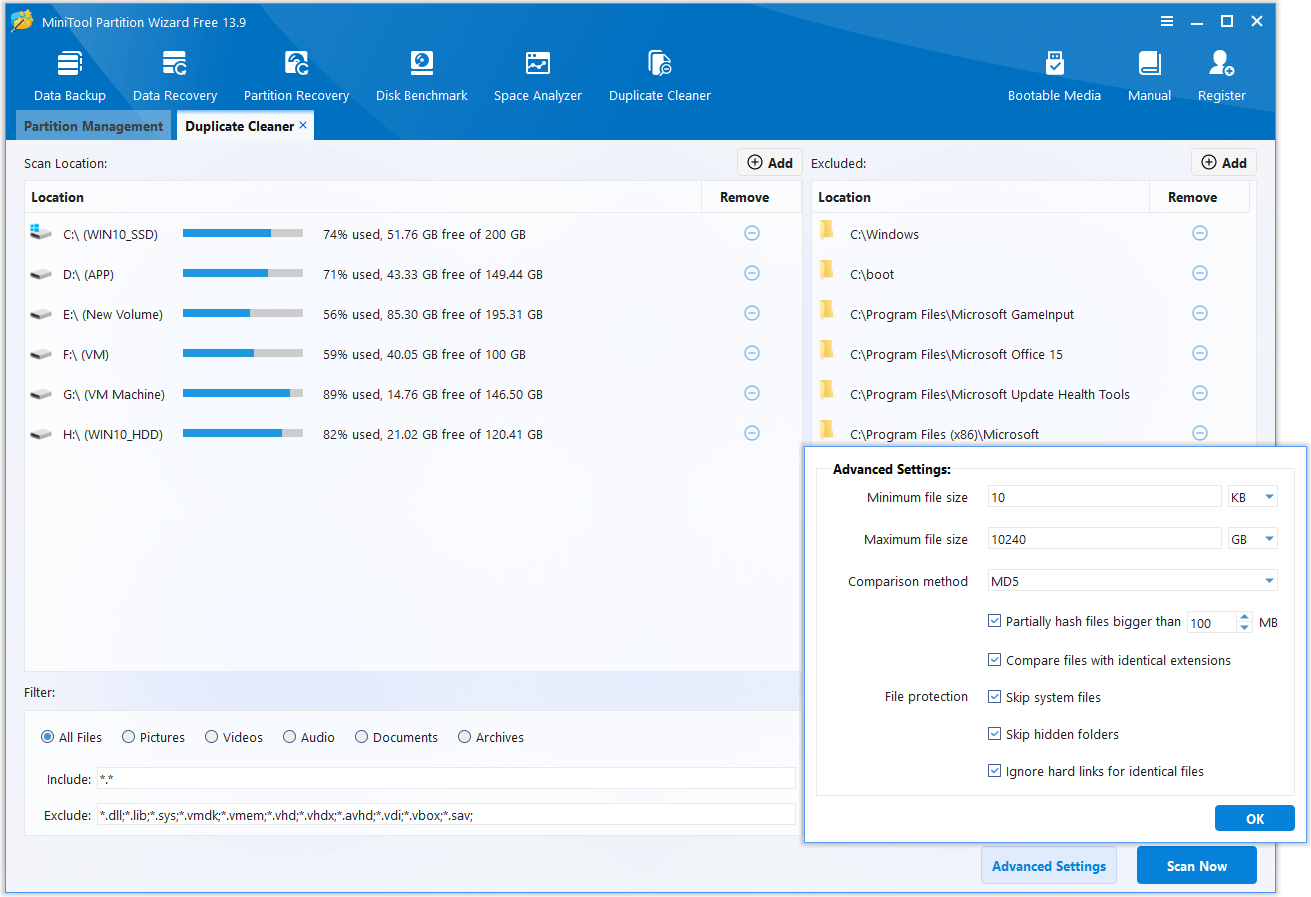
Step 4. Click Scan Now and wait for the scan to finish.
Duplicate Cleaner compares files and groups matching copies in the results. The scan duration depends on the number and size of the files being checked.
Step 5. Review the duplicate files.
- Expand All can view each duplicate group’s file paths, names, locations, sizes, and other details. Use these details to identify unnecessary copies.
- Smart Select can choose duplicates by criteria such as date or name, but manually verify files with different purposes or in separate backup locations.
Step 6. Select the unnecessary copies and click Delete Selected Files.
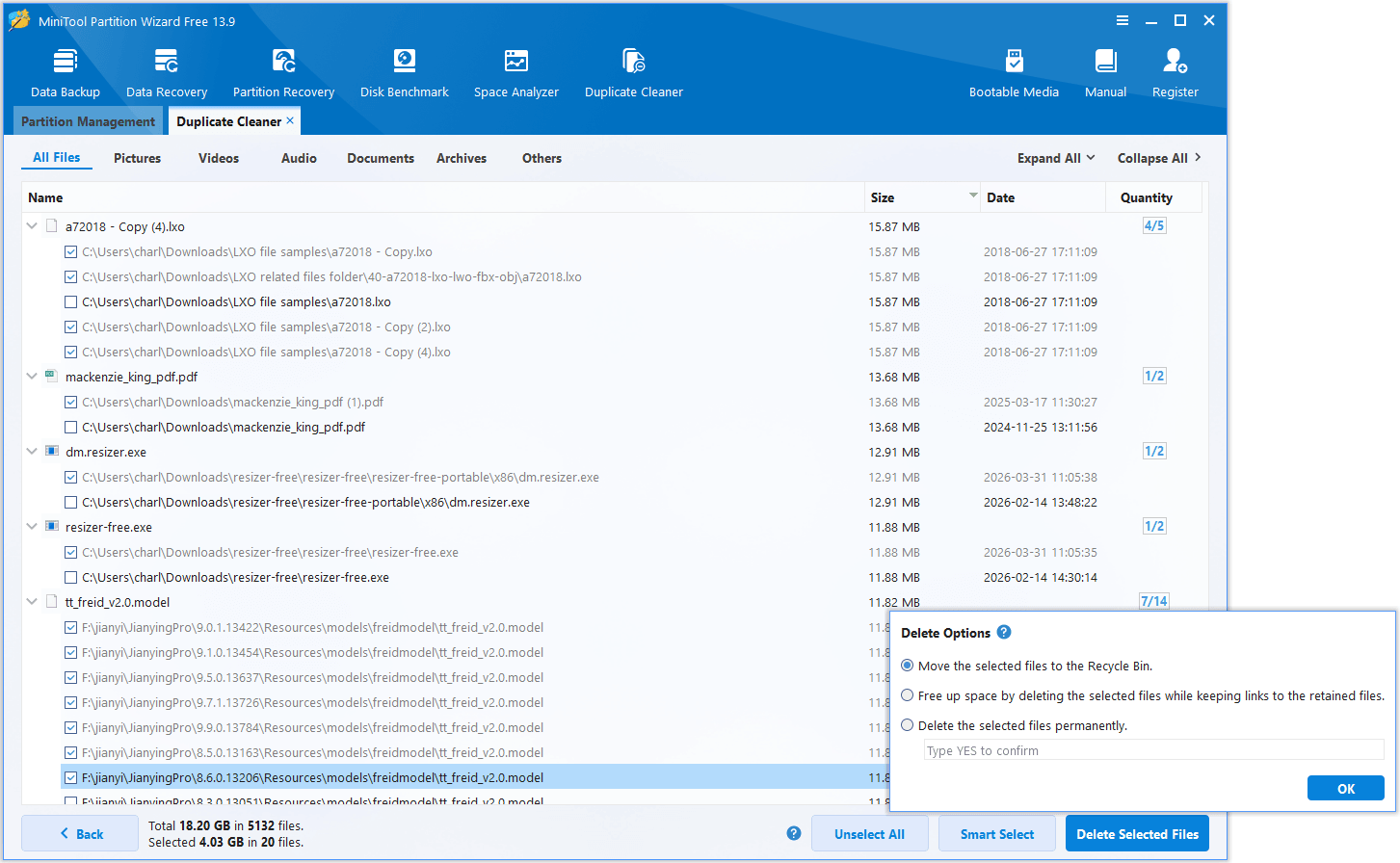
Choose the option to move the selected files to the Recycle Bin whenever possible. Review the selected paths before confirming the operation.
Avoid permanently deleting files until the retained copies have been checked and any important data has been backed up.
Method 2. Find Duplicate Files with File Explorer
File Explorer is a built-in Windows tool that can help locate obvious duplicates without installing additional software. However, it does not provide a dedicated function for comparing the contents of all files to identify duplicates automatically.
This method works best when the transferred files are stored in a few folders or when duplicate filenames are already known.
Step 1. Open File Explorer by pressing Win + E.
Step 2. Navigate to the folder containing the transferred data. If the files are spread across several locations, check each relevant folder separately.
Step 3. Change the folder view to Details.
Select View > Details in Windows 11 or use the corresponding View options in Windows 10.
Step 4. Sort the files to identify possible duplicates.
Click the Name, Size, or Date modified column to sort the list.
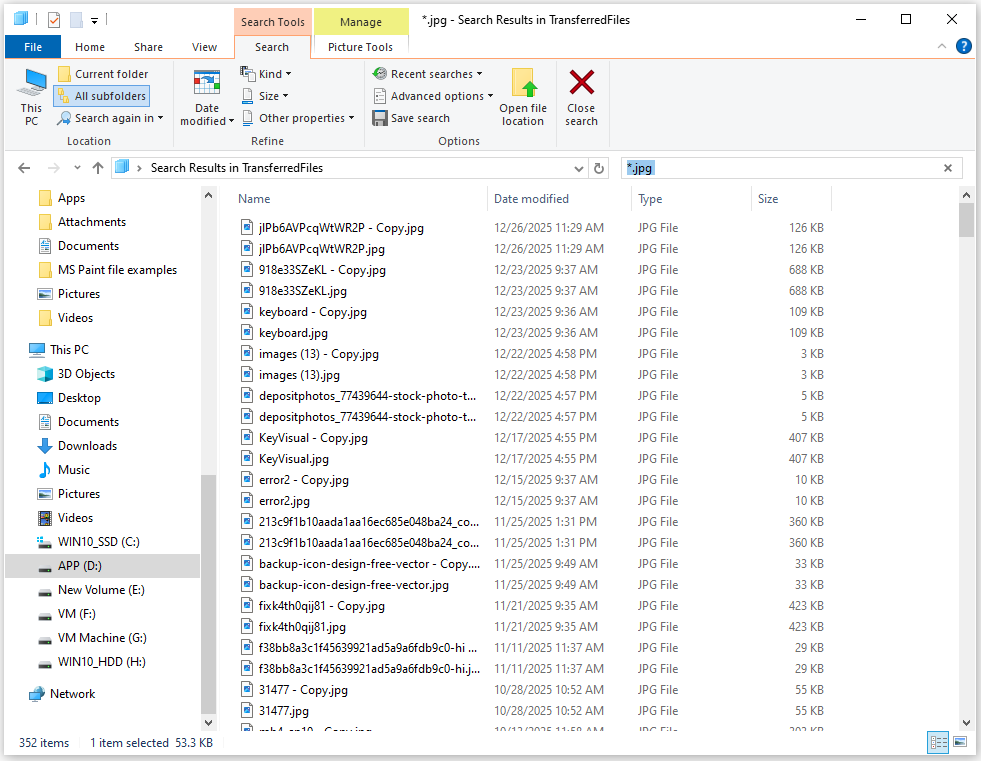
- Name: Look for repeated filenames or names containing terms such as Copy or (1).
- Size: Look for files with the same size, especially when filenames differ.
- Date modified: Check files created or copied around the same time during the transfer.
To search for a particular filename, enter it in the File Explorer search box. You can also search for a file extension, such as *.jpg, to narrow the results to a specific file type.
Step 5. Compare suspected duplicates before removing anything.
Open the files or check their Properties to confirm whether they are identical. Matching names, sizes, and dates can help identify candidates, but these details alone do not prove that two files have identical contents.
After confirming that a copy is unnecessary, select it and press Delete to move it to the Recycle Bin.
Method 3. Find Duplicate Files with PowerShell
PowerShell can identify content duplicates by calculating a hash for every file in a folder. This is a good free option when you want to scan one transferred folder without installing additional software.
Step 1. Right-click Start and select Terminal or Windows PowerShell (Admin).
Step 2. Type cd “folder path” and press Enter. Replace the folder path with the folder you want to scan, such as D:\TransferredFiles.
Step 3. Copy and run the following script in PowerShell:
(Get-ChildItem -Recurse -File -ErrorAction SilentlyContinue | Get-FileHash -ErrorAction SilentlyContinue | Group-Object Hash | Where-Object { $_.Count -gt 1 } | ForEach-Object { $_.Group | Select-Object Path, Hash }) | Out-File “$env:USERPROFILE\Desktop\dupes.txt”
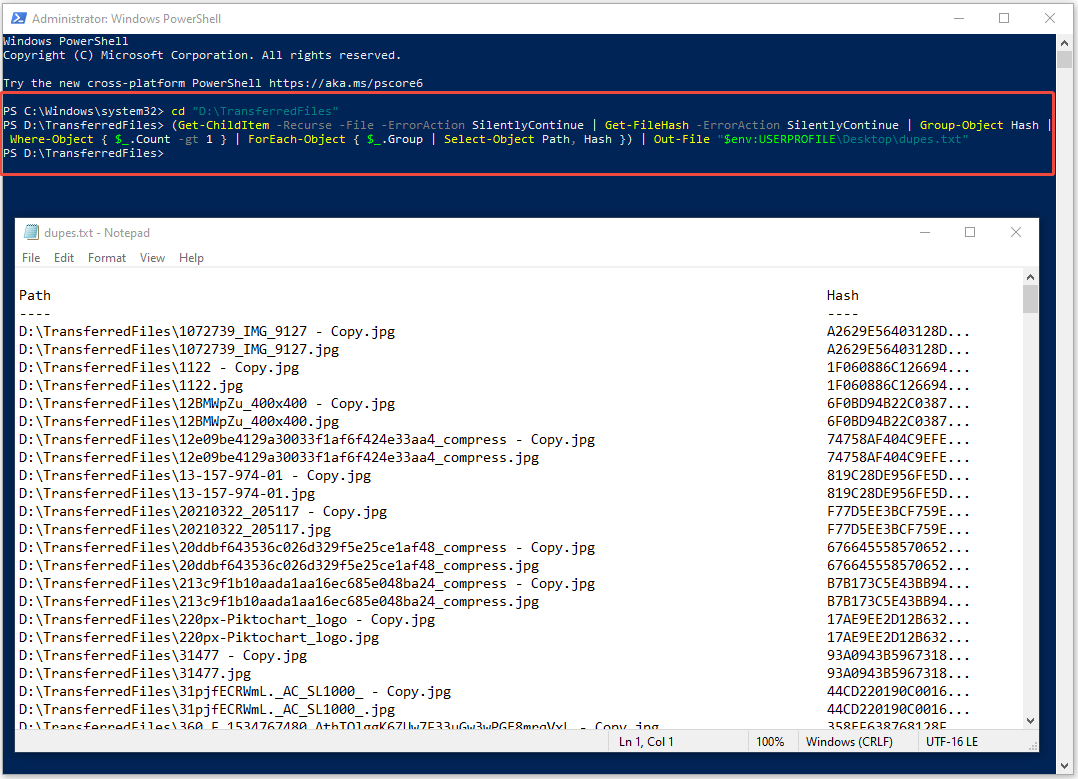
Step 4. Once finished, review the listed duplicate groups. Delete only the extra copies from File Explorer, so deleted files remain recoverable in the Recycle Bin.
This command groups files with the same SHA-256 hash, meaning their contents match. It prints duplicate file paths and sizes but does not delete anything automatically.
Method Comparison: Which Duplicate File Finder Should You Use?
The best method depends on how much data was transferred and whether automated content comparison is needed.
| Method | Detection approach | Ease of use | Best for |
| MiniTool Partition Wizard | Compares file contents using hash values | Easy | Scanning many files across selected folders or drives |
| File Explorer | Manually checks filenames, sizes, and dates | Easy for small collections | Finding obvious duplicates in a few folders |
| PowerShell | Groups files by SHA-256 hash | Requires command-line knowledge | Generating a duplicate-file report without installing additional software |
Which one should you choose?
- Choose MiniTool Partition Wizard if you transferred a lot of data, have many duplicate photos, or want a clear, grouped list without typing commands.
- Choose File Explorer if you only need to clean up one or two small folders or remove obvious (1) and – Copy files.
- Choose PowerShell if you prefer built-in tools and are comfortable with a few commands.
How to Find Duplicate Files After Transferring Data to a New PC FAQ
Bottom Line
Finding duplicate files on a new PC is easier with the right tool.
File Explorer works for a few obvious copies, built-in PowerShell runs command-line hash checks, and MiniTool Partition Wizard’s Duplicate Cleaner is ideal for scanning large folders and photo libraries with grouped results.
Always back up first, keep one copy of each file, and delete only what you’ve verified. For support with MiniTool Partition Wizard, contact [email protected].
About The Author

Position: Columnist
Charlotte is a technology columnist with a strong focus on the Windows operating system, specializing in disk management, backup, and data recovery. She is passionate about analyzing computer errors, identifying root causes, and delivering practical solutions. In her free time, she stays updated on the latest developments in computer systems and hardware while continuously learning new technologies to broaden her expertise. Her writing style is clear and easy to understand, making complex technical topics accessible even to users with limited computer knowledge.
User Comments :