
To resolve a “hard disk not detected” issue during Windows Installation, you can refer to the various methods provided by MiniTool Partition Wizard, including checking physical connections, adjusting BIOS settings, updating BIOS firmware, etc.
During the installation of the Windows operating system, some users may encounter a situation where Windows installation does not detect the hard drive, causing the system installation to be unable to continue.
During Windows installation, you may receive an error message similar to the following:
- We couldn’t find any drives. To get a storage driver, click Load driver.
- No drives were found. Click Load Driver to provide a mass storage driver for installation.
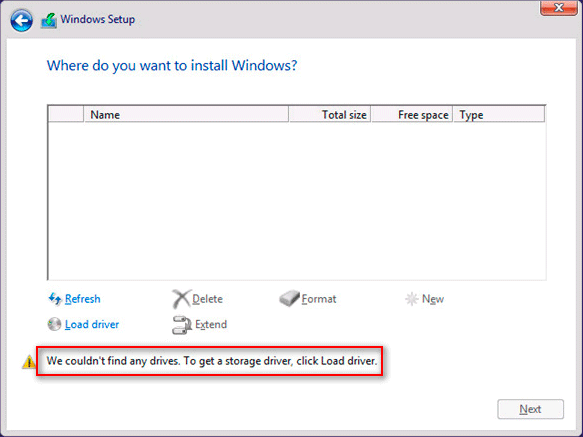
So, what is the cause of this problem? How to solve it? This article will analyze this in detail and provide corresponding solutions.
Why Is the Hard Disk Not Detected During Windows Installation?
The “hard drive not detected” error is a common problem encountered during Windows installation.
This problem is usually not due to a faulty hard drive itself, but rather caused by various factors such as hardware connections, BIOS settings, and storage controller drivers.
The following will analyze these common causes one by one.
- Physical connection issues: Loose or damaged SATA hard drive cables can prevent the hard drive from receiving power or communicating properly with the motherboard. Improper insertion or protocol incompatibility of NVMe or M.2 SSDs can also prevent the motherboard and BIOS from recognizing the drive.
- Missing hard drive controller drivers: The lack of a storage driver, such as Intel RST or RAID, can prevent the Windows installer from communicating with the hard drive controller. As a result, the installer may display a “no drives found when installing Windows” error.
- BIOS/UEFI settings error: During Windows installation, incorrect hard drive mode settings in the BIOS can also prevent the hard drive from being detected.
- Damage to the hard drive itself or the motherboard interface: Hardware failure of the hard drive or its interface can also cause this problem. This includes damage to the SSD itself or damage to the motherboard’s SATA or M.2 slots.
- Invalid Hard Drive: The hard drive becomes invalid due to logical corruption, like file system errors and bad sectors caused by malware/improper ejection. This will prevent the Windows installer from reading the basic information of the hard drive.
How to repair a hard disk not detected by Windows? The following are several common solutions to resolve the hard disk detection issue during Windows installation.
Solution 1: Check Physical Connections
Turn off your computer and open the case. Check that the SATA data cable and power cable between the hard drive and the motherboard are securely connected. Ensure that these cables are firmly plugged into both the hard drive and the motherboard connectors.
If any connections are loose, disconnect the cables and reconnect them, making sure each connector is properly seated.
Solution 2: Adjust BIOS/UEFI Settings
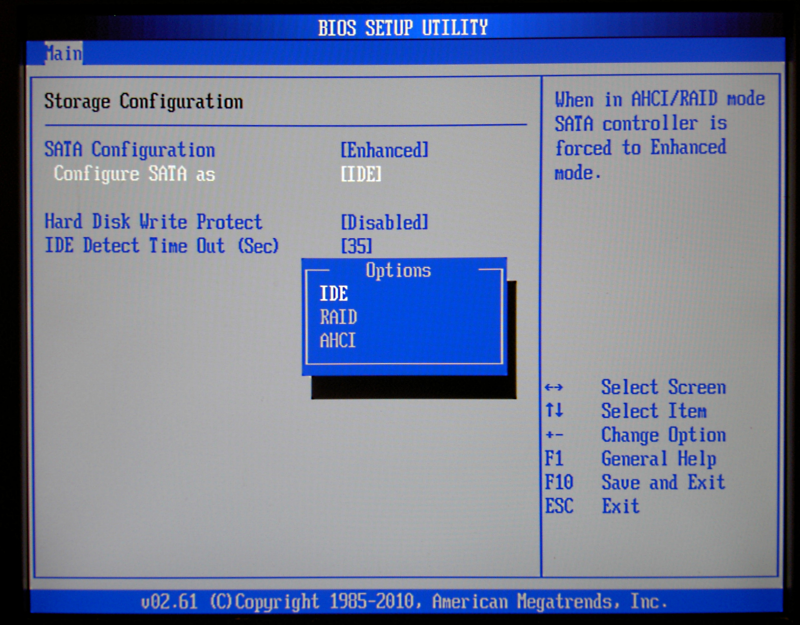
If the current setting is RAID or IRST mode, Windows may require additional drivers during installation to recognize the hard drive, which can lead to the hard drive not being recognized during the Windows installation process.
Therefore, you need to ensure that your BIOS is set to AHCI mode.
- Start your computer and press the specified key during startup (usually Del, F2, F10, F12, or Esc, depending on your motherboard brand) to enter the BIOS/UEFI settings.
- In the BIOS, find the option related to SATA, Storage, SATA Operation, or similar names (it may be under the Advanced or Storage menu).
- Change the SATA Operation mode from RAID to AHCI.
- Pressing the F10 key to save and exit the BIOS settings.
Solution 3: Recreate the Boot USB
This problem may be due to an issue that occurred when creating the Windows 10 or Windows 11 bootable USB drive.
If the installation media is created using incorrect steps or unsuitable tools, the files on the USB drive may be incomplete or incorrect.
As a result, Windows may fail to recognize the hard drive during the installation process.
Please create the bootable USB drive correctly to install Windows.
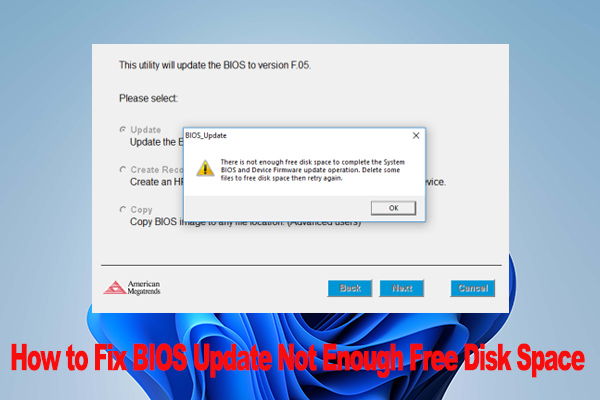
Solution 4: Updating BIOS/UEFI Firmware
Older BIOS or UEFI firmware may not effectively support the installation requirements of newer hard drives, storage controllers, or operating systems, especially when using NVMe SSDs or newer versions of SATA controllers.
You need to visit the hardware manufacturer’s website and follow the instructions to update your BIOS/UEFI. This will resolve potential hardware compatibility issues and ensure that the system correctly recognizes the hard drive and completes the Windows installation process smoothly.
Solution 5: Clean the Hard Drive
If the “Windows installation not detecting a hard drive” issue is caused by an invalid hard drive, the “diakpart clean” command can solve it.
This command can reset all data on the hard drive, including the partition table and volume information.
After the reset, the Windows installation program can recognize the hard drive again and allow you to create new partitions for installation.
On the install now screen, press the Shift + F10 key combination to open the command prompt, and then follow these steps. After entering each command, please press the Enter key to execute it.
- diskpart
- list disk
- select disk * (select the disk where you want to install the Windows operating system)
- clean (it will delete all partitions on the selected disk)
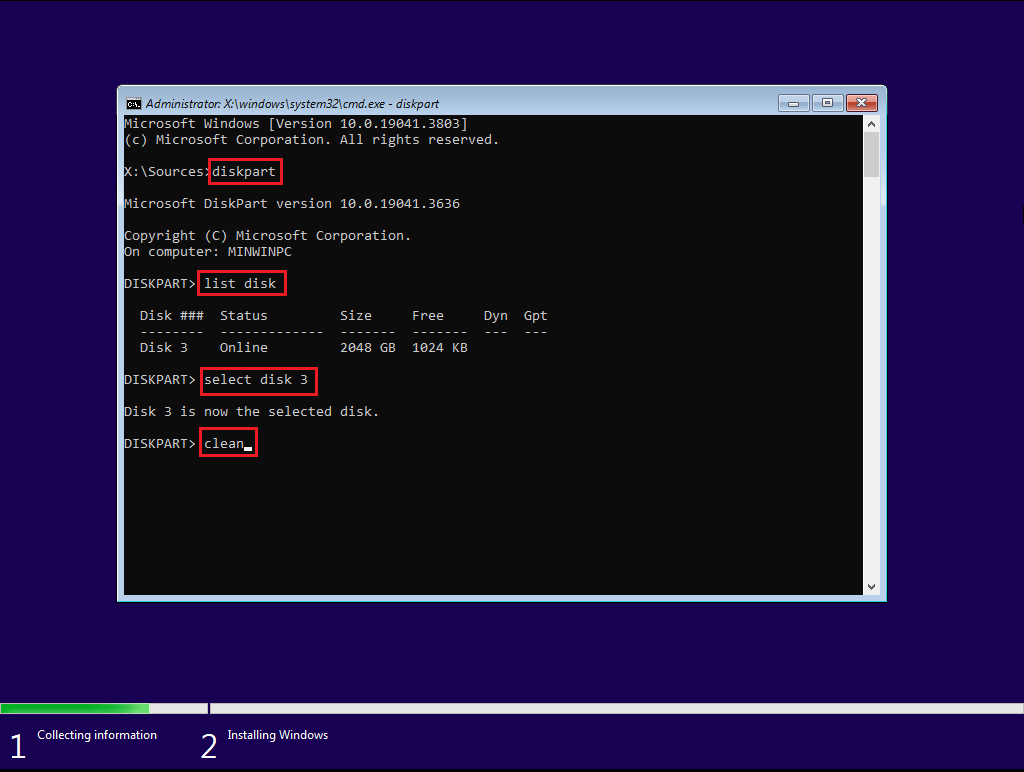
Finally, close the Command Prompt window and continue to install Windows.
![[Solved] How to Wipe a Hard Drive on a Dead Computer?](https://images.minitool.com/partitionwizard.com/images/uploads/2023/01/how-to-wipe-a-hard-drive-on-a-dead-computer-thumbnail.png)
Solution 6: Replace the Hard Drive
If the hard drive has significant physical damage or a large number of bad sectors, the Windows installation program may not be able to recognize the hard drive.
Therefore, for hard drives with serious physical damage, the most reliable solution is to replace the hard drive with a new one to ensure the stability of the Windows installation and subsequent use.
Solution 7: Contact MSI or Your Retailer for Support
If you encounter a “Hard Disk Not Detected in Windows 10/11” problem during the Windows installation process and conventional troubleshooting methods do not resolve the issue, contacting MSI for support can be an effective solution.
Alternatively, you can reach out to hardware retailers for further assistance.
They can help you confirm hardware compatibility, provide BIOS firmware updates and driver support, and even arrange for hardware repair or replacement.
Hard Disk Not Detected FAQ
This is because encryption prevents the system from directly accessing partitions and data on the hard drive, thus preventing the installer from reading basic information about the hard drive.
To resolve this issue, you need to cancel BitLocker encryption safely.
Bottom Line
The “Windows installation not detecting hard drive” error is usually caused by physical damage to the hard drive, outdated firmware, or incompatibility between the BIOS/UEFI settings and the storage controller driver.
These issues can be resolved by checking the hard drive connection, adjusting BIOS settings, recreating the boot USB, using the “diskpart clean” command, or contacting MSI or your retailer for support.
Typically, by following these steps to troubleshoot and resolve the issues one by one, most hard drives can be correctly recognized by the system, allowing the Windows installation process to be completed successfully.
User Comments :