
This article will be helpful if you want to find duplicate files across multiple drives. It discusses different methods for finding duplicate files across multiple drives and provides specific steps for doing so using the MiniTool Partition Wizard.
When you have multiple hard drives, and each drive stores a large number of files, finding and deleting duplicate files can be a daunting task.
If you’re looking for a simple and efficient way to easily scan and clean up duplicate files across multiple drives, then the following tool is for you.
Learn Different Methods to Find Duplicate Files Across Multiple Drives
Duplicate files are a common headache when managing multiple hard drives. Fortunately, you can find these duplicate files manually or use duplicate file finder software.
Understanding the advantages and disadvantages of each method will allow you to make the best choice for you.
#1. Find Duplicate Files across Multiple Drives Via Manual Searching
Manual searching is an older method. You need to open each drive’s folder and compare filenames, sizes, contents, etc., one by one.
Advantages:
- Completely free.
- No additional software required.
Disadvantages:
- Time-consuming.
- Prone to errors. It may miss duplicate files or accidentally delete important files.
#2. Find Duplicate Files across Multiple Drives Via Duplicate File Finder Software
The duplicate file finder software can quickly scan multiple drives to find duplicate files.
Compared to manual searching, these tools can automatically identify filenames, sizes, types, and even content, thus accurately finding duplicate files.
Advantages:
- Fast scanning speed, even on large hard drives.
- Feature-rich, allowing searching by file type, file size, etc.
- Supports multiple drives.
Disadvantages:
- Some advanced features may require payment.
- Software installation is required.
In short, using duplicate file finder software might be a good option, such as MiniTool Partition Wizard, which can help you quickly find and clean up duplicate files across multiple drives.
Find Duplicate Files across Multiple Drives via MiniTool Partition Wizard
If you need to quickly find duplicate files across multiple hard drives without wasting time, the Duplicate Cleaner feature of MiniTool Partition Wizard can help.
It’s easy to use, managing multiple hard drives with just a few clicks. It scans quickly and safely to delete duplicate files across multiple drives.
The following are the detailed steps.
MiniTool Partition Wizard FreeClick to Download100%Clean & Safe
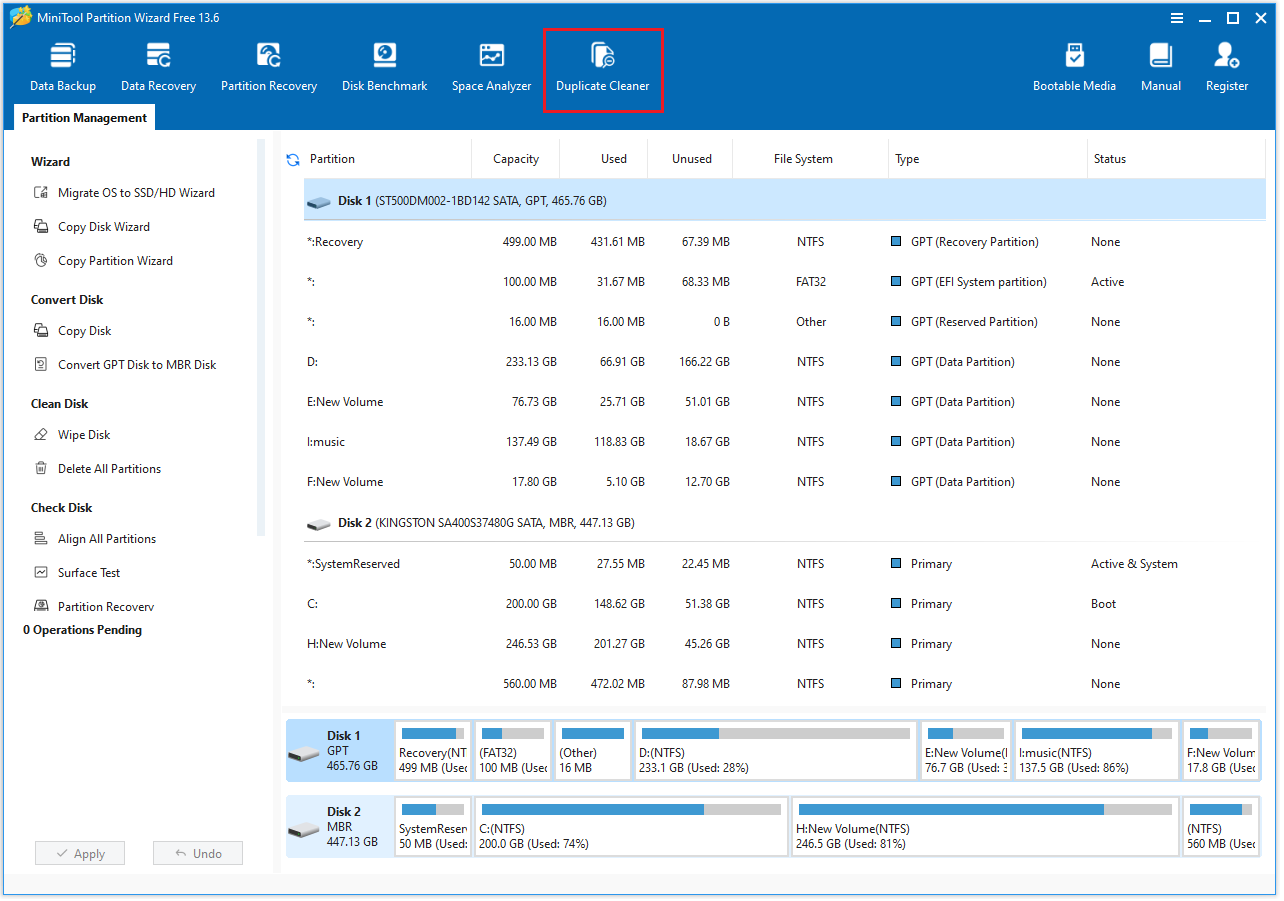
Step 1: Open MiniTool Partition Wizard to access the main interface. Then select the Duplicate Cleaner option from the toolbar.
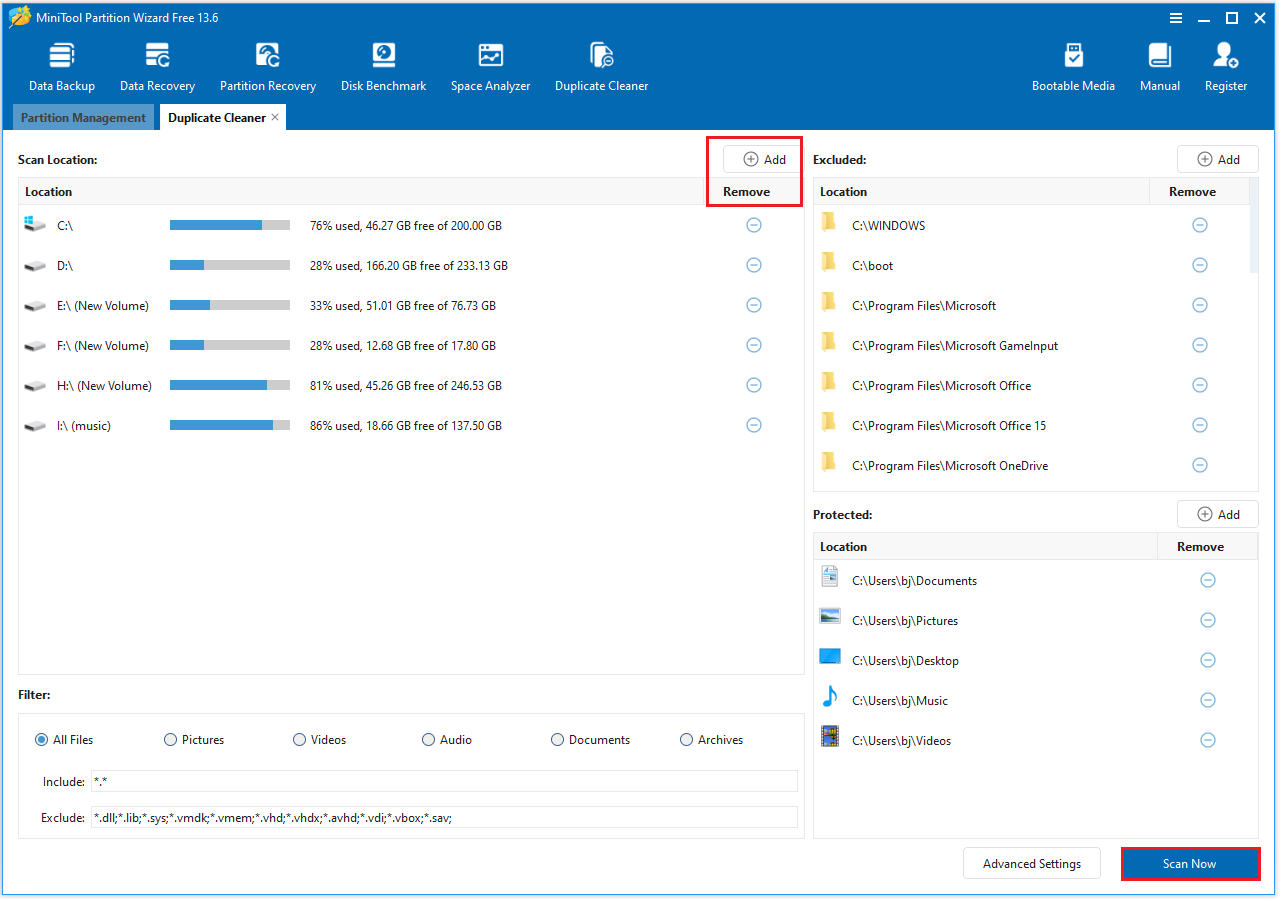
Step 2: In the newly popped-up window, the system will automatically display all detected drives, including your connected SD card, external hard drive, etc. You can scan multiple drives simultaneously, not just a single partition.
- To add a drive to scan, click the Add icon. To remove a drive from the scan list, click the Remove icon.
- Leave the other settings at their defaults, then click Scan Now to begin the cross-drive scan.
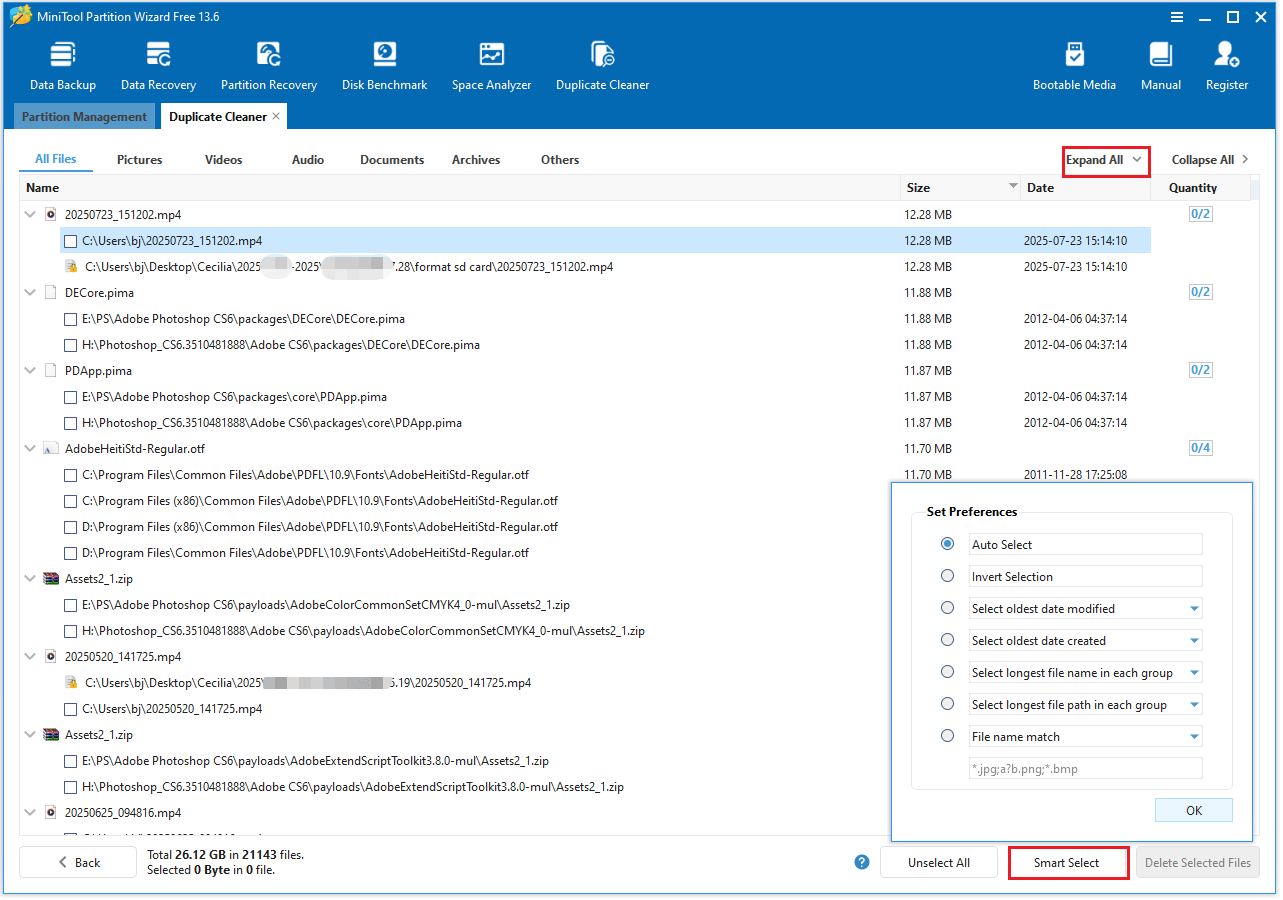
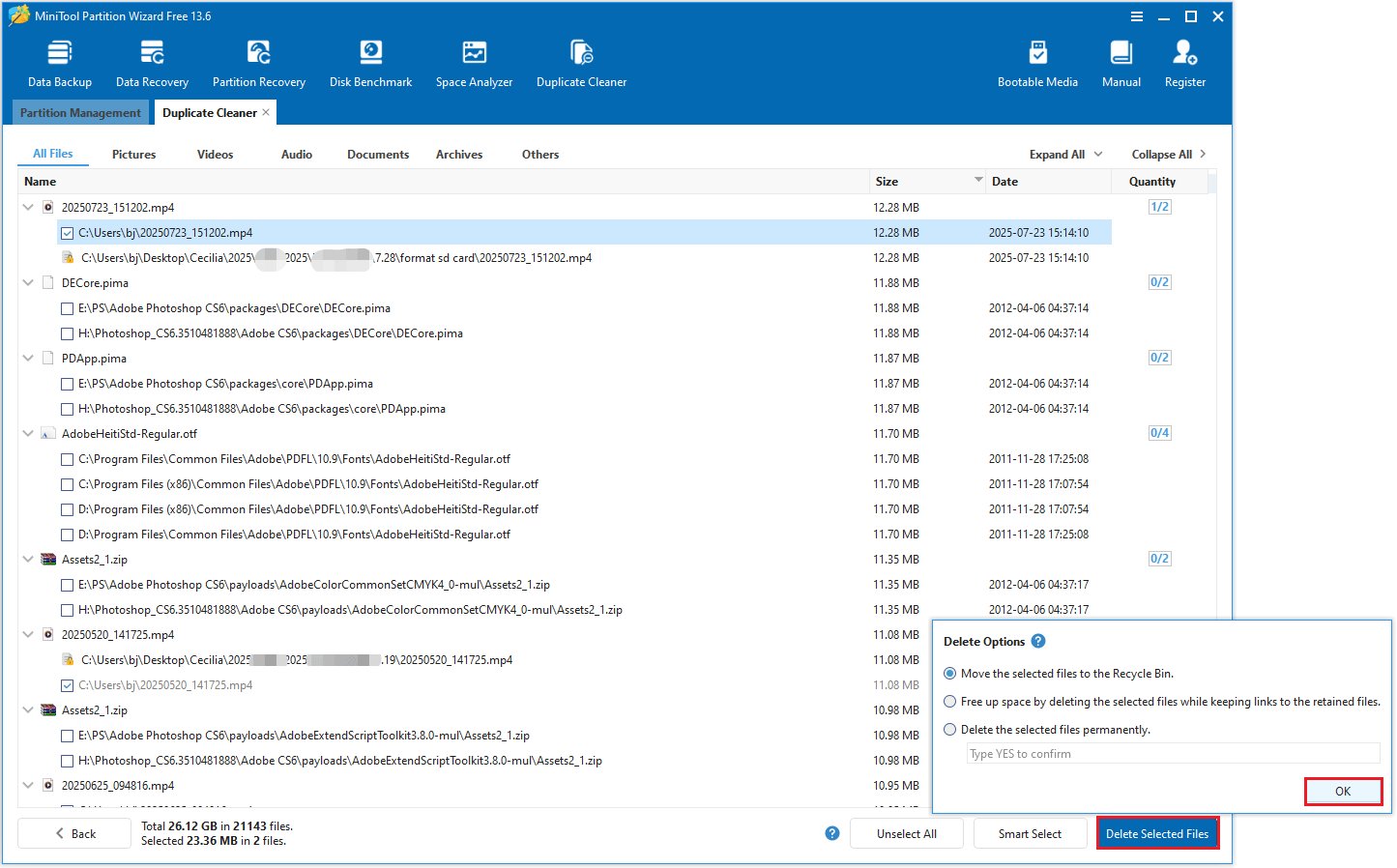
Step 3: After the scan finishes, the results will list all duplicate files. Select Expand All to view the complete file paths for every duplicate. Click Smart Select, then pick a selection method based on your preferences.
Step 4: Click Deleted Selected Files in the bottom right corner. The Delete Option window will appear. Choose one delete option and then click OK.
- Move the selected files to the Recycle Bin: This option will move the files to the Recycle Bin.
- Free up space by deleting the selected files while keeping links to the retained files: Duplicate files will be deleted, and hard links will be created.
- Delete the selected files permanently: This option means that the selected files will be permanently deleted. You will need to enter YES again to confirm.
Find Duplicate Files across Multiple Drives FAQ
Bottom Line
This article shows you how to use MiniTool Partition Wizard to find and remove duplicate files across multiple drives. If you have any questions or feedback about MiniTool Partition Wizard, feel free to contact our support team at [email protected] for additional help.
About The Author

Position: Columnist
Cecilia has been an editor at MiniTool for two years. She primarily focuses on disk and partition-related content, with particular expertise in disk cloning, partition recovery, and PDF document conversion. She is dedicated to providing users with clear and accurate solutions to help them efficiently resolve common computer problems.
User Comments :