
Duplicate RAR files can take up storage space and make your files harder to manage.
To fix this problem, it’s helpful to understand why these duplicates appear and how to remove duplicate WinRAR files on PC.
The following sections explain the common causes and show you how to delete duplicate RAR files.
Why Are There Duplicate WinRAR Files on Your PC?
The presence of duplicate RAR files on a computer is typically linked to downloading, copying, or file management practices. The following is a detailed explanation of the common causes:
- Duplicate downloads: When you download the same compressed archive multiple times, the system automatically saves multiple copies.
- Interrupted or restarted downloads: If a download is interrupted and subsequently restarted, some browsers or download managers may create a new file rather than resuming the original download, thereby generating a duplicate file.
- File transfer and backup: Duplicates can occur when copying files between different folders, disks, or external storage devices without checking for or overwriting existing files.
- Improper organization: When moving or renaming files, a lack of clear tracking can result in identical files being left behind in multiple locations.
How to Delete Duplicate RAR Files
Over time, duplicate RAR files can accumulate, creating unnecessary redundancy on your computer.
The section below outlines two simple methods to help you efficiently find and delete duplicate RAR files.
Method 1: Delete Duplicate RAR Files via MiniTool Partition Wizard
MiniTool Partition Wizard is a free duplicate file cleaner that helps you find and delete duplicate RAR files on your computer, external hard drives, and other storage devices.
Follow the steps below to identify and delete duplicate RAR files.
MiniTool Partition Wizard FreeClick to Download100%Clean & Safe
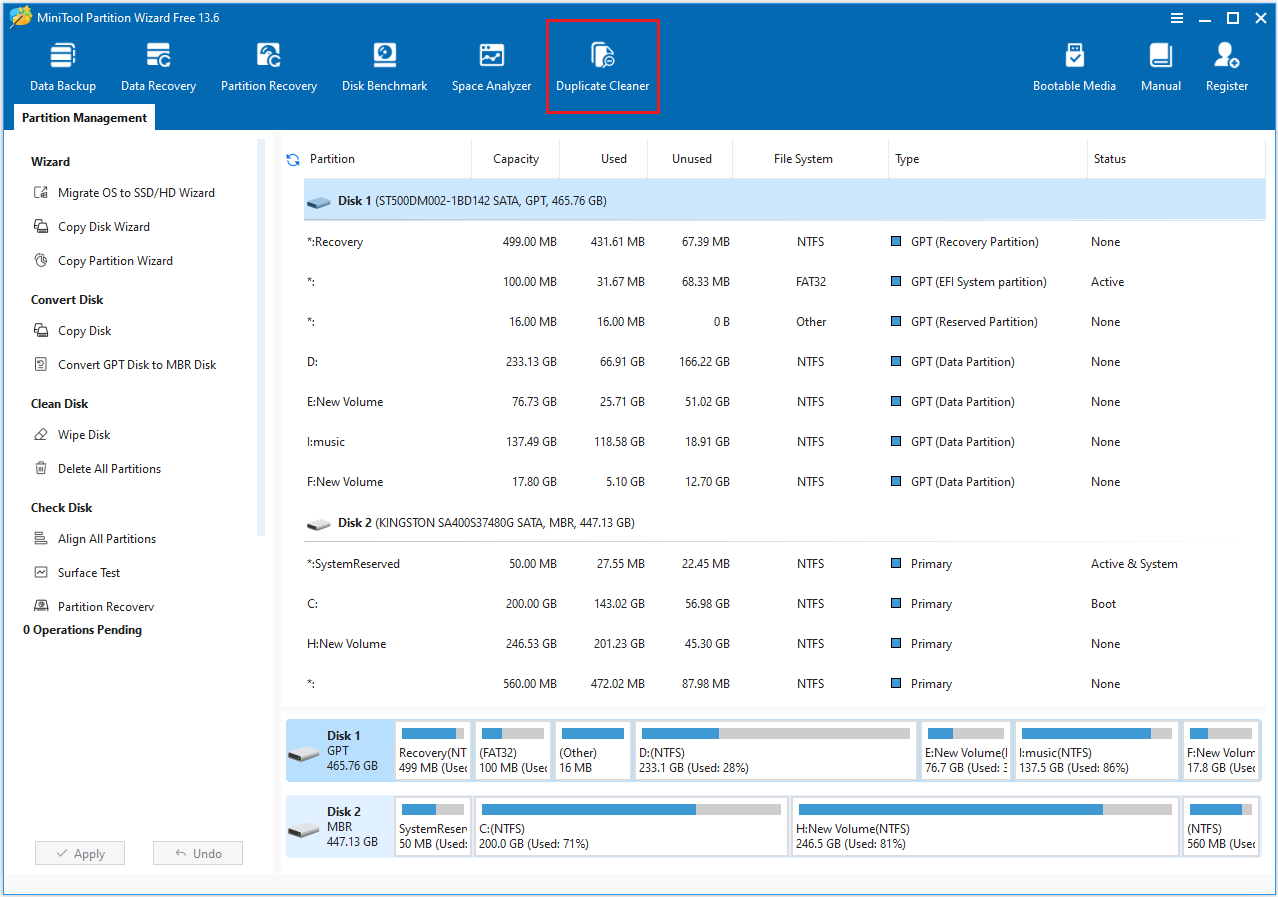
Step 1: Launch MiniTool Partition Wizard to its main interface and click the Duplicate Cleaner feature on the toolbar.
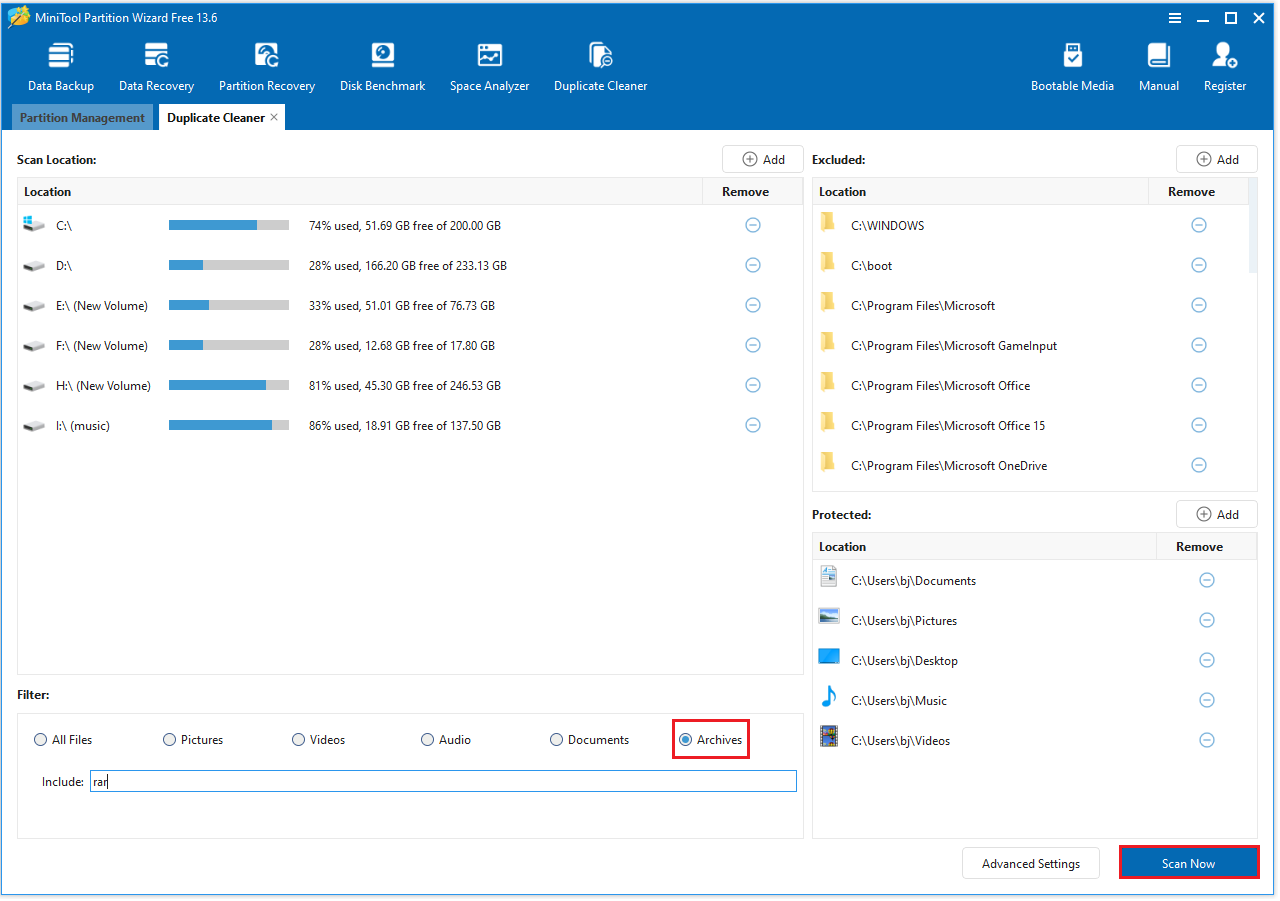
Step 2: In the new pop-up window, you can adjust the settings to choose the disks and other parameters to scan. By default, all file types will be scanned. Here, you need to select the Archives option in the Filter bar, then leave RAR files. After making your selections, simply click Scan Now to begin.
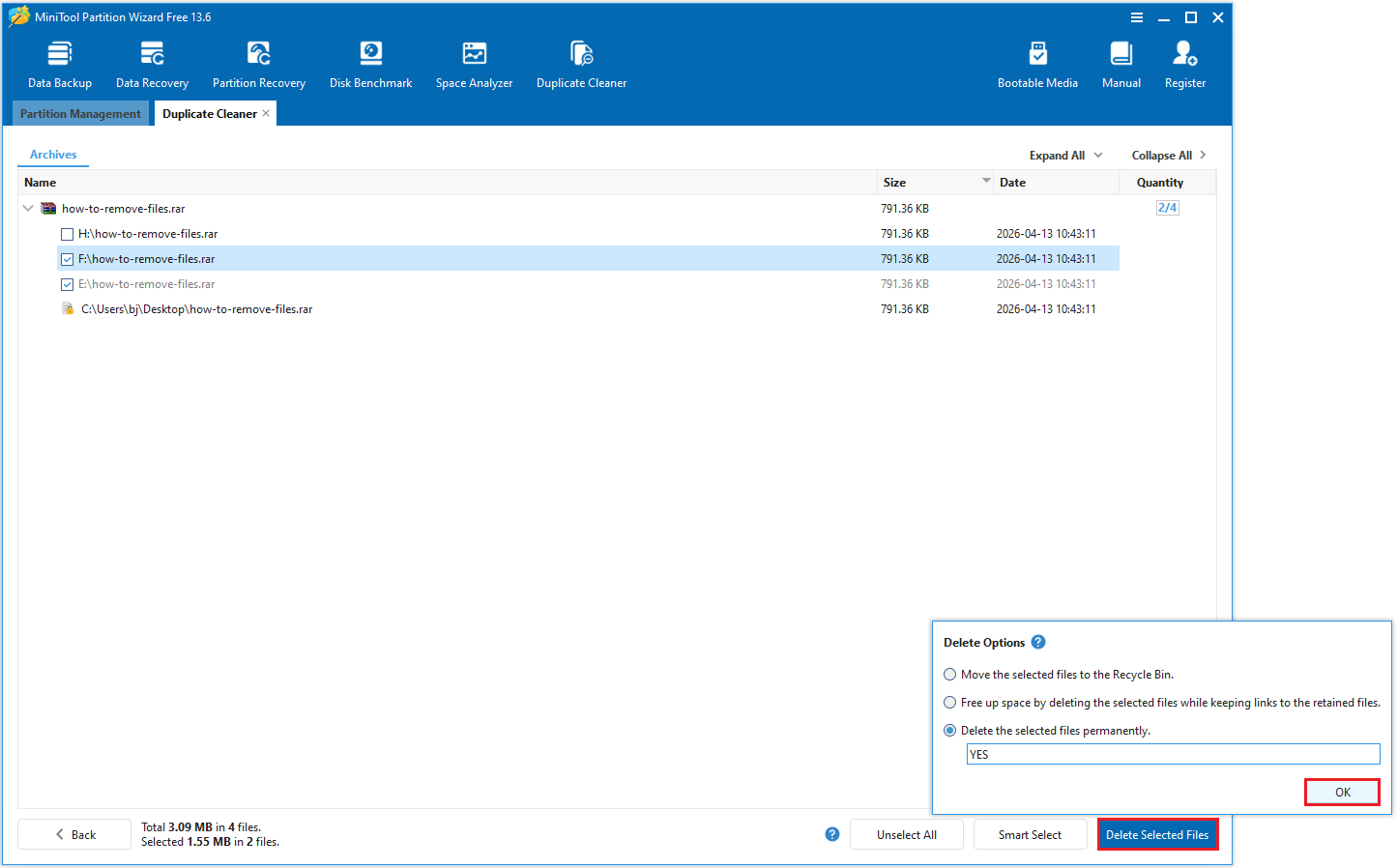
Step 3: Once the scan is finished, a list of all duplicate RAR files will be displayed. Expand each entry to see the duplicate RAR files. Choose the one you wish to delete, then click Delete Selected Files in the bottom right. A Delete Options window will pop up, here you can choose Delete the selected files permanently, then type YES and OK.
Method 2: Via File Explorer
File Explorer is a built-in tool in the Windows operating system that can also help you find duplicate RAR files.
With its basic search features, you can manually identify repeated RAR files and delete them without needing to install any third-party software.
This makes it a simple and convenient way to manage and clean up duplicate RAR files on your computer.
Here are the steps:
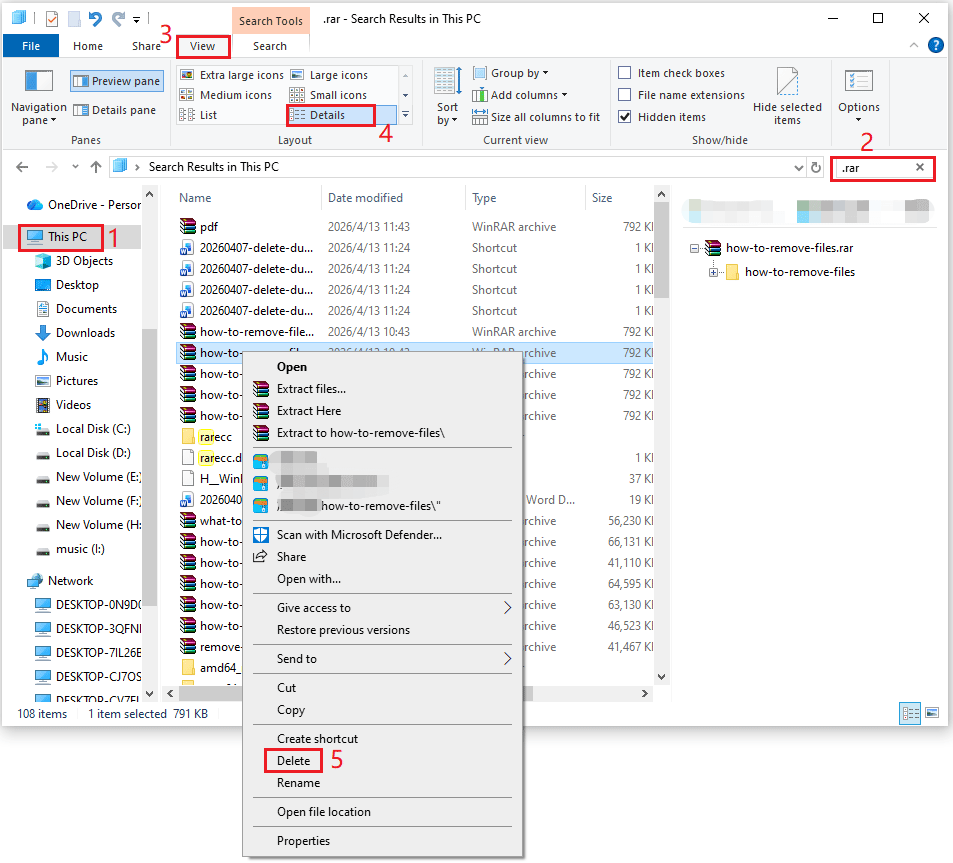
- Click the File Explorer icon to open File Explorer.
- Choose the This PC and type .rar file type in the Search box.
- After a few minutes, all the .rar files will pop up. In Windows 10, go to the View tab and select Details. In Windows 11, choose the View > Details option.
- Manually review the listed RAR files, make sure the RAR files are true duplicates with identical content, not different archives that just have similar names.
- After confirmation, select the duplicate RAR file, right-click, and select Delete.
Delete Duplicate RAR Files FAQ
However, before deleting them, it is advisable to first verify that their contents are absolutely identical rather than archives with similar names but different contents. This helps avoid accidentally deleting important data.
However, if there are duplicate copies of multiple large RAR archives, a substantial amount of disk space could be reclaimed.
Bottom Line
This article explains why there are duplicate WinRAR files on your PC and teaches you use MiniTool Partition Wizard and File Explorer to find and remove the duplicate RAR files.
If you have any questions or feedback about MiniTool Partition Wizard, feel free to contact our support team at [email protected] for additional help.
User Comments :