
If your disk partitions are not properly configured or a partition is not large enough, you may need to merge partitions. This post shows you how to merge partitions without losing data, using MiniTool Partition Wizard and Disk Management.
Want to combine two partitions into one larger drive? This guide explains how to merge partitions in Windows 11/10 without losing data. You can use MiniTool Partition Wizard to directly merge partitions or use Windows Disk Management by deleting one partition and extending the other.
The main differences between these two methods are as follows. You can choose a method based on them.
| Methods | Data Loss Risk | Difficulty | Best For |
| MiniTool Partition Wizard | No | Easy | Beginners who want to keep data |
| Windows Disk Management | Yes unless backed up | Medium | Users comfortable deleting partitions |
Here is a video guide:
This post mainly shows how to merge 2 adjacent partitions, for example C drive and D drive. If the partitions you want to merge are not adjacent, you can refer to the two articles below.
Merge 2 Partitions with MiniTool Partition Wizard
MiniTool Partition Wizard is an all-in-one partition manager that can be perfectly compatible with 32/64-bit Windows Vista/XP/7/8/10/11 systems. This free partition manager can help you merge two partitions, move/resize partitions, and extend partitions for free.
MiniTool Partition Wizard FreeClick to Download100%Clean & Safe
How to merge partitions without losing data using this software? Here is the guide:
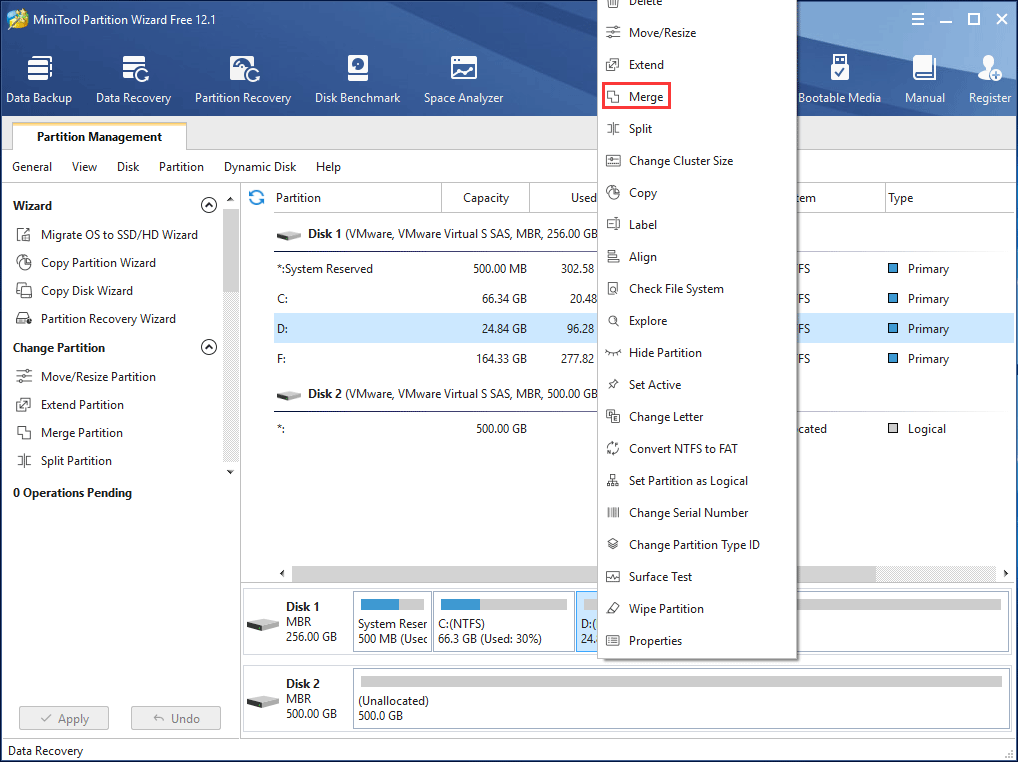
Step 1: Launch MiniTool Partition Wizard. Then, right-click the partition (D: drive) that needs to expand and choose Merge.
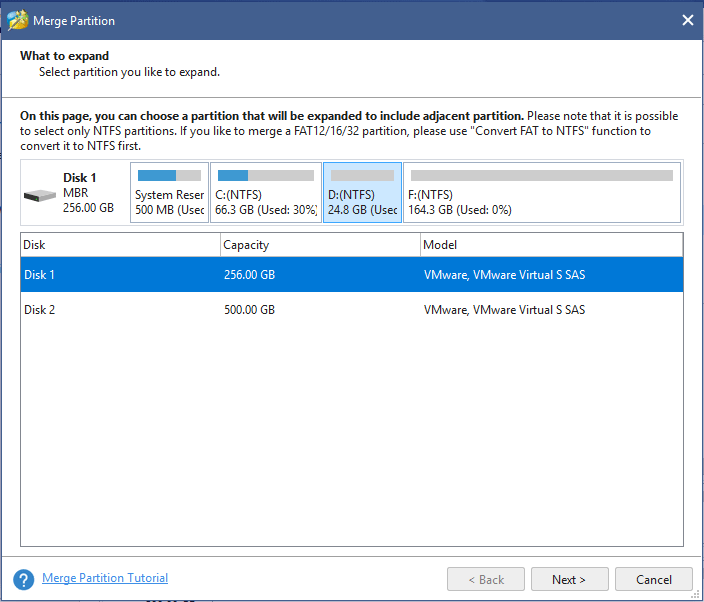
Step 2: Review the partition you want to expand, and then click Next to continue. You can also switch the partition to be expanded.
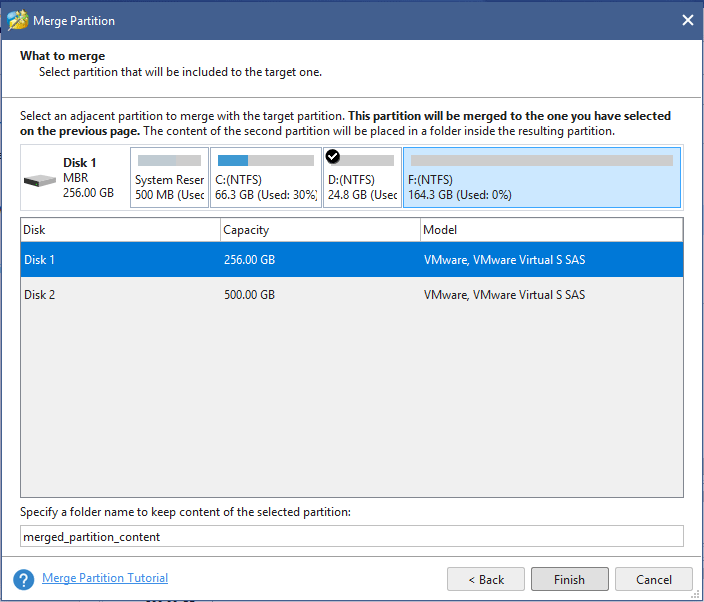
Step 3: Select the partition (F: drive) that will be included in the target partition and click Finish.
Step 4: Preview the partition merge effect and click Apply to execute the operation.
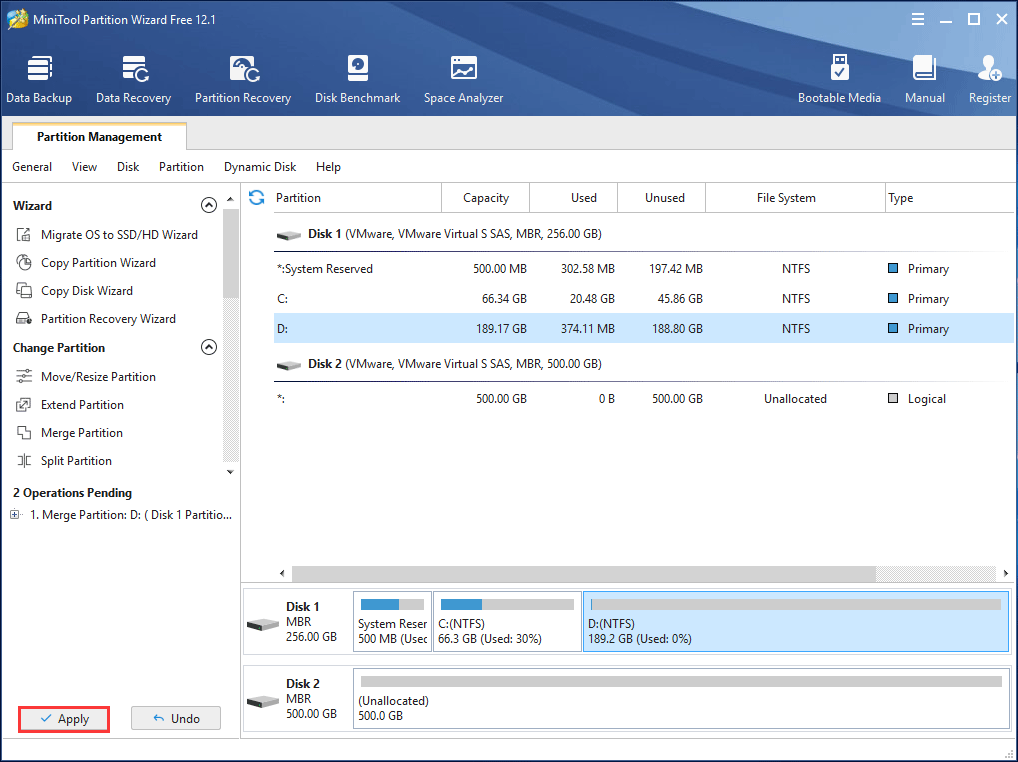
After merging partitions, all content on F partition will be saved to a folder whose name can be changed according to actual demands. And the folder will be saved to the first-selected partition D automatically.
Merge 2 Partitions with Disk Management
To merge partitions without losing data via Disk Management, data backup and partition deletion are required. Here is the guide:
Step 1: Back up data in the partition to be merged.
Step 2: Open Disk Management and then delete the partition to be merged. It will turn to unallocated space.
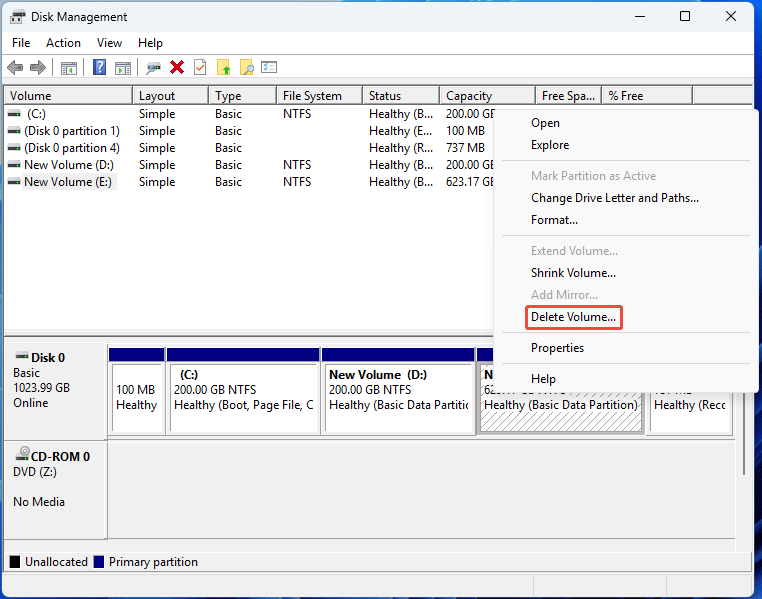
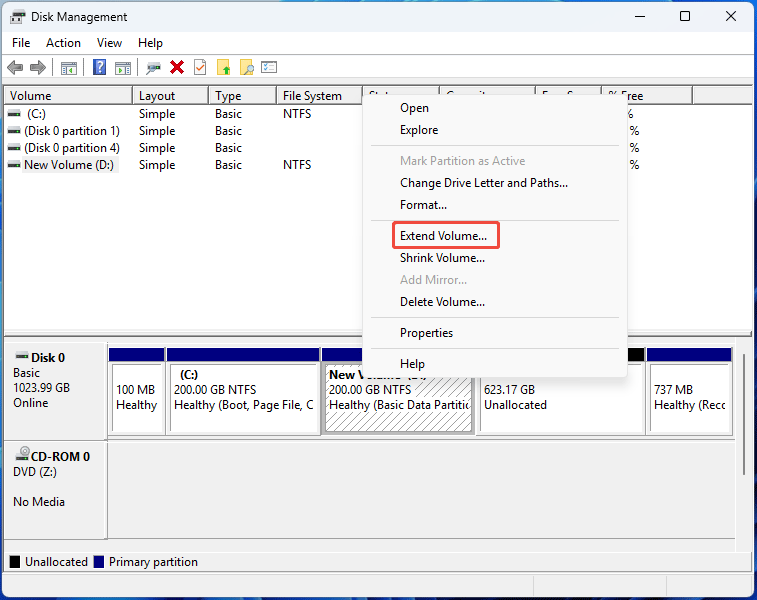
Step 3: Right-click the partition to be expanded and select Extend Volume. Follow the wizard to merge the unallocated space.
How to Merge Partitions FAQ
Bottom Line
If you have any questions during the use of MiniTool software, send an email to [email protected] for help.
About The Author

Position: Columnist
Linda has been an editor at MiniTool for seven years. She continuously learns about computers and puts her knowledge into practice. Moreover, she is particularly knowledgeable in disk management, data recovery, system installation, and PDF editing. Her articles typically reference multiple examples or are based on her own experience, providing users with the most suitable solutions.
User Comments :