
Facing the “Secure Boot can be enabled when system in User Mode” error? This article from MiniTool Partition Wizard explains why the error occurs and shows step-by-step solutions to fix it, including enabling UEFI, disabling CSM, and converting MBR to GPT.
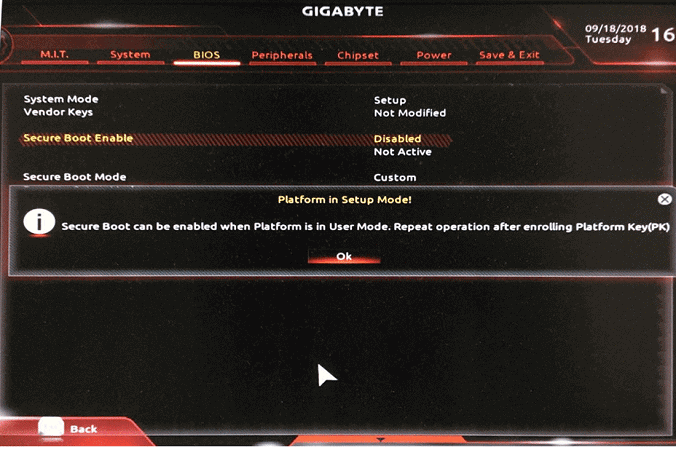
The error “Secure Boot can be enabled when system in User Mode” appears when your BIOS is unable to enable Secure Boot because the system is currently in Setup Mode instead of User Mode. This usually happens when the Secure Boot Platform Key is missing or not properly enrolled.
To fix this issue, you need to restore Secure Boot keys, enable UEFI mode, or convert the system disk from MBR to GPT if required.
This article explains the causes of this error and provides proven solutions to enable Secure Boot successfully.
What Causes the Secure Boot Can Be Enabled When System in User Mode Error
When enabling Secure Boot in BIOS, you may encounter the message “Secure Boot can be enabled when system in User Mode.” This usually happens when the system is not properly configured for Secure Boot, such as missing security keys or using an incompatible boot mode.
Common causes include:
| Cause | Description |
| Secure Boot key (PK) not registered | The Platform Key (PK) is missing, causing the system to stay in Setup Mode instead of User Mode |
| CSM is enabled | CSM uses Legacy compatibility mode, which conflicts with Secure Boot’s UEFI requirement |
| MBR partition style | nerally requires a UEFI + GPT configuration, while MBR is commonly used with Legacy boot |
| Legacy boot mode enabled | Secure Boot cannot work when the system boots in Legacy BIOS mode |
| Outdated BIOS/UEFI firmware | Older firmware may cause Secure Boot settings to fail or behave incorrectly |
Next, you can try the following methods to resolve the “Secure Boot can be enabled when in User Mode” error.

How to Fix Secure Boot Can Be Enabled When System in User Mode
After understanding the common causes of this error, you can try the following methods to resolve the “Secure Boot can be enabled when system in User Mode” problem.
To fix the problem, try these solutions:
| Cause | Solution |
| Missing Secure Boot Keys (Platform Key/PK) | Restore Factory Keys |
| CSM Enabled | Disable CSM |
| Legacy BIOS | Enable UEFI |
| MBR Disk | Convert MBR Disk to GPT |
| Outdated BIOS | Update BIOS |
| TPM Disabled | Enable TPM |
Fix 1: Restore Secure Boot Factory Keys
When you encounter the error Secure Boot can be enabled when System in User Mode, one of the most common causes is that the Secure Boot keys on the motherboard are missing, deleted, or unregistered.
If these keys are not installed, the system may be in Setup Mode, preventing Secure Boot from being enabled.
Therefore, you need to restore the Secure Boot keys so that the system switches to User Mode, thereby allowing Secure Boot to be enabled.
Step 1: Restart your computer and repeatedly press the BIOS key (such as F2, Delete, or F10) during startup to enter the BIOS firmware settings interface.
Step 2: Navigate to the Secure Boot or Secure Boot Mode option.
Step 3: Find the Key Management section, select Restore Factory Keys or a similar option, and then confirm the restoration of the motherboard’s default Secure Boot keys.
Step 4: Press F10 to save the settings and exit the BIOS, then wait for the computer to restart automatically.
Step 5: Set Secure Boot to Enabled, save the changes, and restart the computer.
Fix 2: Disable CSM Support
CSM is used to enable Legacy BIOS mode, while Secure Boot only supports UEFI mode.
Therefore, enabling CSM may cause Secure Boot to fail to start, displaying the message “Secure Boot can be enabled when system in User Mode”.
To resolve this issue, it is recommended to disable CSM and switch to UEFI boot mode.
Here are the steps:
Step 1: Enter the BIOS setup interface again. Once in the BIOS, navigate to the Boot tab, locate an option such as CSM Support or Legacy Support, and set it to Disabled.
Step 2: Save the settings and restart the computer. Then, re-enter the BIOS, go to the Secure Boot settings page, and set Secure Boot to Enabled.
Finally, save the changes, exit the BIOS, and boot into Windows to verify that Secure Boot has been successfully enabled.
Fix 3: Switch BIOS Mode to UEFI
Legacy boot mode does not support Secure Boot. If your system is set to Legacy, Secure Boot may be disabled, and you may see the “Secure Boot can be enabled when system in User Mode” message.
To fix this, you need to switch the boot mode from Legacy to UEFI.
Step 1: Restart your PC and enter the BIOS/UEFI settings by pressing the BIOS key.
Step 2: Go to the Boot tab or Boot Options menu.
Step 3: Go to the Boot Menu.
Step 4: Change the mode from Legacy to UEFI.
Step 5: Save changes and exit BIOS, then restart your computer.
After rebooting, verify the error message is resolved.
Fix 4: Convert MBR to GPT
If you have restored the default Secure Boot keys, disabled CSM, and enabled UEFI, but still cannot activate Secure Boot, you need to check whether your system disk uses the MBR partition style.
Secure Boot supports only the UEFI boot mode, and most Windows systems booting via UEFI require the GPT partition table.
If your system disk is still in MBR format, Secure Boot may fail to enable; therefore, you will need to convert the disk from MBR to GPT.
Windows provides the MBR2GPT tool, but it requires the use of the command line and is not particularly user-friendly for beginners.
If you prefer to perform the conversion via a graphical interface, you can use MiniTool Partition Wizard to convert MBR to GPT without deleting partitions or data.
MiniTool Partition Wizard DemoClick to Download100%Clean & Safe
Step 1: Launch MiniTool Partition Wizard to its main interface.
Step 2: Choose the MBR disk you want to convert.
Step 3: Select the Convert MBR Disk to GPT Disk function from the left pane, and then click OK in the warning window.
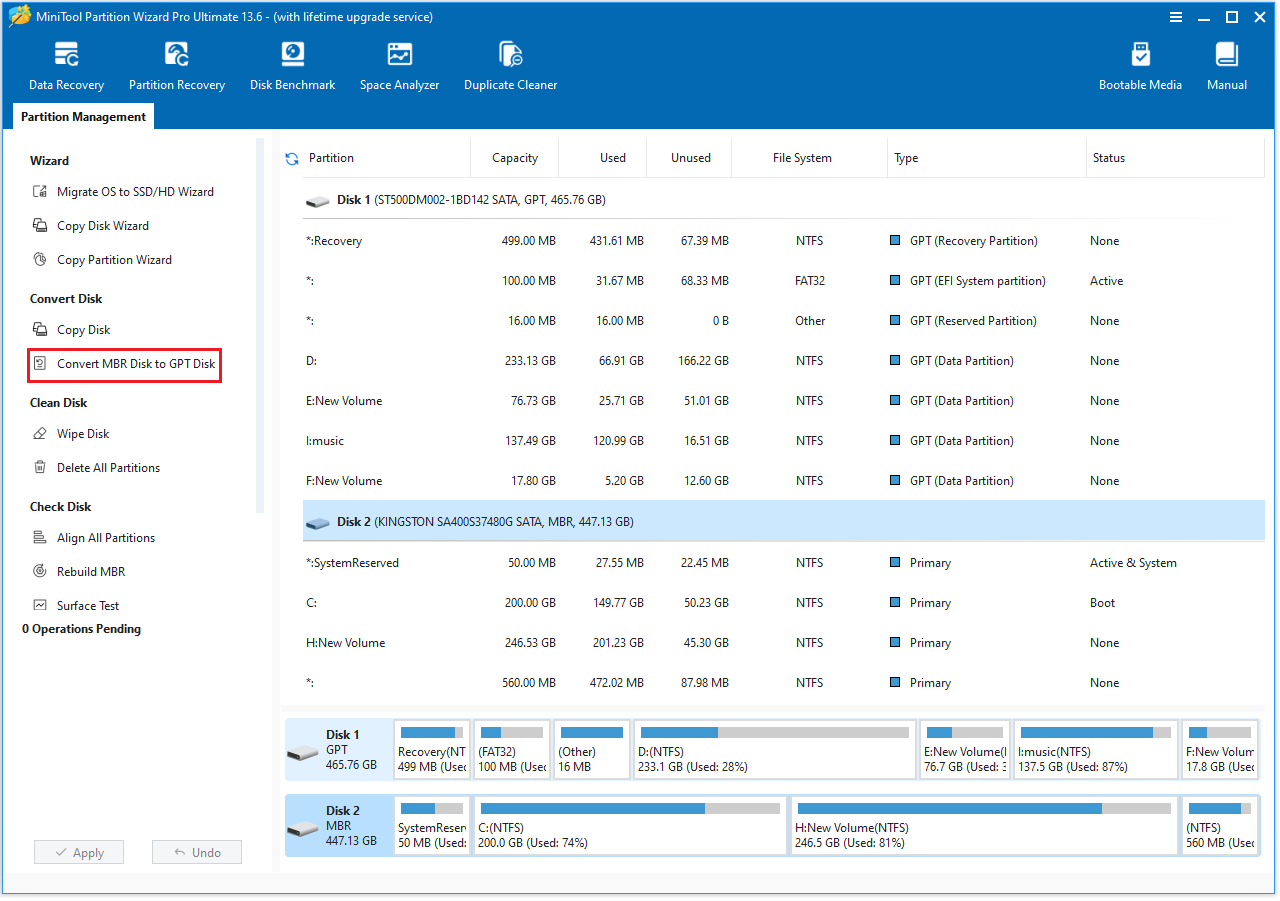
Step 4: Click Apply > Yes to execute the pending operations
Fix 5: Enable TPM
TPM does not directly cause the Secure Boot User Mode error. However, many users need to enable both Secure Boot and TPM when installing Windows 11 or running certain games.
Therefore, if you have successfully enabled Secure Boot but still receive TPM-related notifications, you can follow the steps below to check and enable TPM.
Step 1: Press Win + R to open the Run window, type tpm.msc, and press Enter.
Step 2: In the pop-up window, go to the Action tab and select Prepare the TPM from the drop-down menu.
Step 3: Restart your computer, check the Secure Boot state, and see if the “Secure Boot can be enabled when system in User Mode” error is fixed.
Fix 6: Update BIOS
If none of the above methods work, the issue may be caused by an outdated motherboard BIOS version.
Older BIOS versions may have Secure Boot compatibility issues, firmware defects, or missing security updates that prevent Secure Boot from being enabled correctly.
Motherboard manufacturers typically resolve these issues in BIOS updates, making a BIOS update a solution worth trying.
Also read: How to Update BIOS Windows 10 | How to Check BIOS Version.
Secure Boot Can Be Enabled When System in User Mode FAQ
By allowing only trusted software to run, it helps prevent malware and unauthorized programs from loading when the system starts up.
Bottom Line
The error “Secure Boot can be enabled when system in User Mode” is typically caused by a missing Secure Boot PK or the system disk using the MBR partition format. This article provides six detailed solutions.
If you have any questions or feedback about MiniTool Partition Wizard, feel free to contact our support team at [email protected] for additional help.
User Comments :