
When BitLocker-encrypted drive disappeared, the data may remain intact. This post shows you how to recover BitLocker-encrypted drive through 5 methods. Among them, MiniTool Partition Wizard is the most practical.
Why Does a BitLocker-Encrypted Drive Disappear?
Some users reported that their BitLocker-encrypted drives disappeared suddenly. The symptoms and causes may be as follows:
| What the user sees | What it usually means |
| The drive appears in Disk Management but not in File Explorer. | The partition exists but may be offline or missing a drive letter. |
| The drive shows as RAW or Unallocated. | The file system, partition information, or BitLocker metadata may be damaged, although the encrypted data may still be present. |
| An external BitLocker drive isn’t detected after plugging it in. | There could be a USB, driver, power, or hardware issue. |
| The BitLocker drive has vanished after a Windows update or reboot. | Driver changes, storage configuration changes, or system updates may have affected how Windows detects the drive. |
The “BitLocker-encrypted drive disappeared” issue usually indicates that Windows no longer displays or allows access to a drive protected by BitLocker encryption.
Although the drive seems to have vanished, the encrypted data often remains intact and can sometimes be recovered through troubleshooting or repair.
![BitLocker Not Showing for USB/External Hard Drive? [Fixed]](https://images.minitool.com/partitionwizard.com/images/uploads/2023/06/bitlocker-not-showing-for-usb-external-hard-drive-thumbnail.jpg)
First Things to Check Before Attempting Recovery
When the “BitLocker-encrypted drive missing” issue occurs, you need to do the following 2 checks.
#1. The BitLocker-Encrypted Drive Status in Disk Management
Open Disk Management to see whether Windows recognizes the drive. If it does, check the drive’s status.
| Drive Status | What It Means | Next Step |
| Healthy (BitLocker-encrypted) | The drive is detected. | Check if it has a drive letter. If not, add one. |
| RAW | Windows can’t recognize the file system, often due to corruption. | Avoid formatting. Attempt recovery first. |
| Unallocated | The partition table may be damaged or deleted. | Consider partition recovery software. |
| Offline | Windows has taken the disk offline due to conflicts or errors. | Bring the disk online in Disk Management. |
If the drive doesn’t appear in Disk Management at all, the issue may be related to the hardware, USB connection, storage controller, or disk failure rather than BitLocker itself.
#2. The BitLocker-Encrypted Drive Status in Device Manager
Open Device Manager and expand Disk drives.
- If the drive is listed, Windows can communicate with the hardware.
- If it shows a warning icon, update or reinstall the storage driver.
- If it doesn’t appear, reconnect the drive, try another USB port or cable (for external drives), or test it on another computer.
A missing drive in Device Manager usually points to a hardware or connection problem rather than an encryption issue.
How to Recover a Missing BitLocker Drive
To recover BitLocker-encrypted drive, you can try the following methods.
Method 1. Bring the Disk Online
If the disk is shown as Offline in Disk Management, Windows cannot access it until it is brought online. This usually happens due to disk conflicts or storage errors.
To bring the disk online: open Disk Management, right-click the offline disk, and select Online.
If the disk is online successfully, check whether the BitLocker-encrypted partition is accessible again.
Method 2. Assign a Drive Letter
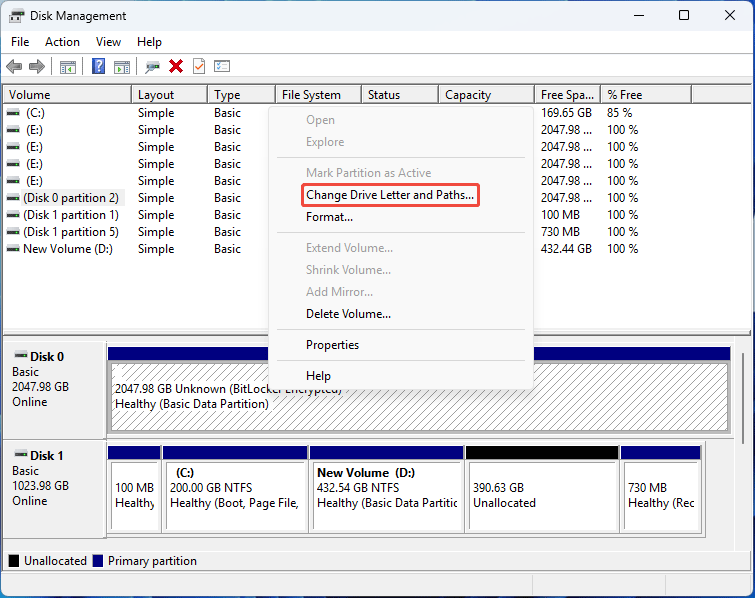
If the BitLocker-encrypted drive disappears due to missing drive letter, assigning a letter to it can solve the issue.
To do that, open Disk Management, right-click the BitLocker-encrypted drive and choose Change Drive Letter and Paths. Click Add, keep the default letter, and then OK.
Method 3. Repair BitLocker Metadata
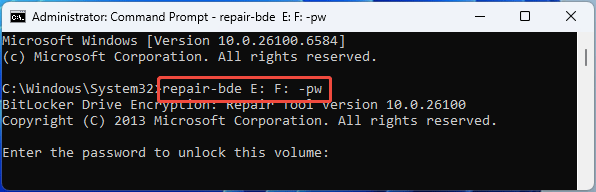
When the BitLocker volume is corrupted or the BitLocker volume cannot be unlocked due to damaged metadata, you can use the “repair-bde” command to decrypt and extract data from the damaged BitLocker volume and copy it to another drive.
This command requires the decryption password or recovery key.
- If you use password, the command should be: repair-bde input_volume output_volume -pw. Then, enter the password.
- If you use a recovery key, the command should be: repair-bde input_volume output_volume -rp recovery_key.
Method 4. Recover a Lost BitLocker Partition
If the BitLocker-encrypted drive becomes unallocated, you can use MiniTool Partition Wizard to recover it. Here is the guide.
MiniTool Partition Wizard DemoClick to Download100%Clean & Safe
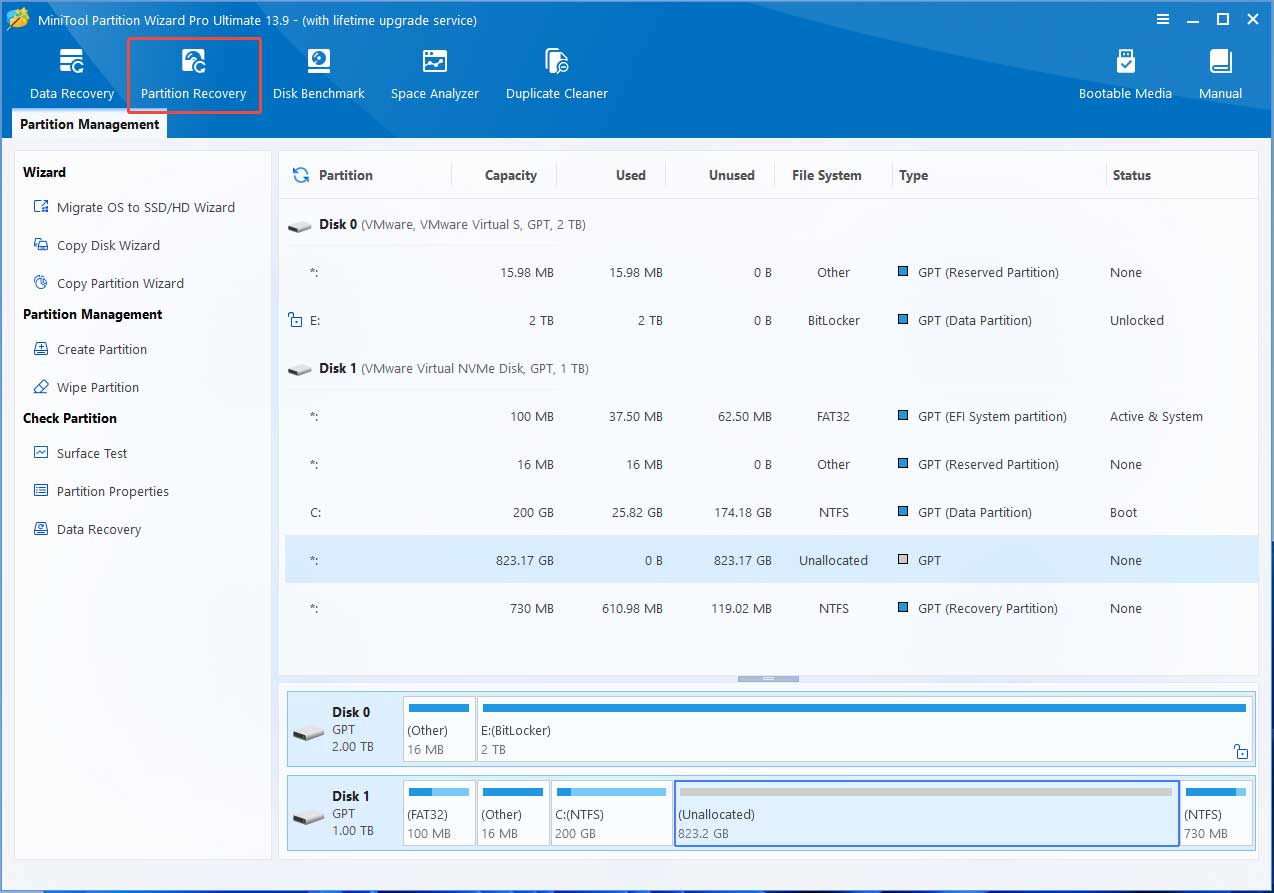
Step 1: Launch this software and click Partition Recovery.
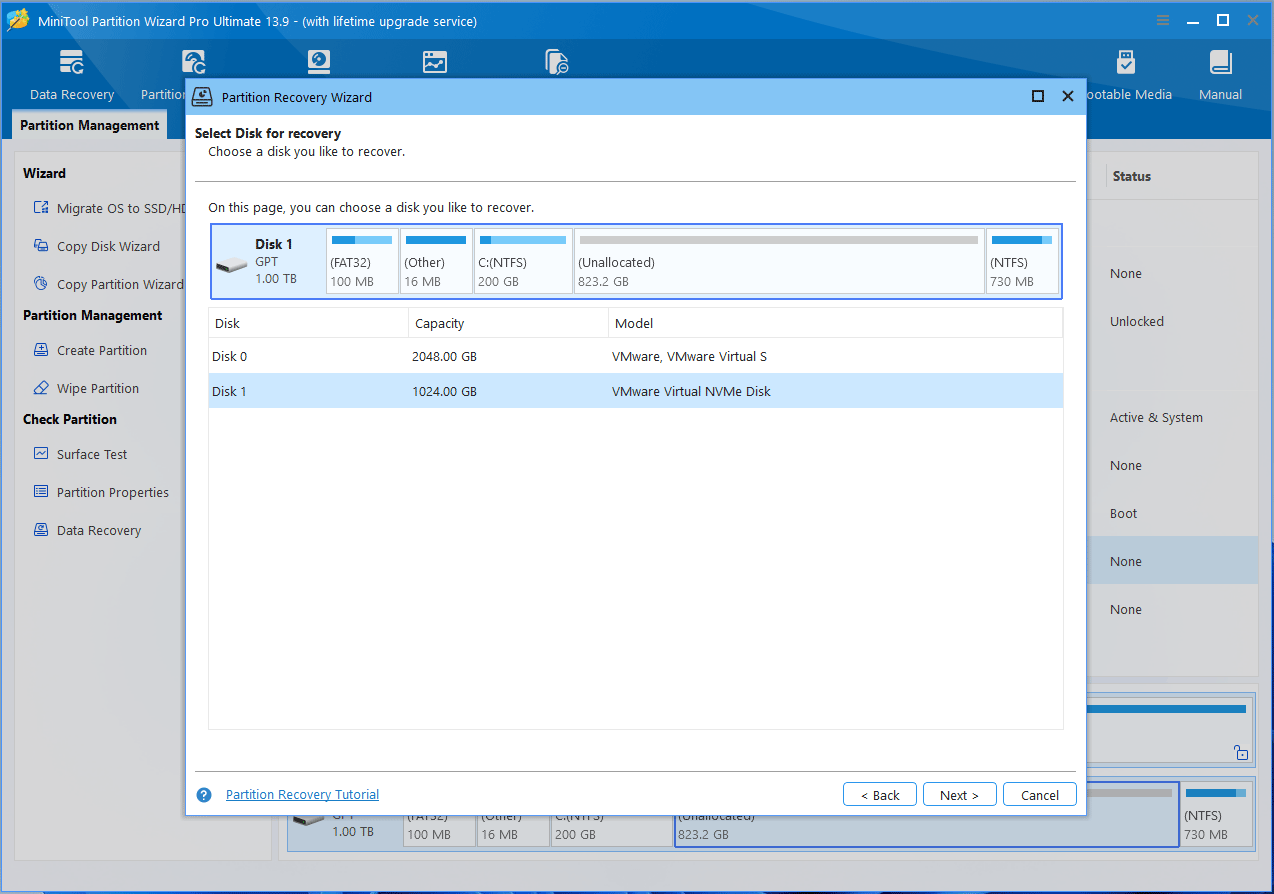
Step 2: On the pop-up window, click Next. Then, select the disk where the BitLocker-encrypted drive disappeared. Click Next again.
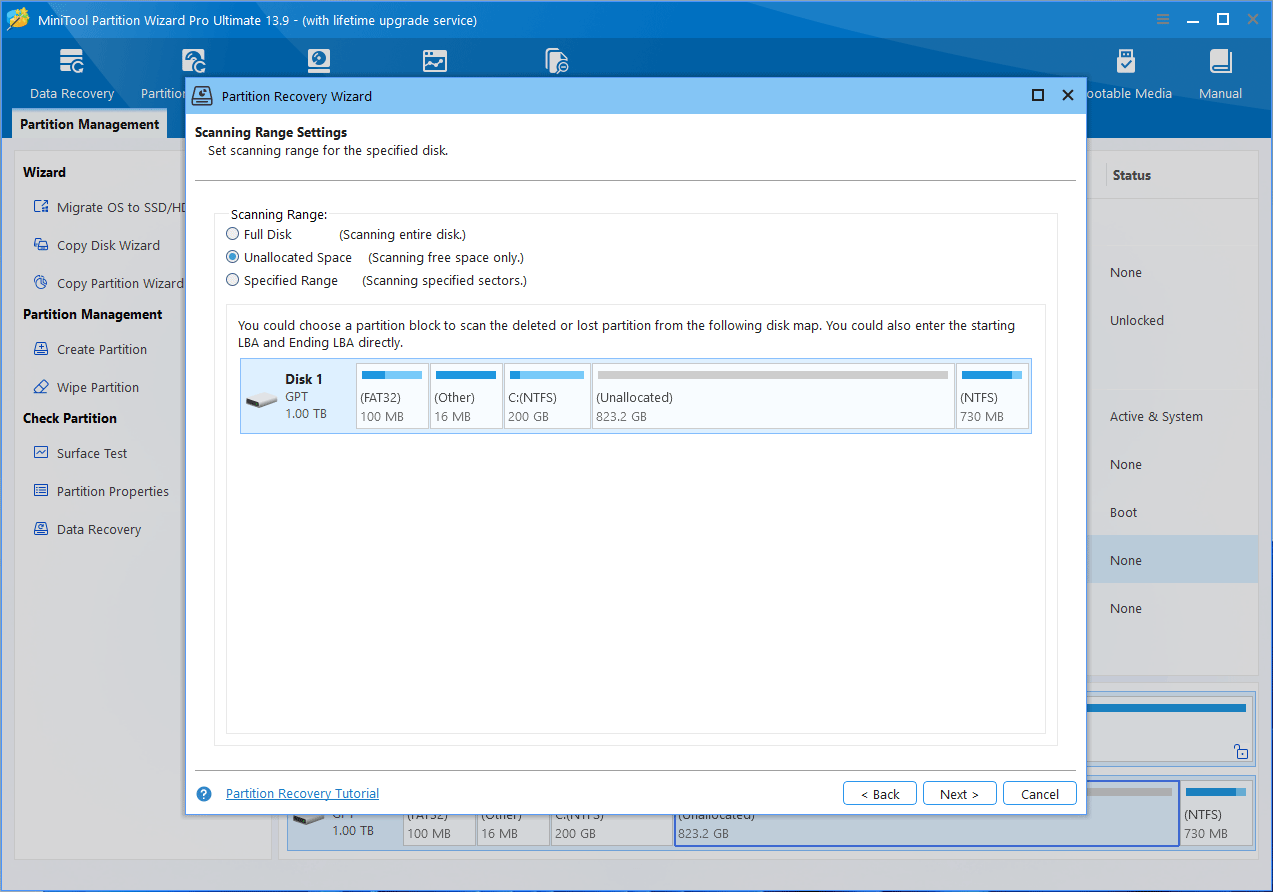
Step 3: Select the scanning range. Unallocated Space is recommended. Then, click Next.
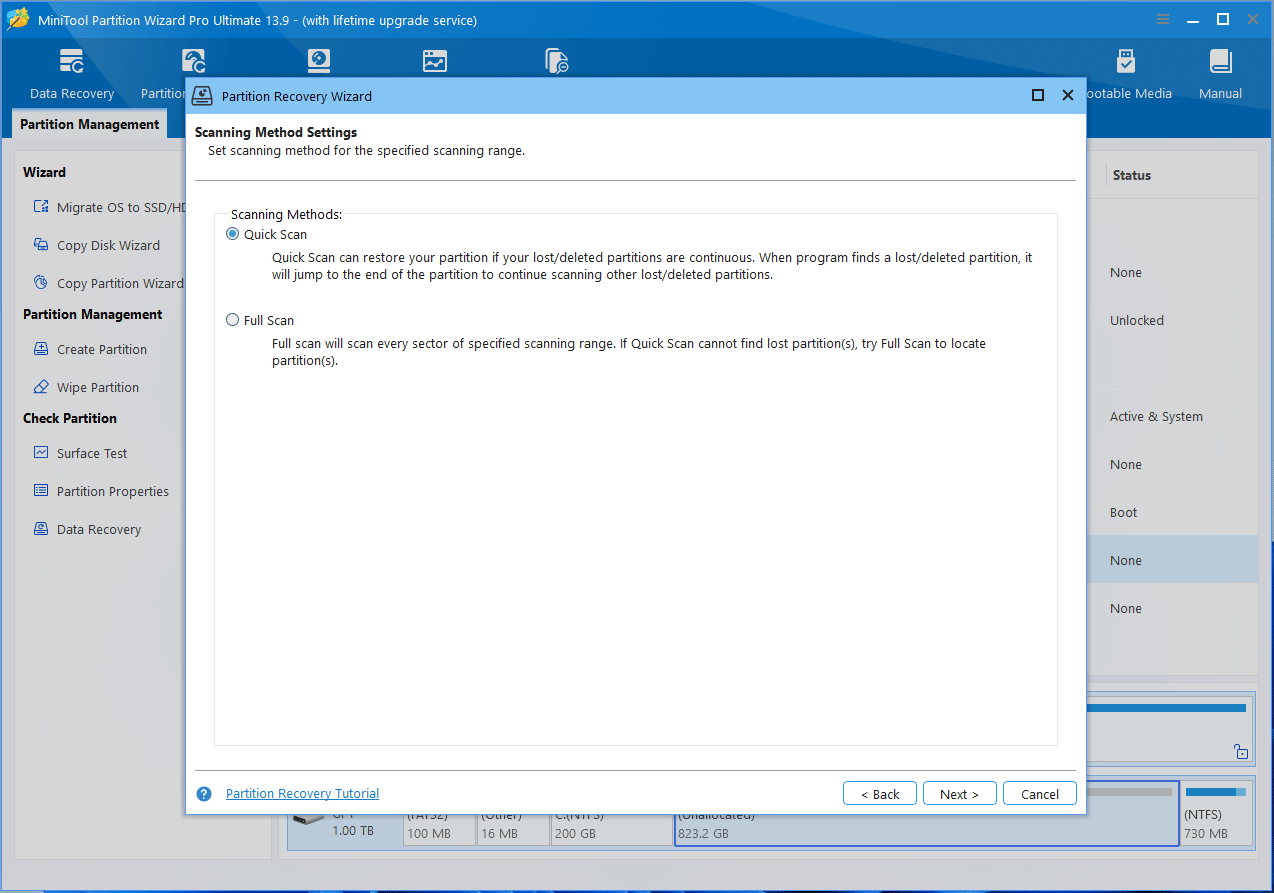
Step 4: Select a scanning method. Quick Scan is recommended. Then, click Next.
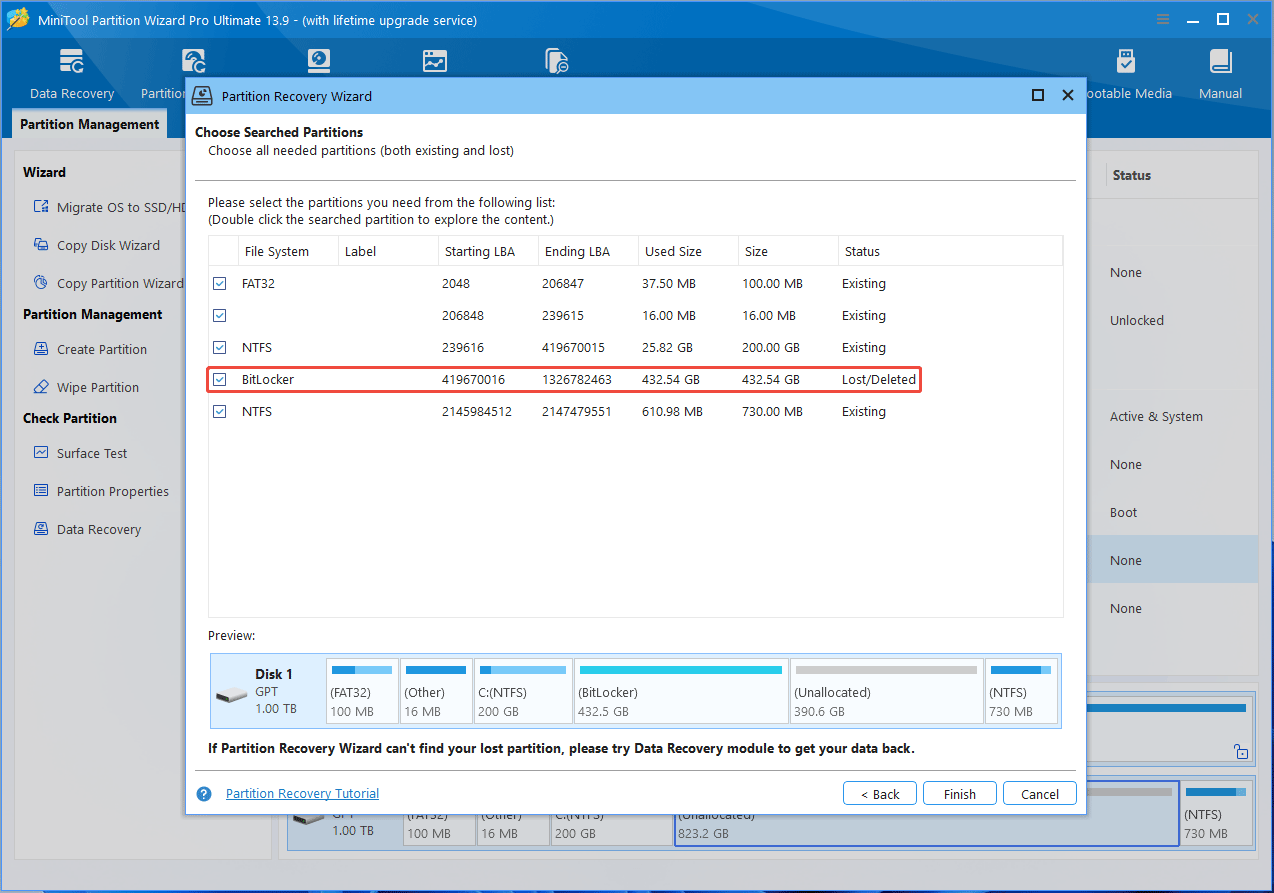
Step 5: After the scanning is completed, tick the lost BitLocker partition and click Finish.
Step 6: Click Apply to execute the partition recovery operation.
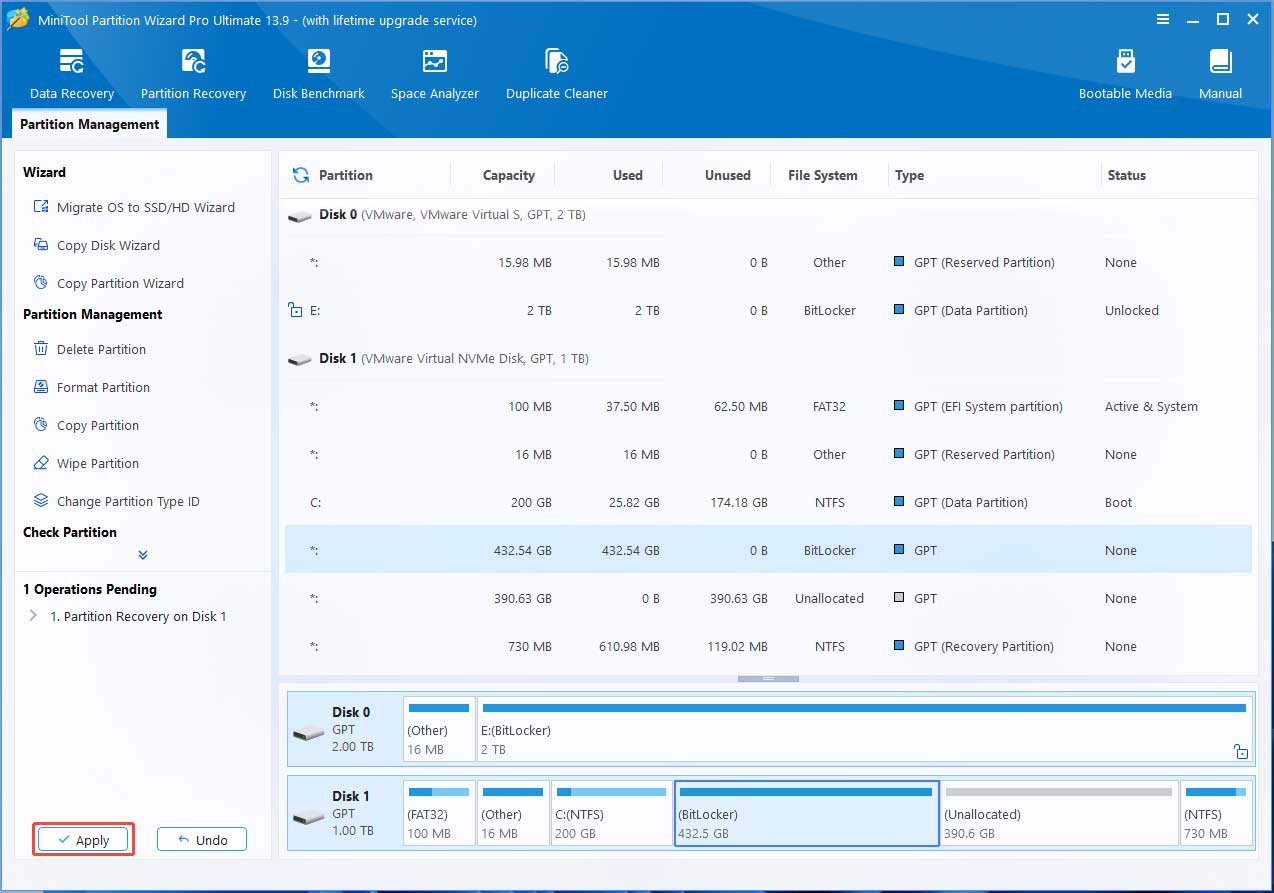
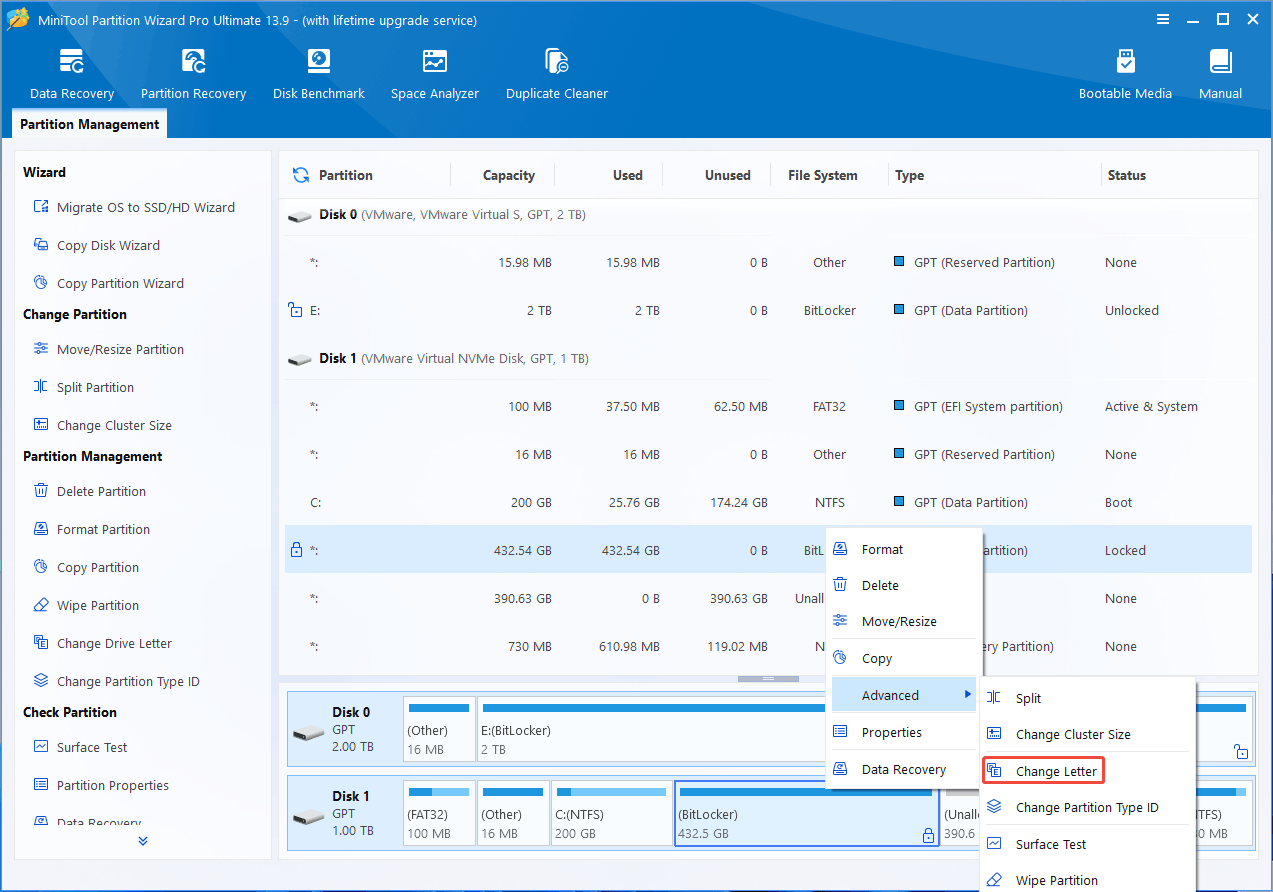
Step 7: The recovered partition has no drive letter. You need to add one. Right-click it and choose Advanced > Change Letter. Click OK and then Apply.
Method 5. Recover Data from a Corrupted BitLocker Drive
If the BitLocker-encrypted drive becomes RAW, you can try recovering data using MiniTool Partition Wizard. Here is the guide:
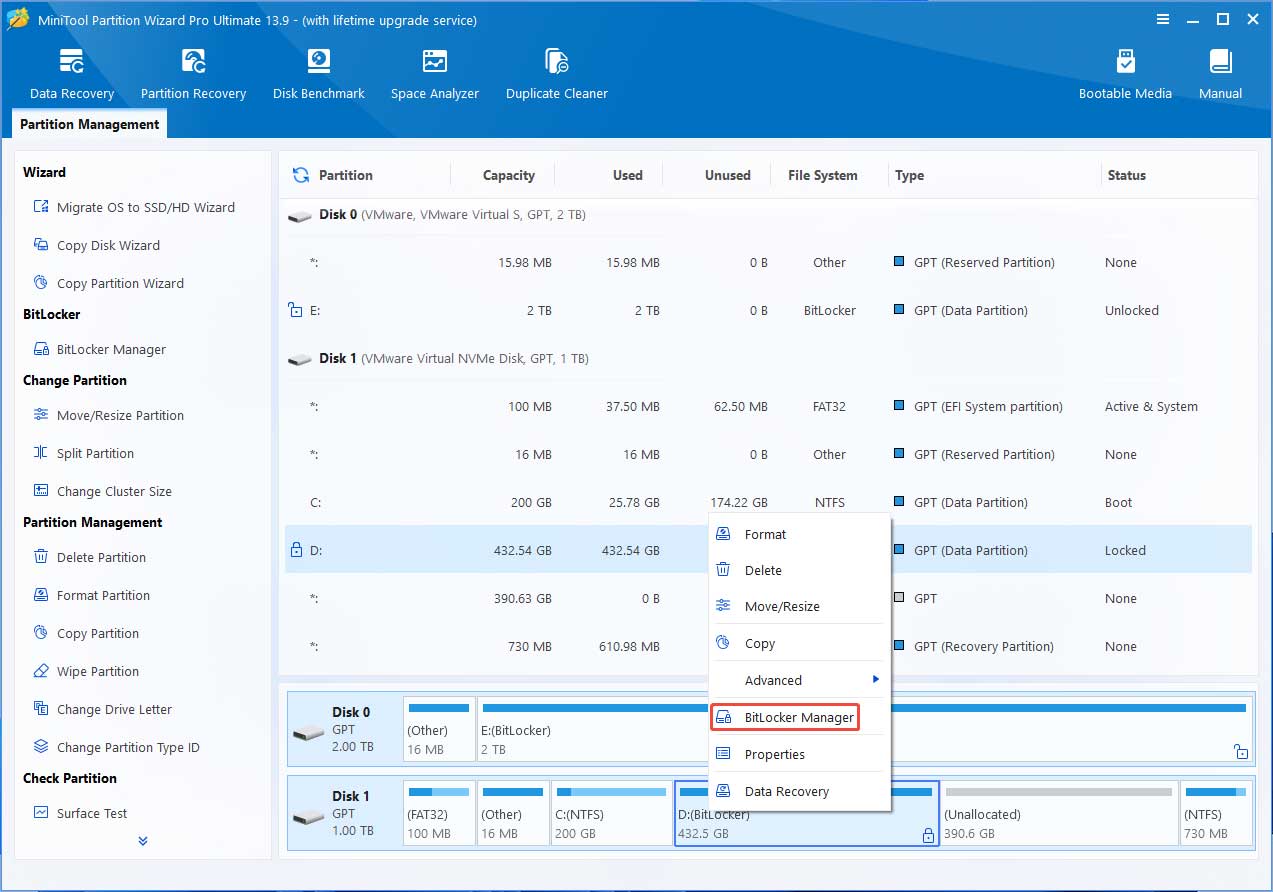
Step 1: Right-click the BitLocker drive and choose BitLocker Manager.
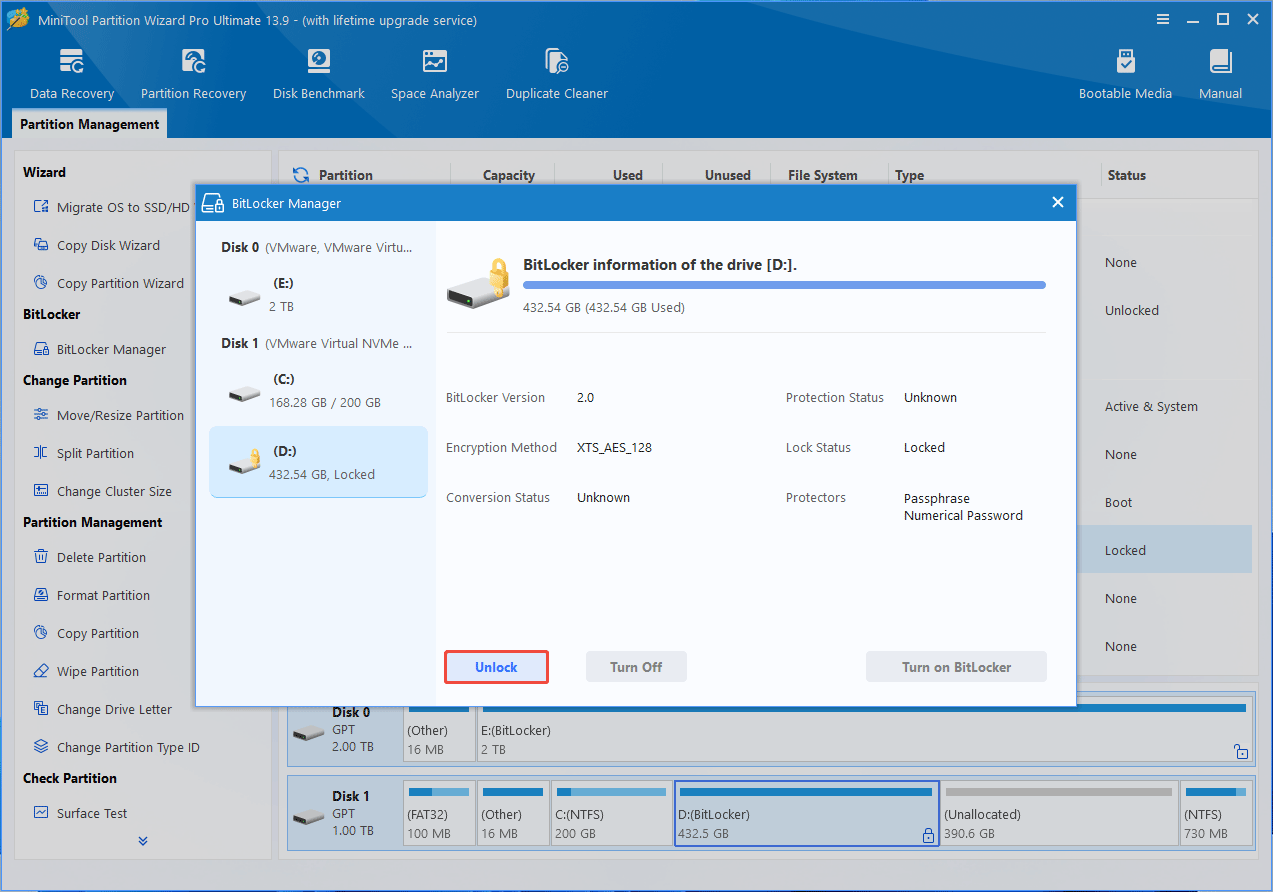
Step 2: On the pop-up window, click Unlock and then enter the password to unlock the drive.
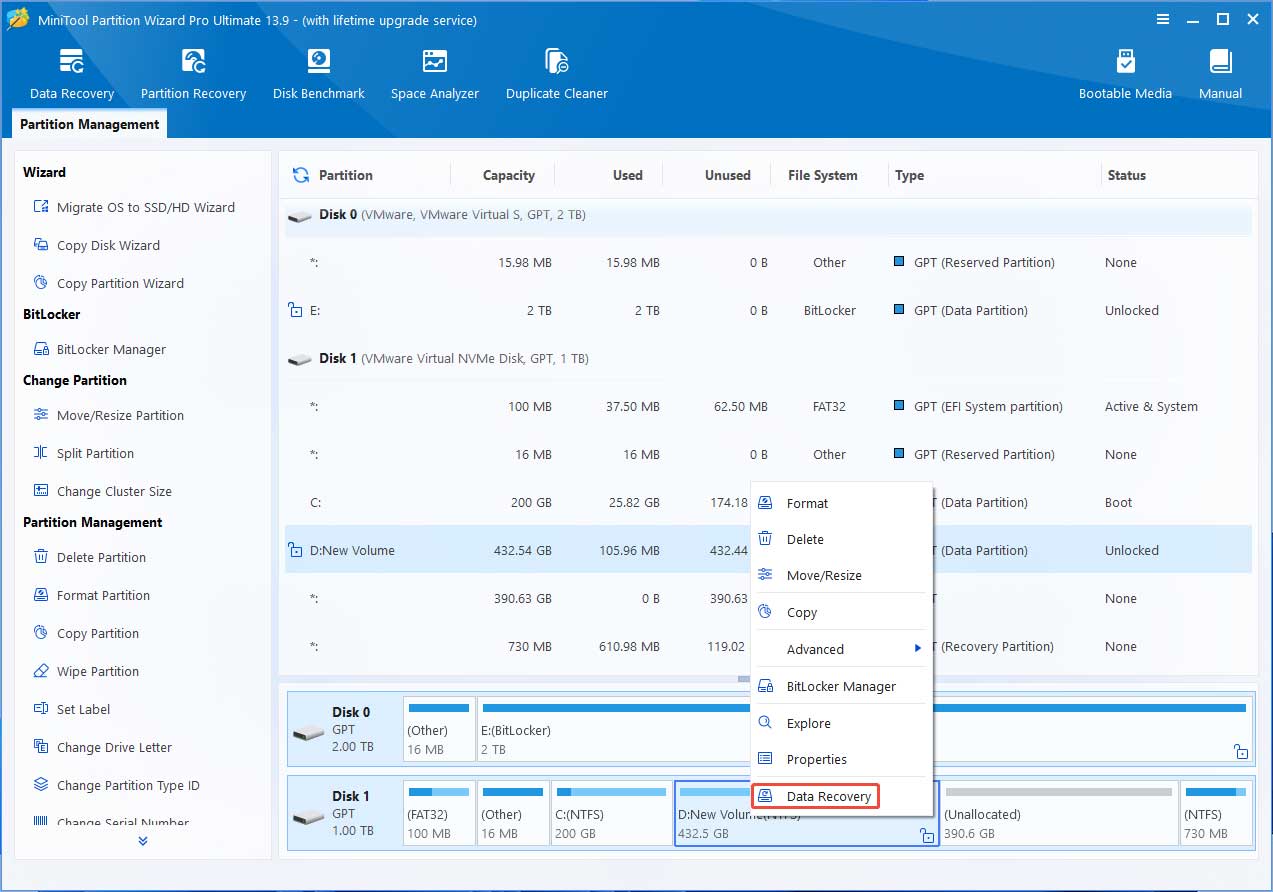
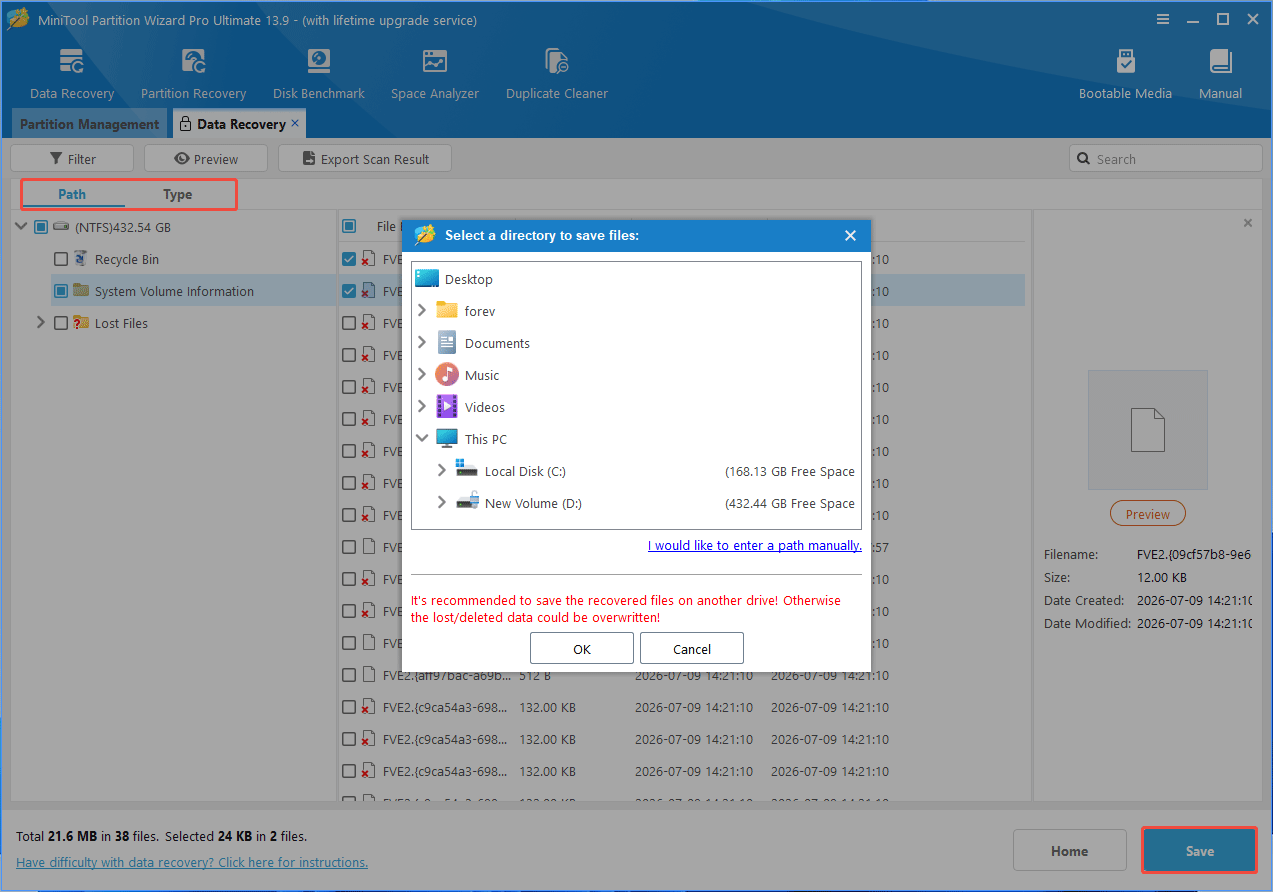
Step 3: Right-click the unlocked BitLocker partition and choose Data Recovery.
Step 4: Once the scanning process is completed, find and tick the files you want to recover, and then click Save. Next, select a safe location to store the recovered files.
Bottom Line
The BitLocker-encrypted drive may disappear due to a missing drive letter, an offline disk, a corrupt file system or partition information, device driver changes, storage device connection issues, etc.
This post explains why a BitLocker-encrypted drive disappears, things to check before recovery, and shows how to recover the BitLocker-encrypted drive.
If you encounter issues when using MiniTool Partition Wizard to recover the drive, contact our support team via [email protected] for help.
About The Author

Position: Columnist
Linda has been an editor at MiniTool for seven years. She continuously learns about computers and puts her knowledge into practice. Moreover, she is particularly knowledgeable in disk management, data recovery, system installation, and PDF editing. Her articles typically reference multiple examples or are based on her own experience, providing users with the most suitable solutions.
User Comments :