
You may encounter the BIOS update failed not enough free disk space error when your system's EFI System Partition (ESP) runs out of room. This post offers a guide to solving it by freeing up disk space and extending the system partition with MiniTool Partition Wizard.
The “BIOS update failed not enough free disk space” error usually happens when updating BIOS on HP and Dell computers. It is because the EFI/ESP system partition is too small for the firmware update files.
Besides, a faulty hard disk, an improper update method, and conflicting software can trigger the problem.
To solve this issue, here are some fixes:
- Extend the EFI/ESP partition
- Free temporary system files
- Update BIOS from a USB drive
- Run BIOS update in Safe Mode
Fix 1. Extend the EFI/ESP Partition
The BIOS update often stores temporary boot files inside the EFI partition. If the partition is too small, the update fails even if the C drive has plenty of free space.
So, the simplest and quickest way is to extend the EFI/UEFI/ESP partition. Windows Disk Management often cannot resize EFI partitions because it is the system partition. You will see the Extend Volume option greyed out.
In this case, a third-party professional partition manager, MiniTool Partition Wizard, is required. It provides the Extend and Move/Resize features to adjust partition size, like extend the C drive or make the system partition bigger, etc.
To avoid any unexpected boot issues, we highly recommend that you use the MiniTool Partition Wizard Bootable Edition since you need to extend the system partition. Here are the steps:
MiniTool Partition Wizard DemoClick to Download100%Clean & Safe
Step 1. Launch MiniTool Partition Wizard to enter its main interface and create a bootable CD/DVD/USB drive with Bootable Media Builder.
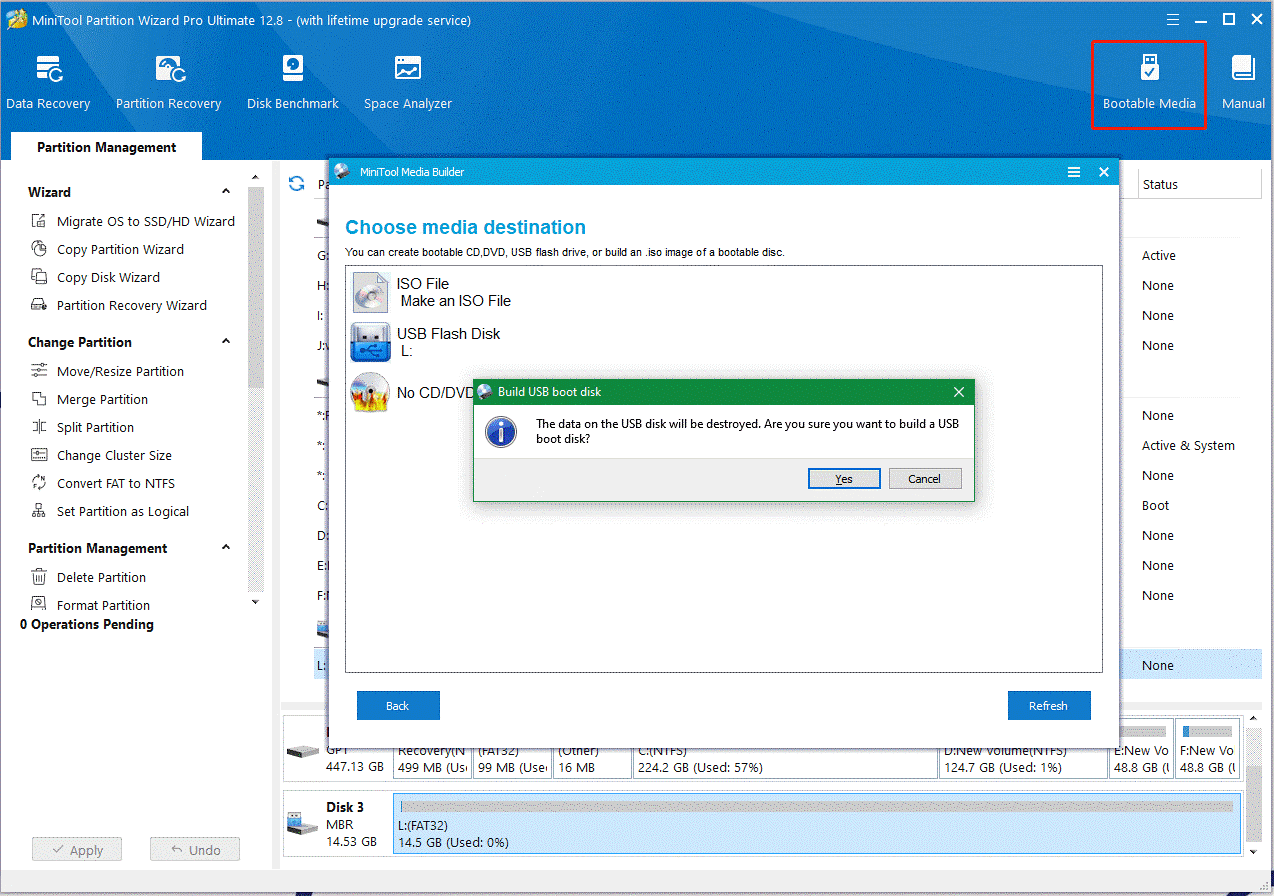
Step 2. After the bootable drive is created, restart your computer and press F2 or Delete keys on the startup screen to enter BIOS. Then make sure the bootable drive is on the first boot location by changing the boot order and your computer should boot from the media.
Step 3. Once booted from the bootable media successfully, follow the on-screen prompts until you arrive at the main interface of the program. Then select the EFI/UEFI/ESP system partition from the disk map and click on Extend Partition from the left action panel.
Step 4. Select other partitions or unallocated spaces that you want to take free space from the drop-down menu and drag the blue slider bar to occupy the space. Make sure you occupy enough free space and click on OK to confirm it.
Step 5. Click on Apply to execute the extending operation.
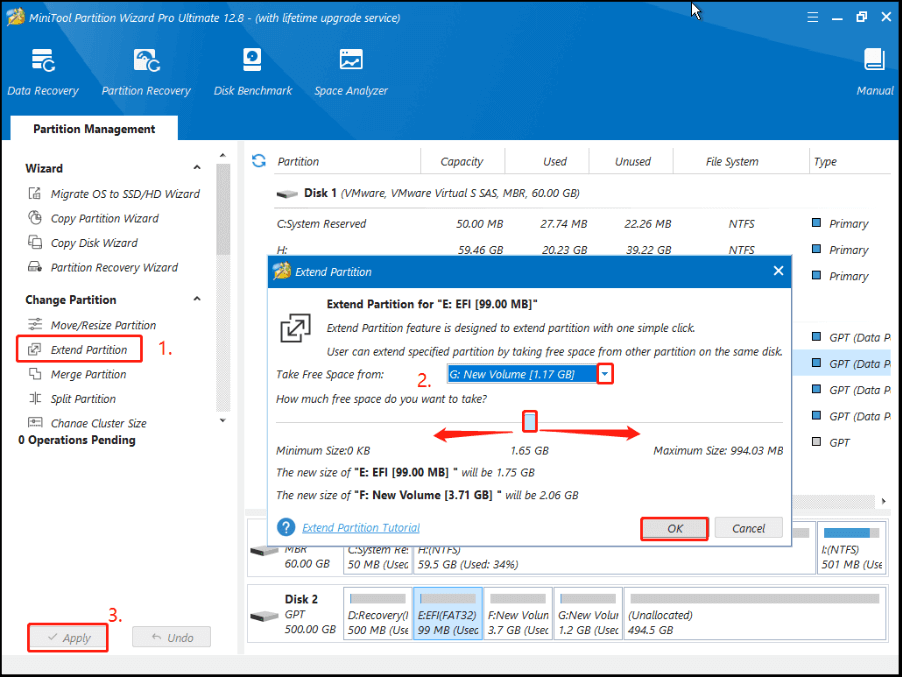
Now, you can reboot your computer and see if the BIOS update failed ESP disk space not enough error is fixed.
Fix 2. Run Disk Cleanup
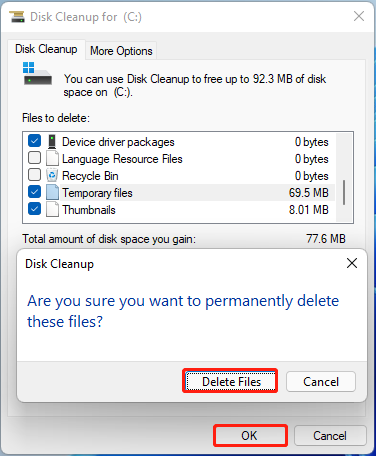
Temporary system files may consume space needed during BIOS updates. So, you can run Disk Cleanup to free up disk space for BIOS updates. Here is the guide:
- Press Win + E to open File Explorer.
- Click This PC on the left panel.
- Right-click the C drive and select Properties.
- Click Disk Cleanup in the General tab.
- Click Clean up system files, then check all boxes next to your unneeded files, and click OK > Delete Files. After that, reboot your PC and check if the error appears.
Fix 3. Clear Temporary Files
Large temporary folders may interfere with BIOS update operations. If there is still not enough free disk space to update BIOS on Windows, you can delete all temporary files and cache on the partition.
To clear temporary files, here are the steps:
Step 1. Press the Win + R keys to open the Run dialog box, type %temp% in the box, and press Enter.
Step 2. Press the Win + A keys to select all files on the temp folder and click on the Delete icon.
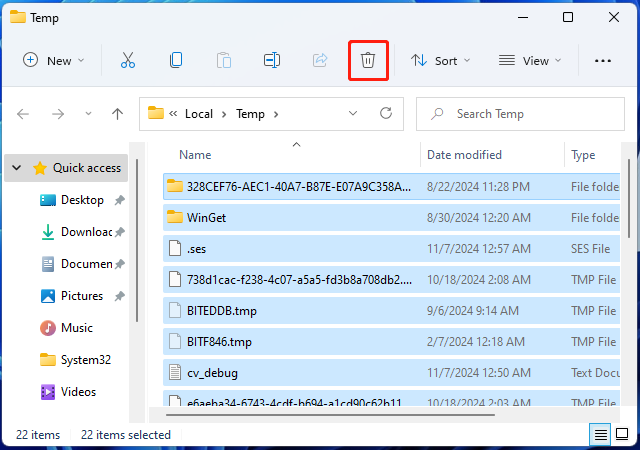
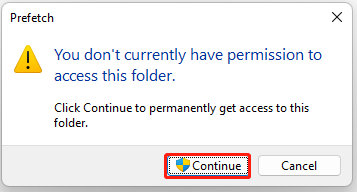
Step 3. Open the Run box again, type temp/prefetch,press Enter, and click on Continue. Then delete all files in the two folders.
You can free up disk space for BIOS updates by trying the above 2 methods. If you still receive the BIOS update failed ESP disk space not enough error, then it might be caused by other reasons, like software issues, disk errors, or improper operations. Let’s keep reading to know more solutions.
Fix 4. Run the BIOS Update in Safe Mode
Background applications may interfere with firmware updates. In this case, running the BIOS update in Safe Mode may be helpful. Here is the guide:
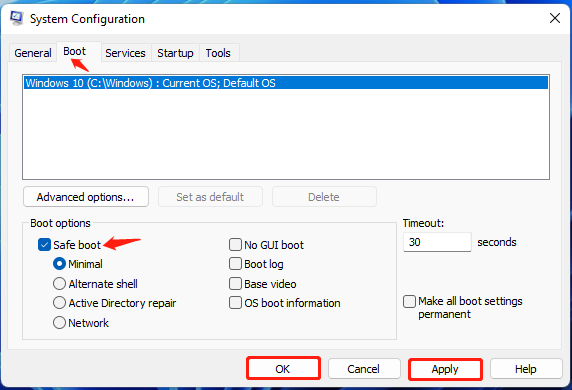
- Open the Run dialog box, type msconfig in the box, and press Enter.
- Go to the Boot tab, select the checkbox next to Safe boot, and click Apply > OK.
- In the pop-up windows, click Restart. Then you can continue updating the BIOS and check whether the error appears.
Fix 5. Update BIOS with a USB Drive
Many HP and Dell systems allow BIOS updates directly from USB. This bypasses some Windows-based update limitations. In this case, you can manually update the BIOS with a USB drive.
To do that, you just need to prepare a USB that is formatted to FAT32 and update the BIOS using the drive. Here we take the HP BIOS update for example:
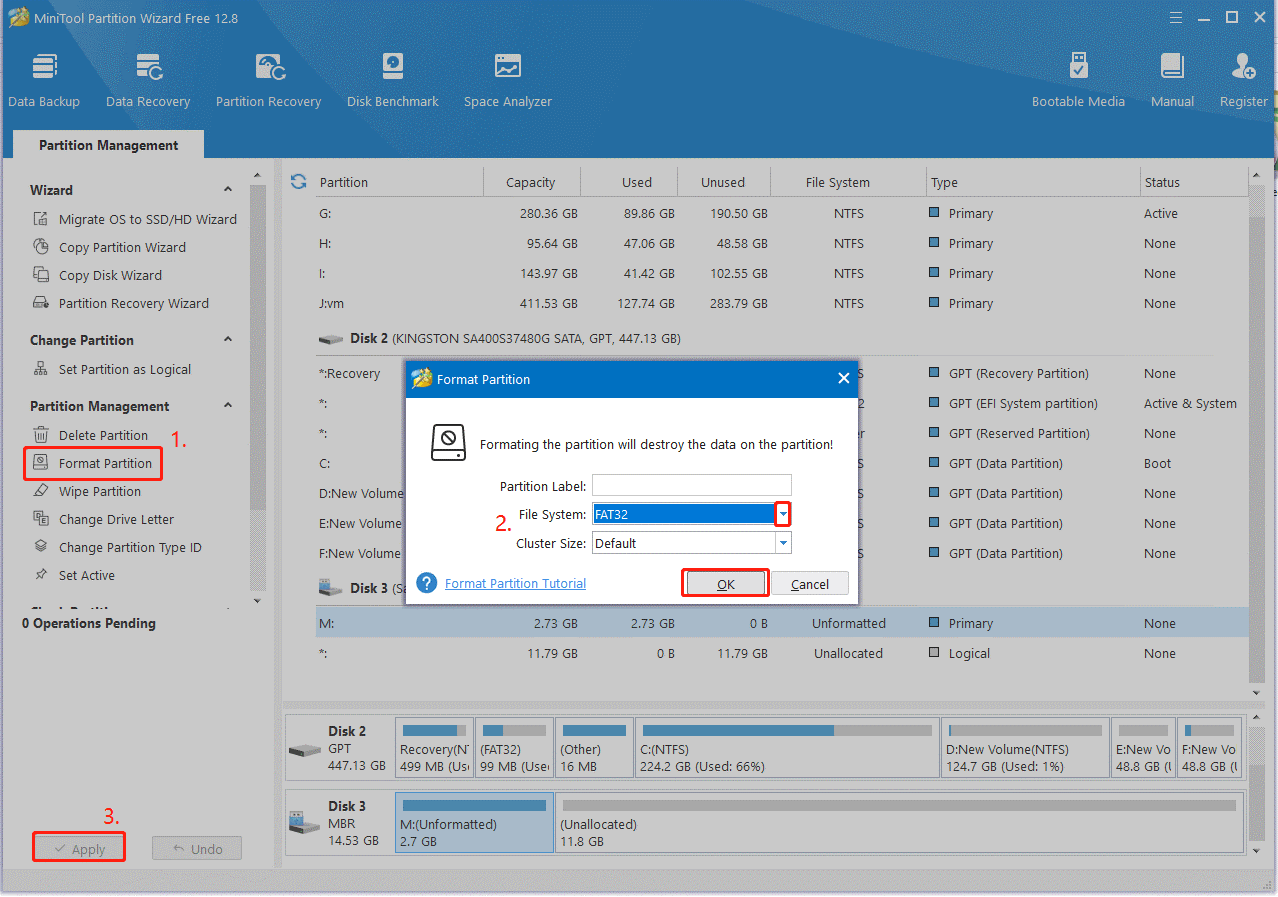
Step 1. Format a USB flash drive to FAT32. To do that, select the USB, click Format Partition from the left panel, select FAT32 from the file system drop-down menu, and click on OK > Apply to execute the operation.
MiniTool Partition Wizard FreeClick to Download100%Clean & Safe
Step 2. Go to the official website of HP software and driver download page and download the latest version of BIOS according to your HP product ID.
Step 3. Create a folder named HP Update on your desktop and run the BIOS file to change its location to the HP Update path.
Step 4. Insert the USB into the computer and create an HP BIOS update drive using the BIOS file by following the on-screen instructions.
Step 5. Once created, boot your HP computer from the UBS and go to the HP PC Hardware Diagnostics UEFI window.
Step 6. Navigate to Firmware Management or BIOS Management > BIOS Update > Select BIOS Image to Apply > HP_TOOLS-USB Drive > Hewlett-Packard > BIOS > Current. Then select the BIOS update file that matches your System Board ID and click Apply Update Now.
Fix 6. Update BIOS Using HP Support Assistant
HP Support Assistant is a pre-installed application on HP desktops and notebooks to keep HP devices updated. It can automatically detect updated drivers, system updates, and BIOS updates, and offer troubleshooting tools for PC. Here you can try updating BIOS using HP Support Assistant.
Step 1. Open the application to enter its main interface and select My Dashboard.
Step 2. Find your computer and select Updates. Then wait for the system analysis to complete.
Step 3. If there are BIOS updates available, click on Download and install, and follow the on-screen to complete the update. After that, restart your PC and check if the “BIOS update not enough free disk space” error persists.
Fix 7. Check Your Disk for Errors
The “cannot update BIOS not enough disk space” error might be caused by disk issues. So, you can check the hard disk for errors and make full use of the free disk space. Here’s how to check that using CHKDSK.
Step 1. Type cmd in the search bar, right-click the Command Prompt app and select Run as administrator from the context menu. Then click on Yes in the UAC window to confirm it.
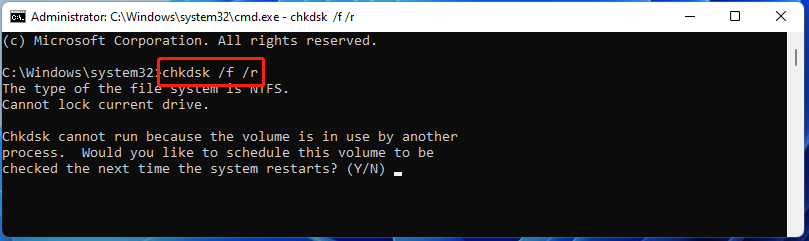
Step 2. In the elevated Command Prompt window, type the following command and hit Enter. Then type Y and press Enter to restart your PC to check your disk for errors.
chkdsk /f /r
BIOS Update Failed Not Enough Free Disk Space FAQ
Older systems may only have 100MB EFI partition and 128MB system reserved partition. This is often insufficient for new BIOS packages and Windows 11 firmware updates.
Many users on Reddit report that increasing the EFI partition from 100MB to 500MB solves the issue.
It is technically possible to resize an EFI System Partition (ESP), but it carries a higher risk than resizing a standard data partition. Mistakes can render your system unbootable.
Use the HP PC Hardware Diagnostics UEFI tool via a USB drive to perform the update outside of Windows.
Have a Try Now
The “BIOS update failed not enough free disk space” error is usually caused by a small EFI/ESP partition rather than low C drive storage. This post offers several methods to solve this issue.
For any problems or suggestions when using the MiniTool program, contact us via [email protected] and we will reply to you as soon as possible.
About The Author

Position: Columnist
Vega enjoys helping people with computer problems, including disk management, data recovery, data backup, and more. She is constantly expanding her knowledge in related fields. And she will continue to bring more easy-to-understand professional articles to help people solve various problems on the PC.
User Comments :