
Wondering whether BitLocker is enabled on your Windows PC? Whether you’re troubleshooting, upgrading hardware, reinstalling Windows, or simply checking your device’s security, knowing your BitLocker encryption status is essential.
If BitLocker is enabled but you fail to back up the recovery key, you may face permanent data loss after system crashes or hardware changes.
Well, how to check if BitLocker is enabled? Fortunately, this post provides several easy ways to verify whether BitLocker encryption is turned on, including graphical and command-line approaches.
Method 1. Check BitLocker Status with MiniTool Partition Wizard
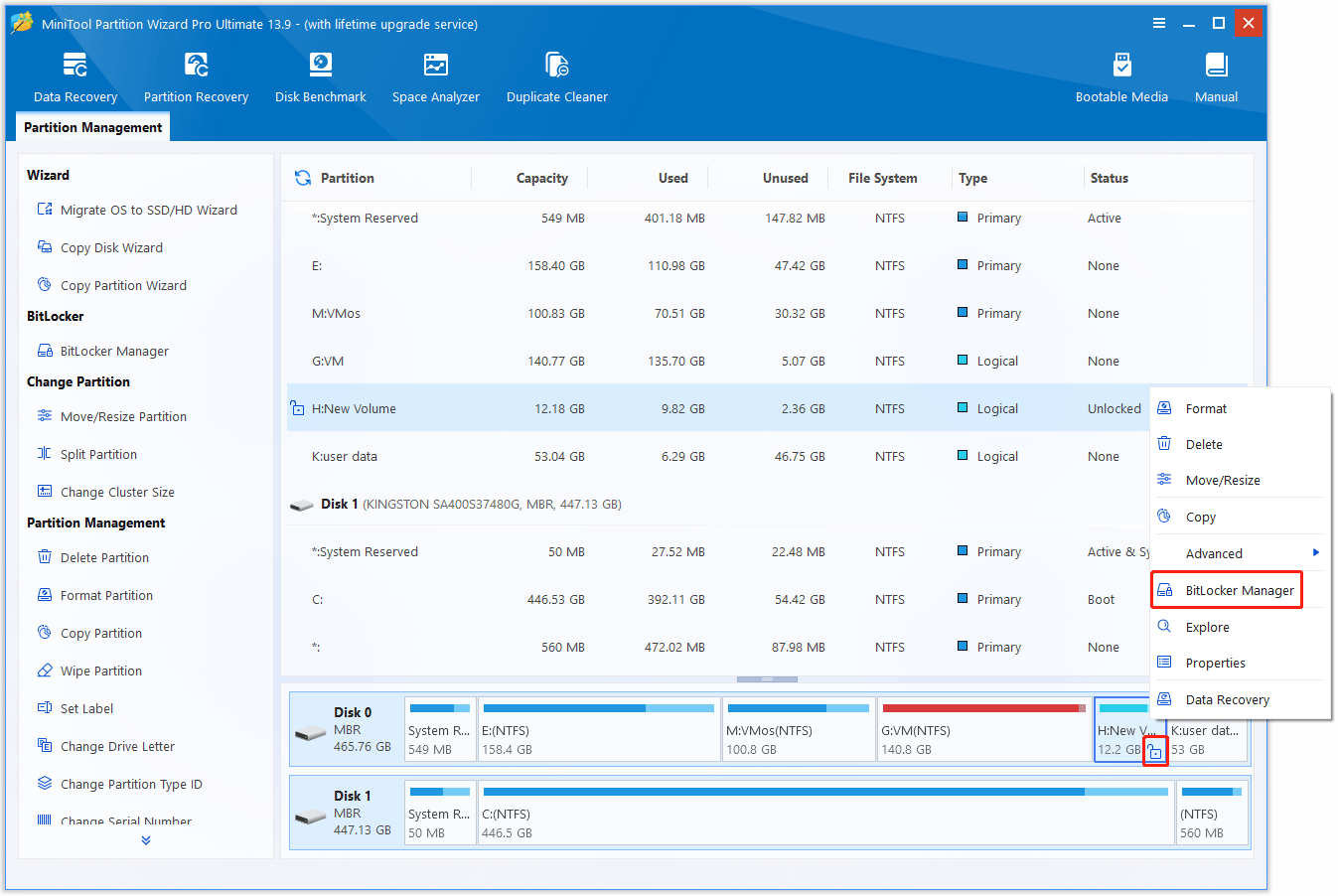
MiniTool Partition Wizard provides an easy way to view and manage BitLocker-encrypted drives. When you enter the main interface, you can clearly see whether a drive is encrypted. If it is encrypted and locked, a locked gold padlock icon is displayed.
To view more details about BitLocker encryption information on the drive, use its BitLocker Manager feature.
Besides checking BitLocker status, you can also:
- Turn BitLocker on or off
- Lock or unlock BitLocker drives
- Manage encrypted internal and external drives
MiniTool Partition Wizard FreeClick to Download100%Clean & Safe
Let’s learn how to tell if BitLocker is enabled with MiniTool Partition Wizard.
Step 1. Install and launch MiniTool Partition Wizard.
Step 2. In the main interface, you can clearly see all detected drives. If the drive is BitLocker-protected, it will display a lock icon. To view the detailed information, right-click the drive and choose BitLocker Manager.
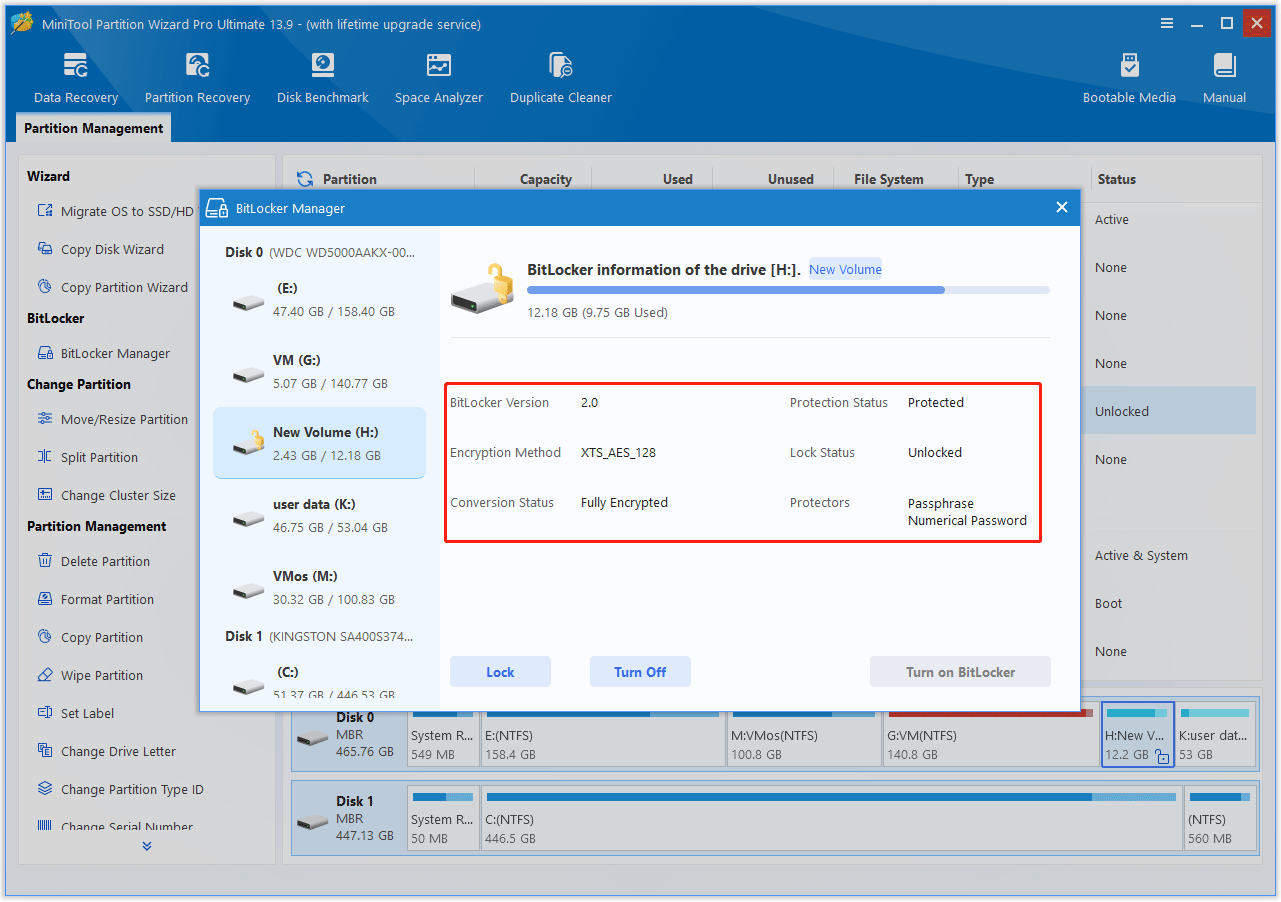
Step 3. In the pop-up small window, you can see more details like BitLocker Version, Encryption Method, Lock Status, etc.
- BitLocker Version: 2.0 is the modern, highly secure iteration of Microsoft’s full-disk encryption tool, typically found in Windows 10/11 and Windows Server 2016-2025.
- Encryption Method: XTS_AES_128 means the drive is encrypted with XTS-AES 128-bit, which is the default encryption method for Windows 10/11.
- Conversion Status: Fully Encrypted means all data on the drive has been encrypted successfully.
- Protection Status: Protected means BitLocker is actively protecting the drive. If it shows Unprotected, encryption may still exist, but BitLocker protection has been suspended.
- Lock Status: Unlocked means the drive is accessible. If it shows Locked, you’ll need a password or recovery key to unlock it before you can access the drive.
- Protectors: Passphrase, Numerical Password means this drive can be unlocked using either a user-defined password (passphrase) or the 48-digit BitLocker recovery key (numerical password).
Method 2. Check BitLocker Status with File Explorer
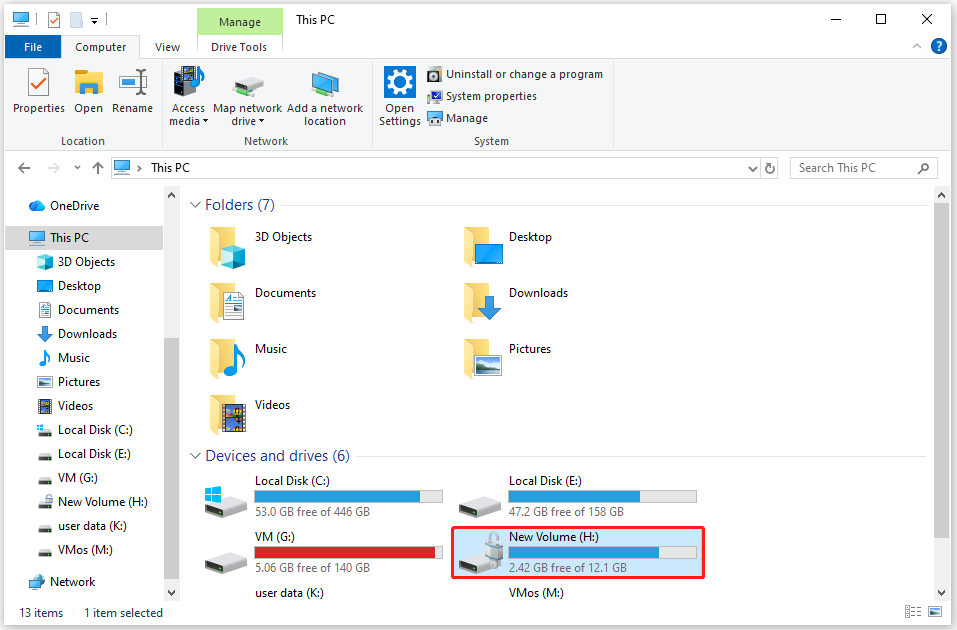
To check if BitLocker is enabled, you can use File Explorer. It has a visual icon prompt for encrypted disks, allowing you to quickly check BitLocker status without opening any settings or tools.
It is the easiest method, but it cannot see the detailed information about BitLocker.
- Open File Explorer and click This PC.
- Select the drive you want to check.
- Here, you will see the BitLocker status. If the drive has a padlock icon, it means BitLocker is enabled. A gray, open padlock indicates that the drive is unlocked, while a gold, closed padlock indicates that it is locked.
Method 3. Check BitLocker Status with Control Panel
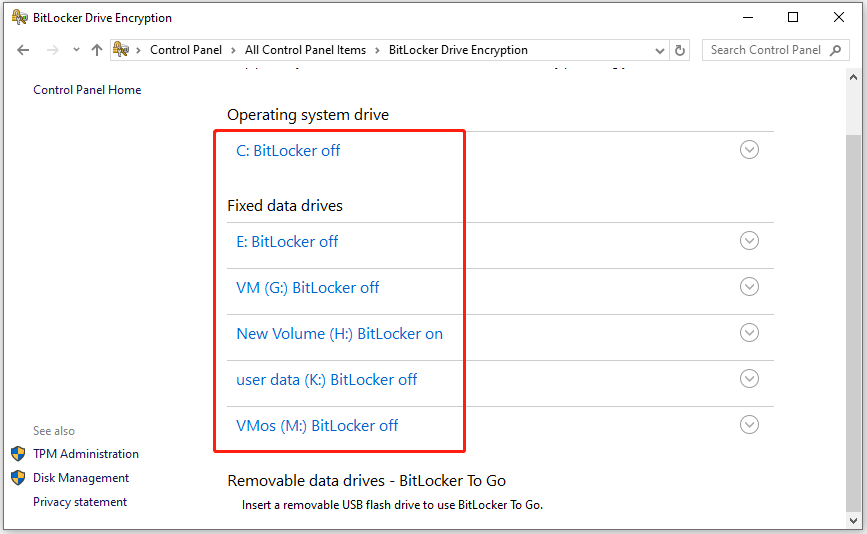
You can also check if BitLocker is enabled on a specific drive via the Control Panel. Here are the steps:
- Open the Start Menu, type Control Panel, and open it.
- Set View by: to Large icons.
- Click BitLocker Drive Encryption.
- You’ll now see each drive and its current status.
Method 4. Check BitLocker Status with Command Prompt
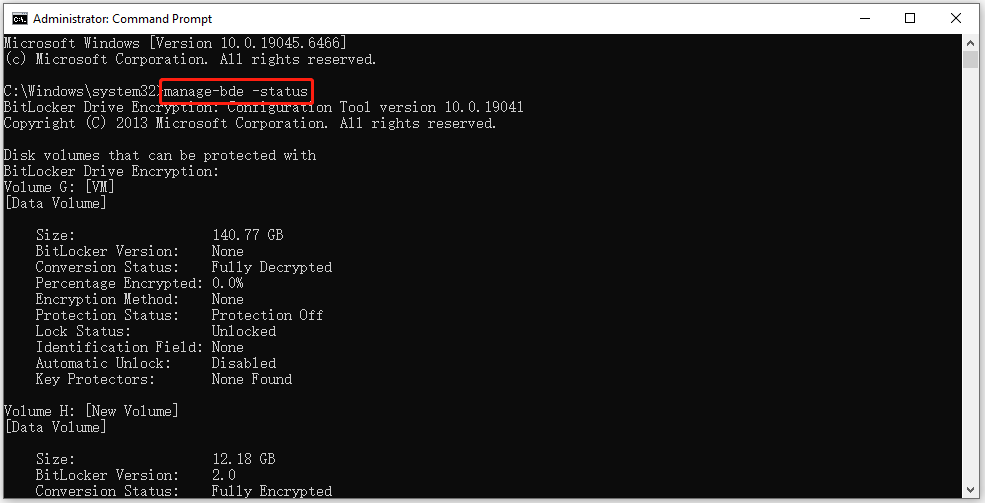
For users who like command-line operations or need to check status in a black-screen environment, the manage-bde command can accurately query BitLocker details. Here is the guide:
Step 1. Search for CMD in the Start Menu, right-click Command Prompt, and select Run as administrator.
Step 2. Enter the manage-bde -status command and press Enter. This will show all drives’ BitLocker status.
Step 3. Read the detailed feedback information and check if the specific drive is BitLocker-enabled.
- BitLocker Version: Shows the BitLocker metadata version used by the drive.
- Conversion Status: Fully Encrypted means encryption is complete. Fully Decrypted means the drive is not encrypted.
- Percentage Encrypted: 100% means the drive is fully encrypted, while 0% means it is not encrypted.
- Encryption Method: Displays whether XTS-AES and other encryption algorithms.
- Protection Status: Shows On (enabled) or Off (disabled).
- Lock Status: Shows whether the disk is locked normally.
- Identification Field: Shows an optional BitLocker identification field configured for the volume.
- Automatic Unlock: Shows whether Windows can automatically unlock the BitLocker data drive.
- Key Protectors: Shows the authentication methods used to protect the BitLocker encryption key.
Method 5. Check BitLocker Status with PowerShell
PowerShell provides dedicated BitLocker query command lines, which are more powerful than CMD commands. PowerShell displays BitLocker information in an easy-to-read format. Here is the guide:
Step 1. Press Windows + Xand select Windows PowerShell (Admin) to run it as administrator.
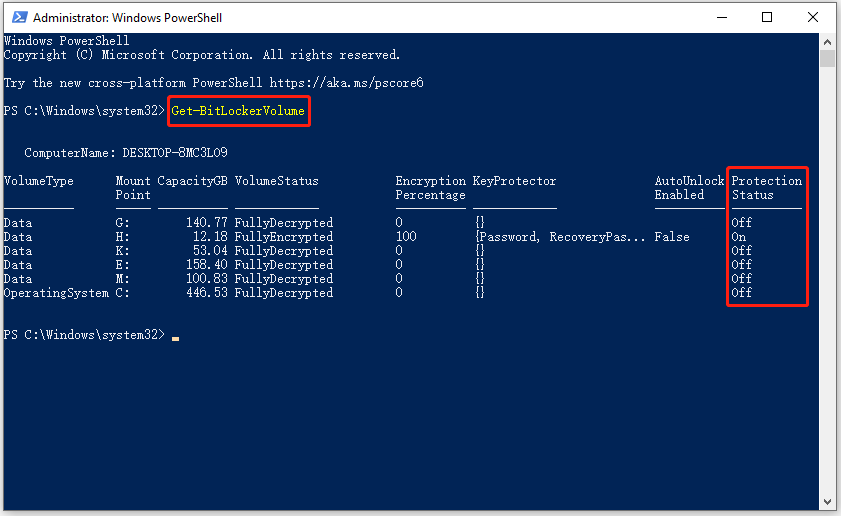
Step 2. Type the Get-BitLockerVolume command and press Enter to check the BitLocker status of all the drives on your PC.
Step 3. Check the Protection Status. On refers to the enabled BitLocker on the drive.
- VolumeStatus: Indicates whether the volume is encrypted, being encrypted/decrypted, or fully decrypted.
- EncryptionPercentage: Shows the percentage of the volume that has been encrypted.
- KeyProtector: Shows the authentication methods used to protect the BitLocker encryption key.
- AutoUnlock Enabled: Indicates whether Windows can automatically unlock the encrypted data drive.
- Protection Status: Indicates whether BitLocker protection is currently active.
How to Check If BitLocker Is Enabled FAQ
Some Windows Home devices support Device Encryption instead. Missing TPM support, unsupported hardware, or organization-managed policies can also prevent BitLocker from appearing.
A drive can be encrypted while protection is already enabled.
Bottom Line
Checking whether BitLocker is enabled is quick and straightforward. Windows offers several built-in methods, including File Explorer, Control Panel, Command Prompt, and PowerShell, to view your encryption status.
If you prefer a visual interface with additional BitLocker/Disk management features, MiniTool Partition Wizard provides an easy way to check BitLocker status, manage encrypted drives, and perform common BitLocker tasks from a single dashboard.
If you have any questions or suggestions about MiniTool Partition Wizard, contact us via [email protected]. We’ll reply as soon as possible.
User Comments :