
Many users encounter ucrtbase.dll missing, ucrtbase.dll not found, or ucrtbase.dll crashed errors when launching applications on Windows. These errors are often caused by corrupted system files, damaged Microsoft Visual C++ runtime components, etc. This guide from MiniTool Partition Wizard explains what ucrtbase.dll is and walks you through solutions to fix it.
If you see the ucrtbase.dll missing, ucrtbase.dll not found, or ucrtbase.dll crashed error, affected applications may fail to launch or crash unexpectedly. This issue is commonly caused by corrupted system files, damaged Visual C++ runtime components, or software conflicts.
This guide explains what ucrtbase.dll is, why these errors occur, and how to fix them with proven solutions.
Common Ucrtbase.dll Errors and Recommended Fixes
The table below summarizes the most common ucrtbase.dll errors, their possible causes, and the recommended fixes.
| Error | Possible Cause | Best Fix |
| ucrtbase.dll missing | Damaged Visual C++ runtime | Repair Visual C++ |
| ucrtbase.dll not found | Corrupted system files | Run SFC/DISM |
| ucrtbase.dll crashed | Software conflict | Reinstall the application |
Once you know which type of ucrtbase.dll error you are experiencing, try the following fixes to restore the missing or corrupted DLL and get your applications working again.
How to Fix Ucrtbase.dll Missing Error
If you are encountering the ucrtbase.dll missing error on Windows, you can fix it by following the methods below.
Try them one by one until the issue is resolved.
Fix 1: Run SFC Scan
Corrupted system files are a common cause of ucrtbase.dll missing or not found errors. Windows’ built-in System File Checker (SFC) tool can scan for and repair corrupted or missing system files, thus resolving program crashes caused by system file abnormalities.
Step 1: Type cmd in the search box, and choose Run as administrator on the right side.
Step 2: Type the sfc /scannow command and hit Enter.
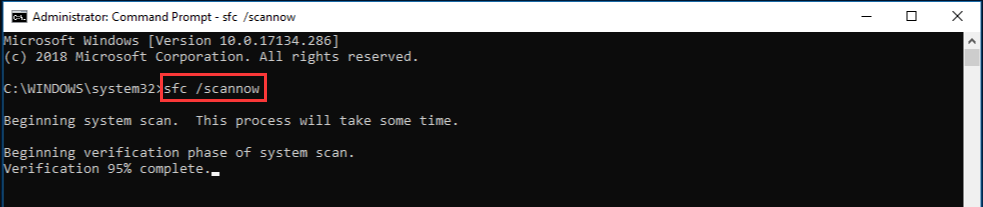
Step 3: Wait for the scan to finish, then type dism /online /cleanup-image /restorehealth and press Enter.
After that, restart your computer.
Fix 2: Repair the Microsoft Visual C++ Redistributable
A corrupted Microsoft Visual C++ Redistributable is one of the common causes of ucrtbase.dll errors.
You can restore missing or faulty runtime components by repairing the runtime library.
Step 1: Press Windows + R to open the Run dialog, type appwiz.cpl, and hit Enter.
Step 2: Locate Microsoft Visual C++ Redistributable (you may see multiple years).
Step 3: Right-click the first item, select Change.
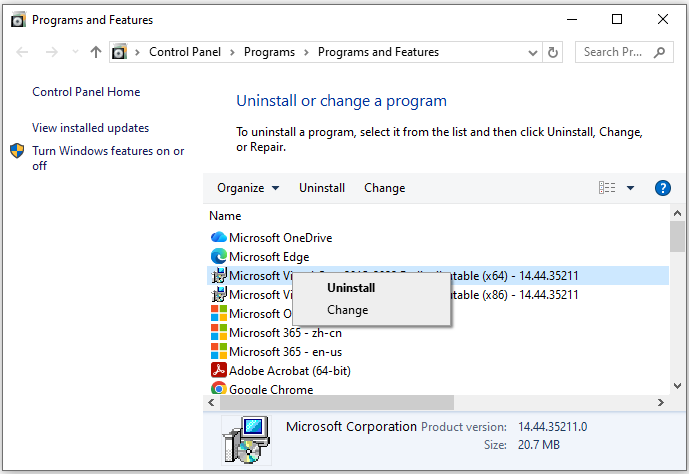
Step 4: In the new pop-up window, click Repair.
Repeat this for all listed Visual C++ Redistributable packages, then restart your PC.
Fix 3: Check for Windows Updates
Ucrtbase.dll is part of the Windows Runtime components. If this file is corrupted, outdated, or incompatible with a program, it may prevent applications from running correctly.
By installing the latest Windows updates, you can repair system files and resolve some errors related to ucrtbase.dll.
Step 1: Press the Windows + I keys to open Settings.
Step 2: Select Update & Security > Windows Update.
Step 3: Click Check for updates and wait for Windows to scan for available updates.
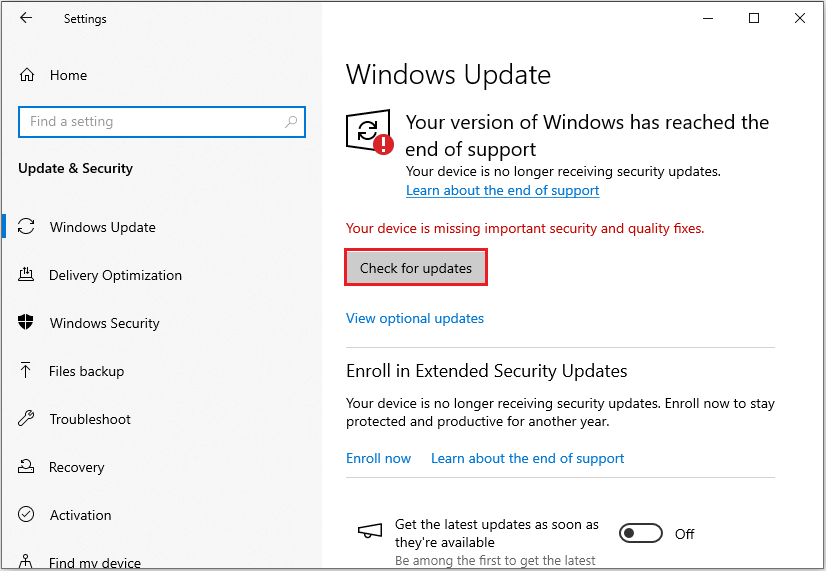
Restart your computer to apply the changes and check whether the ucrtbase.dll error has been resolved.
Fix 4: Perform System Restore
If the ucrtbased.dll error appeared after installing updates, drivers, or software, you can try using System Restore.
This feature can revert your system to a previous, properly functioning state, thereby fixing DLL errors caused by system changes.
Also read: What’s Windows 11/10 System Restore & How to Enable/Create/Use.
During the process of fixing ucrtbase.dll errors, files may sometimes be accidentally deleted or lost due to system repairs or application reinstallation. If this happens, MiniTool Partition Wizard can help recover deleted or missing files from your storage devices.
Ucrtbase.dll FAQ
1. Update Windows regularly: Keeping your system up to date helps fix known issues and updates runtime libraries.
2. Update Visual C++ runtime libraries: Ensure the relevant runtime environments are running the latest versions to avoid compatibility issues.
3. Avoid installing unknown software: Programs from untrusted sources may damage or replace system files, leading to errors.
Bottom Line
This article outlines several common methods for fixing errors caused by a missing or corrupted ucrtbased.dll file, such as checking for Windows updates and repairing system files.
If you have lost important files due to a system crash or program failure, you can also use the Data Recovery feature in MiniTool Partition Wizard to attempt to recover the lost data.
User Comments :