
When the system drive C shows a red bar, it means low disk space. In this situation, do you know how to make Windows system partition bigger? Now, you can read this article to learn two useful solutions.
The Low Disk Space Issue
When C drive is running out of space, its partition bar will become red. If you don’t want to delete the data on it or transfer some data to another storage device, you may wonder that how to make Windows system partition bigger.
Normally, you are not willing to perform operations on the system disk, which is usually a C disk in your computer. The reason is that the disk contains the boot files for the operating system. Once these important files are damaged due to improper operations, the operating system may be damaged or even cause serious data loss. It can also cause the computer to fail to start.
But sometimes you can’t avoid operating on the system disk. For example, here is one post we found on the internet. Let’s have a see:
I am a Windows user, I have three drives on my computer. Recently I have download two games and suddenly I found that my C drive is shown as red. And received a prompt said Low Disk Space. Is there any chance I can increase the system partition size? Please help me! Thanks a lot!
So, the low disk space issue could happen in system disk. Many of you now may have the same question, which is how to make C drive bigger? To cope with this problem, today this article will offer you two effective solutions.
You can have two solutions to solve this problem by using MiniTool Partition Wizard which is a perfect partition manager. With it, saving you from the predicament becomes easy. As to allocate more space to C drive, for safety reasons, it is recommended to use MiniTool Partition Wizard Bootable Edition.
However, the free edition doesn’t support creating bootable media, thus you need to use an advanced edition to do that.
If you are a personal user, the professional edition can fully meet your need. Click the button below to get this tool.
This partition magic contains many features, not only some basic features like creating partition, deleting partition, but also advanced features like expanding partitions, merging partitions and so on.
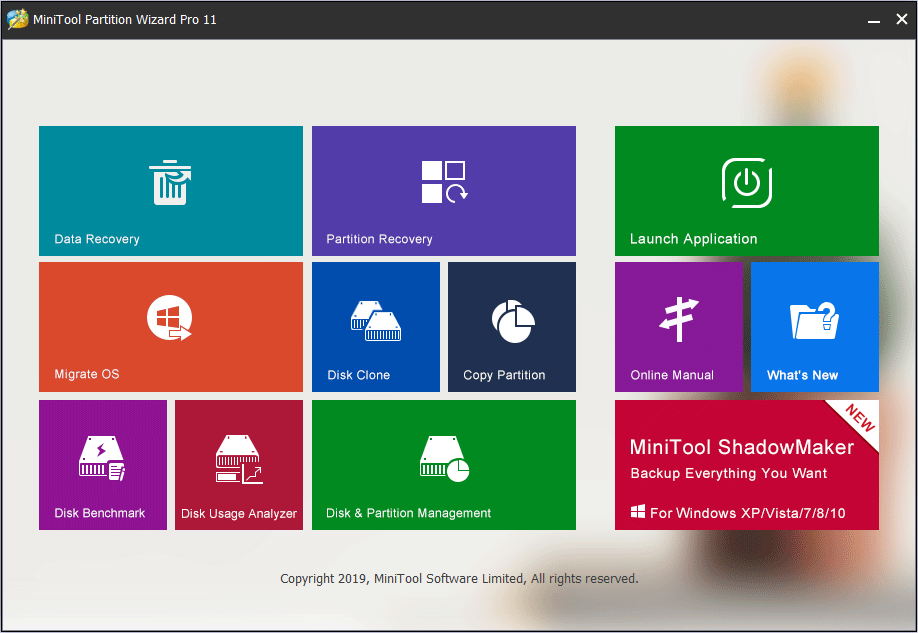
To make the system partition bigger, both extending the system partition and merging the system partition with another one on the same disk can achieve the purpose. Now we will let you know how to make Windows system partition bigger with MiniTool in detailed steps.
Solution 1 – Extend System Partition with MiniTool Partition Wizard
In this post, we will take the professional edition as an example.
To use the bootable edition of this software, you need to firstly create a bootable media by using MiniTool Bootable Media Builder, and then set your computer to boot from the bootable media.
After boot successfully, you can follow the steps below to increase the system partition size with MiniTool Partition Wizard.
Step 1: wait to enter the main interface of MiniTool.
Since you successfully boot from the bootable media and come to the main interface of MiniTool Boot Flash Drive, then all you have to do is waiting there, the tool will enter the main interface of MiniTool automatically. You can see the disk map in this interface.
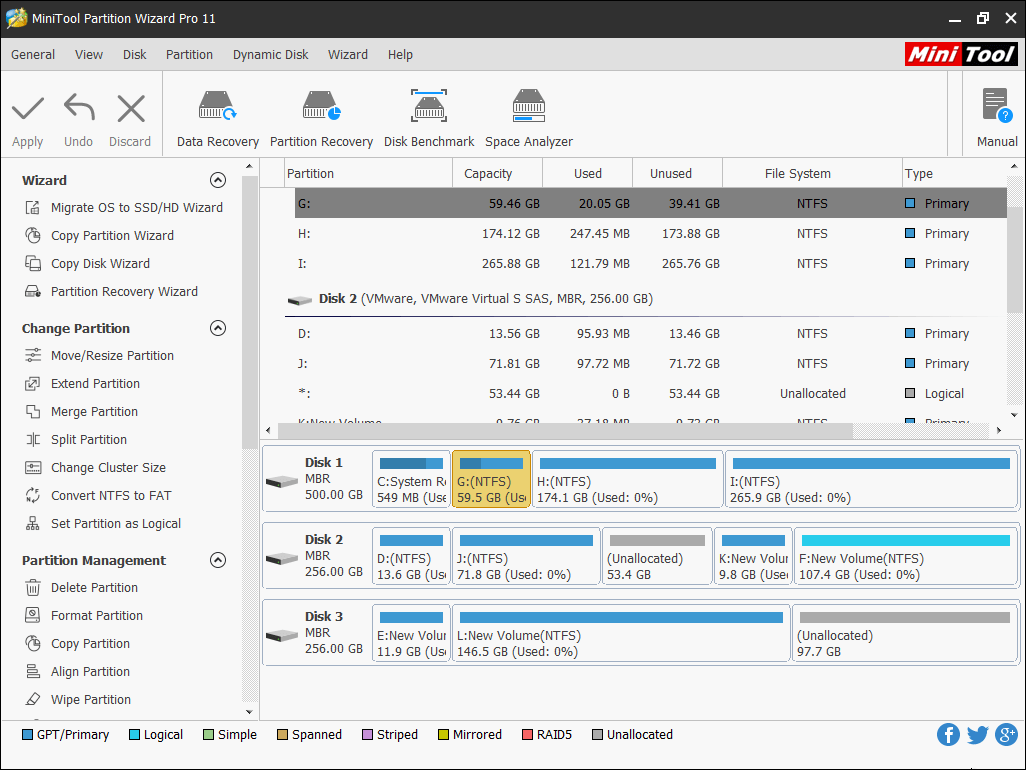
Note: the drive letter in MiniTool Partition Wizard Bootable Edition might be different from drive letter in the Disk Management.
Step 2: choose the feature Extend Partition.
In the main interface, select the partition you want to extend and click Extend Partition from the left action panel.
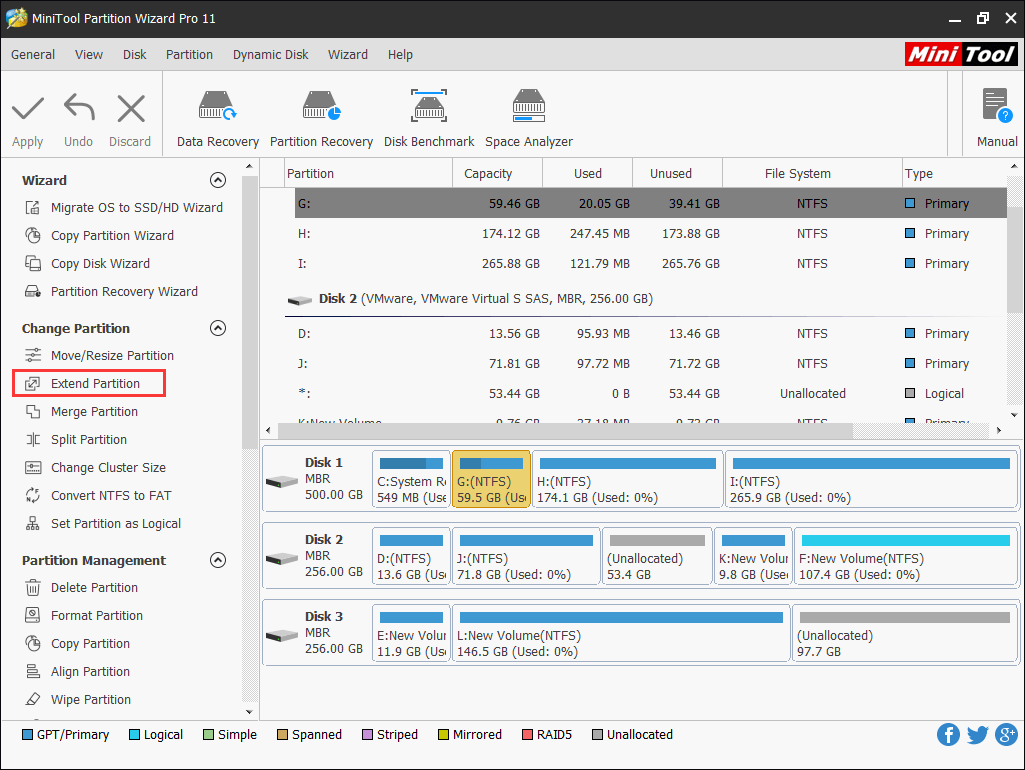
After clicking the Extend feature, you will get a pop-up window.
Step 3: extend the system partition.
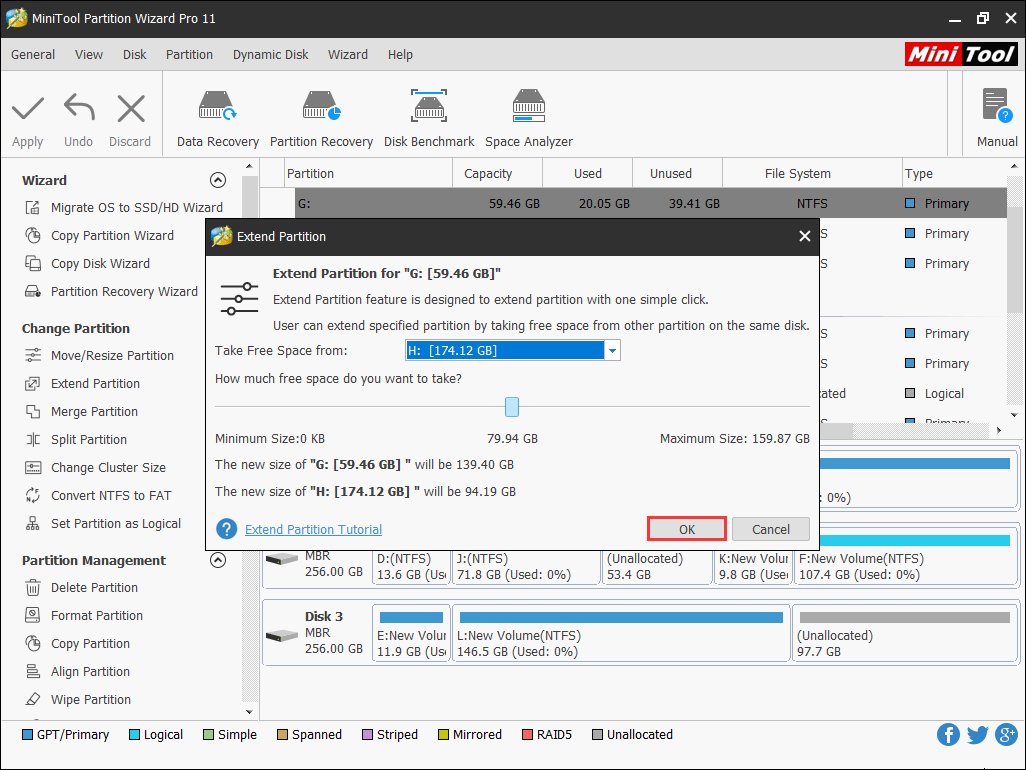
Set parameters in this window. Open the drop-down list of Take Free Space from and choose a partition or unallocated space to take free space from. You can choose any unallocated space or partition on the selected disk from the drop-down list to extend the system partition.
You can decide how much space to take by dragging the sliding handle leftwards or rightwards. After that, click OK to continue. Here the demonstration chooses an unallocated space and decides to take half of its space.
Step 4: save the result.
After clicking OK, you will then be returned to the main interface of the software and you can preview the extended system partition. You can see the system does become bigger here, click Apply from the left upper to save the result.
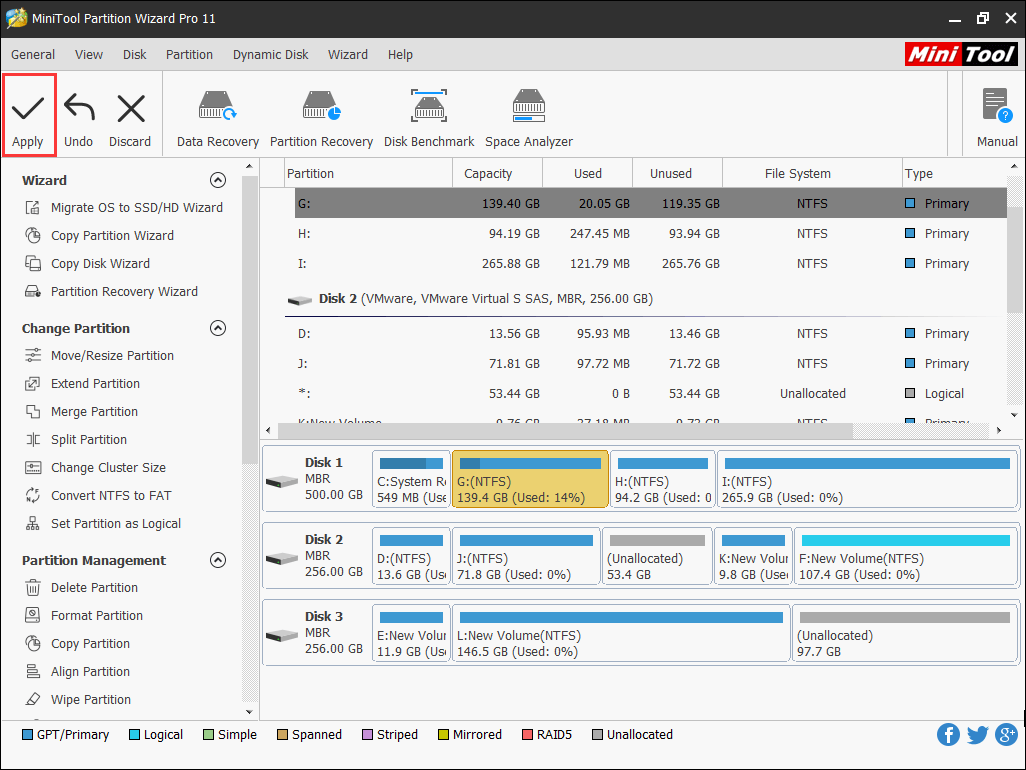
After that, the system partition becomes bigger. You can go to the Windows Explorer to check whether the system partition is resized or not.
Solution 2 – Merge System Partition with Another Partition via MiniTool Partition Wizard
With MiniTool Partition Wizard, not only the Extend Partition function can increase the system partition, but the Merge Partition function can also achieve this purpose. The process of the beginning and the end are the same as the Extend Partition described earlier, so we won’t go into details here.
Before starting, you need to know two things about this function:
One thing should be noticed is that only partitions adjacent to the target partition can be merged. Another thing should be noticed is that this function only works for NTFS partitions. If the target partition is formatted with FAT/FAT16/FAT32 file system, please use Convert FAT to NTFS feature first.
Step 1: wait to enter the main interface of the tool.
Step 2: choose Merge Partition feature.
But you should note that the partition you choose to merge with the system partition should better have large free space, otherwise this operation will not make sense.
Step 3: merge system partition with another partition.
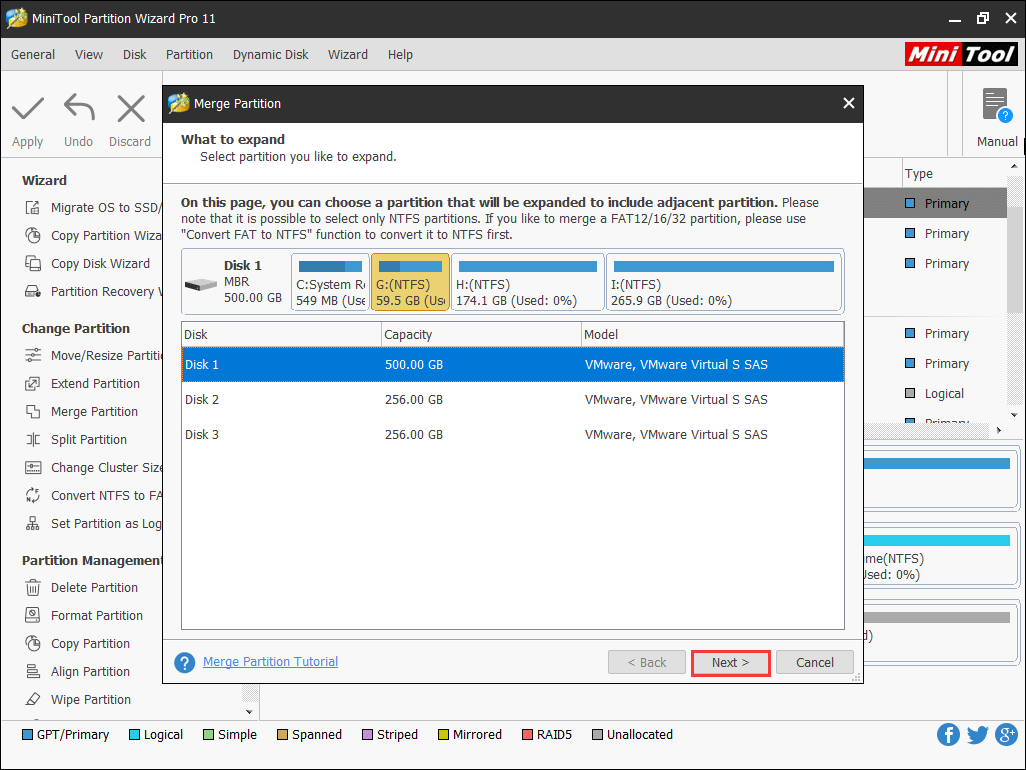
After choosing this function, you will get a window. All disks will be listed here, choose the partition you’d like to expand after selecting the disk here, which is, of course, the system partition. Then click Next to continue. Note that only the NTFS partitions are allowed to be merged.
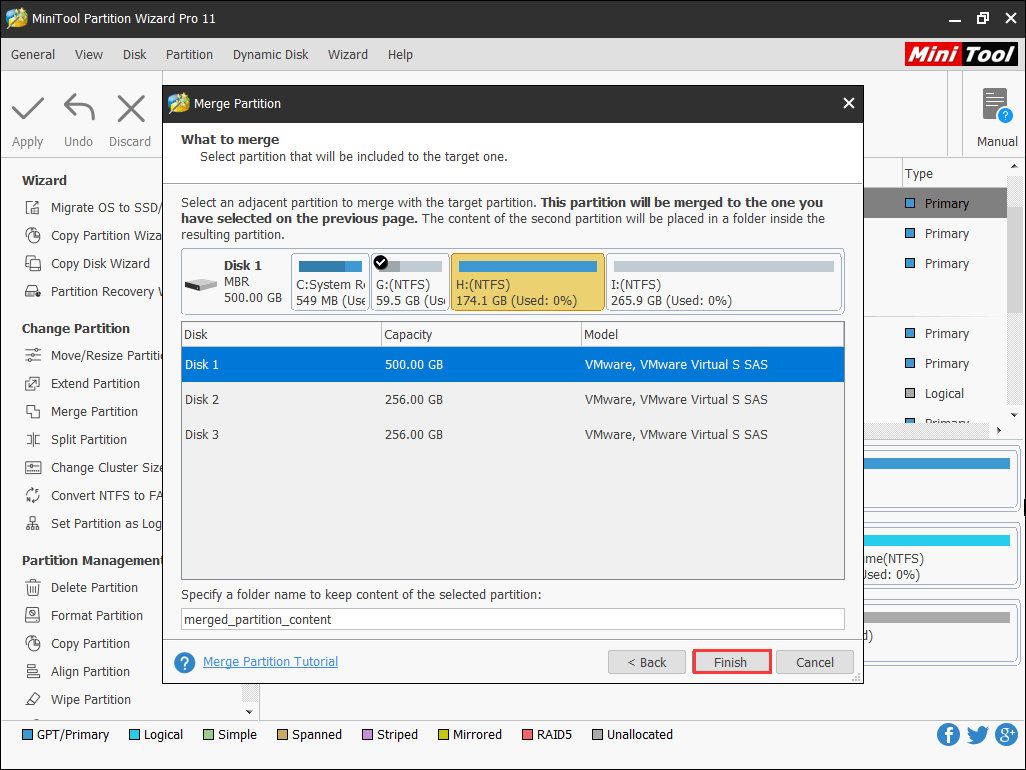
Then select the partition that will be merged into the system partition. Click Finish to complete the process.
Step 4: save the change.
You can preview that the system partition becomes bigger. If the result is satisfying, just click Applyto save the change. While after you click the button, you will receive a massage said that you need to restart the computer. Click Restart Now, and the rest job will be automatically finished by this program.
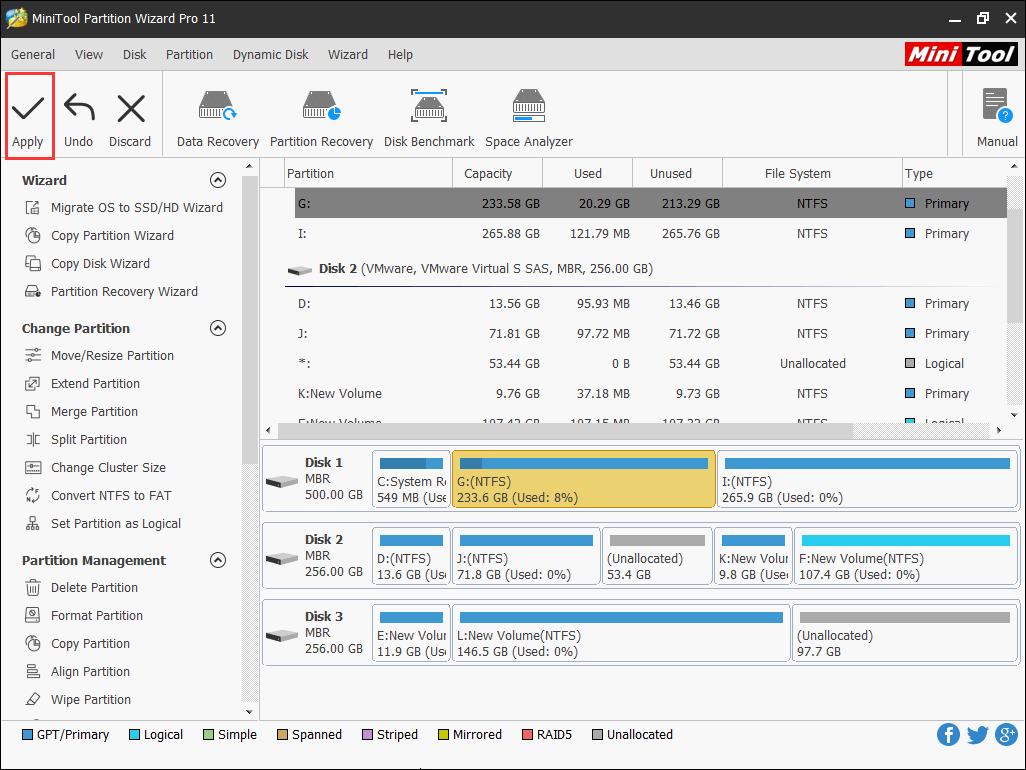
After these simple steps, your system partition is expanded successfully.
Bottom Line
After reading this post, do you find the answer you want? There is no doubt MiniTool Partition Wizard can help you out of your trouble. Both of these two solutions can let you know how to make Windows system partition bigger and they are easy to operate. What are you waiting for?
Also, if you have any good idea in enlarging the system partition, welcome to let us know in the comment zone. Meanwhile, if you have any problem, you can contact us via [email protected].
User Comments :