
For some reasons, users need to resize GPT system partitions sometimes. The professional GPT Partition Magic and Disk Management are highly recommended. This post shows you how to resize GPT disk partitions using the 2 tools.
GPT Disk Overview
To use the disk for storing data, you need to initialize the storage device to either MBR (Master Boot Record) or GPT (GUID Partition Table) when you first connect it to your computer. Then, you can create partitions on the initialized disk to install systems and software, as well as store various data.
In general, MBR and GPT are two types of hard disks. MBR disks support up to four primary partitions, or three primary partitions plus one extended partition, and can accommodate up to 128 logical drives in the extended partition.
However, MBR limits its maximum addressable storage space to 2TB. That is, even if the storage space of an MBR disk is larger than 2TB, you will find the disk space outside of 2TB to be unallocated in Disk Management.
In contrast, GPT disks theoretically allow an almost unlimited number of partitions. Each partition on GPT can work like a primary partition. On the other hand, the maximum disk size allowed by GPT is more than 2TB. So, if you plan to create more than 4 partitions, or your hard disk is larger than 2TB, then GPT is a better choice.
Method 1. Resize GPT Partition Via Disk Management
Disk Management is a Windows built-in utility. It allows users to view and manage disk volumes on computers. Users can view disk layout, disk type, partition file system, partition status, partition capacity, etc. Besides, it allows users to create, delete, format, extend, and shrink partitions with easy steps. Now I’ll show you how to extend or shrink GPT disk partitions in Windows Disk Management.
Extend GPT Disk Partition Via Disk Management
Note: If there is no adjacent unallocated space behind the GPT partition you want to extend, Disk Management can’t extend the drive. The Extend Volume button will be grayed out. Or it needs to convert the basic disk to dynamic one. In addition, this function only supports NTFS partitions.
Step 1: Press Win + X and open the Disk Management.
Step 2: Right-click the partition you want to extend and choose Extend Volume.
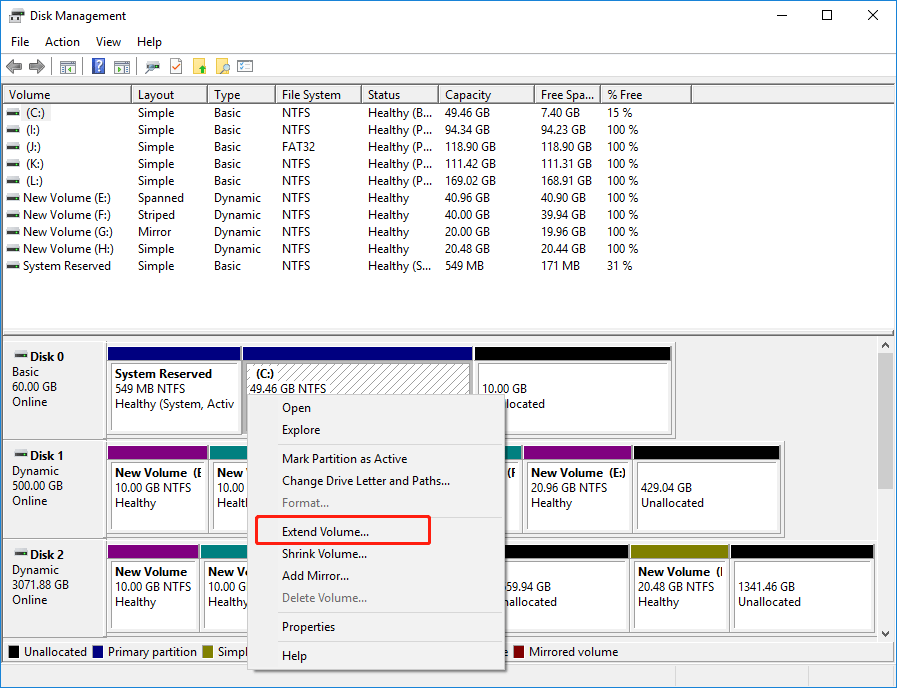
Step 3: Enter the size of the space you want to extend in the text box next to Select the amount of space in MB
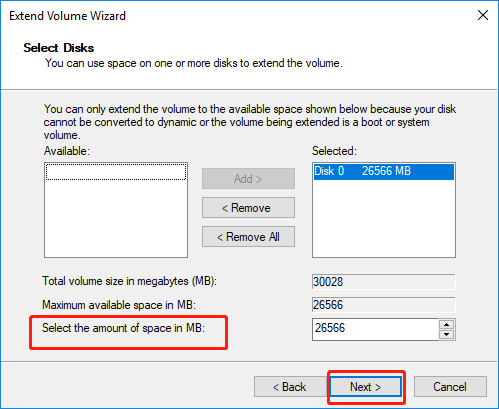
Step 4: Select Next, and then select Finish to extend the volume.
Shrink GPT Disk Partition Via Disk Management
Step 1: Press Win + X and open the Disk Management.
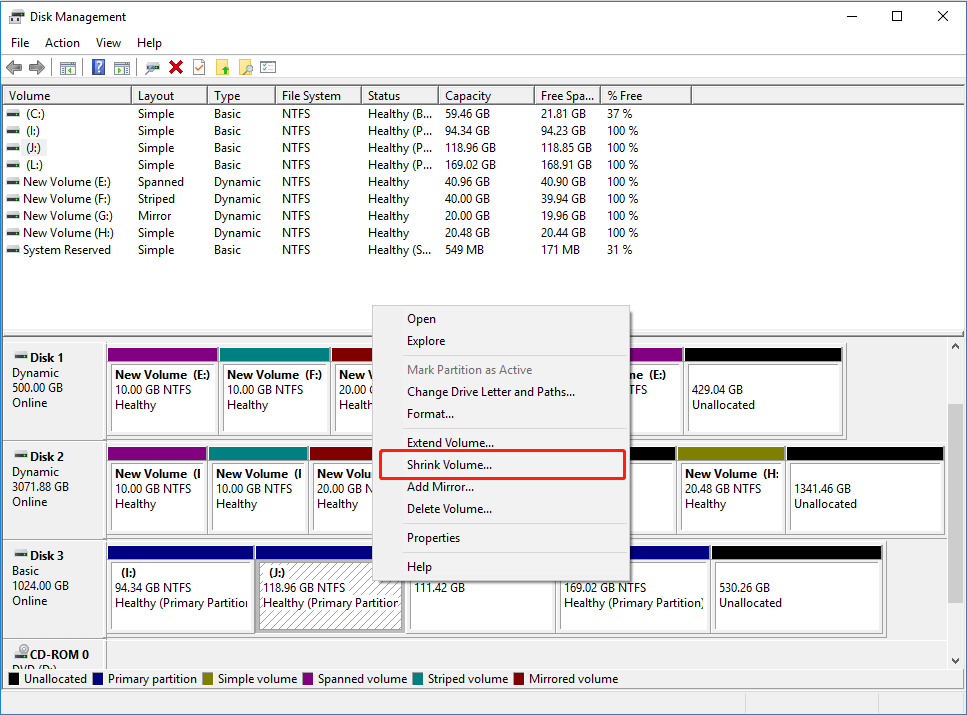
Step 2: Right-click the partition you want to shrink and choose Shrink Volume.
Step 3: Enter the amount of space you want to shrink in the text box next to Enter the amount of space to shrink in MB and click Shrink.
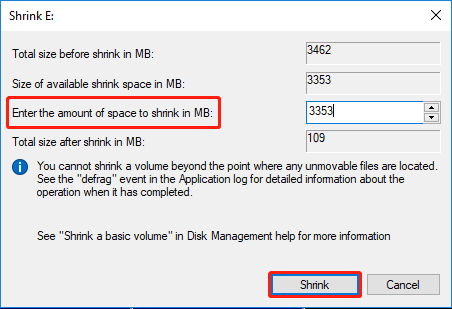
Step 4: Click the Shrink button to reduce the GPT disk partition size.
Change GPT partition size via MiniTool Partition Wizard
As mentioned above, the Extend and Shrink features in Disk Management has many limitations. This is very inconvenient.
Here, I recommend you to use the free partition manager – MiniTool Partition Wizard to resize GPT partition without losing data. It’s a professional partition management tool that allows you to resize partitions, recover hard drive data, clone hard drive, convert MBR to GPT, and do many more.
With its various powerful features, it can help you resize GPT disk partition easily. There are two ways to extend partitions.
MiniTool Partition Wizard FreeClick to Download100%Clean & Safe
Move/Resize Partition
MiniTool Partition Wizard’s Move/Resize function can move NTFS, FAT32, exFAT, and Ext partitions, and resize (extend or shrink) NTFS and FAT32 partitions.
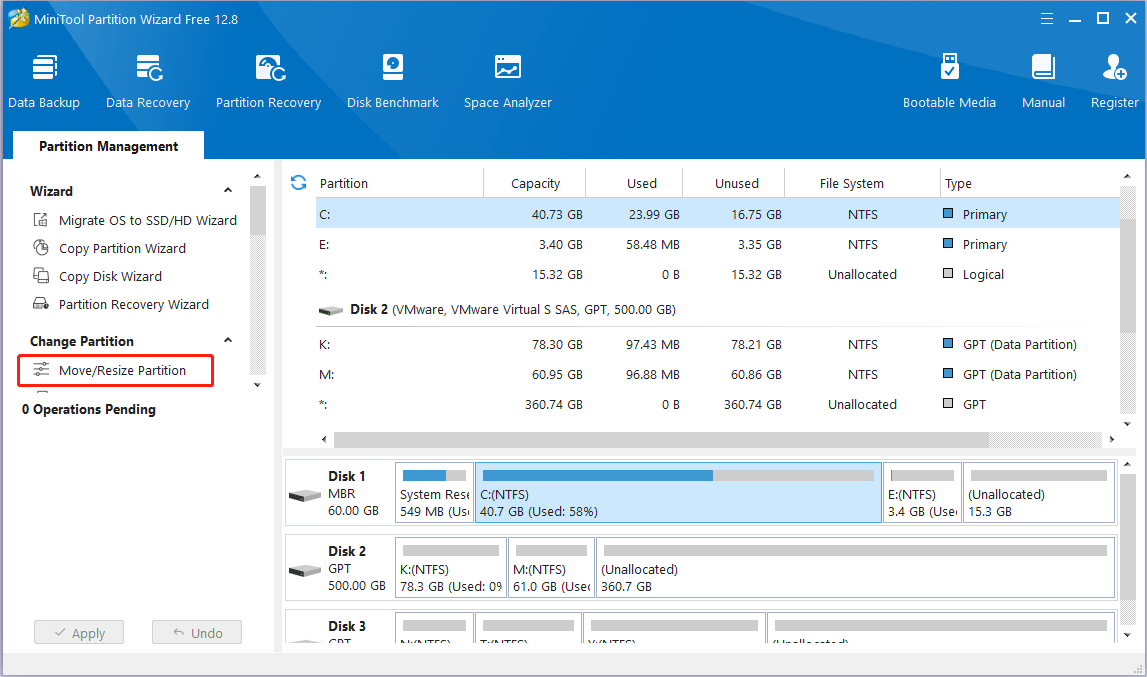
Step 1: Install and launch MiniTool Partition Wizard to get the general GPT disk partition map. Select the partition you want to resize and choose Move/Resize Partition from the left operation panel.
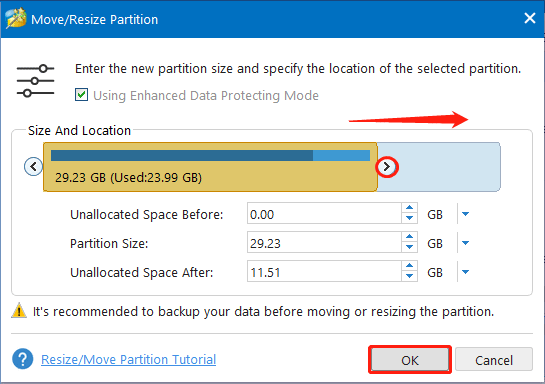
Step 2: Then in the pop-up window, drag the arrow to determine the amount of space to extend or shrink. After that, click OK to continue.
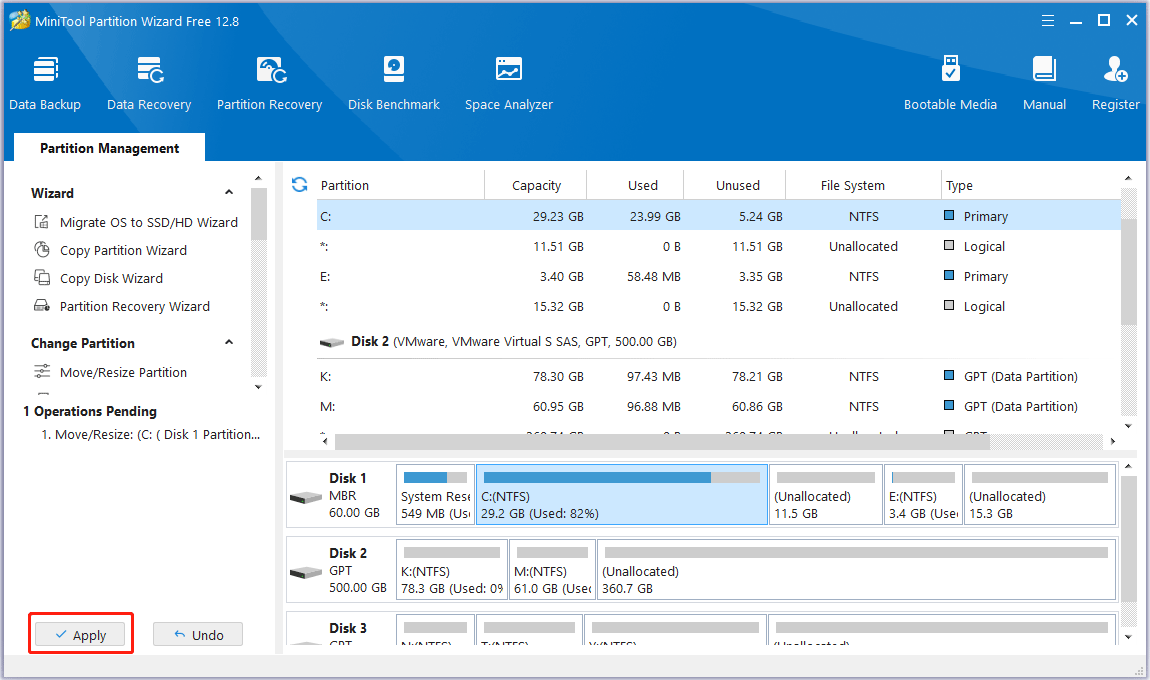
Step 3: Back to the main interface, users can preview that the selected partition has changed its position. At this time, please click Apply button to apply the change.
Extend Partition
MiniTool Partition Wizard’s Extend Partition function can take space from any existing partition and unallocated space on the same disk to expand the partition regardless of distance, but it can only be used for NTFS and FAT32 partitions.
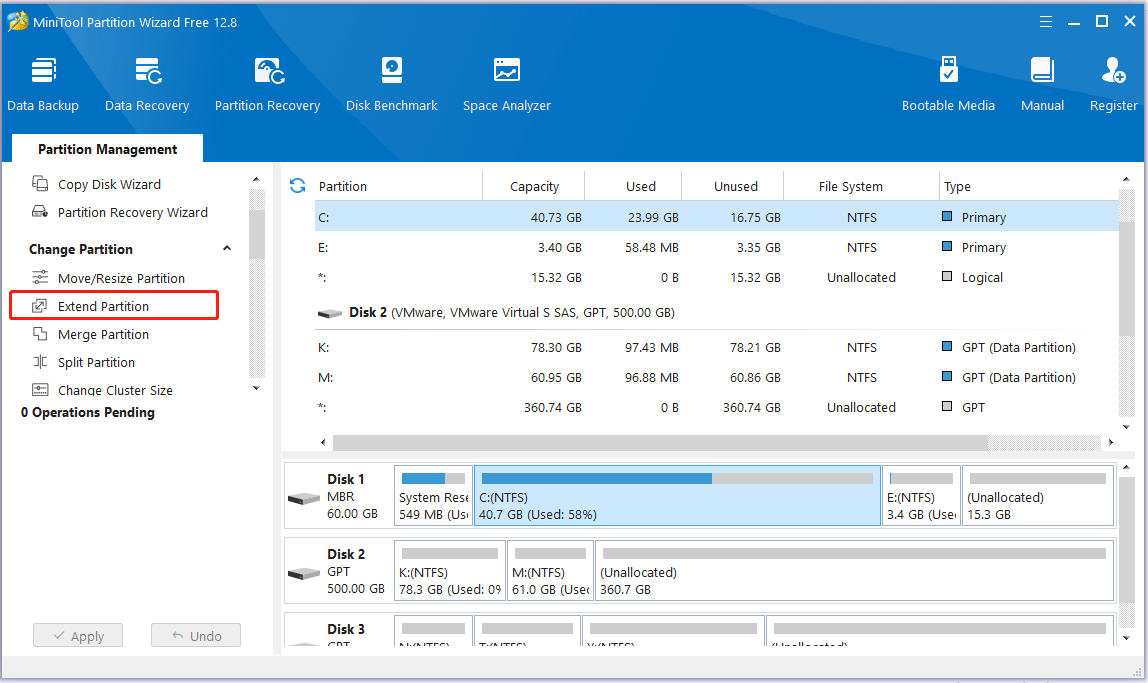
Step 1: Install and launch MiniTool Partition Wizard to get the general GPT disk partition map. Select the partition you want to extend and choose Extend Partition from the left operation panel.
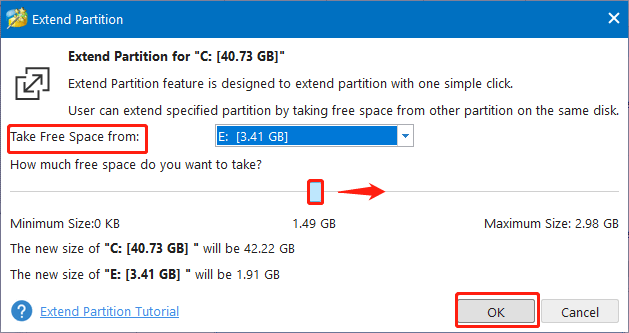
Step 2: Open the drop-down list of Take Free Space from and choose a partition or unallocated space to take free space from. Or you can decide how much space to take up by dragging the slide handle left or right. After that, click OK to continue.
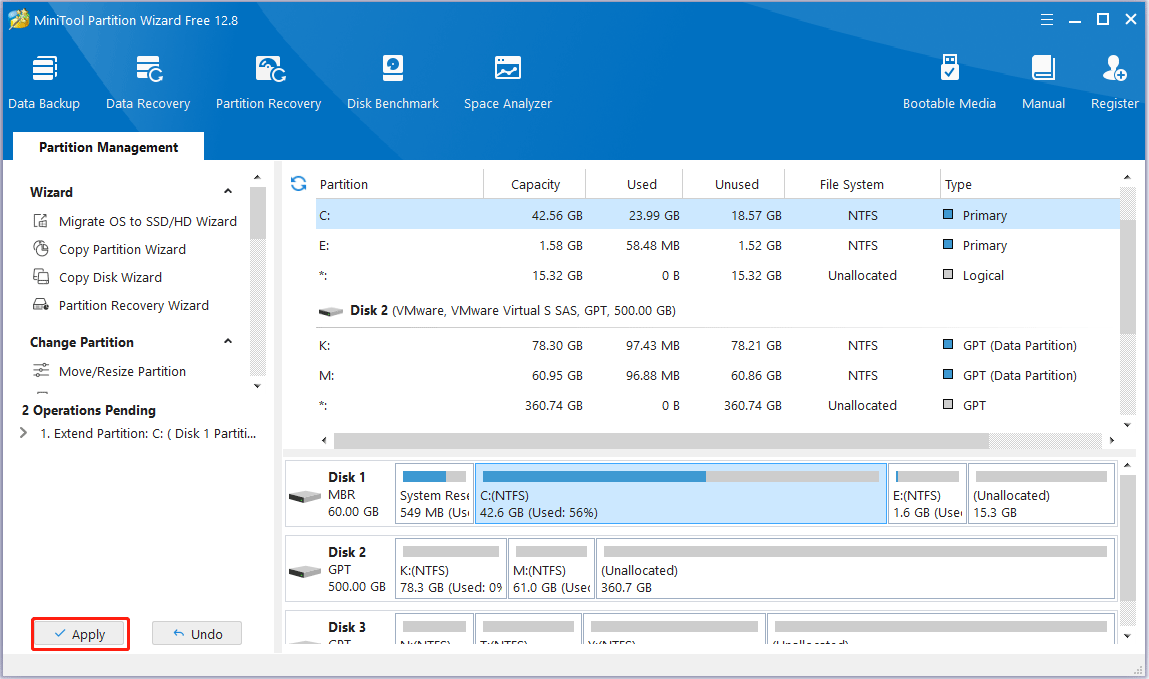
Step 3: Back to the main interface and click Apply button to apply the change.
Bottom Line
After reading this post, you get two ways to resize GPT system partition. And you can find that MiniTool Partition Wizard is a better choice relatively. Don’t hesitate to use it to solve your issue.
If you have any suggestions about resize GPT disk partition or problems regarding using MiniTool Partition Wizard, please don’t hesitate to contact with us via [email protected]. Thanks in advance.
User Comments :