
What Is a Hard Drive Partition
A hard drive partition is a logical section of a physical disk that Windows treats as a separate drive. Each partition has its own drive letter, label, file system, and capacity so that you can store system files, programs, and personal data separately.
You can view all partitions in Disk Management. When you connect a new drive, Windows asks you to initialize it as GPT or MBR. Then right-click the unallocated space and follow the New Simple Volume Wizard to create partitions.
Common Causes of Partition Loss
Although hard disk partitions make data management easier, we have to pay attention to the followings that may lead to partition loss:
- Human errors: when doing hard disk management, we may accidentally delete a necessary partition or carry out diskpart clean on the wrong drive that contains important files, leading to partition loss.
- Power Surges: while a partition is being read accessed or write accessed, power surges or power fluctuations may lead to corruption in the partition, making the partition disappeared.
- Virus Infection: Virus intrusion or malware infection may bring corruption in the partition header, hence the infected partition may disappear.
- Hardware Issue: One or more hardware issues may cause corruption in a partition or make it disappear, even if it is healthy. Besides, if there are a large number of bad sectors, or bad RAM, a hard drive may no longer display partitions or the operating system fails to read it.
- Windows update: Some updates have been reported to cause partition loss.
Can you recover a lost partition? Yes, if the partition area has not been overwritten by new data. Stop using the affected drive right away, then run a professional partition recovery tool.
How to Recover Hard Disk Partition
If a hard disk partition has been deleted or lost, a partition recovery tool may help restore it. Before starting, avoid creating new partitions, formatting the disk, or writing new data to it, as these actions may overwrite recoverable information.
MiniTool Partition Wizard provides a Partition Recovery feature that can scan a disk for lost partitions and help restore them.
MiniTool Partition Wizard FreeClick to Download100%Clean & Safe
Recover Hard Disk Partition Using MiniTool Partition Wizard
Here is a video showing how to use MiniTool Partition Wizard to do hard drive partition recovery.
Also, we provide illustrated guidance:
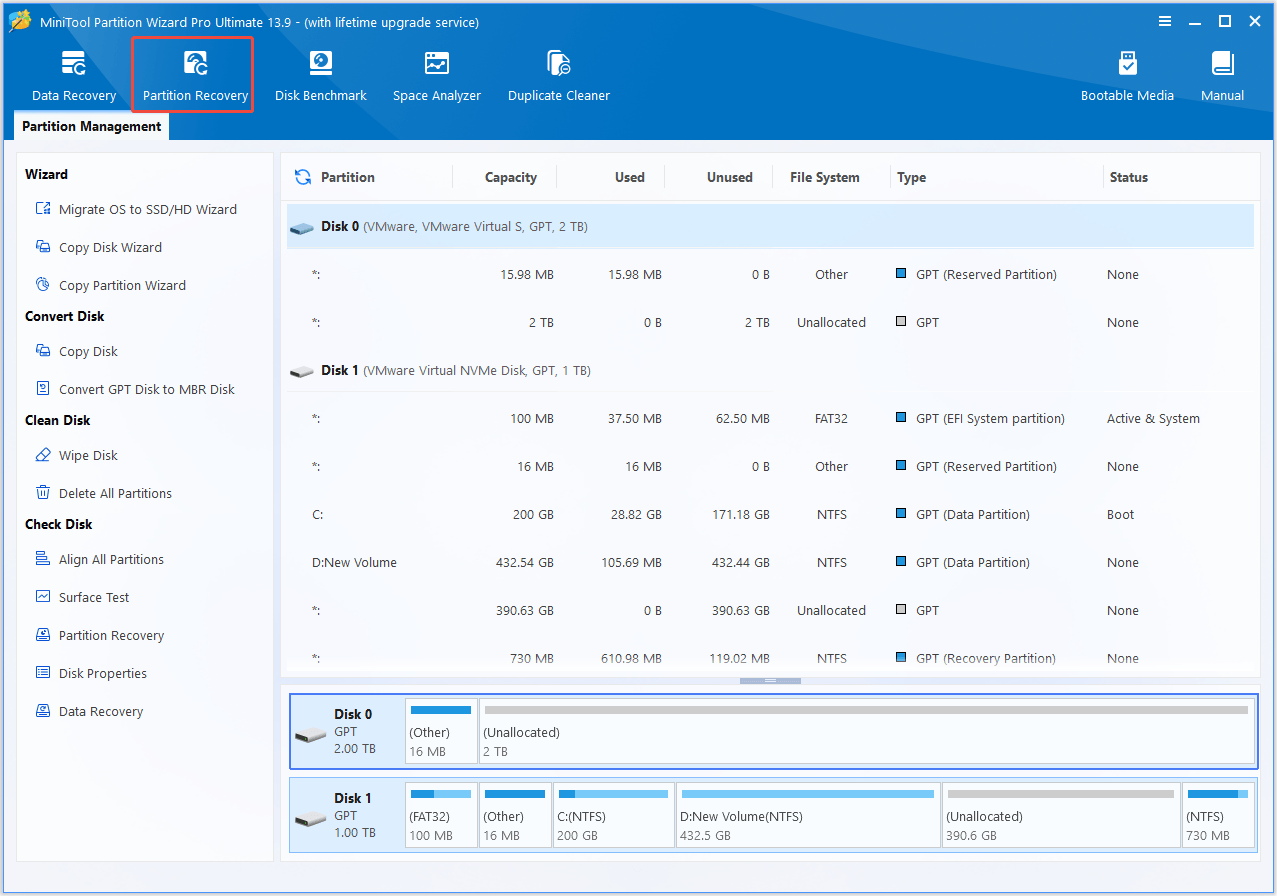
Step 1: Launch MiniTool Partition Wizard, select the disk containing the lost partition, and click Partition Recovery.
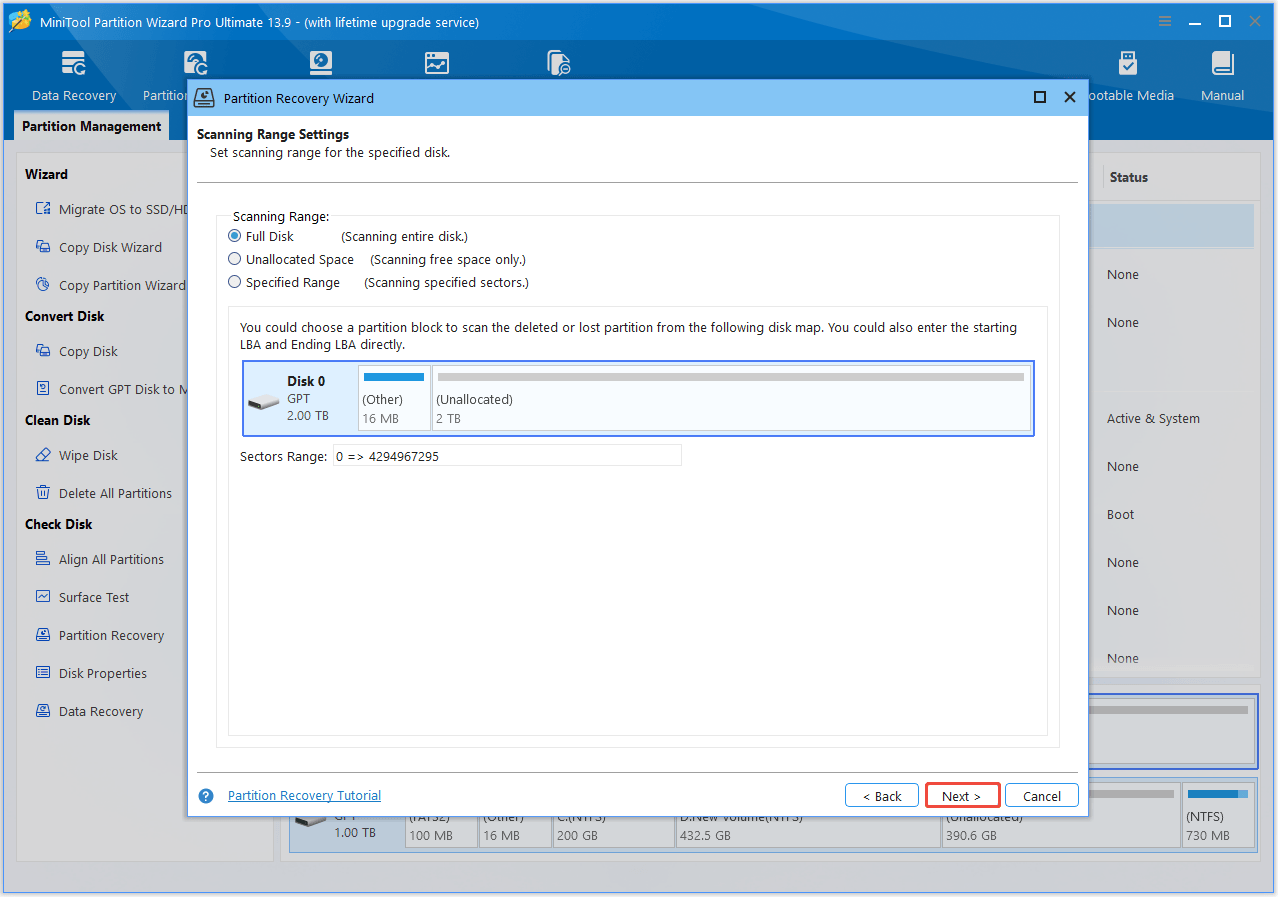
Step 2: Choose a scanning range (Full Disk, Unallocated Space or Specified Range) and click Next.
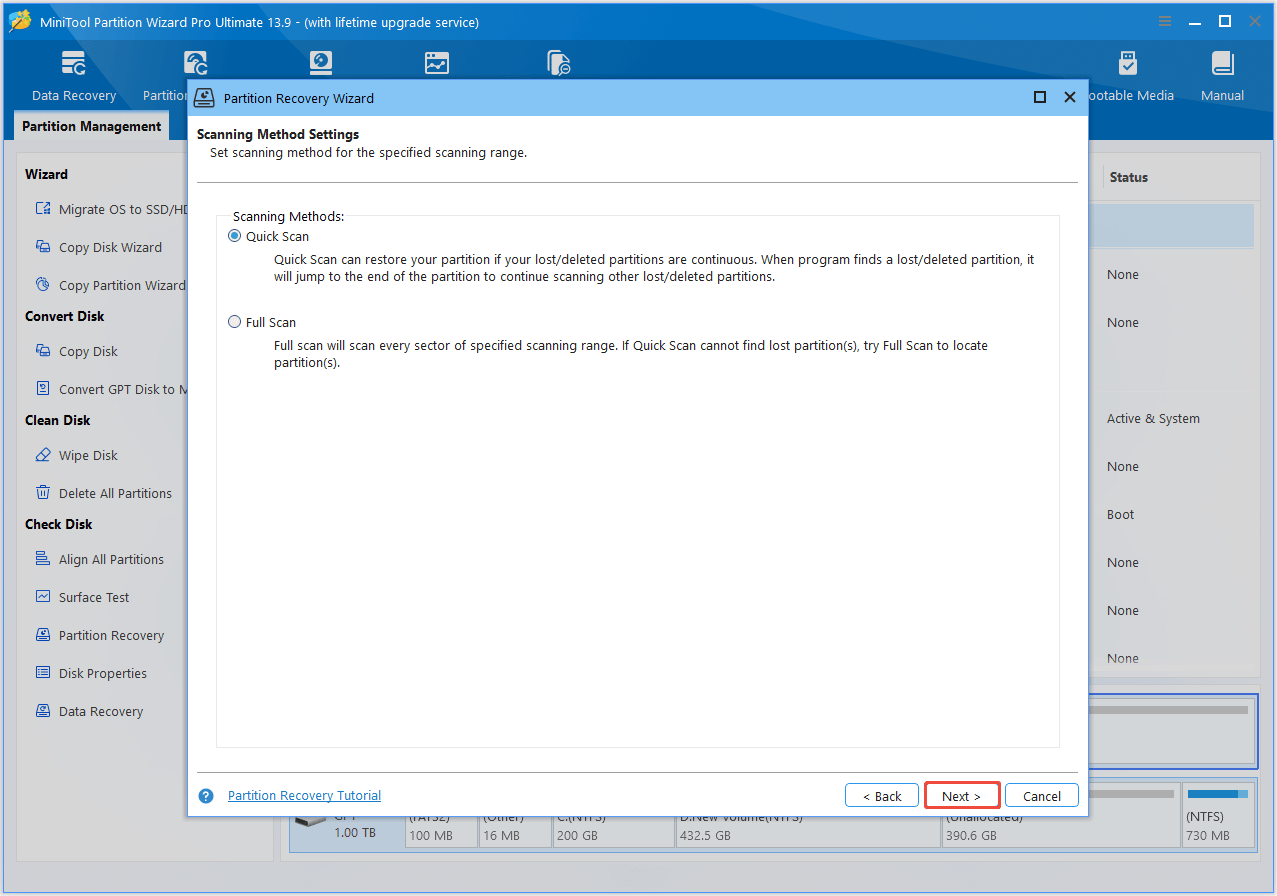
Step 3: Choose Quick Scan or Full Scan, then start scanning.
- Quick Scan: Finds lost or deleted partitions in continuous space.
- Full Scan: Scans the selected range more thoroughly if Quick Scan fails.
Step 4: After scanning, review the found partitions. Double-click a partition to check whether it contains the files you need.
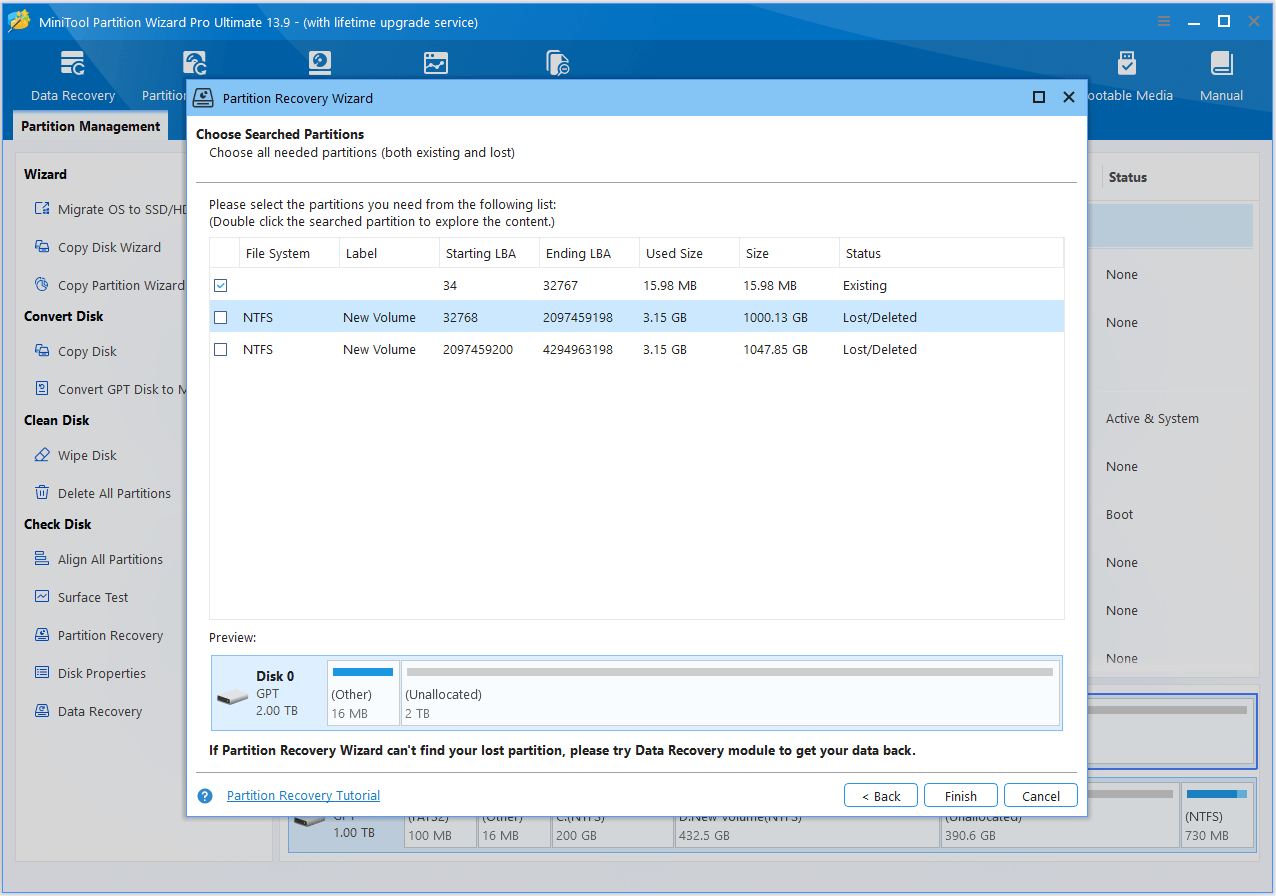
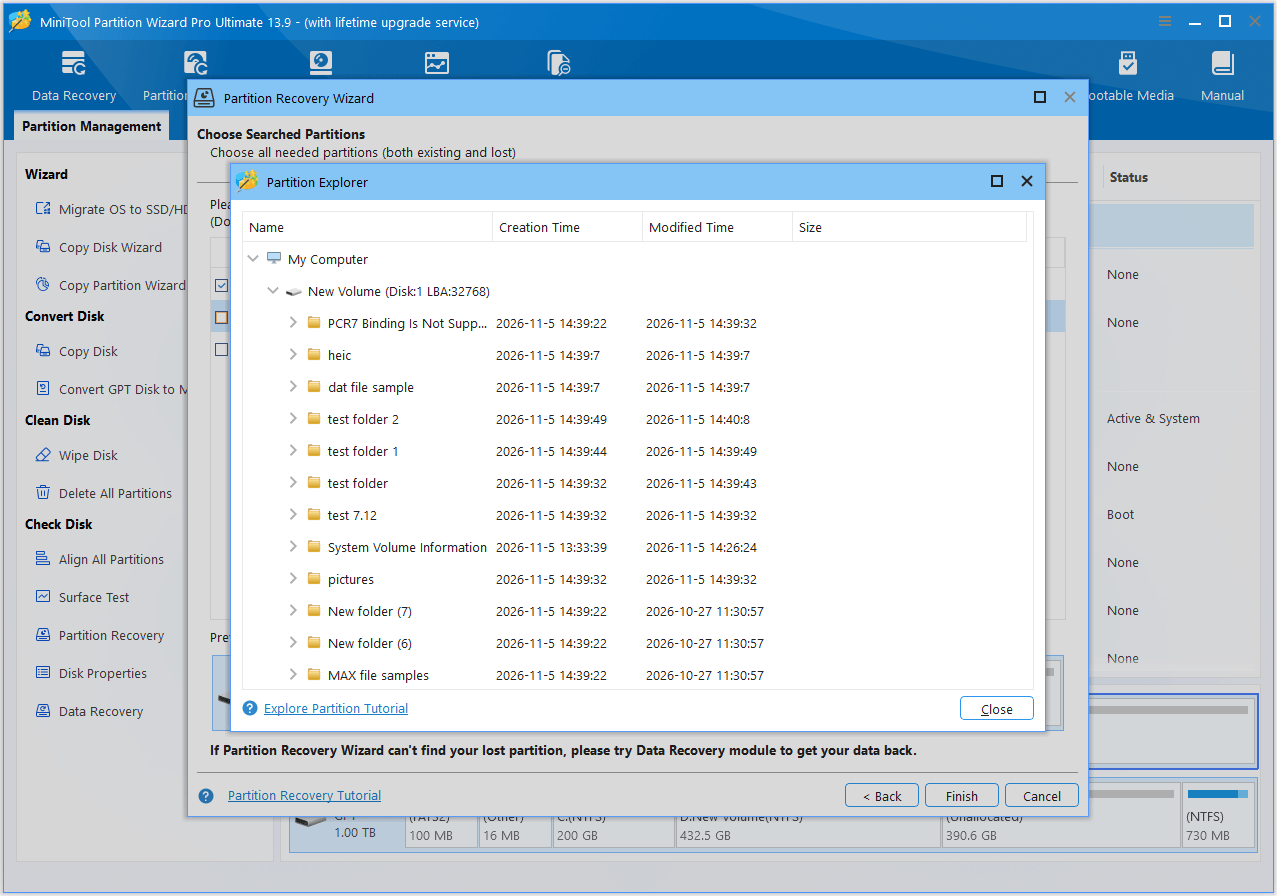
Step 5: Select all partitions you want to keep, including existing and recovered partitions, and click Finish.
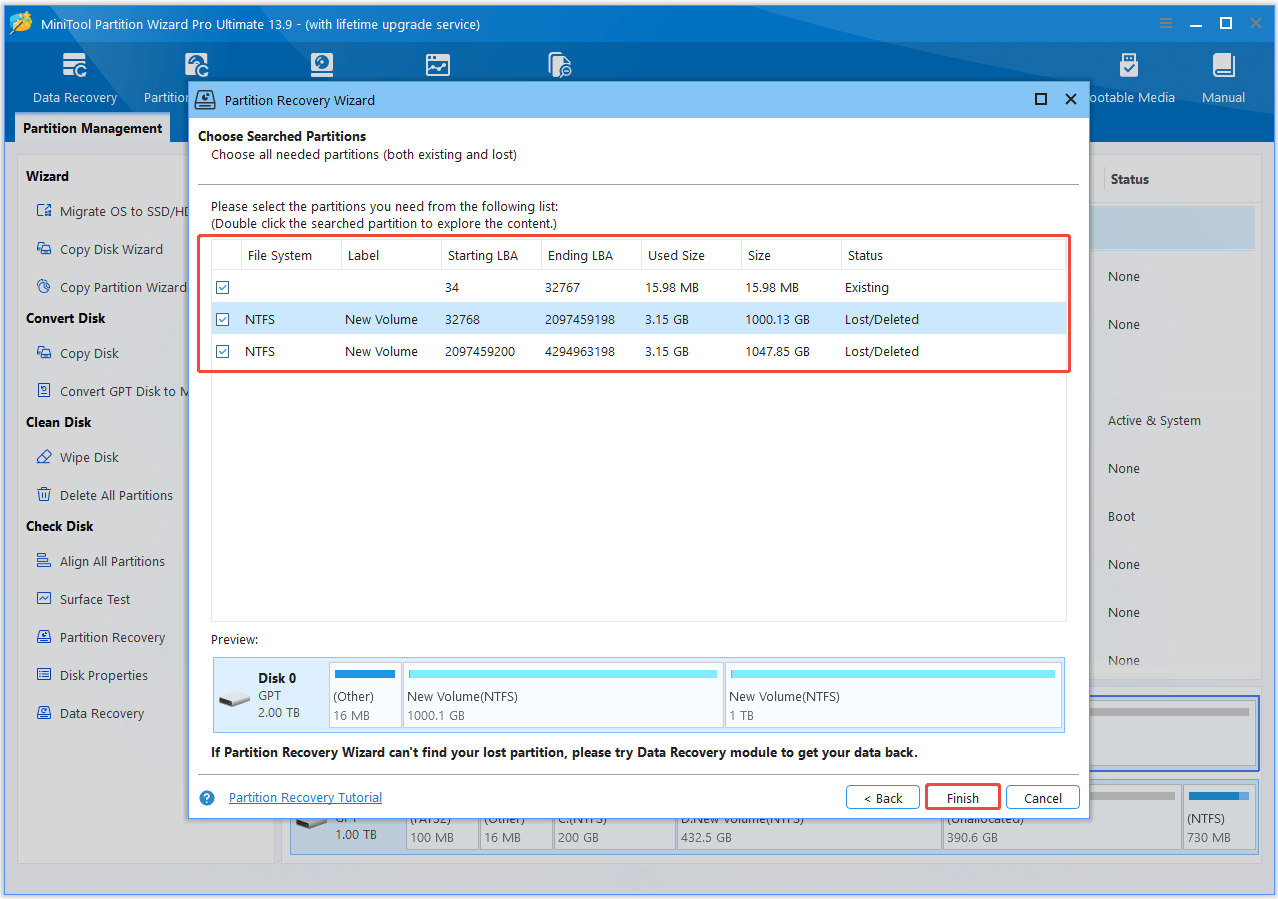
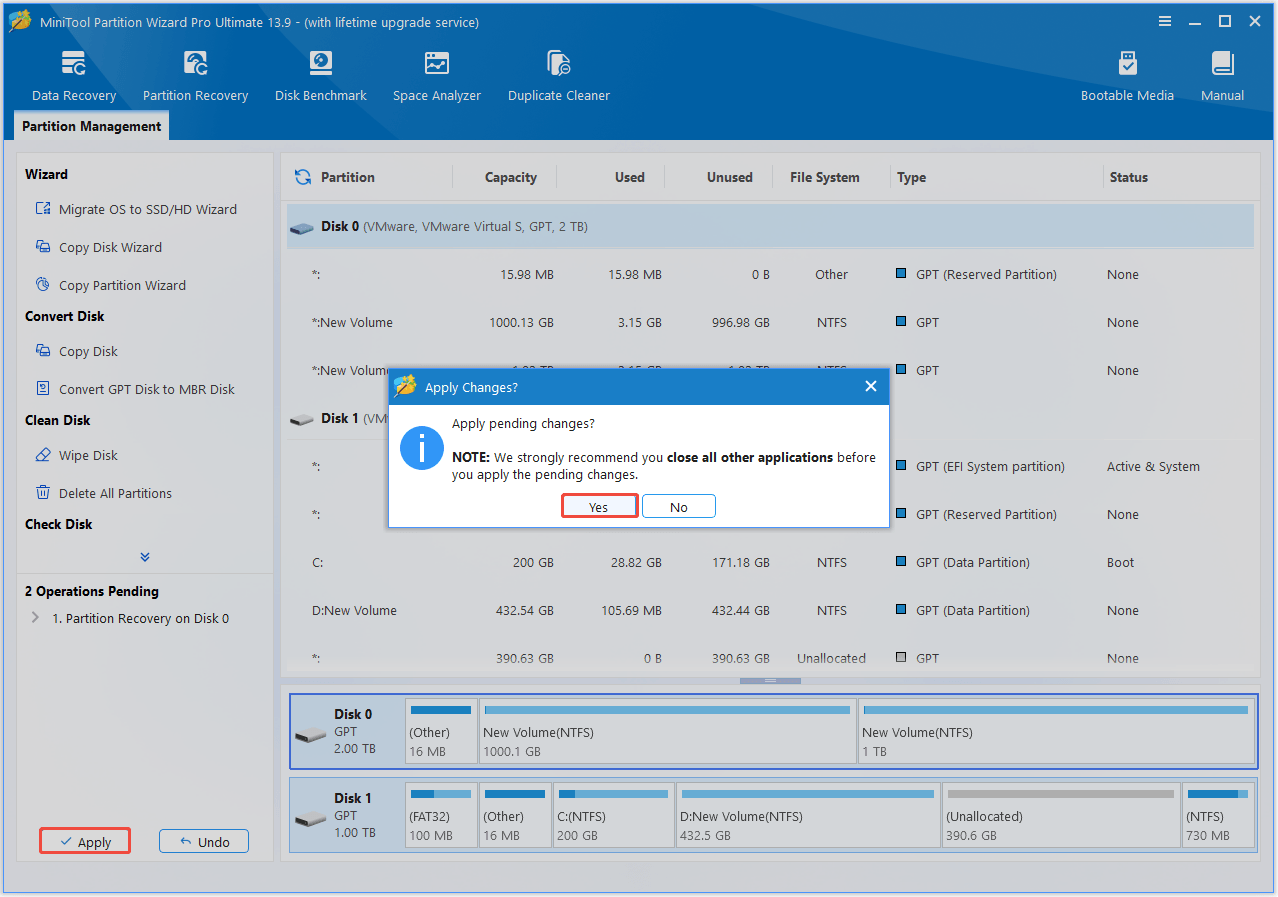
Step 6: Click Apply and OK to perform the recovery operation.
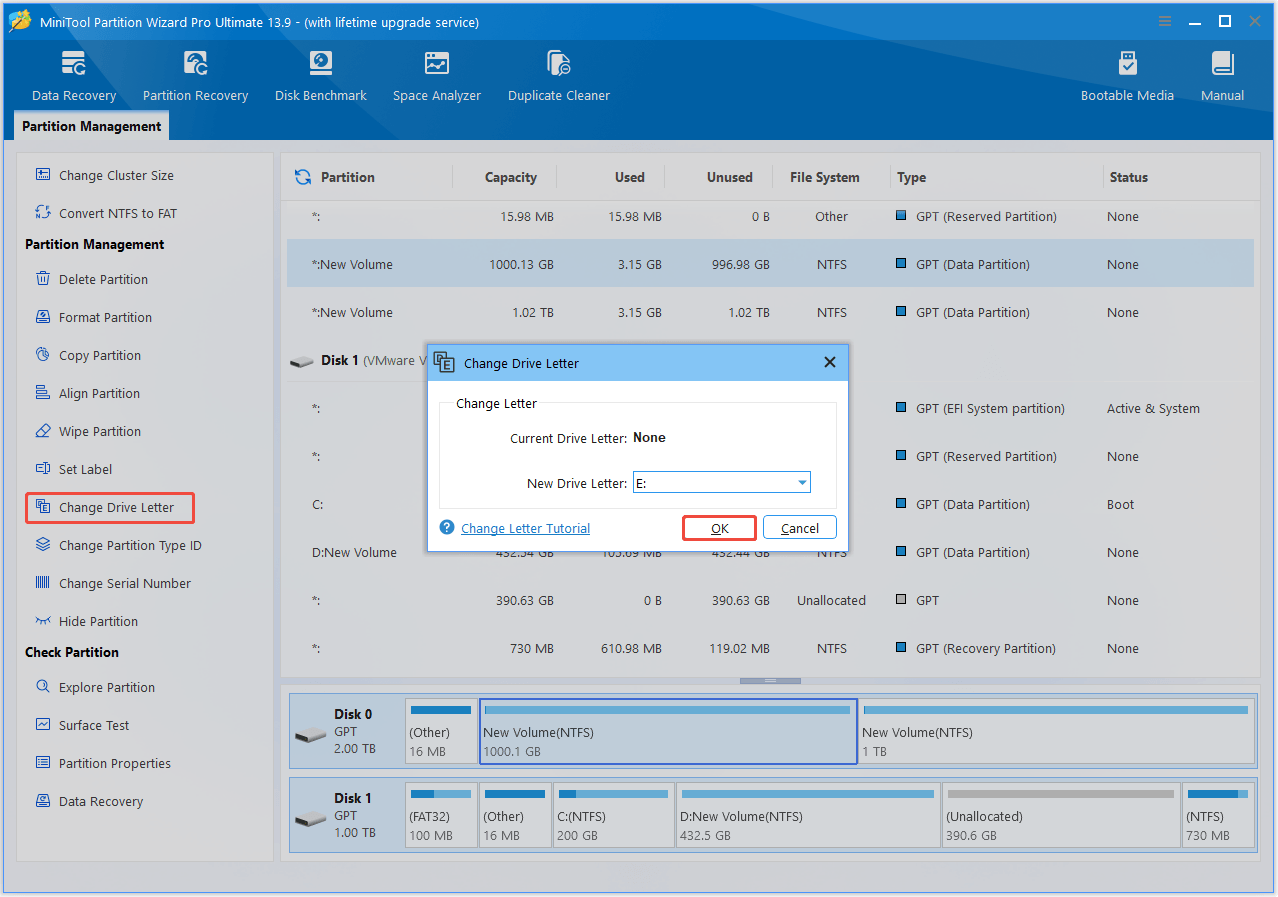
If the recovered partition does not appear in File Explorer, it may not have a drive letter. Select it in MiniTool Partition Wizard, choose Change Drive Letter, assign a letter, and click Apply.
What if Partition Recovery Is Impossible
Partition Recovery may fail if the disk shows “dynamic disk invalid”, “disk unknown not initialized” or “bad disk”, or if the partition disappeared after reinstalling Windows. In that case, use HDD data recovery to rescue files from the missing partition.
MiniTool Partition Wizard FreeClick to Download100%Clean & Safe
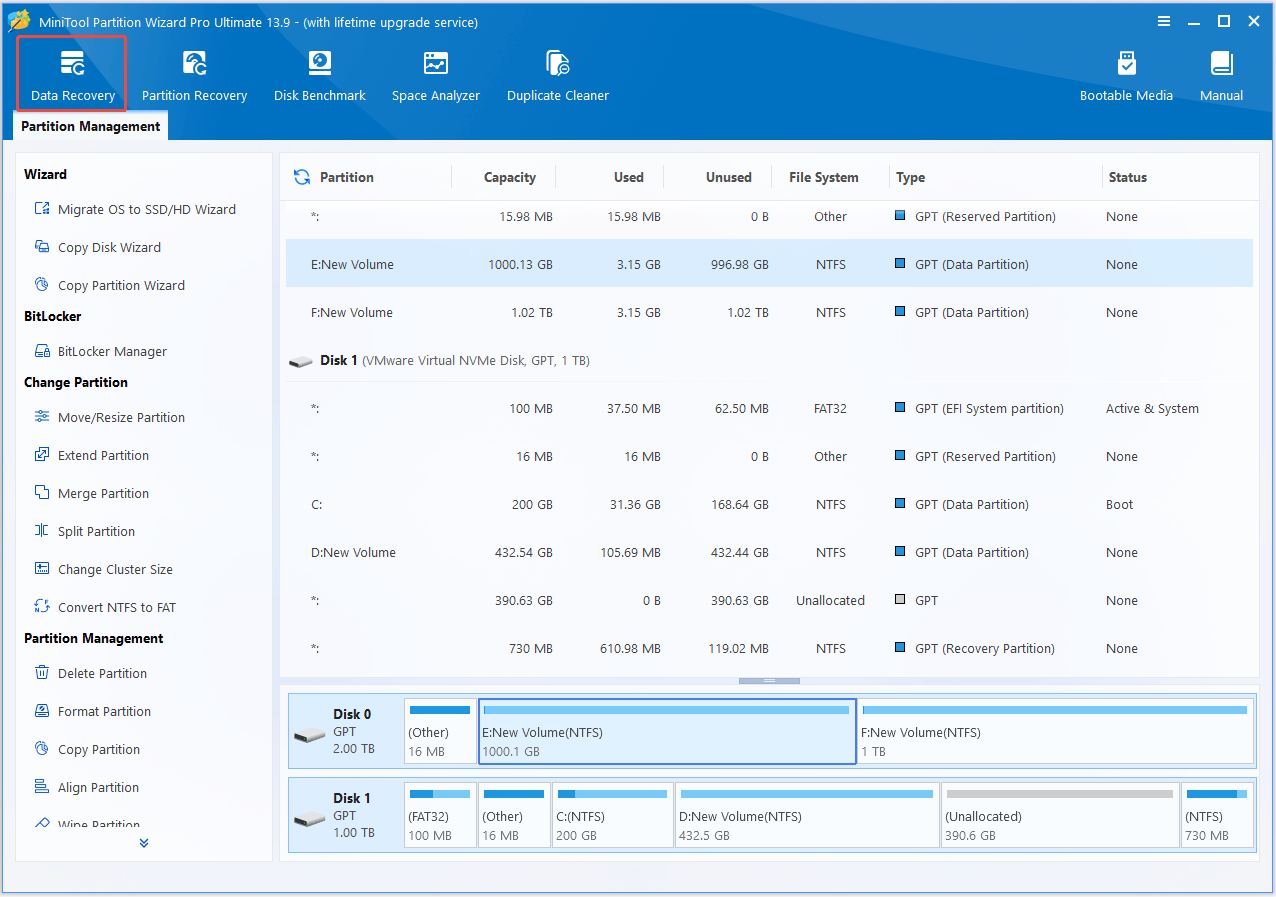
Step 1: Launch MiniTool Partition Wizard and select Data Recovery.
Step 2: Select the partition or disk containing the lost files and start scanning.
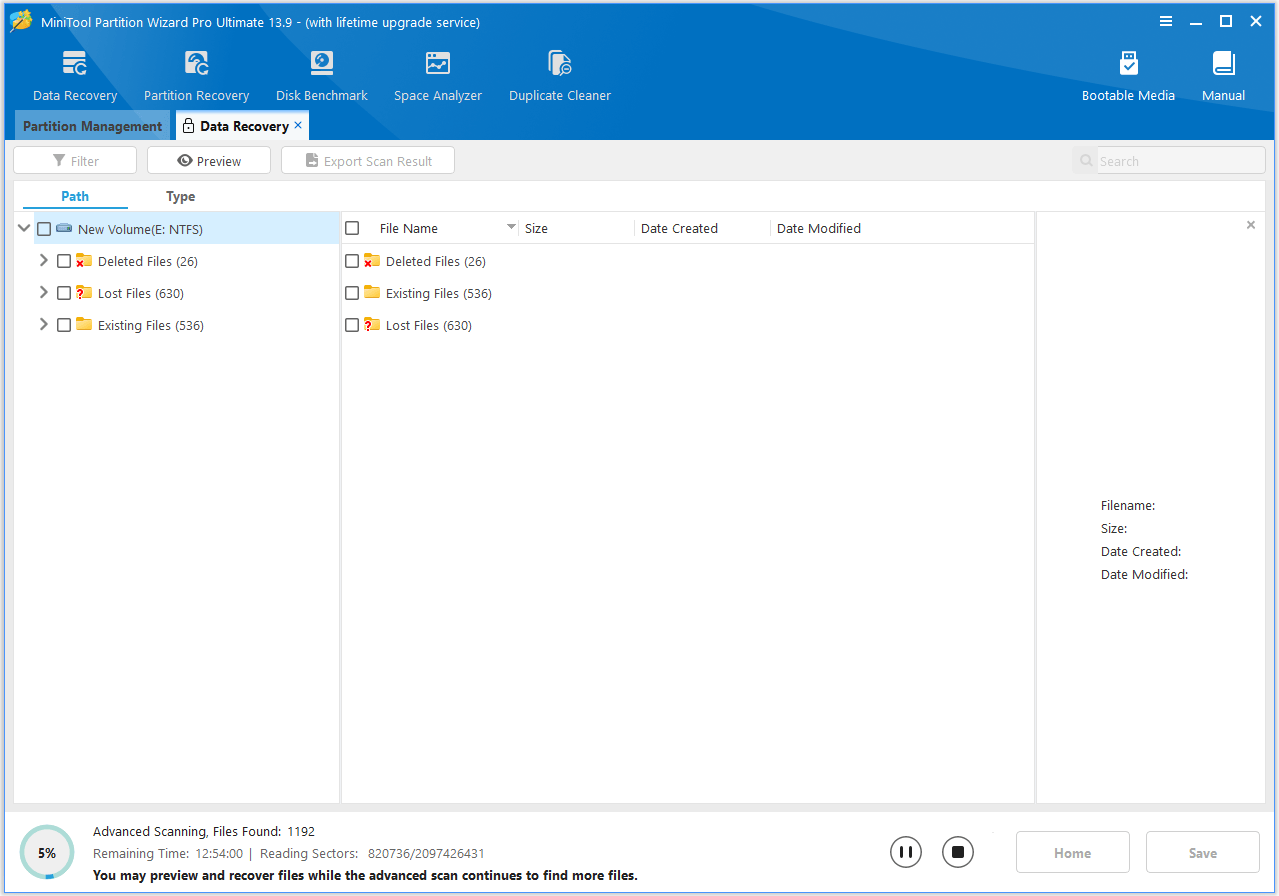
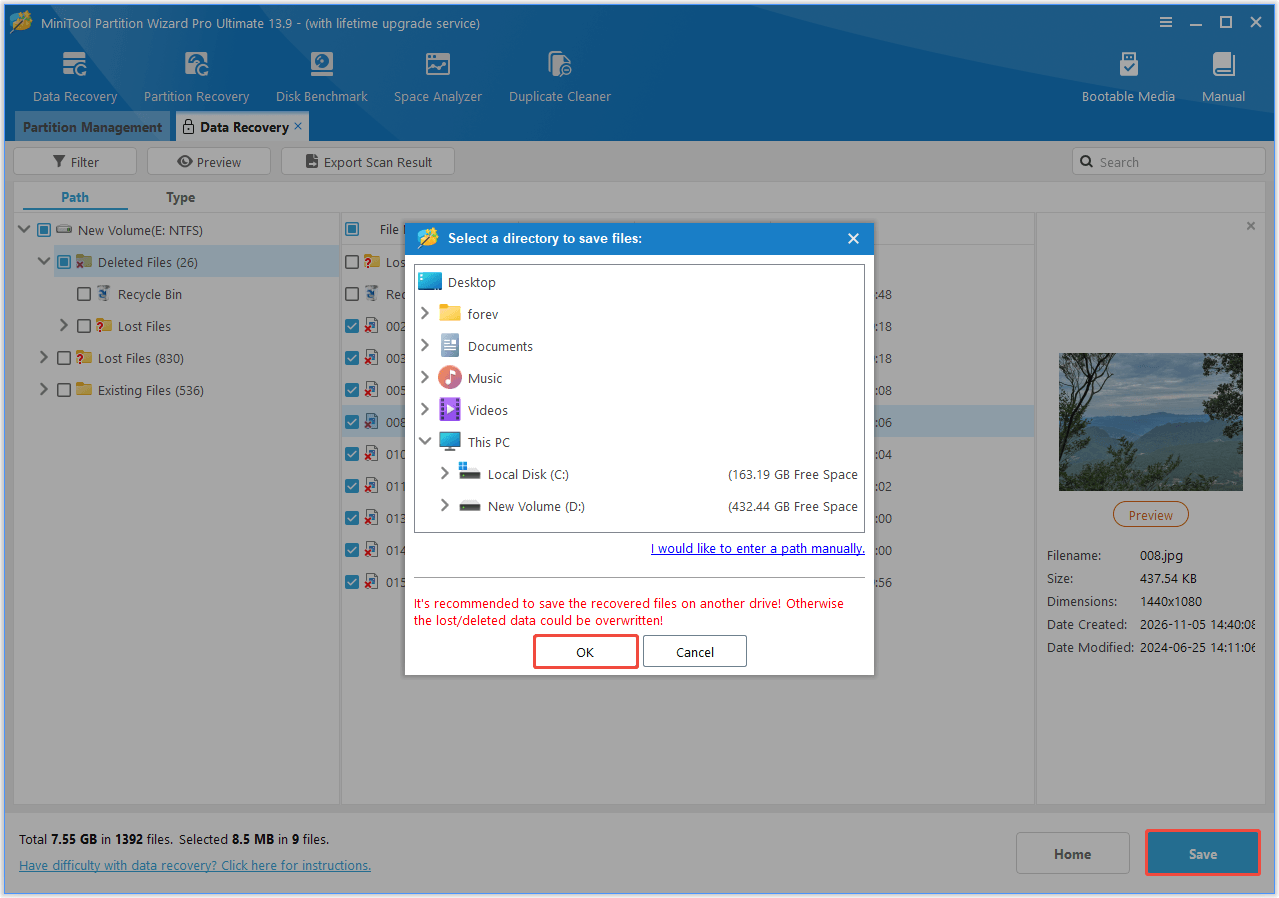
Step 3: Browse the scan results and select the files you want to recover.
Step 4: Click Save and choose another drive or external storage device as the destination.
Some Tips on Using Hard Drives
Now we have gone through the way to recover lost/deleted partition by using MiniTool Partition Wizard, and the way to recover data from missing partitions if MiniTool Partition Wizard does not help. However, to prevent partition loss from happening, we must pay attention to the following aspects when using disks:
- We must handle hard disk with care, for it is likely to get damaged due to human errors or other reasons. Run antivirus software regularly to keep hard drive stay away from virus.
- Upgrade hard disk in time. A hard drive has years of life span and should be replaced in time before it is going to fail. A clear signal is that it runs noisily, for normal disk has little noise.
- Remove external hard drive safely. Never force to remove an external hard drive. Click the Safely Remove Hardware icon in the notification area, then click your device. Wait until the message which reads “Safe to Remove Hardware” appears before you confirm ejecting. If the message reads “This device is currently in use”, you need to check whether a file in that drive is still being used.
- Avoid abnormal computer shut-off, for it causes hard disk damage.
- Back up hard drivedata regularly because we never know when an accident can happen. It is never too late to form the habit of backup for some data is priceless.
Bottom Line
A lost hard disk partition may be recoverable with a partition recovery tool such as MiniTool Partition Wizard. If partition recovery fails, try recovering important files with data recovery software. Regular backups remain the best protection against permanent data loss.
For issues related to MiniTool software, contact us via [email protected].
Recover Hard Disk Partition FAQ
Usually, it is advised to use a professional partition recovery program to help. MiniTool Partition Wizard is an easy-to-use program in this aspect.
- Run MiniTool Partition Wizard.
- Select the disk that used to have the lost partition to scan.
- Choose the scanning range and the scanning method.
- Select all partitions you want to keep, go back to the main interface and apply changes.
- Don’t forget to give the recovered partition drive letter.
About The Author

Position: Columnist
Charlotte is a technology columnist with a strong focus on the Windows operating system, specializing in disk management, backup, and data recovery. She is passionate about analyzing computer errors, identifying root causes, and delivering practical solutions. In her free time, she stays updated on the latest developments in computer systems and hardware while continuously learning new technologies to broaden her expertise. Her writing style is clear and easy to understand, making complex technical topics accessible even to users with limited computer knowledge.
User Comments :