
Do you know how to fix damaged boot partition or fix boot Windows 10 with ease? The computer may suffer boot failure when the MBR is damaged or the system partition is not active. So, this post will show you how to fix MBR and how to set the system partition active when the computer can’t boot with the professional partition manager – MiniTool Partition Wizard.
In general, if the computer can’t boot, it may be caused by various reasons. For example, the MBR may be destroyed, the system partition is not active or the file system is corrupted. Of course, it may also be caused by other reasons.
However, in this post, we will show you how to fix boot Windows 10 when it was caused by the damaged MBR and the inactive system partition.
MBR is an essential part of the system partition since it is used to boot the operating system. When it is damaged, you may suffer the disk boot failure. Or when the system partition is not active, you may also suffer Windows 10 boot error.
However, don’t worry. In this post, we will show you how to fix boot Windows 10 by repairing MBR or setting it active with the professional partition manager – MiniTool Partition Wizard.
How to Fix Boot Windows 10?
Fix MBR
Related article: Top 5 Solutions to Fix SSD Won’t Boot Windows 10 – MiniTool
First of all, we will show you how to fix disk boot failure with MiniTool Partition Wizard by fixing the MBR. MiniTool Partition Wizard is a piece of partition magic which is designed to deal with various partition and disk matters.
Of course, it can also help you to repair MBR and set the system partition active. So we will show you how to operate. And you click the following button to purchase MiniTool Partition Wizard.
As your computer has suffered the Windows 10 boot error, you can’t boot it from the operating system. Thus, you need the help of the bootable media. Don’t worry. MiniTool Partition Wizard can help you and we will show you the detailed instructions in the following parts.
Step 1: Install MiniTool Partition Wizard on a normal computer and launch it to enter its main interface.
Step 2: Click Bootable Media feature to create the bootable media which can be used to boot the computer when it can’t boot from the operating system.
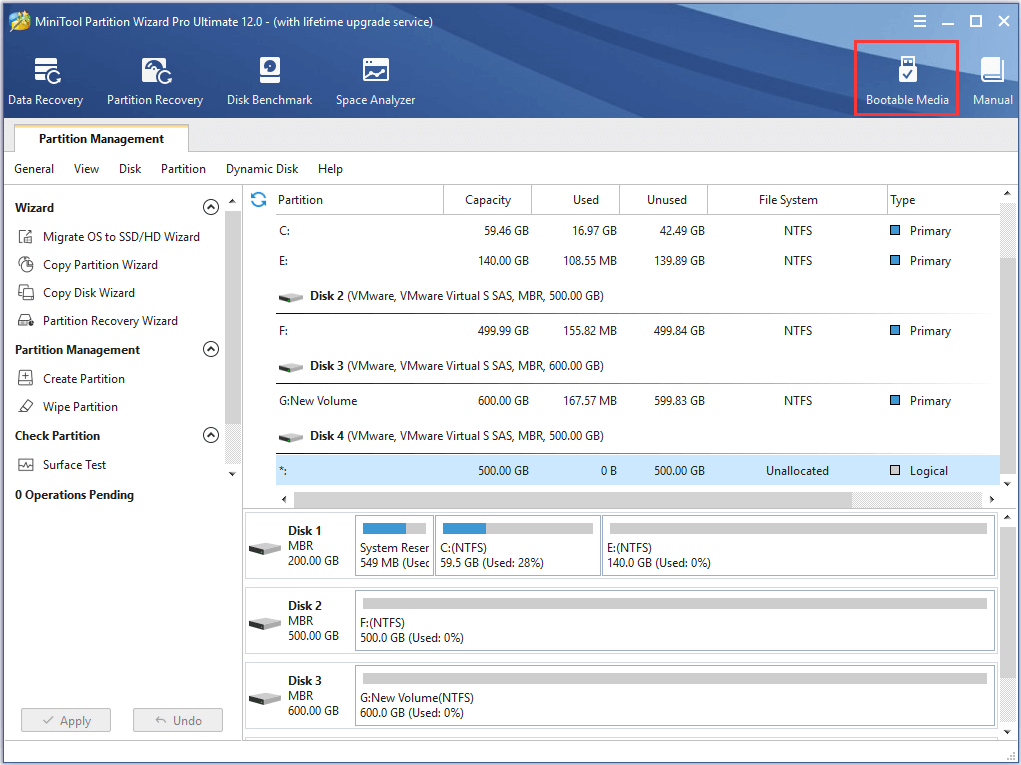
Step 2: Connect the bootable media to your abnormal computer and boot the computer from it. Here you can read the post How to Boot from Burned MiniTool Bootable CD/DVD Discs or USB Flash Drive to know more.
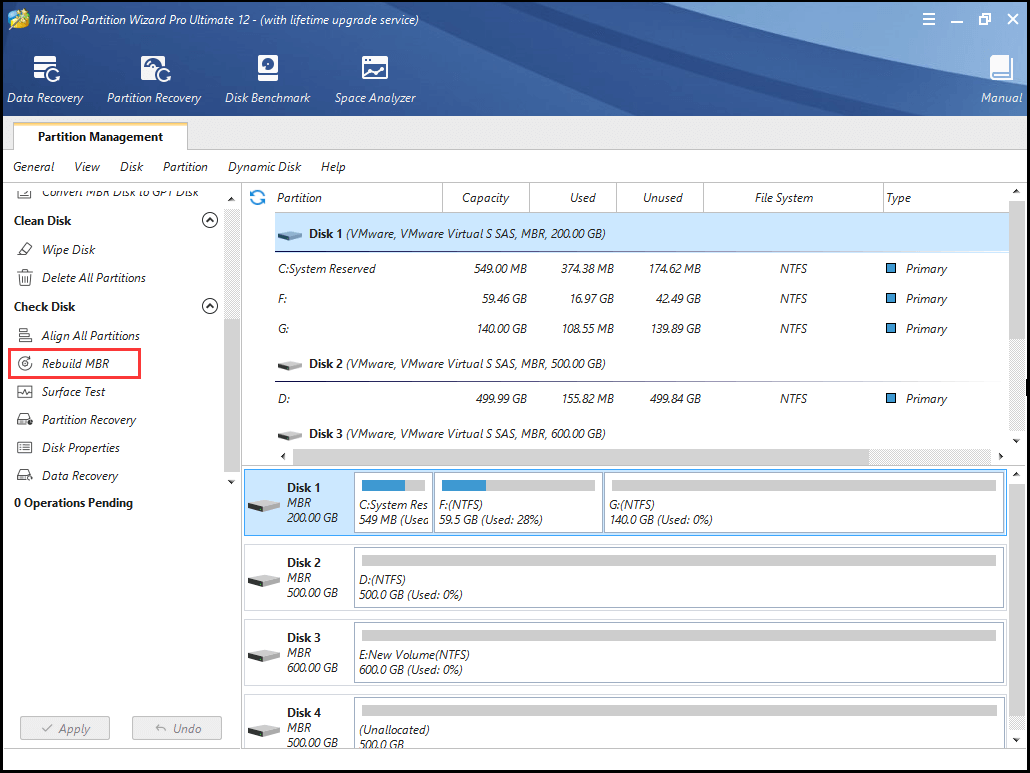
Step 3: After entering the MiniTool Recovery Environment, please select the system related disk and choose Rebuild MBR from the left panel to continue.
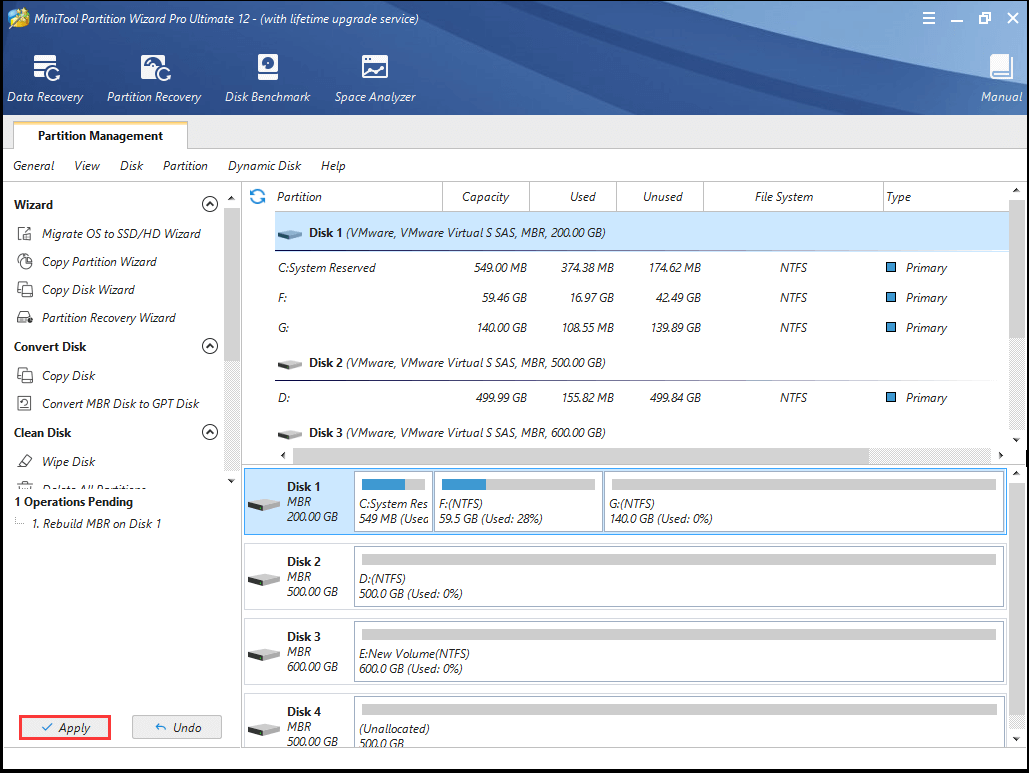
Step 3: At last, click Apply to confirm the change.
When you have finished all the steps, you can restart your computer to check whether the issue disk boot failure is solved. And please note the way is also suited to fix boot Windows 7.
If you have suffered boot failure, try to use MiniTool Partition Wizard to fix MBR to solve Windows 10 boot error.
Set Active Partition with MiniTool Partition Wizard
In this part, we will introduce the second situation that may lead to the error boot Windows 7/10. If the system partition is not active, the operating system still can’t boot. In this situation, what you do is to set the system partition is active.
Then how to set the system partition active? As a matter of fact, the operation methods can be easy as long as you take the partition magic – MiniTool Partition Wizard. And we will show you fix boot partition error.
Step 1: In this situation, you also need to create bootable media firstly. Then connect it to your computer and use it to boot the abnormal computer.
Step 2: After entering the WinPE, select the partition you want to set active and choose Set Active from the left panel to continue.
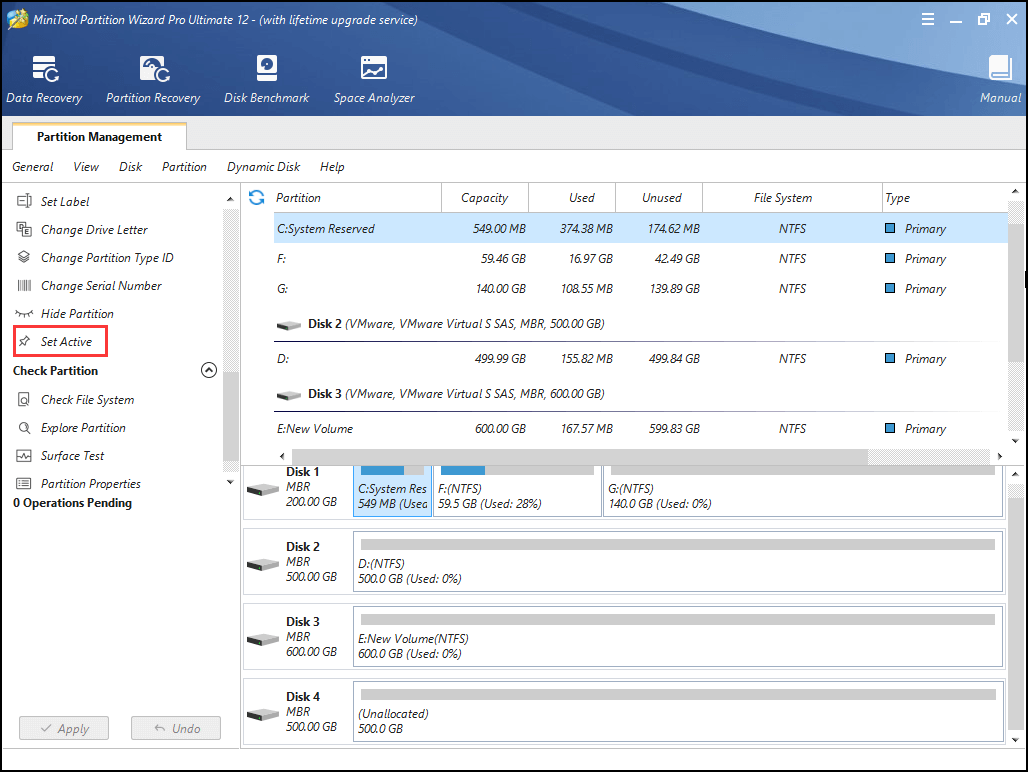
Here, there some important things you need to pay attention to.
- If you are running an MBR disk, only the primary partitions on it can be set active. But if the disk is GPT, there is no such limit.
- One disk can hold only one active partition.
- If you set the wrong partition as active and change the originally active partition into active, they will be blocked out from the Windows system.
Step 3: Then you can click Apply to confirm the changes.
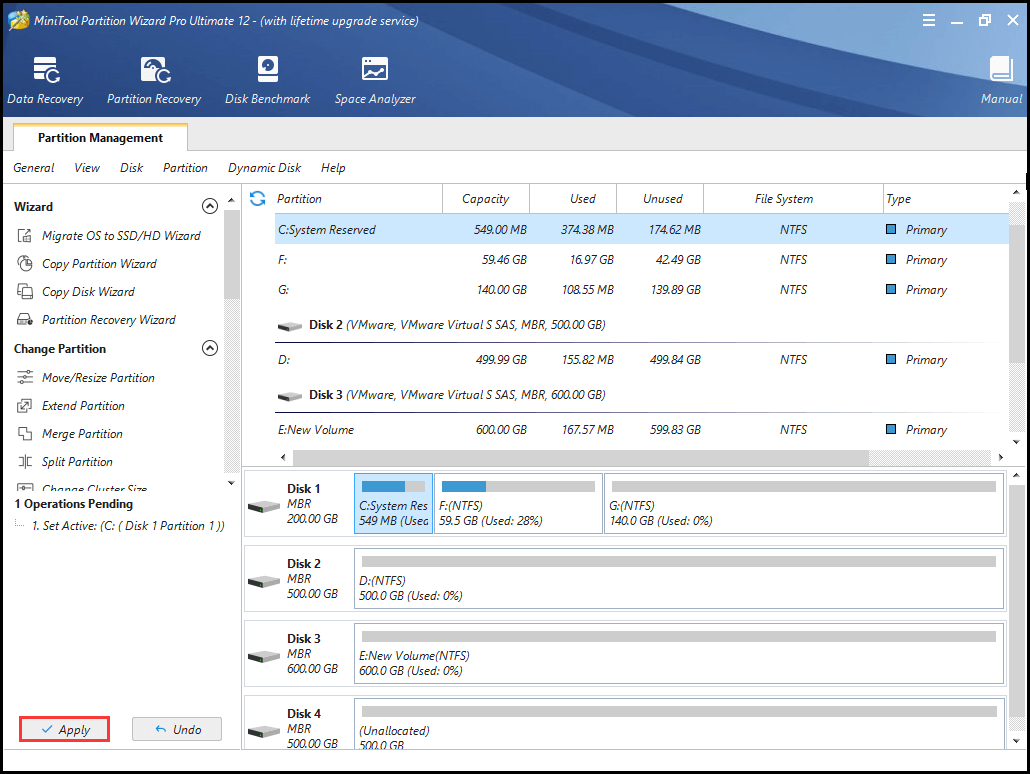
When the process is finished, you can check whether the disk boot failure is solved.
So from the above information, you can find that MiniTool Partition Wizard is capable of dealing with the disk boot failure problem and fixing boot Windows 10. If you have the same problem, try MiniTool Partition Wizard.
In addition, when you have encountered the issue disk boot failure, you may also need to check file system.
When the boot failure has been finished, it is recommended to back up Windows so as to provide better protection for your computer and data. Even you can use the system image to perform some recovery solutions when some accidents happen.
Related article: How to Back up Windows to Safeguard Your Computer? Try MiniTool!
Bottom Line
In conclusion, we have introduced two cases that may lead to boot failure in this post including damaged MBR and inactive system. Meanwhile, MiniTool Partition Wizard has the ability to handle both of these two different situations.
In addition, if you have any problem of MiniTool Partition Wizard, please contact us via the email [email protected].