
How to resize RAID partition without data loss? This post shows you the best solutions. In particular, the best raid partition manager – MiniTool Partition Wizard would be a good assistant to manage hardware RAID partition.
What Is RAID?
RAID (Redundant Array of Independent Disks) is a data storage virtualization technology that can combine multiple physical disk drive components into a single logical unit for data redundancy, or performance improvement, or both. So, it owns more advantages than the use of a single hard disk: higher data security, fault tolerance, improved availability, increased and integrated capacity, and improved performance.
The different options (such as hardware RAID, and software RAID) for combining disks are called RAID levels. Hardware RAID is a disk controller to which you connect disk drives. Software RAID is a set of kernel modules combined with management utilities that implement RAID in software and require no additional hardware.
Why Do You Need to Resize RAID Partition?
The same as a single hard drive, a hardware RAID drive may also run out of space. In this case, you need to resize RAID partition to meet your further needs. Here is a real example from en.community.dell.com:
I have a new Dell PowerEdge T320 with the 710 RAID controller. It has two 500 GB hard drives in a RAID1 configuration. 80 GB is allocated to the C (OS) drive, and the rest to D, a data drive. I want to resize the C drive to 120 GB to have headroom. How should I go about doing this?
from en.community.dell.com
Many users want to resize RAID partition to get rid of hardware RAID running out of space warning. Since RAID partition stores a large amount of vital data for them, is it possible to resize RAID partition or manage hardware RAID without data loss? The answer is positive.
How to Resize RAID Partition?
To resize RAID partition, you can take advantage of a piece of professional RAID partition manager – MiniTool Partition Wizard. It is designed to optimize partition and disk use and would not bring any damage to the original data.
So, how to resize RAID partition without data loss? Here I take hardware RAID 1 as an example. Please scroll down to know more detail.
How to Shrink RAID Partition?
If the partition size is too large, you can shrink RAID partition to get more unallocated space so as to create more partitions and save data respectively. Thus, we will show you how to shrink partition with the professional hardware RAID manager – MiniTool Partition Wizard.
Step 1: Get MiniTool Partition Wizard and follow the on-screen instructions to install it on your computer. Then, launch MiniTool Partition Wizard to its main interface.
MiniTool Partition Wizard DemoClick to Download100%Clean & Safe
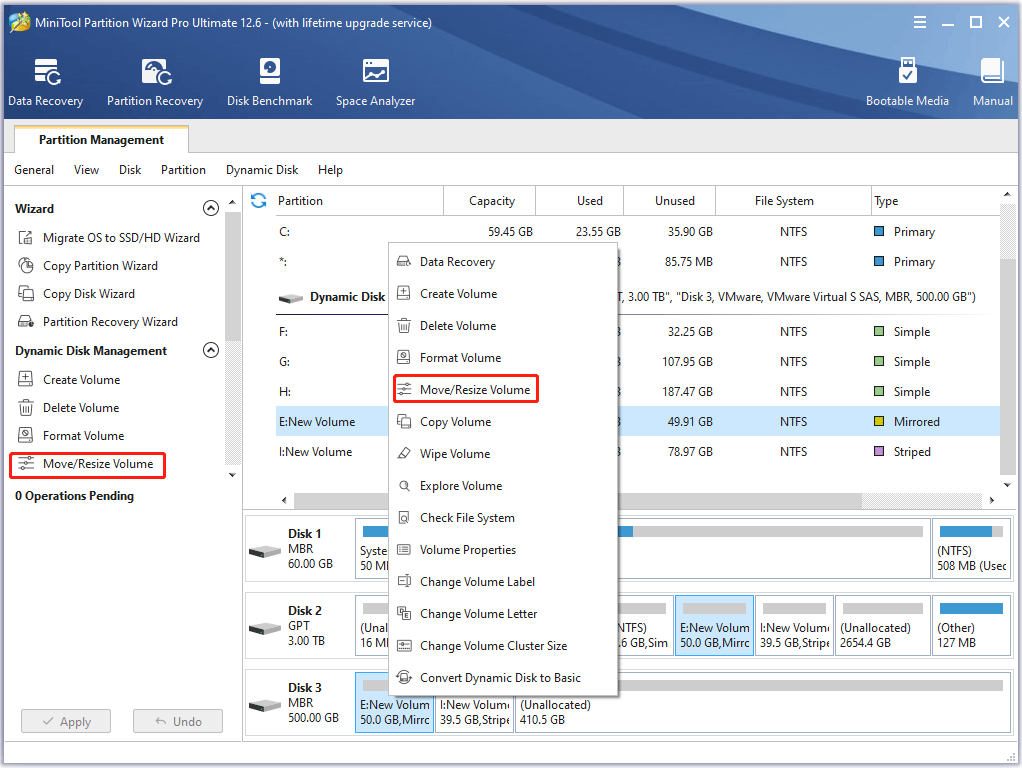
Step 2: Choose the RAID partition and choose the Move/Resize feature from the left action panel.
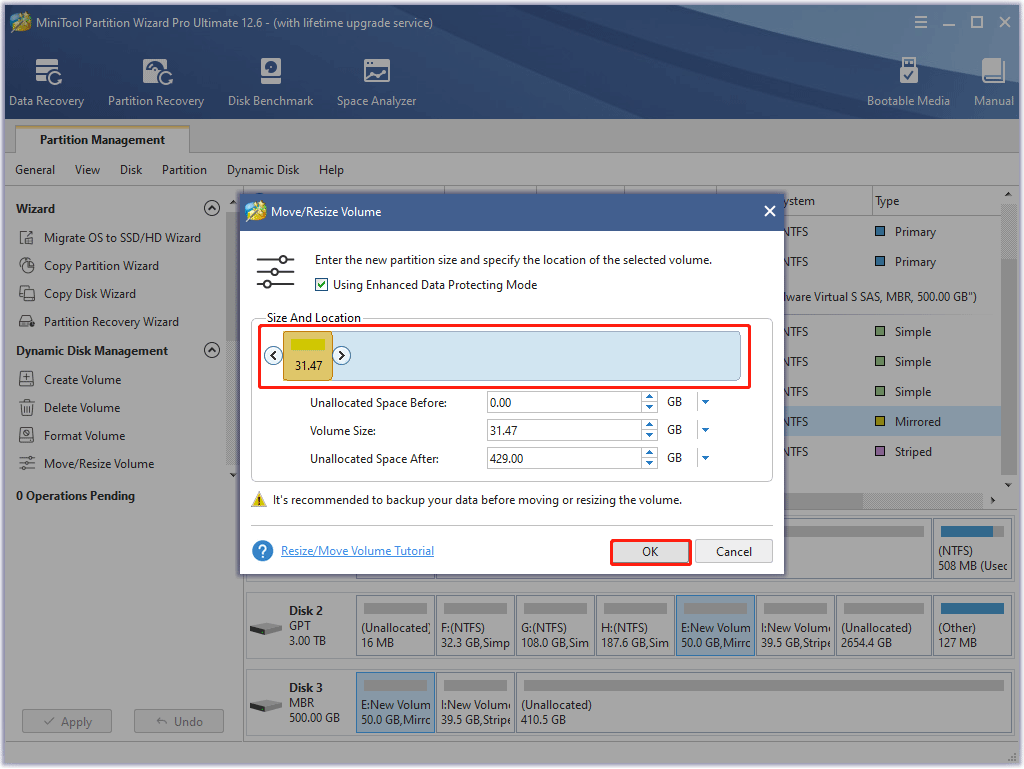
Step 3: In the pop-up window, you can drag the arrow to shrink RAID partition. Then, click OK to continue.
Step 4: After that, you can see that the RAID partition has been decreased, and click Apply to confirm the changes.
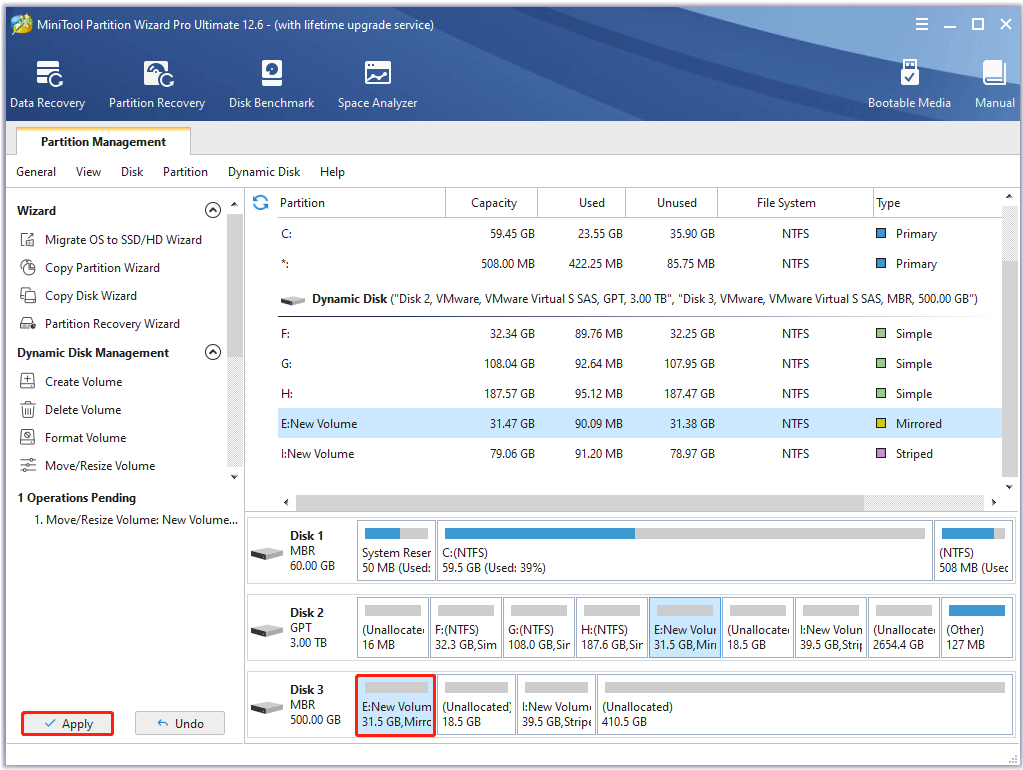
When all steps are finished, you can successfully shrink the RAID partition to get the unallocated space and create more partitions.
How to Extend RAID Partition?
Sometimes, if the unallocated space of your disk is not enough but you want to extend RAID partition, you can follow the steps below to shrink other RAID partitions to get more unallocated space (that must be adjacent to the RAID partition you want to extend). After that, you can extend RAID partition. So how to enlarge RAID partition? Here is the complete guide:
Step 1: Get MiniTool Partition Wizard and launch it to the main interface.
MiniTool Partition Wizard DemoClick to Download100%Clean & Safe
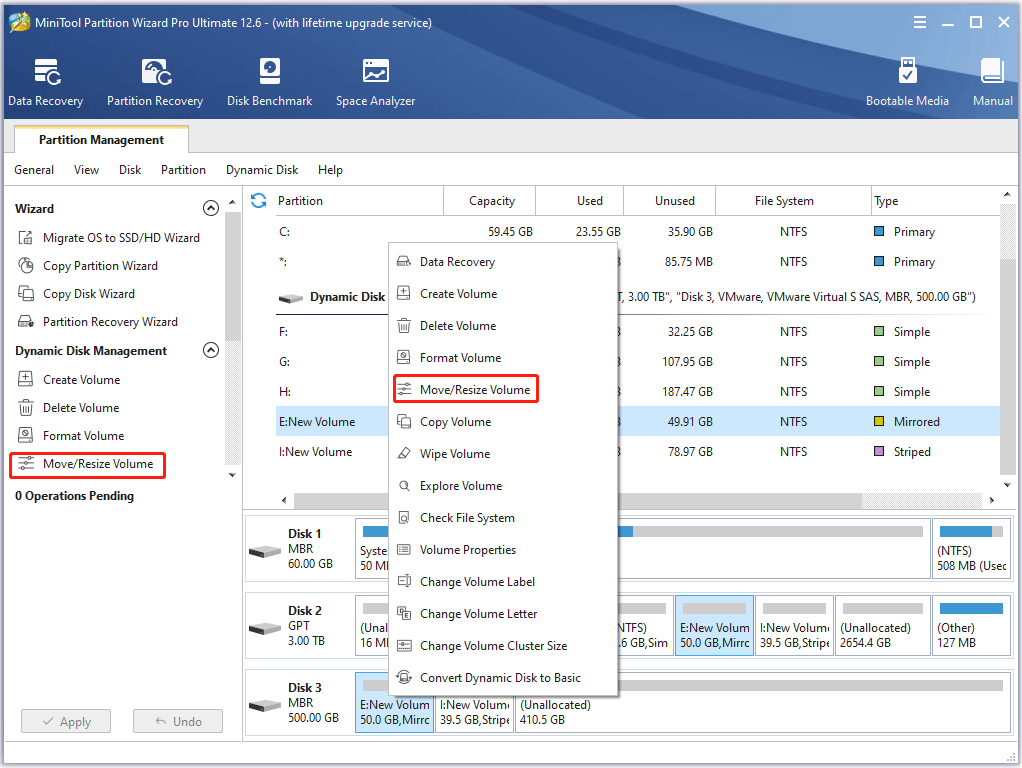
Step 2: Choose the partition you want to enlarge and choose the Move/Resize feature from the left action panel.
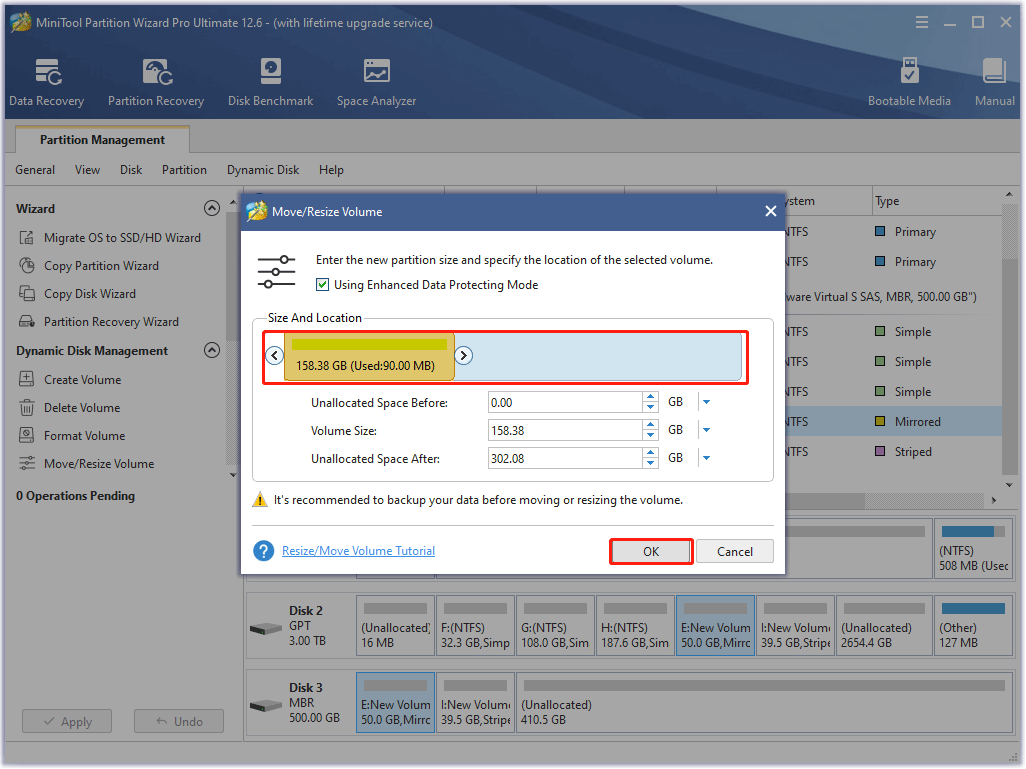
Step 3: In the pop-up window, you can drag the sliding handle to decide how much space you want to take and click OK to continue.
Step 4: Returning to the main interface, you can preview the changes and click Apply to confirm the changes.
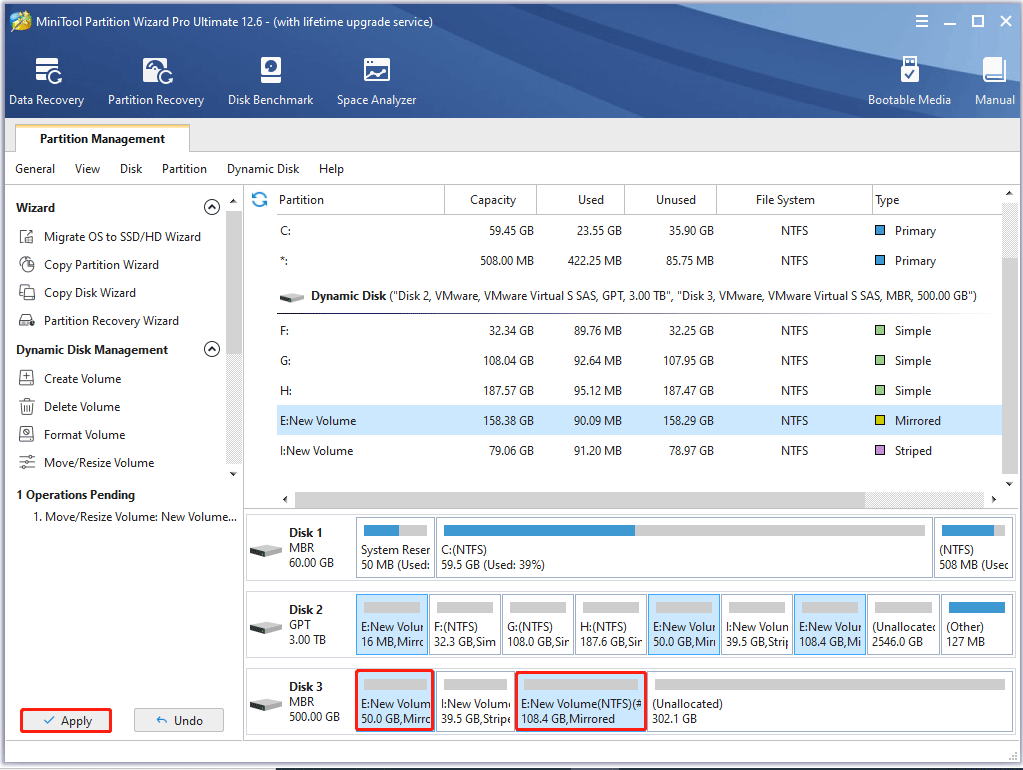
When you have finished all steps, you can successfully extend RAID partition. In fact, its operation methods are pretty easy. And if you want to resize RAID partition, try to use the professional RAID partition manager – MiniTool Partition Wizard.
Merge RAID Partitions in the same RAID Array
MiniTool Partition Wizard DemoClick to Download100%Clean & Safe
In addition to those features, MiniTool Partition Wizard also has many other powerful features, such as copy partition, Disk Benchmark, and so on.
Last but not least, most people take advantage of hardware RAID to back up data so as to keep data safe. Besides, people can also utilize a piece of third-party software to protect their data. Thus, the professional file backup software – MiniTool ShadowMaker is strongly recommended.
In addition to backing up files and data, MiniTool ShadowMaker can also back up the operating system with its powerful features. So, if you want to keep the data and computer safe, try MiniTool ShadowMaker.
MiniTool Partition Wizard DemoClick to Download100%Clean & Safe
Bottom Line
In this post, we have introduced how to resize RAID partition without data loss with MiniTool Partition Wizard.
And if have any better solution to resize RAID partition, you can share it on the comment zone. And if you have any problem with MiniTool Partition Wizard, please feel free to contact us via the email [email protected].
User Comments :