Resize Partition
- Resize a partition in Windows 8
- Windows 8 boot disk
- Resize partitions in Windows 8
- Shrink partition Windows 8
- Windows 8 expand partition
- Resize partition Windows 8
- Resize Windows 8 partition
- Resizing partitions in Windows 8
- Expand partition Windows 8
- Resize partition for Windows 8
- Expand system partition
- Free extend boot partition
- Extend partition windows 8
- Windows server 2003 increase partition size
- How to increase partition size
- Increase windows partition
- Increase partition xp
- Free increase windows partition
- XP increase partition size
- Increase disk partition
- Increase partition size vista
- Increase partition size
- Windows XP increase partition size
- Increase partition size XP
- Free shrink windows partition
- Windows 7 increase partition size
- Windows 2003 extend partition free
- Partition in windows 7
- Extend partition vista
- Extend primary partition Windows 7
- Extend Windows partition
- Extend system partition safely
- Shrink partition Windows 7
- Shrink partition XP
- Windows 7 extend partition free
- Windows 7 shrink partition
- Windows server 2003 extend partition
- Extend boot partition free
- Windows 7 extend system partition
- Extend OS partition Server 2003
- Resize partition server 2008
- Extended partition
- Free resize partition
- Resize partition for windows
- Resize partitions
- How to resize a partition
- Expand partition
- Windows resize partition
- Resize partition in windows 2003 safely
- Resize OS partition efficiently
- Resize a partition
- NTFS resize partition
- Resize windows 2003 partition
- How to resize partition windows server 2003
- Resize partition ubuntu
- Resize extended partition
- Vista resize partition
- Server 2003 resize partition
- Resize partition in windows 2003
- How to resize Windows partition
- How to resize ntfs partition
- Partition ntfs resize
- Win7 resize partition
- Resize win7 partition
- Windows 2003 extend partition
- Extended partitions
- Extend boot partition
- Resize server 2003 partition
- Resize disk partition
- Server 2003 partition resize
- Resize partitions server 2003
- Resize Windows server partition
- Resize partition server 2003
- Low disk space
- Manage partition C drive run out of space
- Resize Windows 7 partition
- How to repartition a hard drive
- Extend Windows 7 system partition
- Resize partition server
- Primary extended partition
- Windows 7 system partition increase
- Windows 7 partition resize
- Extend NTFS system partition without reboot
- Extend Partition Server 2008
- XP partition resize
- Windows 7 extend partition
- Resize Partition with partition magic
- Repartition Hard Drive
- Windows 7 resize partition
- Resizing partition
- Windows partition resize
- Resize windows partition
- Resize partition windows
- Window 7 partition resize
- Adjust Partition Size
- Add Space to System C Drive Partition
- Redistribute free disk space
- Reduce Drive Partition Size
- Moving Partition
- Shrink partition wizard
- Shrink Partition Under Windows
- How to show extend partition
- Shrink Windows Server 2003 Partition
- Shrink windows partition
- Windows server 2003 resize partition
- Split partition
- System disk full
- Free up disk space
- Resize GPT disk partitions
- How to resize external hard drive
- Increase disk space
- Increase c drive partition
- Expand partitions under windows
- Resize system partition
- Partition 64
- About Windows Server 2003
- Convert fat32 to NTFS
- Create a Partition in Windows Server 2003
- Disk copy
- Disk manager
- Drive copy
- Free download Partition Wizard
- Magic software for partition management
- 64bit Partition Manager
- Clone disk
- Copy partitions
- Disk copy manager
- Partition manager
- Format partition
- Free partition manager to resize partitions
- How to resize partitions
- Free partition software
- Magic software for hard disk repartition
- Resize system primary partition
- Resize partition on windows server
- Resize partition freeware
- How to resize Windows Server 2000 partitions?
- Resize partition server 2008 64bit
- Resize Server 2008 partition
- Resize system boot partition
- Resize os partition
- Resize sbs 2008 system partition
- Windows server 2003 resize partition
- Resize partition windows 2003 server
- How to resize raid 1 without data loss?
- Resize Windows server 2003 partition
- Resize RAID partition
- Resize NTFS partition
- Resizing and moving partition
- Resize partition Windows 7
- Resize partition under Window operating system.
- Resize partition Windows server 2003?
- Resize and move partition
- Resize Vista partition
- Resize partition on Vista.
- Server 2008 Resize partition
- Resize external hard drive
- Server partition resize
- Resize GPT disk partition
- Resize dynamic disk
- Resize boot partition 2
- Resize RAID 5
- Resize RAID
- Resize FAT32
- Resize FAT32 partition
- Resize partition for FAT32
- FAT32 partition resizing
- Free partition resizing software
- Free software to resize partition
- Free resizing partitions
- Resize partition on windows server operating system
- Resize partition of Windows server
- Resize server partition on Windows
- Partition resize windows 2003
- Resize partition
- Windows partition
- Extend windows 7 partition free
- Increase raid 5 size
- Extend system partition server 2003
- Extend system partition
- Increase partition size windows 7
- Extend simple volume
- Extend server 2008 boot partition
- Extend SBS 2003 server
- Increase partition size server 2008
- Increase hard disk space
- Increase free disk space on the system partition
- Increase partition capacity
Resize Windows 7 partition
-
Many Windows 7 users know it is important to resize Windows 7 partition when they perform daily partition management, because it is indispensible to keep Windows 7 optimum performance, to enhance disk utilization rate, and to keep the most reasonable partition planning. However, how to resize Windows 7 partition when Windows 7 partition is being used? Actually, there are many ways to resize Windows 7 partition. Among these ways, the most commonly used ways are to use Windows 7 built-in disk management tool and use the third party partition magic. Both of them have their own advantages and we can select them to accomplish Windows 7 resizing according to our demands. Nevertheless, if we want to resize Windows 7 system partition which stores important data, we had better select a professional partition magic which can ensure data safety. MiniTool Partition Wizard is such a kind of excellent professional partition magic.
Resize Windows 7 partition with system built-in disk management tool
As is well known, the system built-in disk management of Windows 7 released by the software tycoon Microsoft has been improved to a large extent, and newly added function Extend Partition and improved function Shrink Partition make it possible to resize Windows 7 partition. To resize Windows 7 partition with this tool, we should open it. The steps for opening it are as follows: Start – Computer – Computer Management – Disk Management.
The above interface is the screenshot of this disk management tool's main interface. Here, right click any Windows 7 partition, and then a shortcut menu showing all partition management functions appears just like the following interface:
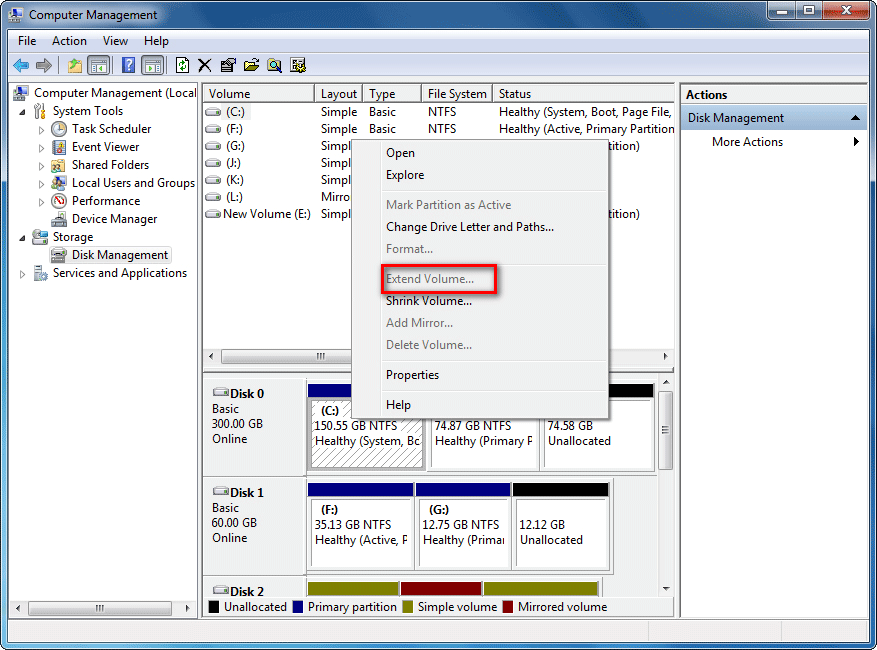
This shortcut shows us many commonly used partition management functions, such as format partition, extend partition, shrink partition and delete partition. However, in the process of resizing Windows 7 partition with these functions, we will find it is not so simple to accomplish resizing, and most of the time, it is impossible to extend Windows 7 partition with this tool. That is because our disk does not have unallocated space most of the time while extending partition requires unallocated space adjacent to the destination partition. At this time, we need to adjust partition location so as to create the condition. However, Windows 7 built-in disk management tool does not have the function Move Partition. Well, what should we do at this time? Is there a better way to resize Windows 7 partition? Yes, the third partition magic is a good choice.
Resize Windows 7 partition easily with a third partition magic
When users resize Windows 7 partition with a third party partition magic, what they care about most, I believe, is data safety. To resize Windows 7 partition without damaging data, MiniTool Partition Wizard which is easy, safe and reliable to operate is our best choice. After running this partition magic, the following main interface will appear:
The display list of this main interface shows us all storage devices and partition condition. After we select any partition, there will appear all-sided partition management functions in "Operations" area like the following interface:
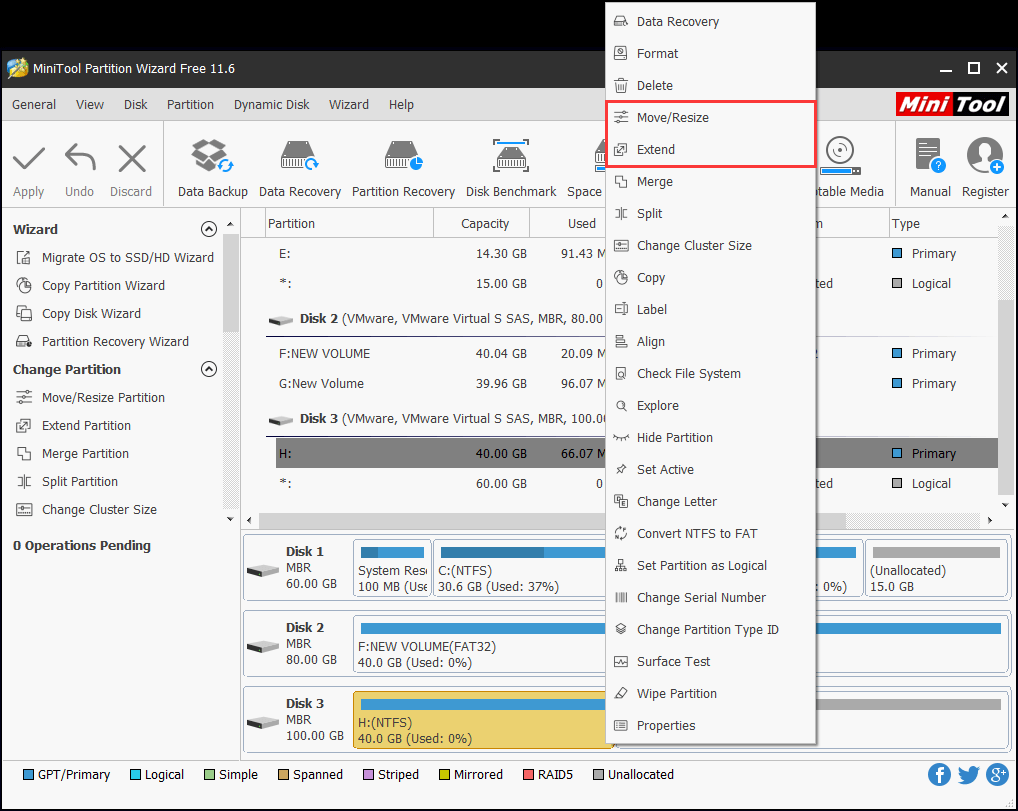
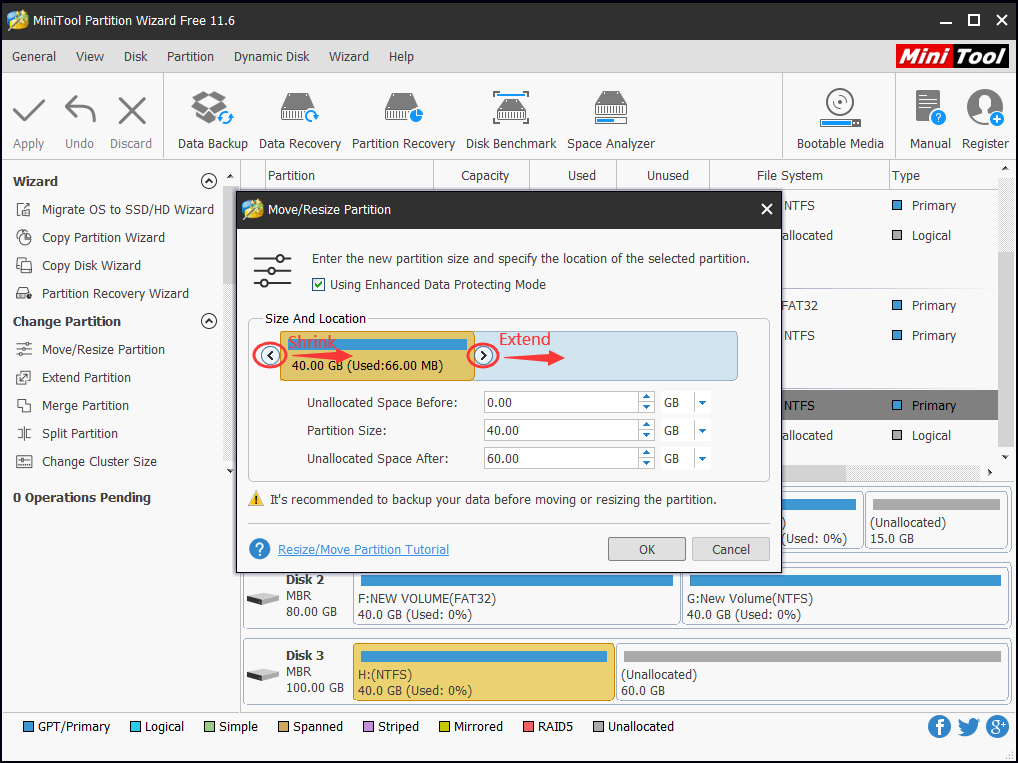
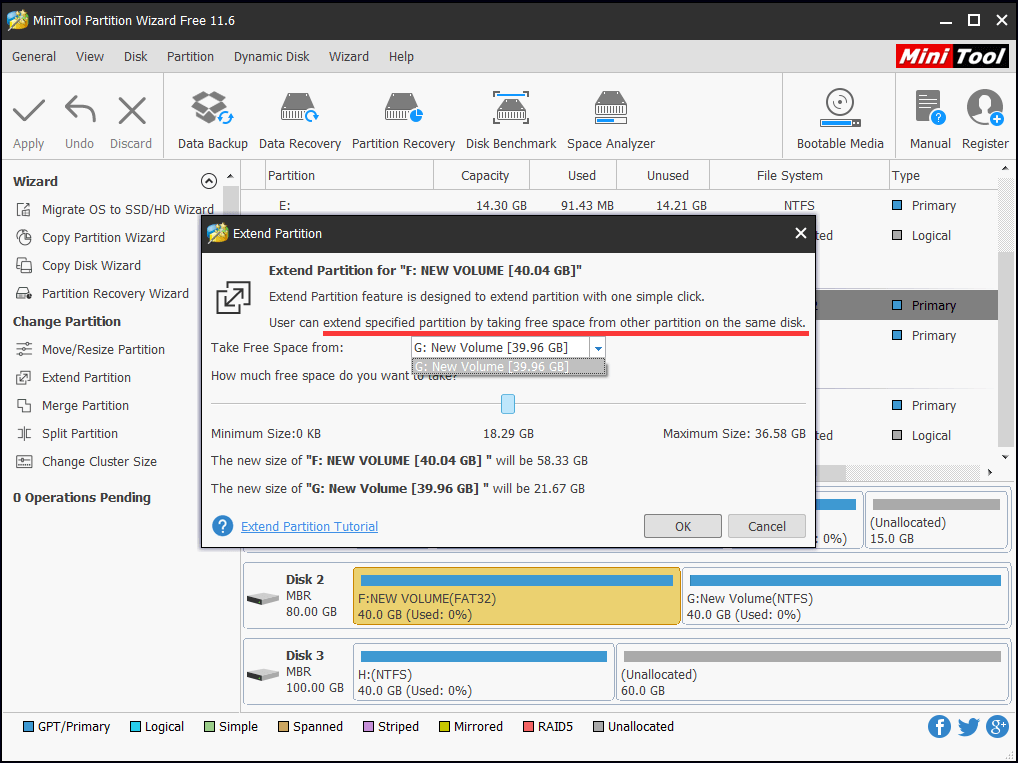
Among these partition management functions, we can see the function "Move/Resize" clearly. This function sets Resize Partition and Move Partition as a whole, so we can resize Windows 7 partition more conveniently and flexibly. The official website of this partition magic provides users with detailed and professional demonstrations of how to resize Windows 7 partition, and this partition magic offers specific operating prompts. As long as we operate it according to prompts, we can accomplish Windows 7 partition resizing easily.
From the above introduction, we can see it is not difficult to resize Windows 7 partition. If we want to resize Windows 7 partition safely and quickly, powerful MiniTool Partition Wizard is our best choice.
Free Partition Manager Free Partition Magic Partition Manager Server Partition Magic Server
Common problems related to partition management and our solutions:
- Resize Windows 7 partition with partition magic.
- Compared with Windows 7 Disk Management, MiniTool Partition Wizard is a Windows partition magic to expand partition.
- Resize Windows 7 partition with MiniTool Partition Wizard.
- Resize Windows 7 partition with MiniTool Partition Wizard without data loss.
- Extend Windows 7 partition free with MiniTool Partition Wizard.