
Sometimes you may have the needs to resize FAT32 partition due to some reasons and you will find it is not easy. So, how to resize FAT32 partition easily and safely? This article provides a perfect solution and shows you the step-by-step tutorial.
Here is the thing: many of you may have encountered a situation that one of your partitions is running out of space and another one has some free space to use. In a case like this, you may need to resize these partitions to meet your demands.
But the problem is that you can easily resize a partition if it is formatted with NTFS file system. While if not, how to resize it? If your requirement is to resize FAT32 partition, what should you do then?
You may have tried Disk Management to change the size of a FAT32 partition but failed. Why? Because Windows built-in Disk Management only allows resizing NTFS or Raw partitions.
This is one of the limitations of Disk Management. A few situations will cause Disk Management cannot manage to resize the partition and then the features will show grayed out: for example, you will see Extend Volume grayed out when you are trying to enlarge a FAT32 partition in Disk Management.
But don’t worry, MiniTool can handle this easily and safely. You can click the button below to get this free partition magic.
MiniTool Partition Wizard FreeClick to Download100%Clean & Safe
How to Resize FAT32 Partition via MiniTool Partition Wizard
MiniTool Partition Wizard is a professional partition manager. With this tool, your disk can be managed well. It provides not only operations like creating partition, deleting partition and formatting partition, but also some functions like merging partition, splitting partition, converting NTFS to FAT and more.
To resize FAT32 partition without losing data, Move/Resize Partition feature is required. Luckily, it is available in this free edition. Now just follow the step-by-step guide.
Step 1: Open and Launch this tool.
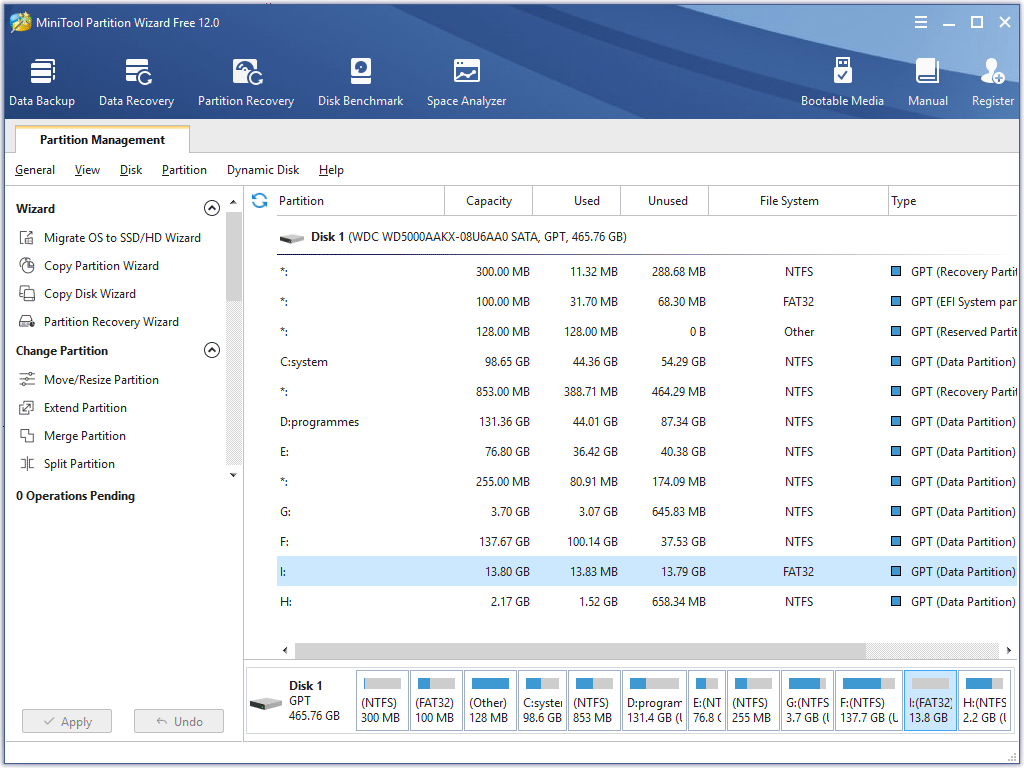
Double-click on this tool or choose Open after right-clicking on the icon of the software. Then this tool will enter the launch window, choose Launch Application. This tool will be launched to its main interface successfully.
Step 2: Start resizing partition.
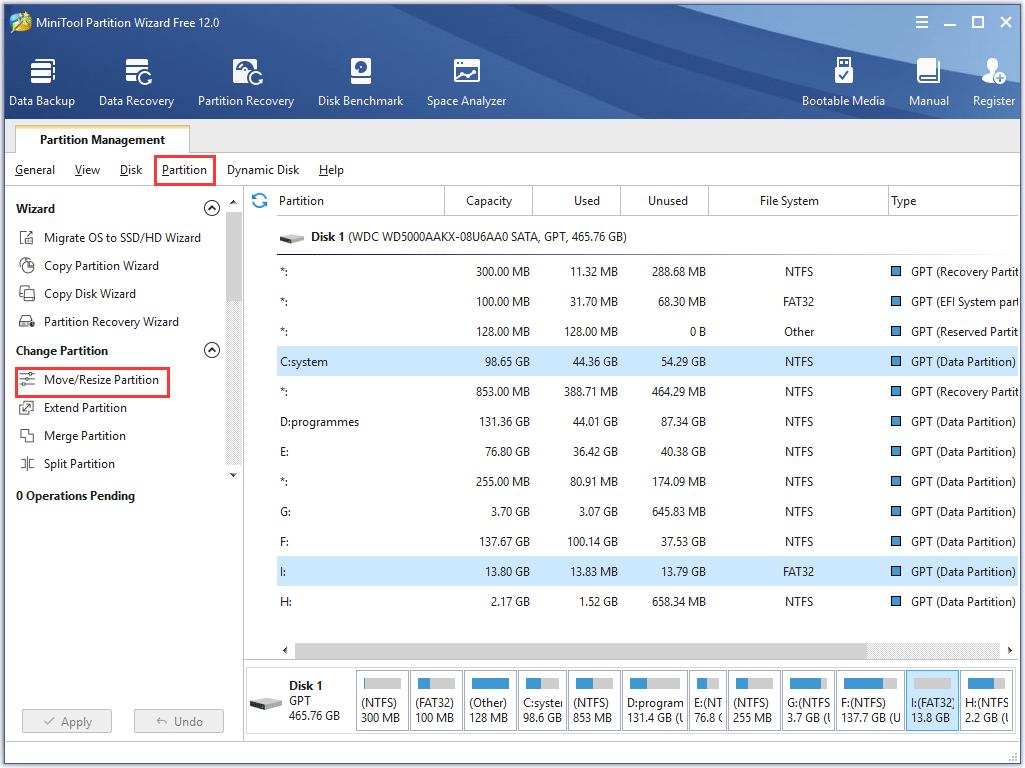
In the main interface, you can see the disk situation there. There are three ways to start changing the size of a FAT32 partition. Select the target partition first. Then you can:
1. Choose Partition from the upper menu bar.
2. Choose Move/Resize Partition from the left action panel.
3. Choose Move/Resize from the pop-up menu after right-clicking on the target partition.
Step 3: Change the size of the partition according to your needs.
Then, you will see a pop-out window where you can set the parameters for the target partition.
You can see the blue handle represents partition while the blank area means unallocated space. In fact, this Move/Resize Partition feature includes three functions: you can move/enlarge/reduce the target partition according to your own needs.
1. To move the partition, point the mouse at this partition and hold down the mouse to move. (there should be unallocated space to make room for moving the partition)
2. To enlarge the partition, lengthen the handle to take up more unallocated space.
3. To reduce the partition, shorten the handle by dragging the triangles to free up unallocated space.
4. Or, manually typing the specified partition size in MB, GB, or TB is also offered.
And notice the Using Enhanced Data Protecting Mode line. Please keep it checked by default since this mode is good for the data safe.
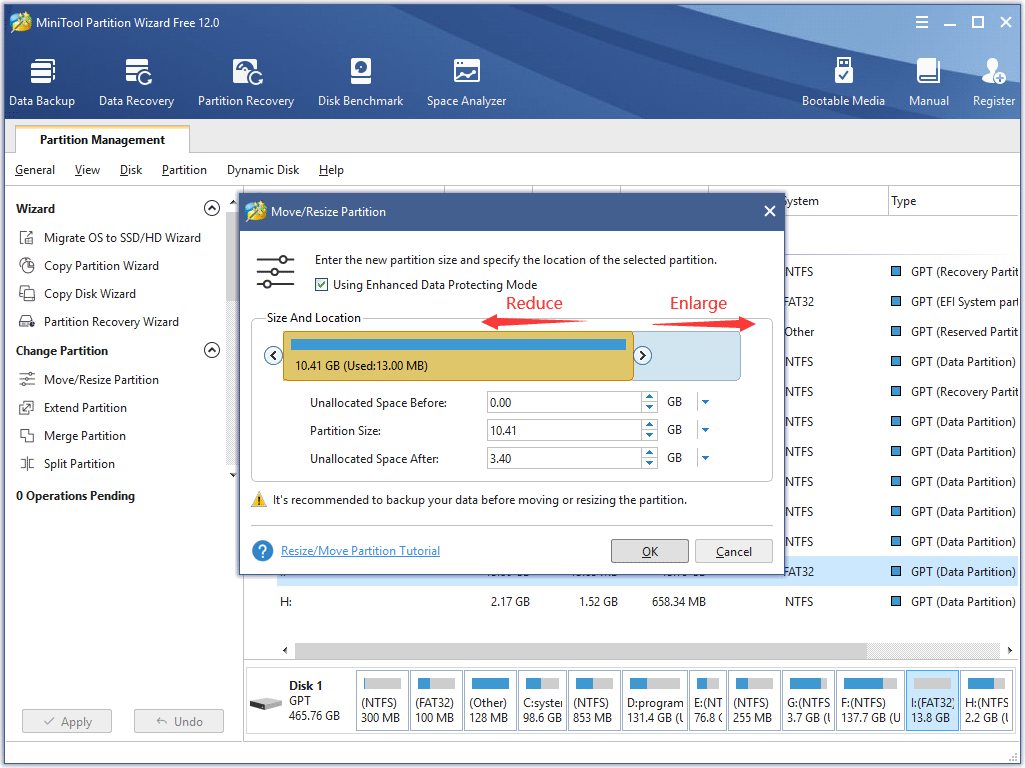
So, you can change the size of the FAT32 partition freely. This feature can help you to get what you want easily and safely. Here we choose to shrink the FAT32 partition. After that, click OK to go back to the main interface.
Step 4: Save the change.
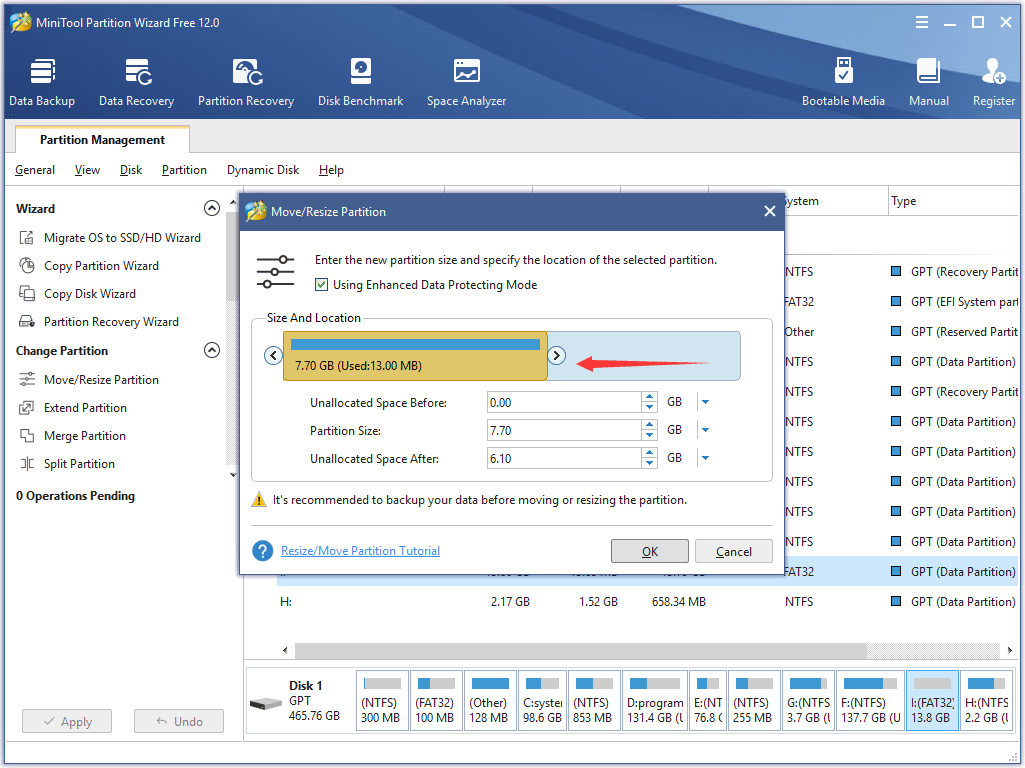
Now in the main interface, you can see the change of the FAT32 partition. In this demonstration, it is shrunk. You can resize the FAT32 partition according to your own needs.
After setting the partition, check the result in this interface, but this is just a preview, not the end. If the result is satisfying, remember to click Apply from the left upper corner, then the change can be saved successfully.
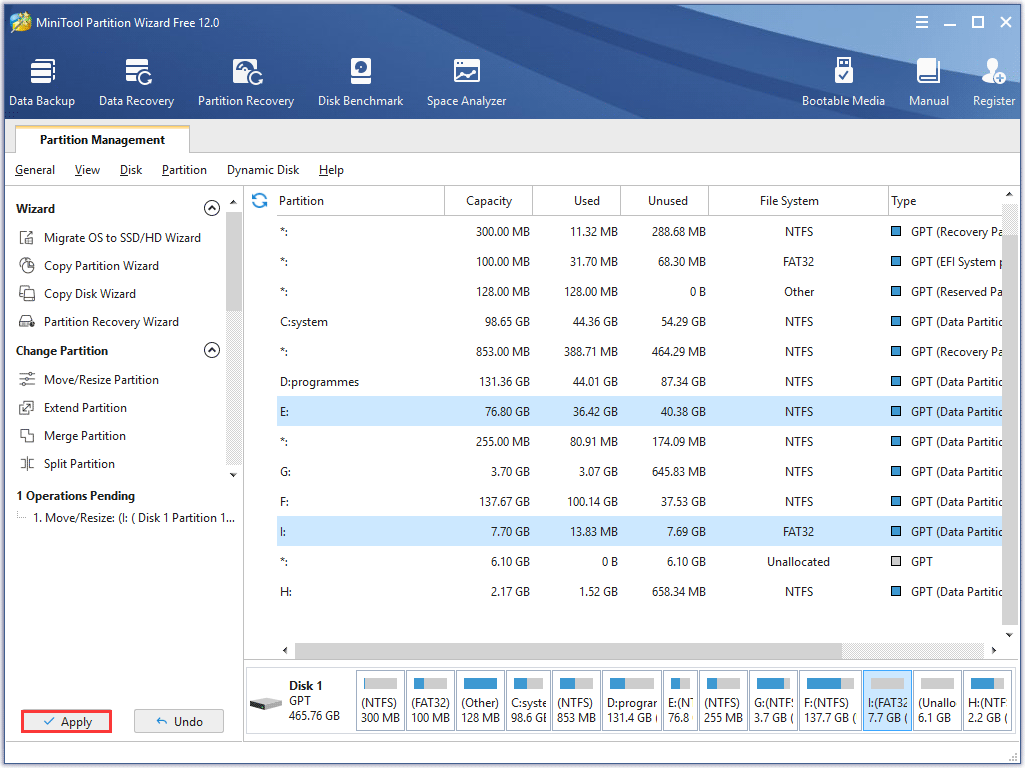
So, this is the end of changing the size of a FAT32 partition. Isn’t it very easy? In addition, it is also really safe, the data will be extremely safe when you are resizing the FAT32 partition. And after all operations, you can go back to your Windows Explorer to check the new condition of the disk.
Bottom Line
Disk Management cannot resize FAT32 partition while MiniTool Partition Wizard can easily achieve this goal for you. Trust this software and let it do this job for you! It won’t disappoint you. Now it’s your turn to have a try.
If you have any better ideas, please share with us in the comment zone. Of course, if you have any problems, welcome to contact us by sending emails to [email protected].