
There are times users need to create new partitions especially when they have got a new hard drive. MiniTool Partition Wizard tutorial shows users the best way to create new partition on Windows 10/8/7.
About Create Partition
Create Partition feature enables users to create a new volume with specified unallocated space. For users who have two partitions on the same drive, with one for the operating system and the rest one for personal data, perhaps the partitions can’t meet their demands for data management. In this case, Create Partition feature make it easy to manage various data by category.
How to Create Partition on Windows 10/8/7
For Windows 10/8/7 user, they can use a free partition manager – MiniTool Partition Wizard to create partition easily.
MiniTool Partition Wizard FreeClick to Download100%Clean & Safe
Step-by-step guide is shown below:
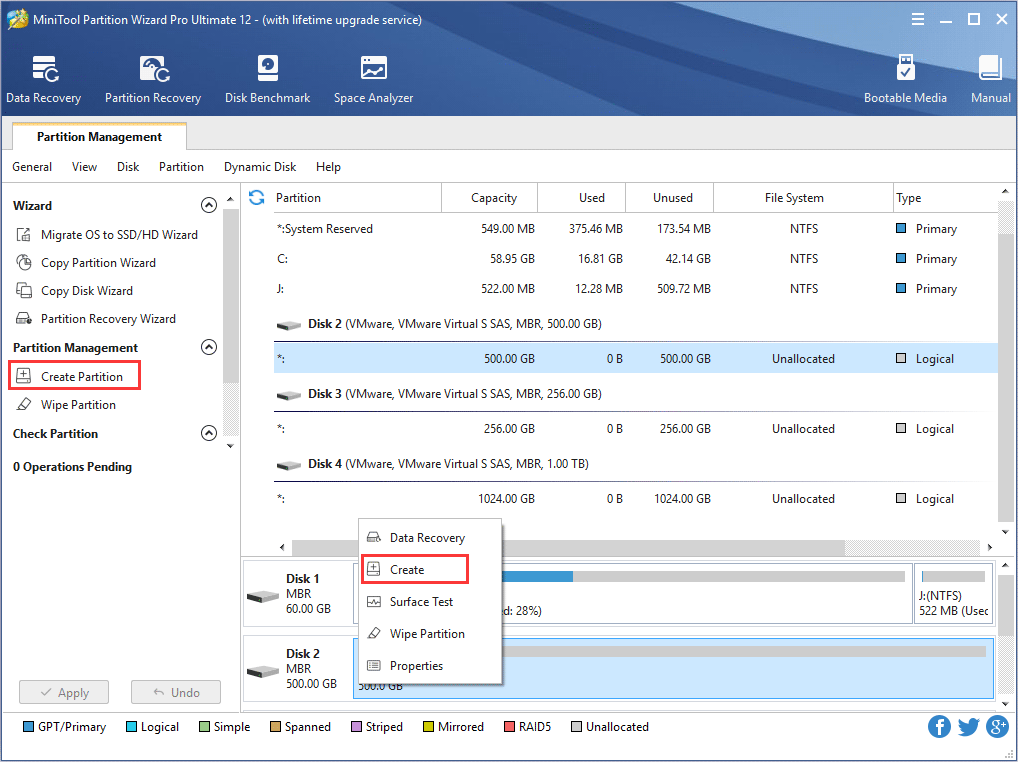
Step 1. Choose one of the following ways to activate Create Partition function:
- Click Create Partition from the left menu after selecting the unallocated space.
- Right-click on the unallocated space and choose Create option from drop-down menu.
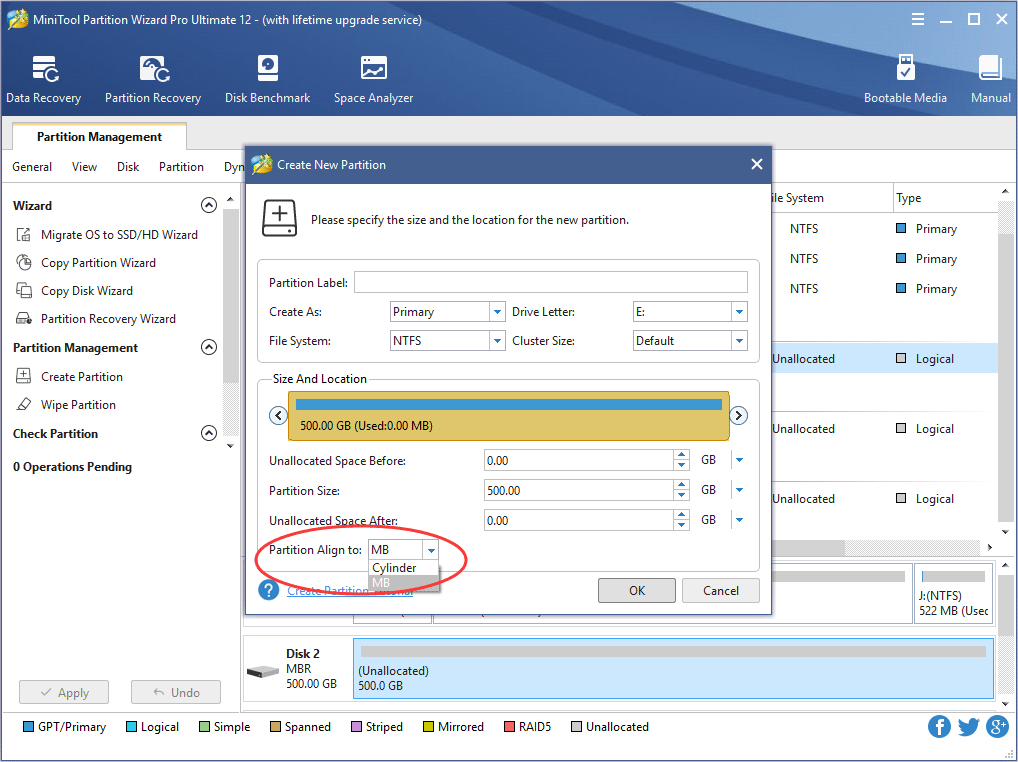
Step 2: In this interface, you are expected to confirm parameters including Partition Label, Partition Type, Drive Letter, File System, Cluster Size, Partition Volume, Partition Location and Partition Alignment Method.
Kind Remind:
- The partition alignment option is only available when users are creating the first partition on an MBR disk.
- Aligning to cylinder is used in older OS versions like Windows XP and Windows Vista; newer Microsoft OS versions and Linux use the MB alignment by default.
- For a logical partition aligning to cylinder, there will be 8 MB unallocated space; but for a primary partition aligning to cylinder, there won’t be 8 MB unallocated space.
With no change here, all these parameters are kept by default. After that, click OK button to go back to the main interface of the software.
Recommended:
- Primary Partition vs. Logical Drive: Their Exact Features
- What Is FAT32 Partition Size Limit and How to Break It?
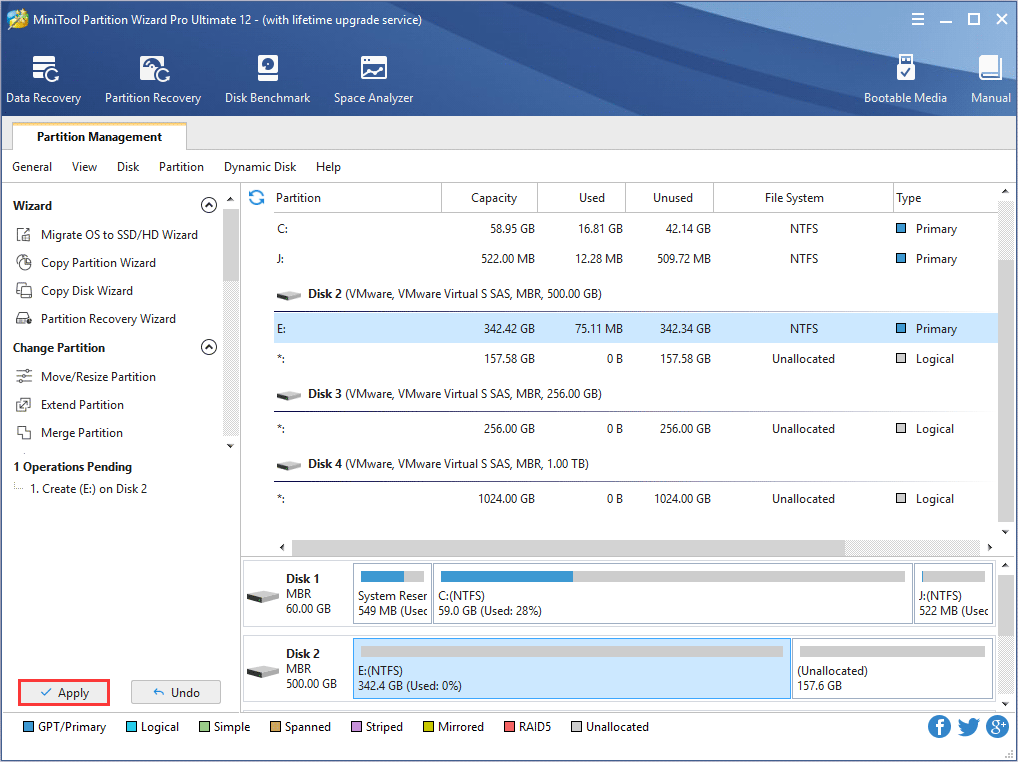
Step 3: users can preview a new partition will be created. Click Apply button to confirm the creation.
Kindly Remind:
- MiniTool Partition Wizard can be used to create FAT/FAT32/exFAT/NTFS/Ext2/Ext3/Ext4/Linux Swap/Unformatted partitions.
- This software is also helpful in creating FAT32 partitions larger than 32 GB, which can’t be done in Disk Management. If there is no unallocated space available for creation, try Move/Resize Partition to release some free space, and then create a new partition.
- For Windows Server users, MiniTool Partition Wizard Server is the right choice.
About The Author

Position: Columnist
Rodin is an enthusiastic IT writer focusing on Windows trends, disk partition management and data recovery. She loves to write and share her idea about the useful tips and tricks on personal computers' maintenance. If you are looking for methods to improve your computer performance, manage hard drives and recover data from different devices, Rodin can provide reliable solutions for data management.
User Comments :