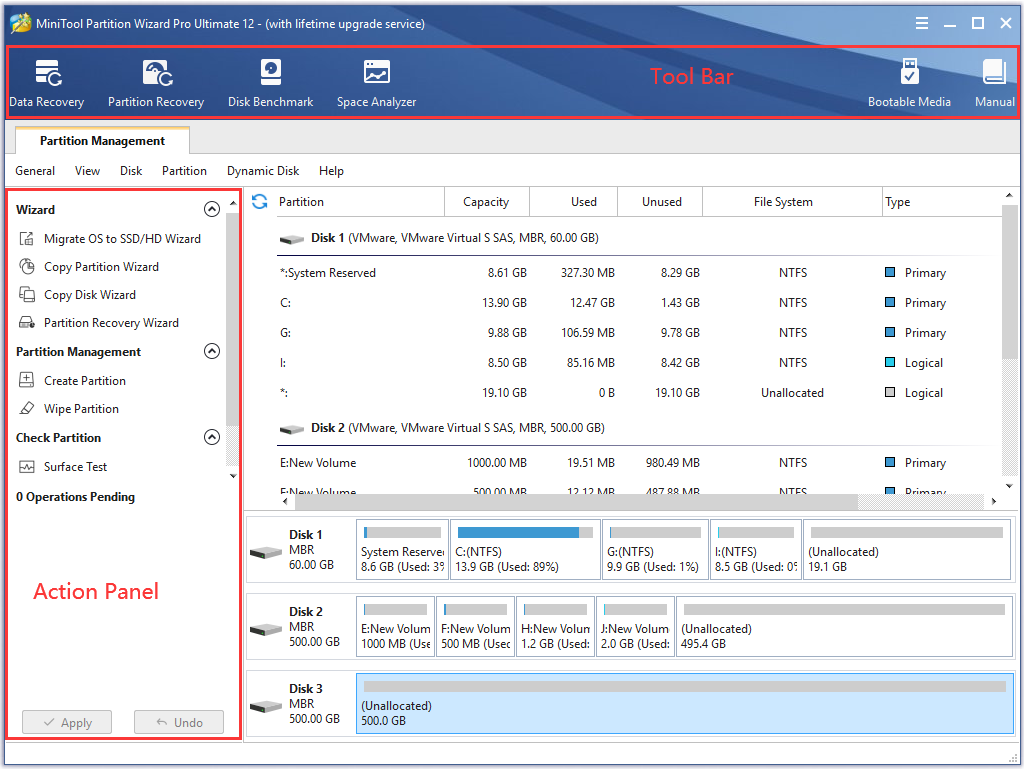
Getting Started
Using partition wizard
- Partition Wizard Basic
- General
- Menu Of View
- Disk Operations
- Copy Disk
- Delete All Partitions
- Rebuild MBR
- Initialize to MBR Disk
- Initialize to GPT Disk
- Partition Recovery
- Wipe Disk
- Disk Properties
- Convert Dynamic Disk to Basic Disk
- Surface Test
- Partition Operations
- Move/Resize Partition
- Merge Partition
- Copy Partition
- Explore Partition
- Create Partition
- Delete Partition
- Format Partition
- Label Partition
- Change Letter
- Set Active/Inactive
- Hide/Unhide Partition
- Check File System
- Convert FAT to NTFS
- Wipe Partition
- Partition Properties
- Set Partition as Primary
- Set Partition as Logical
- Surface Test
- Change Partition Serial Number
- Change Partition Type ID
- Change Cluster Size
- Dynamic Disk
- Create Volume
- Delete Volume
- Format Volume
- Move/Resize Volume
- Wipe Volume
- Explore Volume
- Check File System
- Change Volume Label
- Change Volume Letter
- Change Volume Cluster Size
- Volume Properties
- Wizard
- Technical Support
Hide or show Tool Bar, Legend Bar, and Action Panel
- By clicking on View in the top menu, then unchecking or checking Tool Bar, Legend Bar, or Action Panel, you can hide or show these parts in interface.
If the screen resolution of your computer is low, you can hide these panels to enlarge the area of Disk/Partition List.
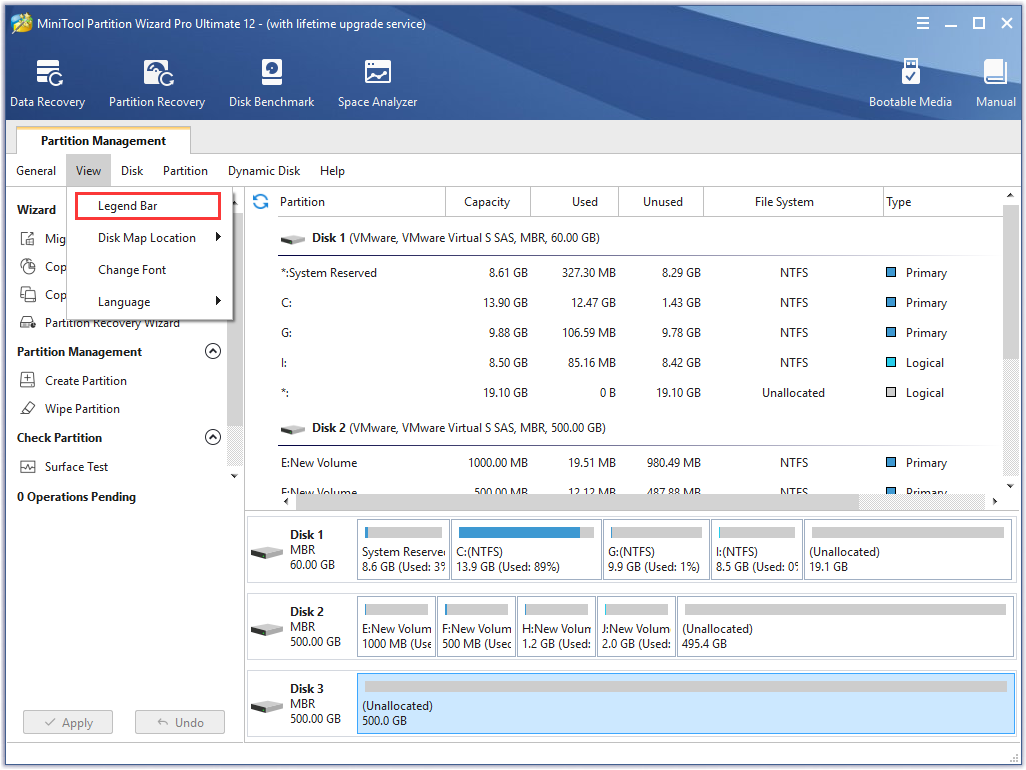
- Watch how to use view and use the interface menu.