
About Partition Recovery
Hard disk partitions may get lost or disappear due to one of these factors: mistaken deletion, virus attack, wrong ghost, sudden power outage, incorrect partitioning, and so on. In these cases, Partition Recovery is quite a good solution to dealing with partition loss, recovering lost partitions and data altogether.
MiniTool Partition Wizard is a partition recovery software that can recover lost/deleted partitions as long as new partition hasn’t been created. The tutorial below shows detailed steps on how to recover lost/deleted partitions easily.
MiniTool Partition Wizard DemoClick to Download100%Clean & Safe
How to Recover Lost Partition Using Partition Recovery Software
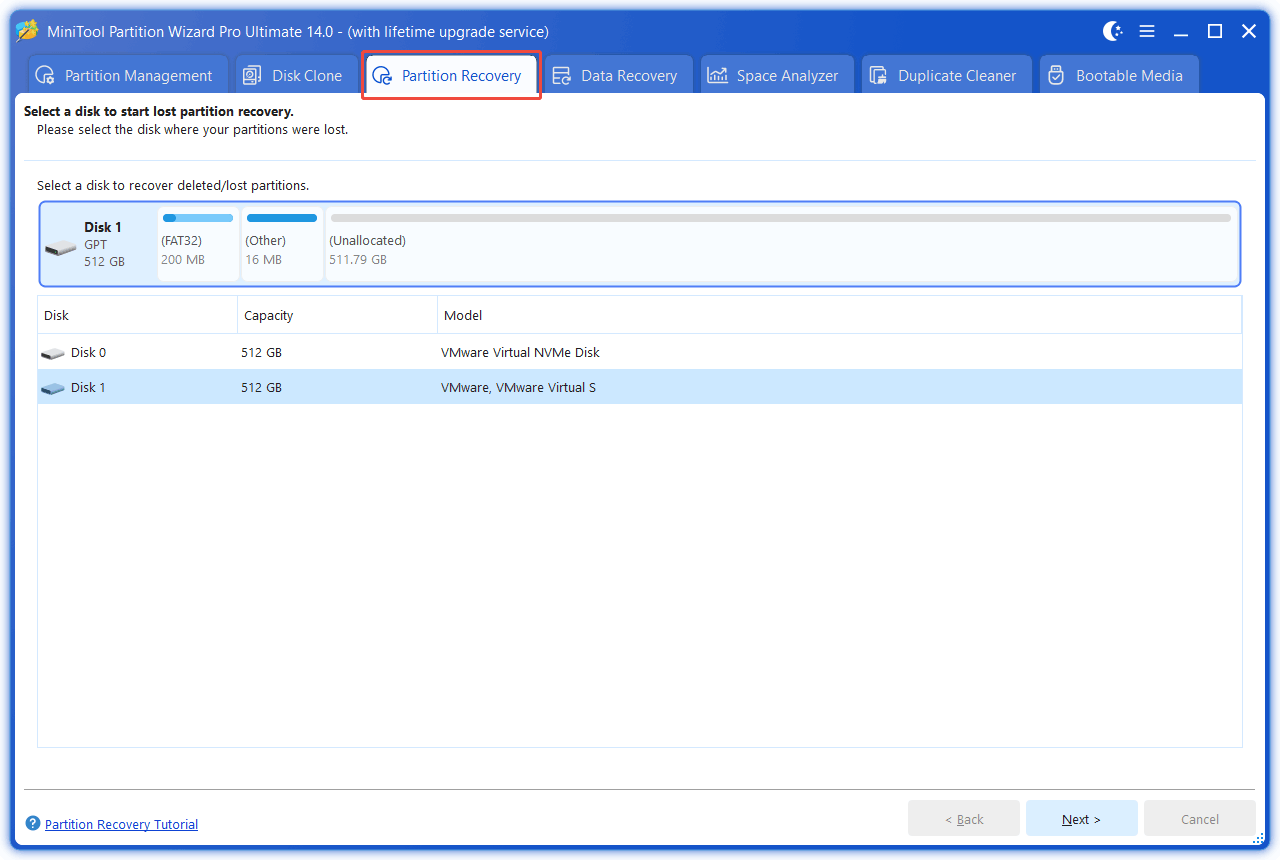
Step 1. Launch MiniTool Partition Wizard, then switch to the Partition Recovery tab.
Step 2. Select the disk where partition loss appears and click Next to continue.
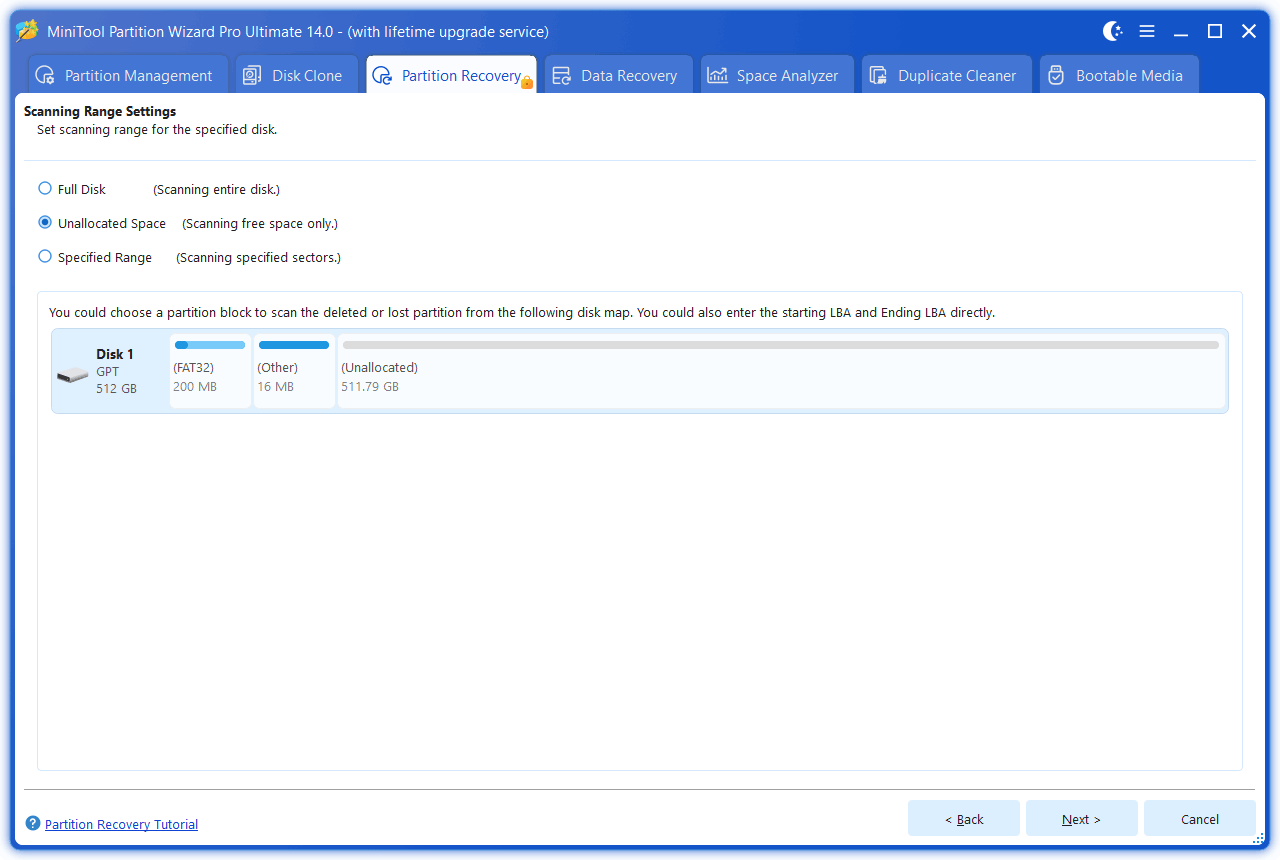
Step 3. Choose a scanning range from Full Disk, Unallocated Space, and Specified Range, and then click on Next button.
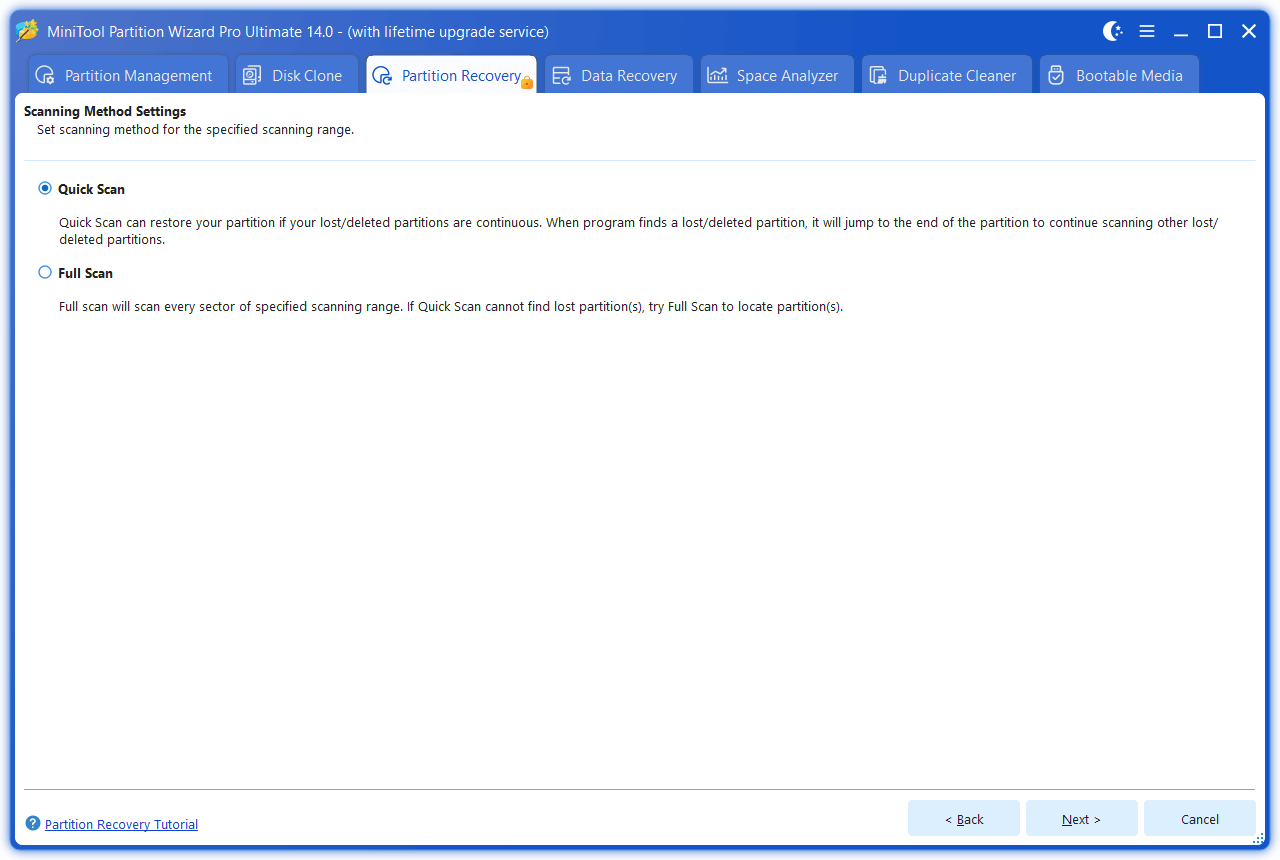
Step 4. Set a scanning method to scan the specified range and click Next.
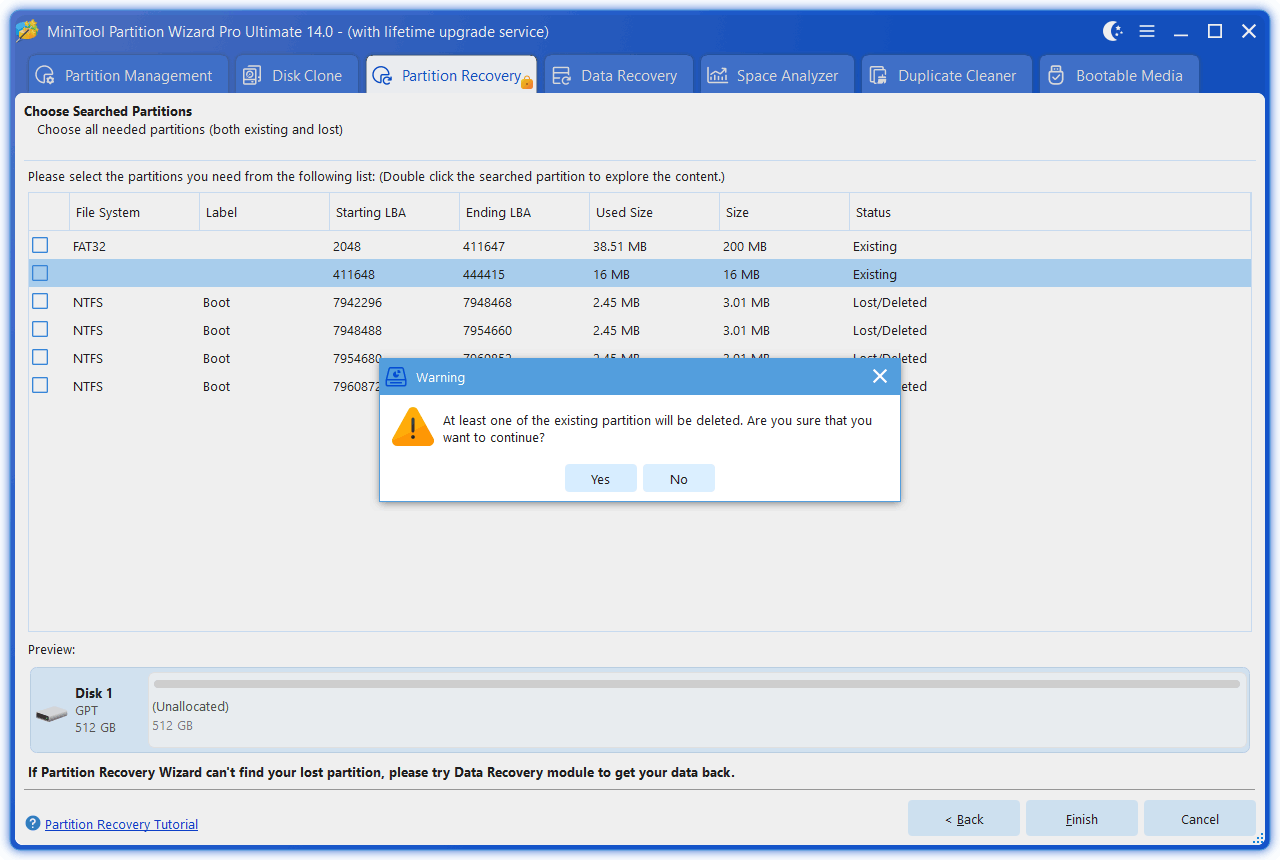
Step 5. Check all needed partitions, including existing partitions and deleted/lost partitions, and then click Finish button. Then, follow the remaining steps in the wizard to complete the operation.
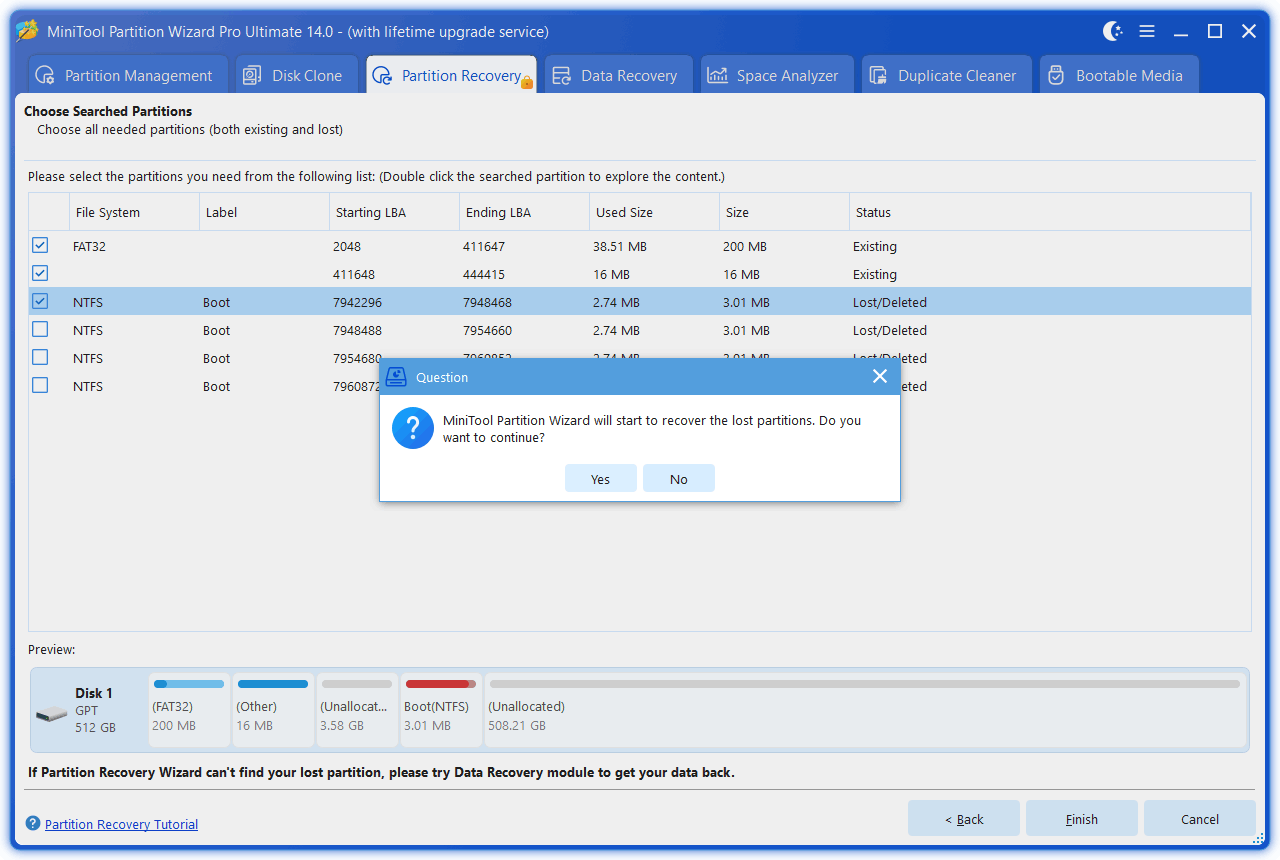
Please make sure all needed partitions have been checked. Otherwise, users will receive the following warning message and some useful partitions will be deleted.
If Partition Recovery doesn’t work, users can try the Data Recovery function in MiniTool Partition Wizard. Here are their differences.
| Partition Recovery | Data Recovery |
|
|
About The Author

Position: Columnist
As an English editor with almost 15 years of experience, Stella has worked for MiniTool Software and has written articles for 8+ years, mainly covering the fields of data recovery from different storage medium, partition management on Windows, video downloading, and video & audio format conversion.
User Comments :