
As NTFS partitions have many advantages over FAT partition, many users want to convert FAT to NTFS without data loss. This post will show users how to convert FAT to NTFS without data loss by using a professional partition manager.
About Convert FAT to NTFS
It is obvious that NTFS beats FAT in many aspects. If users’ flash drive, external hard disk partition or internal hard disk partition is formatted with FAT file system, they may want to convert FAT to NTFS to achieve the following purposes:
- Handle large files (over 4GB).
- Get better stability, higher security and lesser defragmentation time.
But it is a pity that most of the users don’t have a clear idea of how to convert FAT to NTFS. In view of this, we decide to provide users with an excellent tool – MiniTool Partition Wizard. The corresponding MiniTool Partition Wizard tutorial will be given below.
How to Convert FAT to NTFS
The MiniTool Partition Wizard is equipped with high security, so users can carry out all operations in this tool safely. That is to say, it can help users convert FAT to NTFS without causing any data loss.
MiniTool Partition Wizard FreeClick to Download100%Clean & Safe
Follow this MiniTool Partition Wizard tutorial to execute FAT conversion.
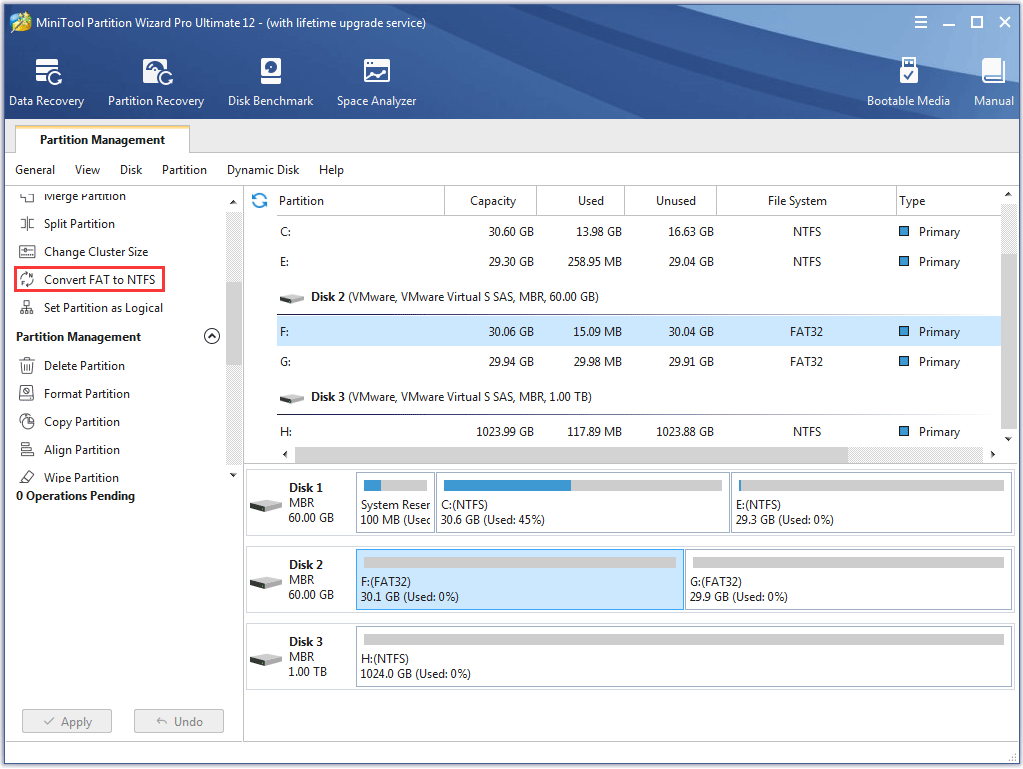
Step 1. Choose the FAT partition and select Convert FAT to NTFS from left Change Partition list or from right-click menu (which will emerge after right clicking on target FAT partition).
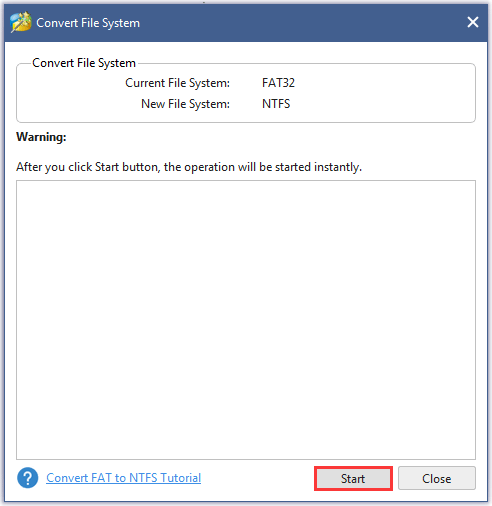
Step 2. Click Start button at the bottom of the pop-up window to get FAT to NTFS conversion started automatically and instantly.
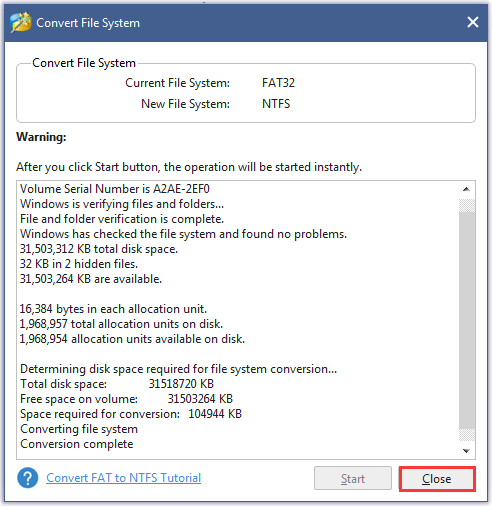
Step 3. Click Close button when the conversion is completed.
User Comments :