
When your Windows XP disk partition is running out of space, you may need to increase partition size. You have tried using the Disk Management tool but failed. So, how to increase partition size Windows XP easily and safely? Don't worry. This article from Partition Magic will help you.
Windows XP was launched in 2001, which is a relatively old Windows operating system. According to statistics, many companies still have at least one computer running Windows XP.
However, recently some users reported that Windows XP always prompts that the disk space is insufficient, even if they often delete some old or unnecessary files to free up space. But soon after, the same problem appears again, which is annoying.
When there is insufficient space on Windows XP, this can affect PC performance and cause the PC to run slowly or crash. At this time, you may want to increase the Windows XP partition. So, how to do that? Please keep reading.
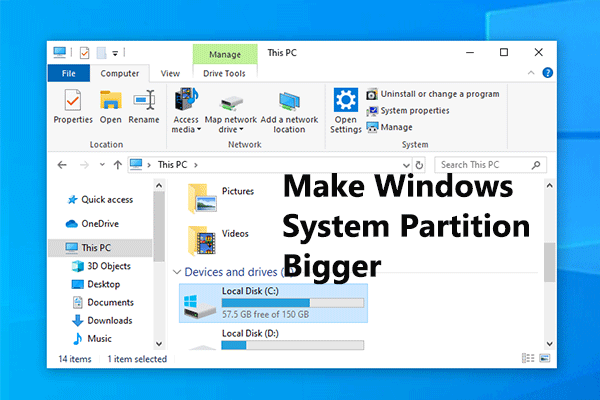
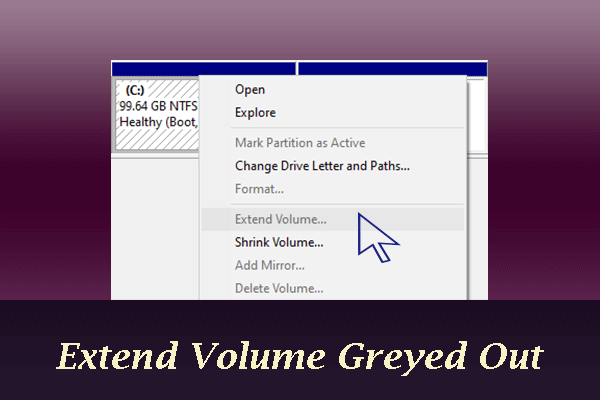
Failed to Increase Partition Size Windows XP with Disk Management
When it comes to extending a partition to increase the size of a Windows XP partition, many users will first consider using Windows built-in Disk Management to do this. However, Disk Management in Windows XP does not provide such a function to help you adjust the partition size.
If your system is an older version such as Windows XP, the Disk Management function is very limited, such as there is no Extend Volume and Shrink Volume feature.
Well, if you want to easily increase partition size Windows XP, it is very important to find free and professional disk management software. Don’t worry, MiniTool Partition Wizard is a great choice that can easily extend partition size Windows XP without losing any data.
How to Increase Partition Size Windows XP with MiniTool Partition Wizard
To increase Windows XP partition size, it is recommended to use a free partition manager – MiniTool Partition Wizard. It provides two features: Move/Resize Partition and Extend Partition to help you do that. And, these features are available in the free version.
Additionally, MiniTool Partition Wizard is a professional and powerful partition manager. It can help you manage hard disk space by using its features such as create/format/split/merge partition. In addition, it provides you with many advanced features, such as convert MBR to GPT, external hard drive data recovery, Windows 10 100 disk usage, etc.
Now, you can try this free partition manager to increase partition size Windows XP in two ways. First, you should click the button below to get it on your PC. Then choose the appropriate method according to your situation.
MiniTool Partition Wizard FreeClick to Download100%Clean & Safe
Case 1: There is Continuous Unallocated Space on the Disk
When using the Move/Resize Partition feature to extend a partition, there should be contiguous unallocated space in front of or behind the partition on the disk.
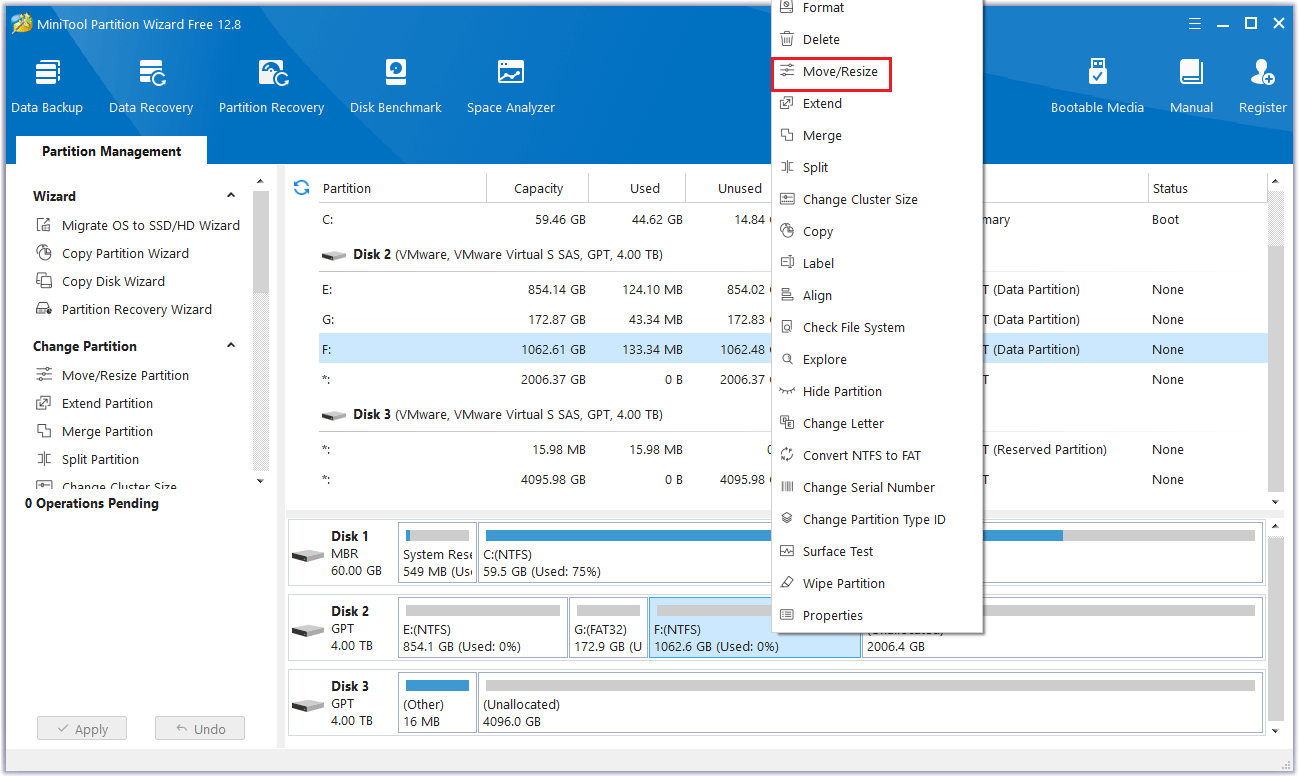
Step 1: Launch MiniTool Partition Wizard to its main interface. Choose the partition from disk map, and right-click on the partition that needs to be extended, and then select Move/Resize. Alternatively, you can select the partition you want to increase and click the Move/Resize Partition feature in the left pane.
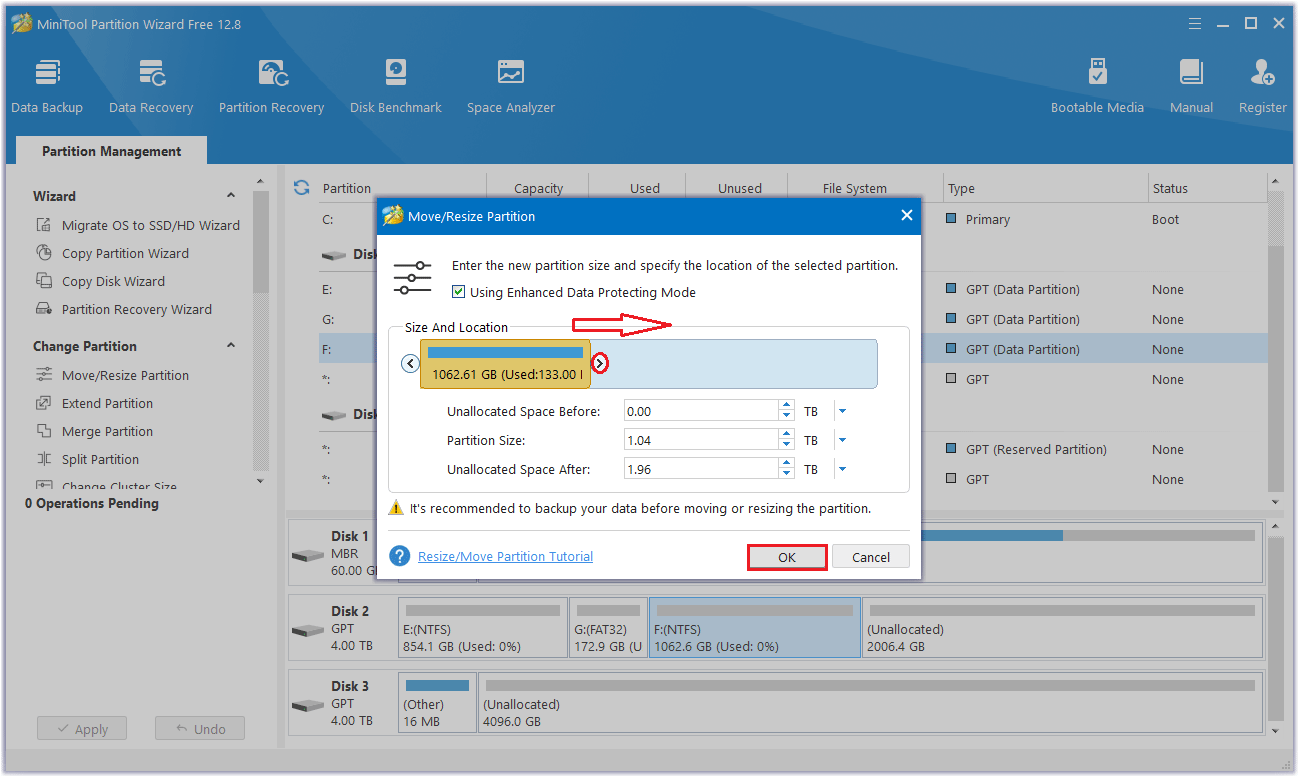
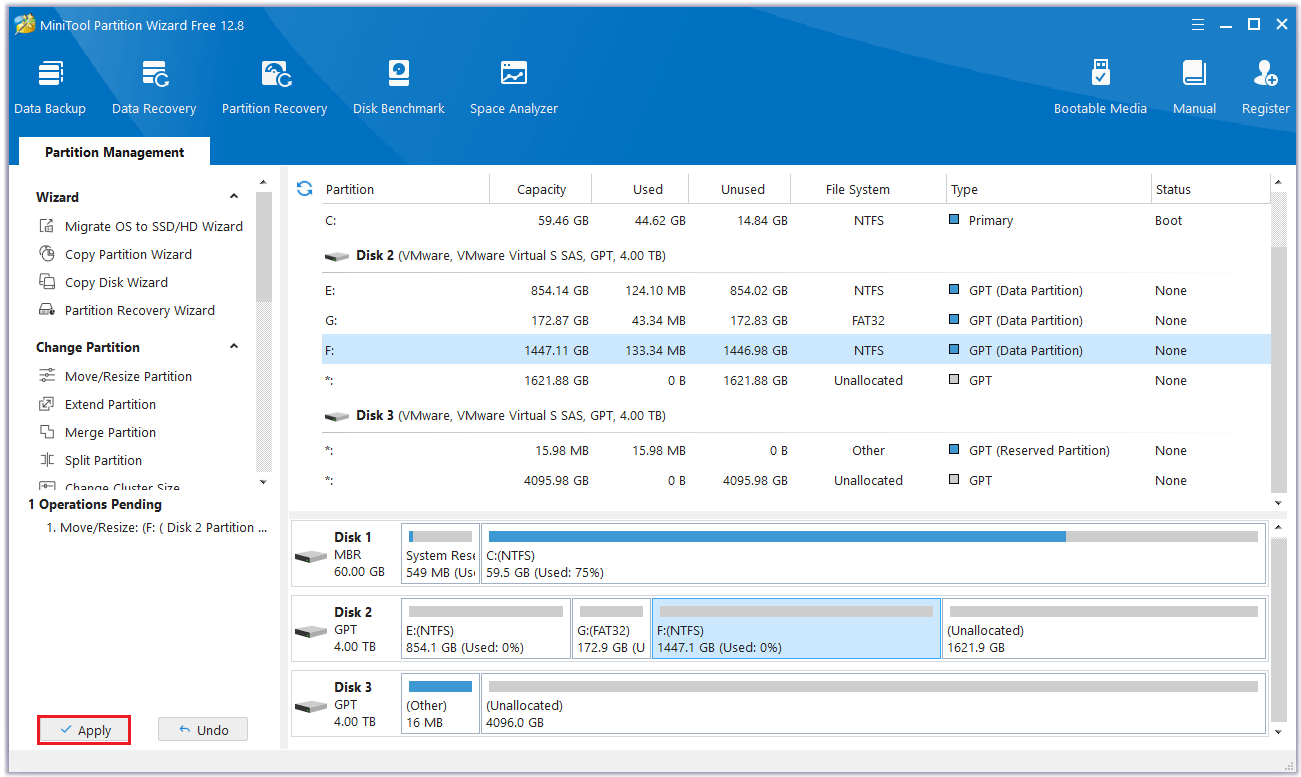
Step 2: In the pop-up window, move the arrow to the right to increase the partition, and then click OK.
Step 3: Now in the main interface, you can see the changes in the partition. Then click Apply and the partition expansion will be completed.
Case 2: There is No Continuous Unallocated Space on the Disk
If there is no unallocated space or the unallocated space is not continuous with the target partition, you need to use the Extend Partition feature with MiniTool Partition Wizard. Let’s take a look at how to do it step by step.
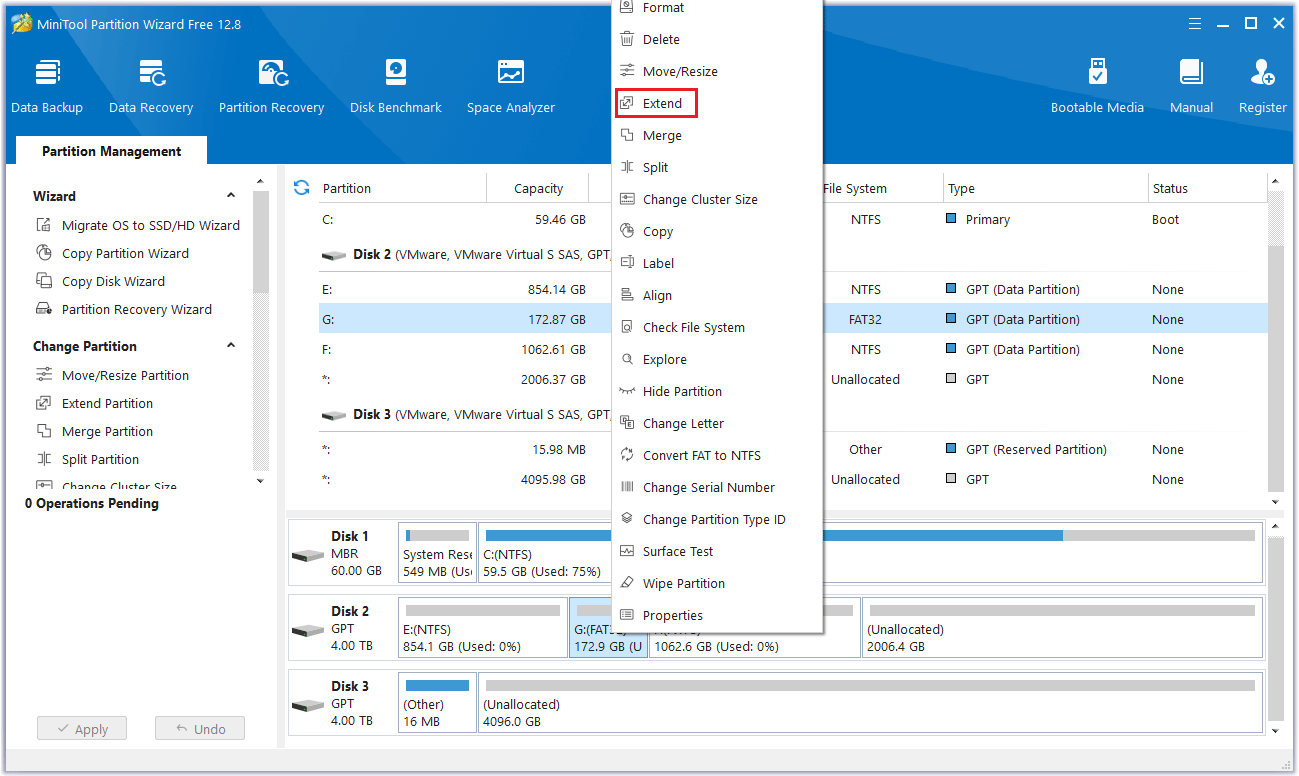
Step 1: Launch MiniTool Partition Wizard to its main interface. Then right-click the partition to be extended and select Extend.
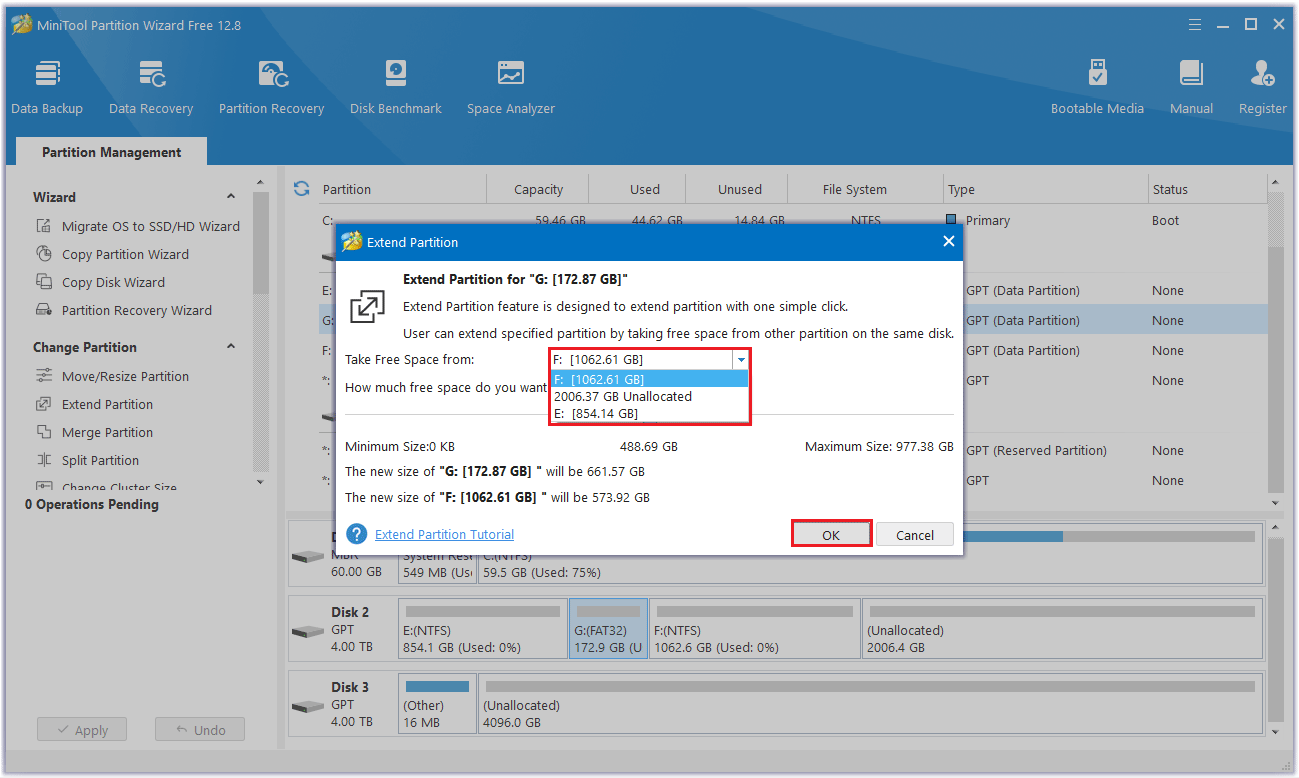
Step 2: Click the down arrow from “Take Free Space From” and choose the partition where you want to choose free space from. After that, you can drag the sliding handle leftwards or rightwards to decide how much of the available space it takes up. Then click OK to confirm your selection.
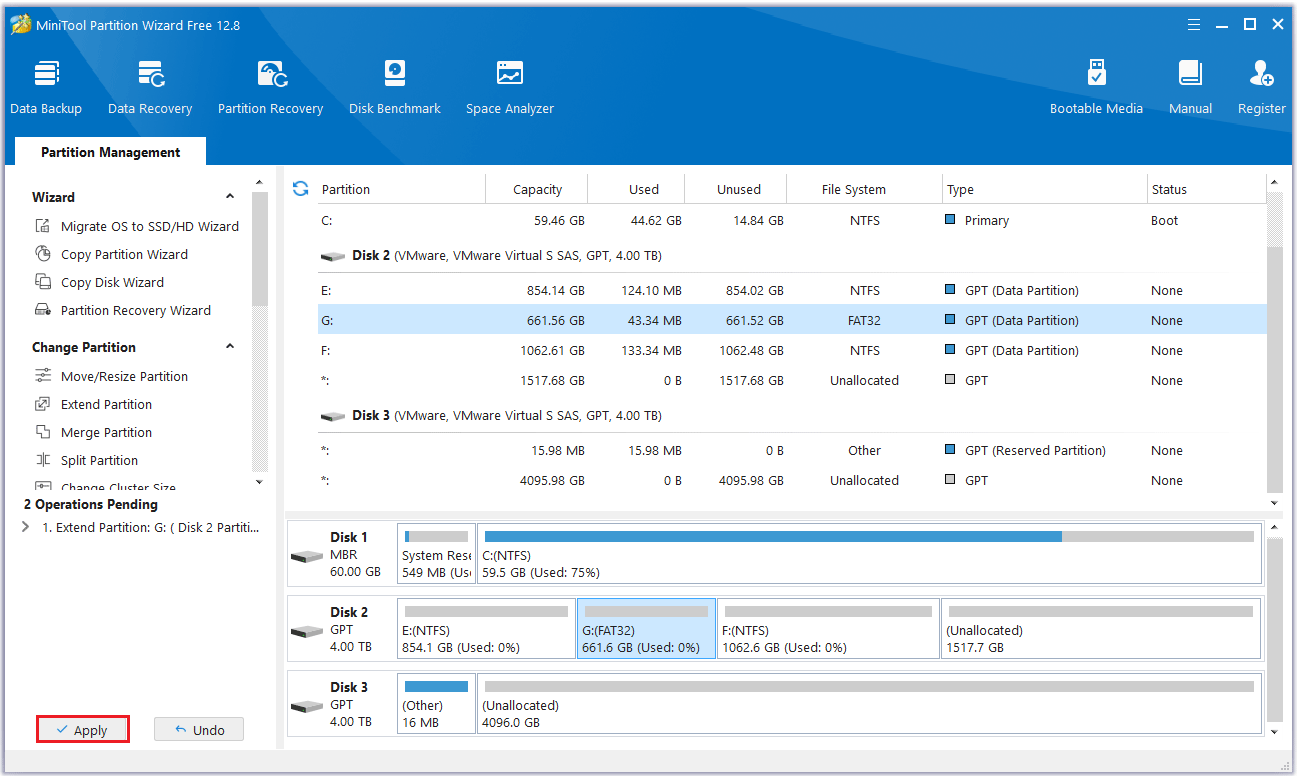
Step 3: You can see that the partition has been enlarged, but it has not been applied to the computer yet, so you need to click the Apply button to perform all changes.
These are two ways on how to increase the size of Windows XP partition with MiniTool Partition Wizard. You can see that both methods are very simple and easy to use, and both functions are available in the free version. So, why not use it? In addition, when you increase the partition size, all your data will be safe.
Bottom Line
How to increase partition size? When Windows built-in tool Disk Management cannot increase partition size Windows XP, you can choose MiniTool Partition Wizard to do that. This post provides two detailed methods to help you increase partition size Windows XP. You can choose a way according to your preferences.
If you have any questions while using MiniTool Partition Wizard, you can contact us via [email protected] to get a quick reply.
About The Author

Position: Columnist
Cecilia has been an editor at MiniTool for two years. She primarily focuses on disk and partition-related content, with particular expertise in disk cloning, partition recovery, and PDF document conversion. She is dedicated to providing users with clear and accurate solutions to help them efficiently resolve common computer problems.
User Comments :