
There are two commonly used ways to resize Windows 7 partition, namely using Windows 7 disk management tool and third-party partition magic. The second way is easier, faster and safer and the partition magic MiniTool Partition Wizard is recommended.
Many Windows 7 users know it is important to resize Windows 7 partition when they perform daily partition management, because making the most reasonable partition management planning will bring to high disk utilization rate, thus the Windows 7 performance is optimized.
However, how to resize partition on Windows 7 when it is being used?
Actually, there are many ways to resize partition on Windows 7. Among these methods, the most commonly used ways are employing Windows 7 built-in Disk Management tool and the third-party partition magic. Both of them have their own advantages, and we can select either to accomplish Windows 7 resizing according to our demands.
Resize Windows 7 Partition with System Built-in Disk Management Tool
As is well known, the system built-in Disk Management of Windows 7 released by Microsoft has been greatly improved and added more functions like Extend Volume to make it possible to resize partition.
To run this tool, we should:
- Press “Win + R“, input “diskmgmt.msc” and hit “Enter“;
- OR: right click “Computer” icon > choose “Management” > “Disk Management“.
Then we can see the main interface of Disk Management. Here, right click any Windows 7 partition, and then a shortcut menu showing all partition management functions appears just like the following interface:
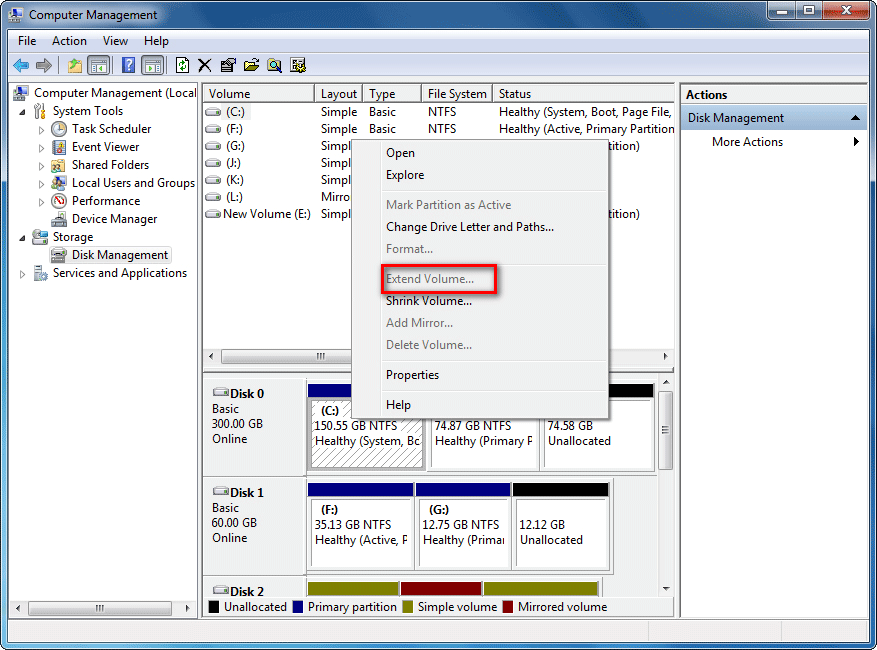
This shortcut shows us many commonly used partition management functions, such as format, extend volume, shrink volume and delete. However, in the process of resizing Windows 7 partition with these functions, we will find it is not as simple as we have imagined to accomplish resizing.
Most of the time, it is impossible to extend Windows 7 partition with this tool, because the option “Extend Volume” is greyed out. Why? In one of the following 3 situations, “Extend Volume greyed out” happens:
- The partition users want to extend is not a NTFS partition. Microsoft says extending volume feature in Disk Management only works to a RAW or NTFS partition.
- There is no unallocated space or free space which lies contiguous on the right side of the target partition on the same hard drive.
- Users want to extend a primary partition, but there is only free space not unallocated space right after the target partition.
If only Windows 7 built-in Disk Management tool allowed us to move the unallocated space next to the target partition. Well, what should we do at this time? Is there a better way to resize Windows 7 partition? Yes, the third-party partition magic is a good choice.
Resize Windows 7 Partition Easily with Windows Partition Manager
When users resize partition on Windows 7 with a third-party partition magic, what they care about most, we believe, is data safety. To resize Windows 7 partition without damaging data, MiniTool Partition Wizard which is reliable and user-friendly to operate is our best choice. Just keep reading.
MiniTool Partition Wizard FreeClick to Download100%Clean & Safe
After running this partition magic for Windows 7, the main interface will appear. The display of this main interface shows us all storage devices and their conditions. Select any partition, we will see all-sided partition management functions appear like shown below:
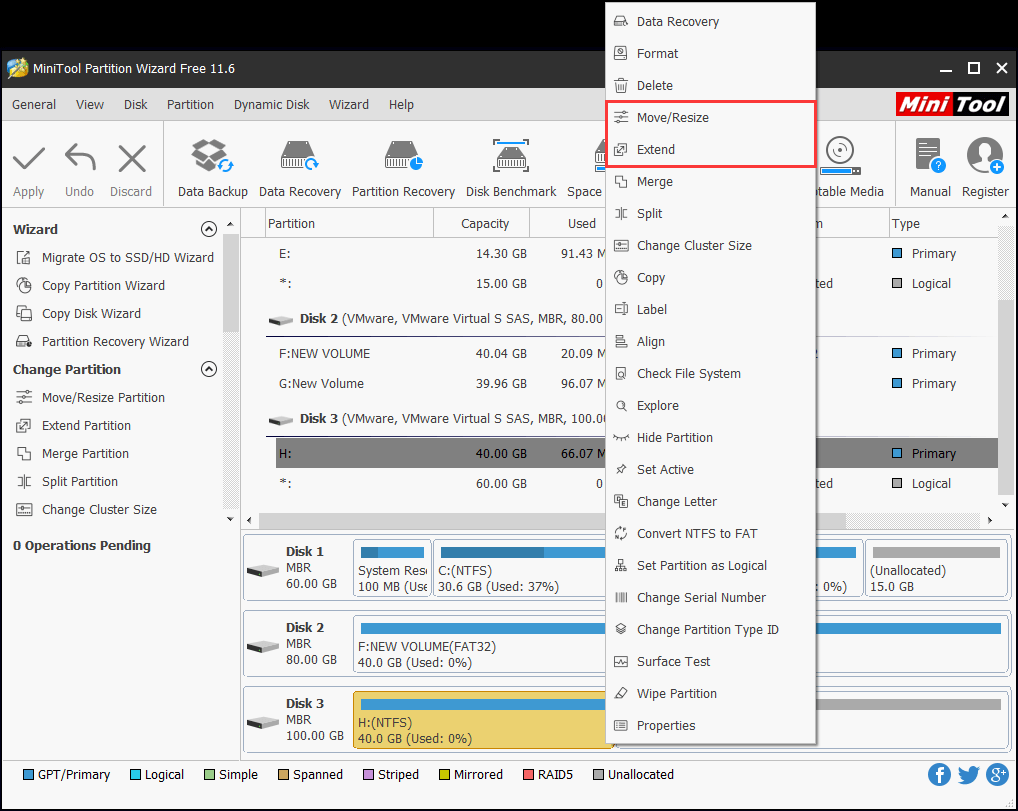
Among these partition management functions, we can see the function “Move/Resize Partition” clearly. This function sets Resize Partition and Move Partition as a whole, so we can resize Windows 7 partition more conveniently and flexibly. As long as there are some unallocated space located on adjacent left or right sides.
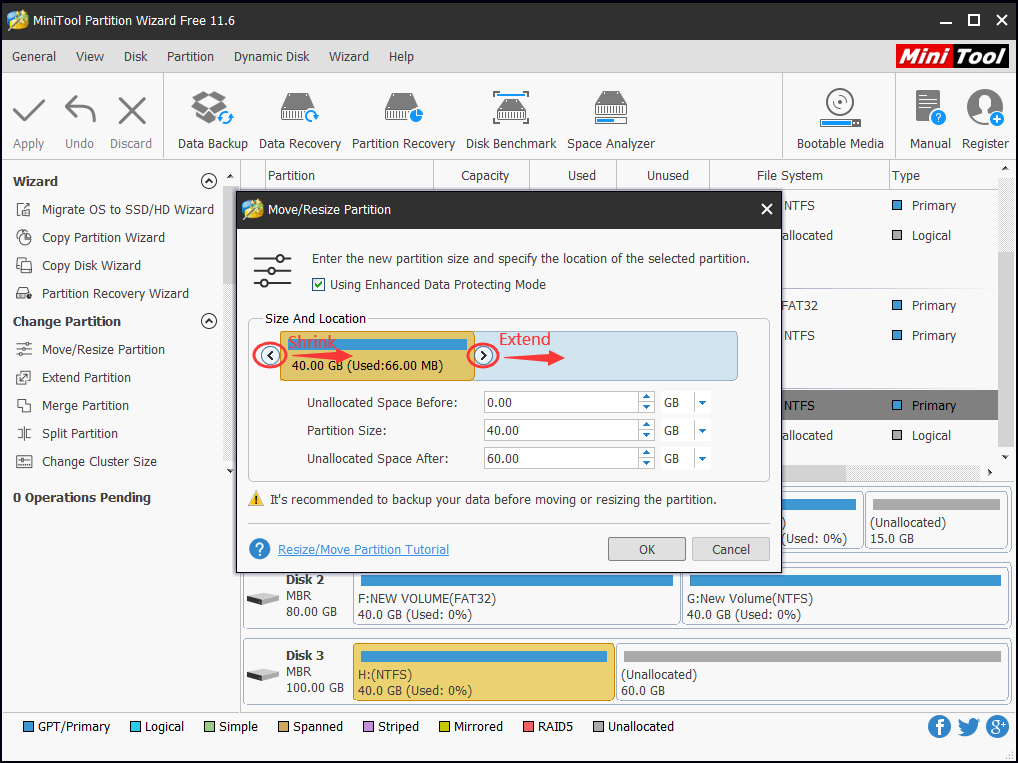
What if there is no unallocated space available? Don’t worry, for this Windows 7 partition manager does offer another trick, that is to “Extend Partition” using the free space taken from the other partition on the same physical drive.
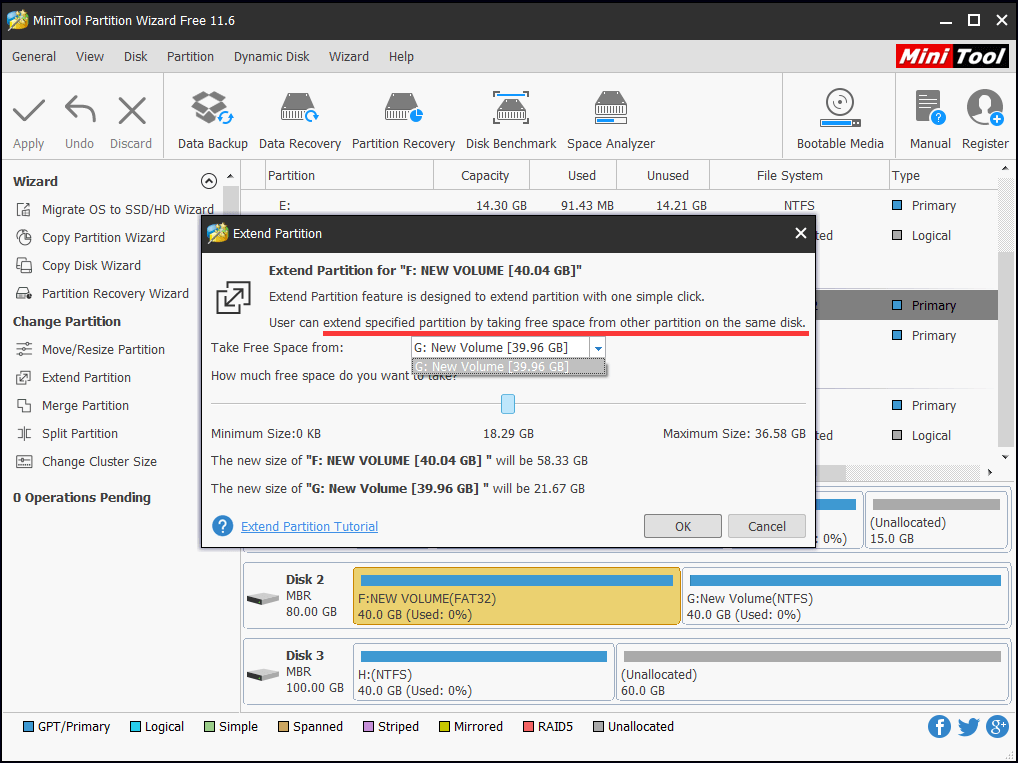

This partition magic for Windows 7 offers specific operating wizards. As long as we operate according to prompts, we can accomplish Windows 7 partition resizing easily.
From the above introduction, we can see it is not difficult to resize Windows 7 partition. Nevertheless, if we want to resize Windows 7 system partition which stores important data, we had better select a professional Windows partition tool which can ensure data safety. MiniTool Partition Wizard is such a kind of excellent professional partition magic.
MiniTool Partition Wizard FreeClick to Download100%Clean & Safe
About The Author

Position: Columnist
Rodin is an enthusiastic IT writer focusing on Windows trends, disk partition management and data recovery. She loves to write and share her idea about the useful tips and tricks on personal computers' maintenance. If you are looking for methods to improve your computer performance, manage hard drives and recover data from different devices, Rodin can provide reliable solutions for data management.
User Comments :