
Today people seldom use a hard disk without partitioning it. But sometimes, some people don't know how to create partitions, and this will undoubtedly bring much trouble, such as data corruption and slowing running speed. This article maybe can help they create hard drive partitions.
Today people seldom use a hard disk without partitioning it. Why partition a hard drive? If not doing so, it means you are keeping your data, applications and operating system in the same partition (typically partition C), and this will undoubtedly bring much trouble, such as data corruption and slowing running speed. However, if you have partitioned the hard drive before putting it into use, you can avoid these trouble and enjoy great convenience:
- You can better plan the hard drive to manage your data in categories.
- Portioning a hard drive is advantageous to the virus prevention and data security.
- Use the hard disk efficiently.
- Improving the efficiency of the system.
- Assign different permissions for different users.
- Helpful to install multiple operating systems.
Given all of its benefits, how to manage hard drive partitions still troubles many Windows users. So next we will talk about how to partition a hard drive in Windows OS.
How Do I Partition My Hard Drive
We all know there are three ways to manage hard drive partitions: use Windows built-in partition tool Disk Management, use Windows Command Prompt, and use a third-party partition magic. What are their the differences? And which tool is the best?
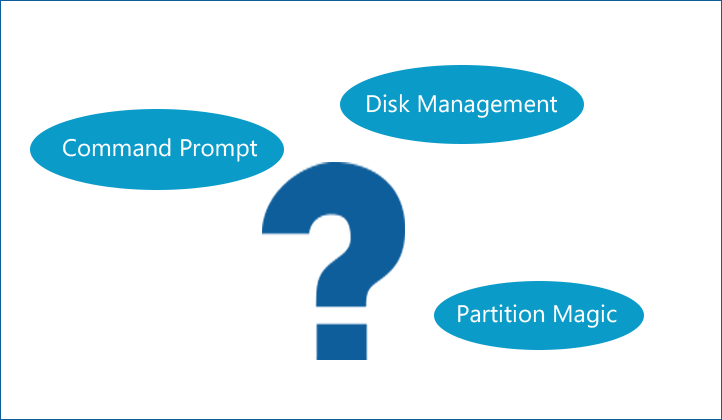
Generally speaking, it is not easy to manage hard drive partitions by using Disk Management tool and Windows Command Prompt. Although Windows built-in Disk Management tool can help us accomplish a part of hard drive partitions management, a great majority of hard drive partition management cannot be realized. Besides, there is a great risk to manage hard drive partitions with command prompt if you don’t have the relevant knowledge. Since no preview is offered, once we operate mistakenly, a large number of important data may get lost, which will result in unnecessary losses and troubles.
However, with third-party partition software, things will become much easier, for it is powerful and user-friendly.
Therefore, to partition a hard drive, a third-party partition magic is strongly recommended. In selecting a partition magic, MiniTool Partition Wizard Free is the best choice. As we talk about MiniTool Partition Wizard, we believe many users who concern about disk management know this partition magic. What’s more, we can see the majority of Windows users are using this partition magic from CNET download.
Partitioning hard drive with MiniTool Partition Wizard
Developed by MiniTool Software Ltd., MiniTool Partition Wizard is a piece of professional partition magic that is extremely easy to operate. This free tool can be used to partition a hard drive in Windows Vista, Windows XP, Windows 7, Windows 8, and Windows 10. With its all-sided functions, we can realize almost all hard drive partition management, both for internal hard drives and external hard drives.
Next, we will demonstrate partition a hard drive in windows 7 with this partition magic to make users know its operations intuitively.
First, download MiniTool Partition Wizard Free. Then, install and run it to get the main interface. Now let’s begin the partition.
MiniTool Partition Wizard FreeClick to Download100%Clean & Safe
Case 1: Partition a New Drive
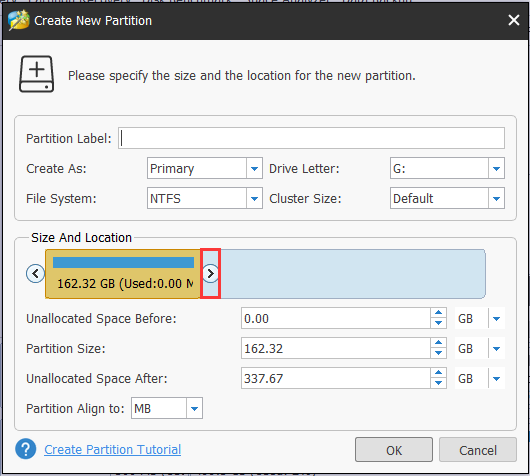
If you have got a new hard drive and there is no partition on the hard disk, it’s just about creating new partitions. Usually a hard disk is expected to be divided into three or four partitions. Right click the unallocated partition and choose “Create Partition“, then identify the file system, partition size, etc. Remember to press “Apply” in the end.
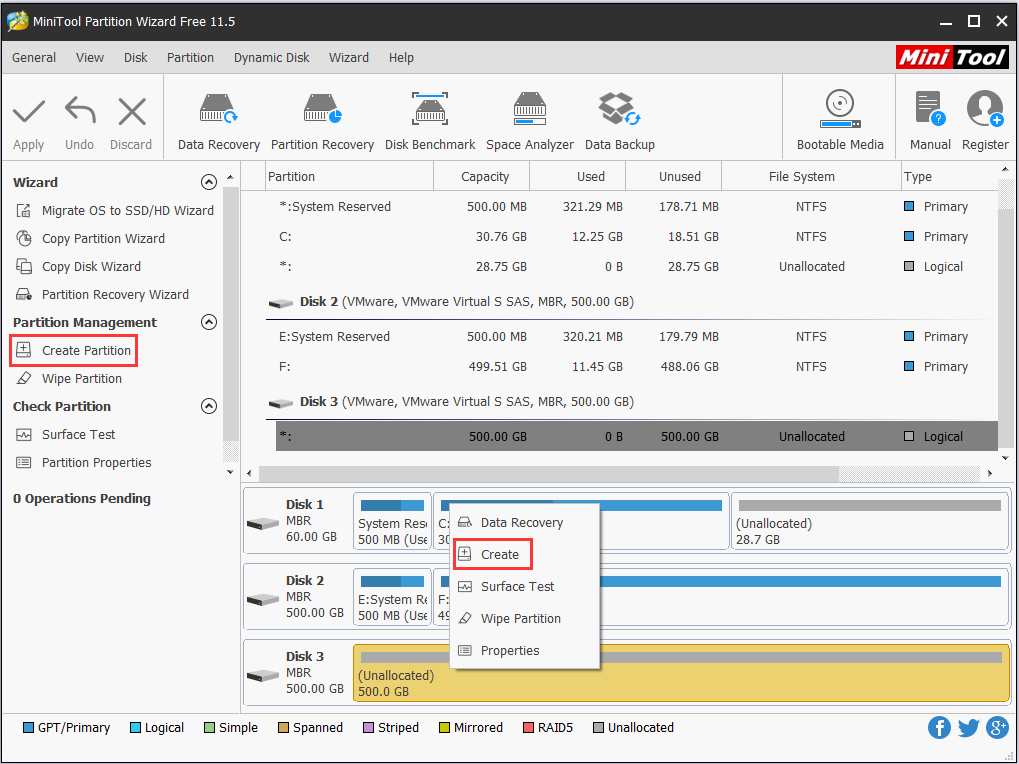
Case 2: Repartition a Hard Drive
In most cases, we need a partition tool to repartition a hard drive due to the unreasonable usage. For example, we want to expand C drive due to low disk space, then we can employ the feature “Extend Partition“.
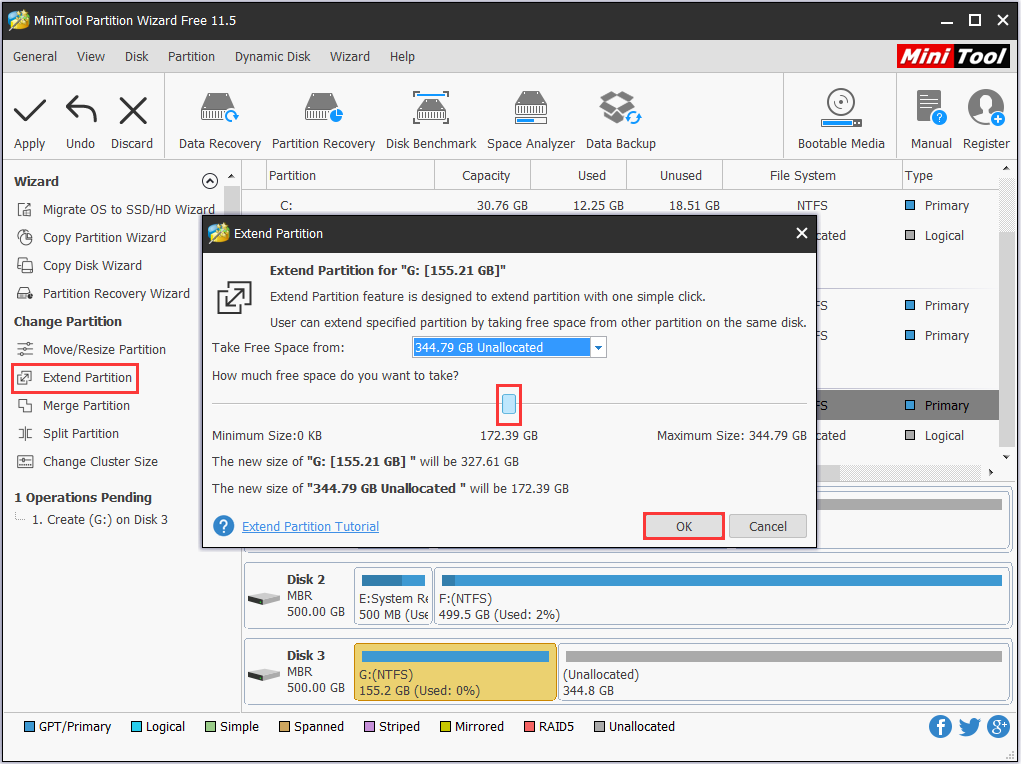
If we want to shrink a partition that has a lot of free space in order to create a new one, then we can use “Move/Resize Partition” first and then create a new partition on the speared unallocated space.
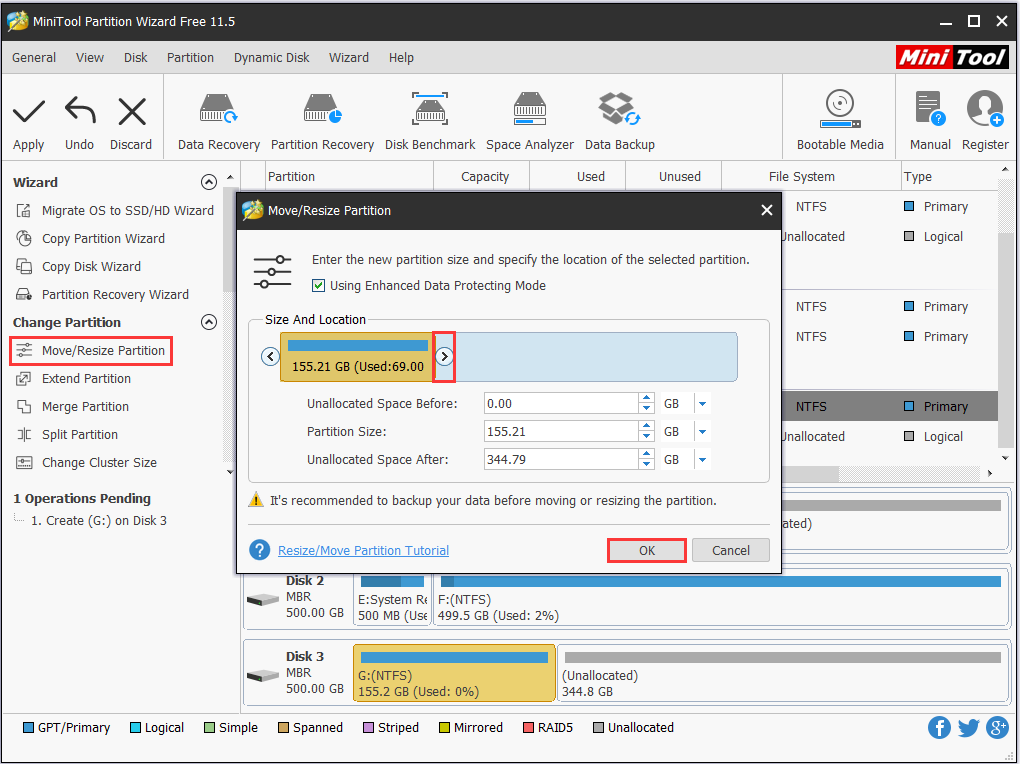
1. You can drag the triangle (rectangle) or input desired value to identify the partition size.
2. You can preview the change on the middle panel.
3. You should click “Apply” to execute all your changes.
Bottom Line
After seeing the above demonstrations, we believe users will not think “partitioning hard drive” is difficult to operate with this partition magic. Actually, besides easy operations, this partition magic has many other advantages, such as it can help users solve almost all problems of hard drive partitions management.
Therefore, users who is worrying about partition management can download this FREE partition magic to solve their problem as soon as possible.
About The Author

Position: Columnist
Rodin is an enthusiastic IT writer focusing on Windows trends, disk partition management and data recovery. She loves to write and share her idea about the useful tips and tricks on personal computers' maintenance. If you are looking for methods to improve your computer performance, manage hard drives and recover data from different devices, Rodin can provide reliable solutions for data management.
User Comments :