
Is you computer hard drive full without reason in Windows 10/8/7, especially C drive full? Is your PC running slowly? Are you unable to save large files? Take it easy now! Here are some solutions to get you out of these troubles. Keep reading to find what you need.
Issue: Hard Drive Is Full
No doubt, almost everyone has encountered the issue of hard drive full in Windows 10/8/7. Many users have reported, “my C drive is full without reason” or “my computer hard drive is full and I don’t know why”.
In general, as the computer technology is getting more developed, hard drives always seem to fill up even when they are getting larger and larger.
Often times when the hard drive fills up, only the C drive is shown as full. Many users are discussing the topic regarding “C drive suddenly full” in Windows 7/8/10. If your computer hard drive is full, it’s likely that it will also have the following symptoms:
- The computer is running slowly.
- You cannot store more large files/data on it.
- The hard disk drive is not big enough to accommodate all your needs, such as software update/upgrade, install programs.
You then might be wondering: Why is my hard drive full in Windows 10/7/8? What is taking up the space on my hard drive? Generally speaking, it is because the disk space of your hard drive is not enough to store a large amount of data.
Additionally, if you are only bothered by the C drive full issue, it is likely that there are too many applications or files saved to it. So how do you solve this issue in Windows 10/7/8? Get the solutions now from the following sections.
Solutions to Hard Drive Is Full
Method 1: Empty Recycle Bin
Recycle Bin is a temporary storage place for deleted files. In other words, when a file or folder is deleted, it isn’t permanently deleted immediately. Instead, it goes to the Recycle Bin.
Therefore, you can free up space by clicking Empty Recycle Bin. However, this would only clear up very little space for C drive since large files or folders usually will not go to the Recycle Bin.
Method 2: Uninstall Some Programs
If your computer has installed a lot of programs, they will undoubtedly take up a lot of space. Unused or seldomly used programs should be uninstalled from the computer in order to free up space when the hard drive is full.
Take Windows 10 as an example:
Step 1: Go to Control Panel, click Programs, and then click Programs and Features.
Step 2: Right-click the program you wish to uninstall and click Uninstall . You can also choose it and click the Uninstall button from the menu above the program list.
If the program you want to uninstall isn’t listed, it might not have been written for this version of Windows. In this case, you can check the information that came with your program, or go to the manufacturer’s website. In general, most programs will be installed automatically in the C:Program Files folder.
Method 3: Use Space Analyzer to Scan Your Drive and Delete Unnecessary Files
Additionally, you can find out which files are using a lot of space in the event of hard drive full, and delete them. To do this, you can ask MiniTool Partition Wizard for help – it provides a function called Space Analyzer that scans a hard drive and analyzes the space usage.
After scanning your drive, you will know which files or folders are using up the most space. Just delete the unnecessary ones with the Space Analyzer feature correspondingly.
MiniTool Partition Wizard DemoClick to Download100%Clean & Safe
Step 1: Launch MiniTool Partition Wizard to its main interface. Then, click “Space Analyzer” in the toolbar.
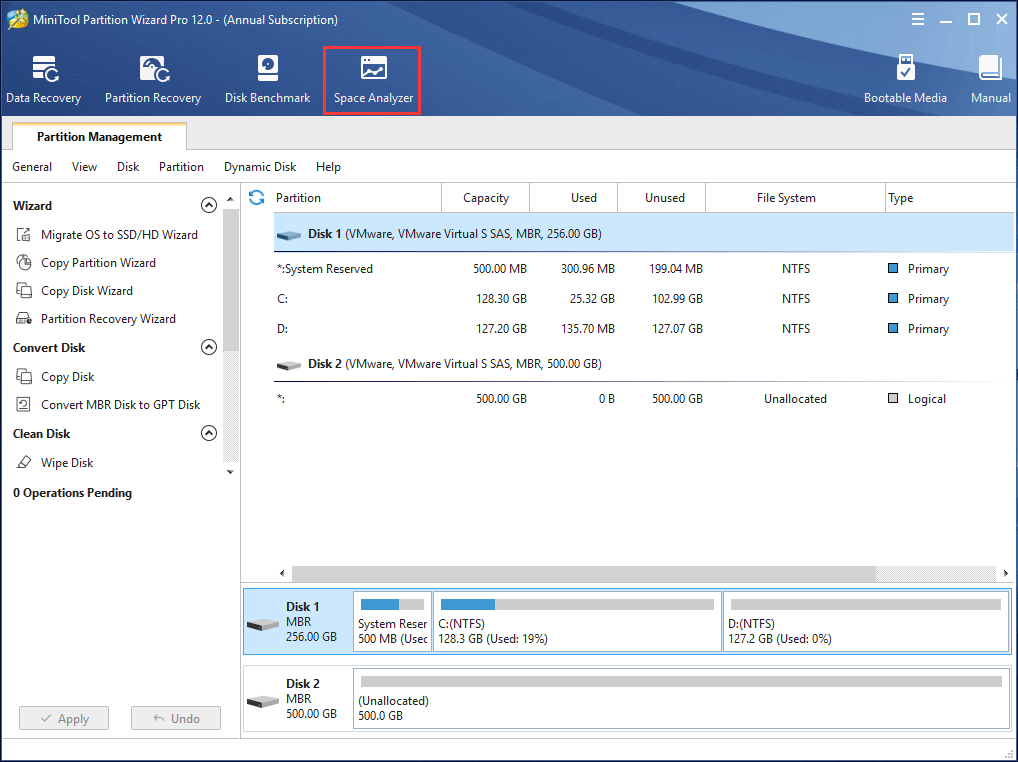
Step 2: Choose a partition and click “Scan” to scan this drive.
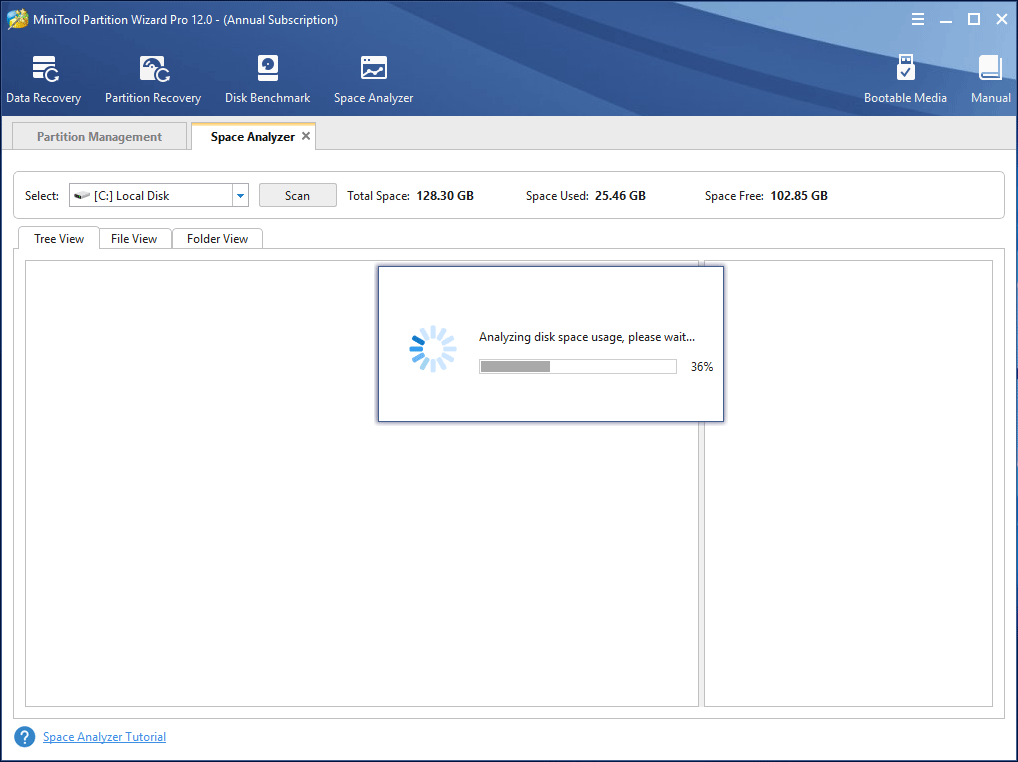
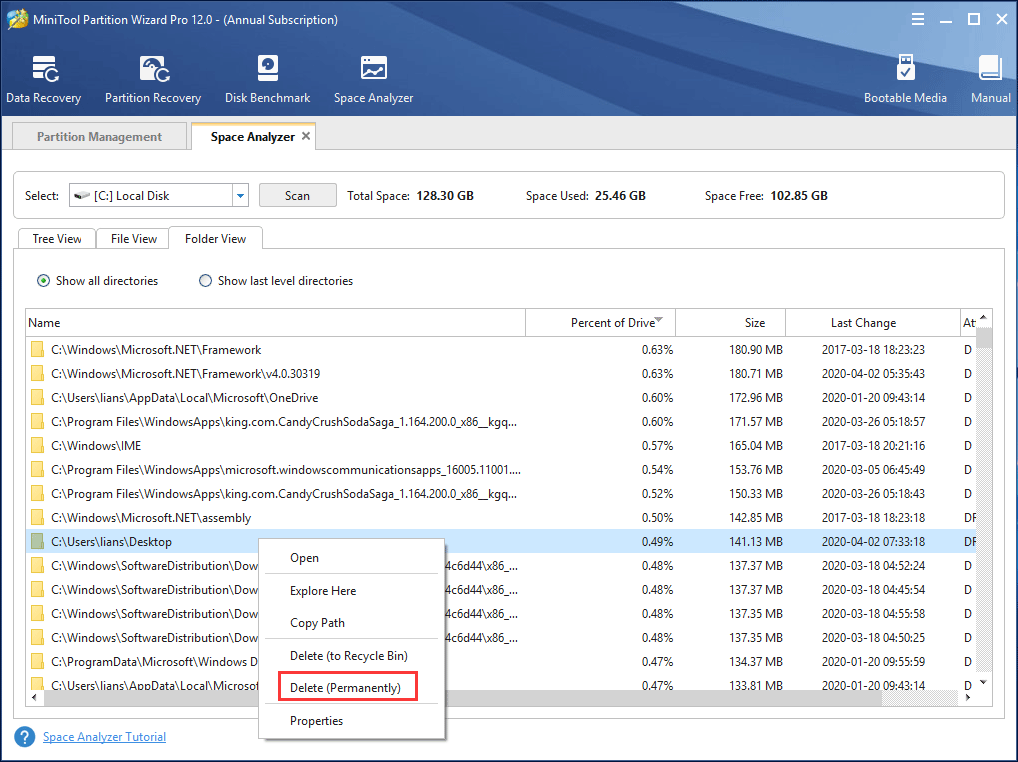
Step 3: After a scan, there are three ways for you to view the disk space usage: “Tree View”, “File View”, and “Folder View”. You can explore the file or folder and then delete it, or directly right-click on an unnecessary file or folder and choose “Delete (Permanently)”.
For more information about space usage analyzer, you can read this document – How to Use Space Analyzer | MiniTool Partition Wizard Tutorial.
Method 4: Extend C Drive
If the C drive is the only drive running out of disk space and there is available free space on other partitions or drives, you can try using MiniTool Partition Wizard to extend the C drive to fix “my C drive is full without reason” issue in Windows 10/8/7.
Before you proceed, use MiniTool Partition Wizard Pro Edition to get a Bootable CD (created by Bootable Media) to extend C drive safely.
MiniTool Partition Wizard DemoClick to Download100%Clean & Safe
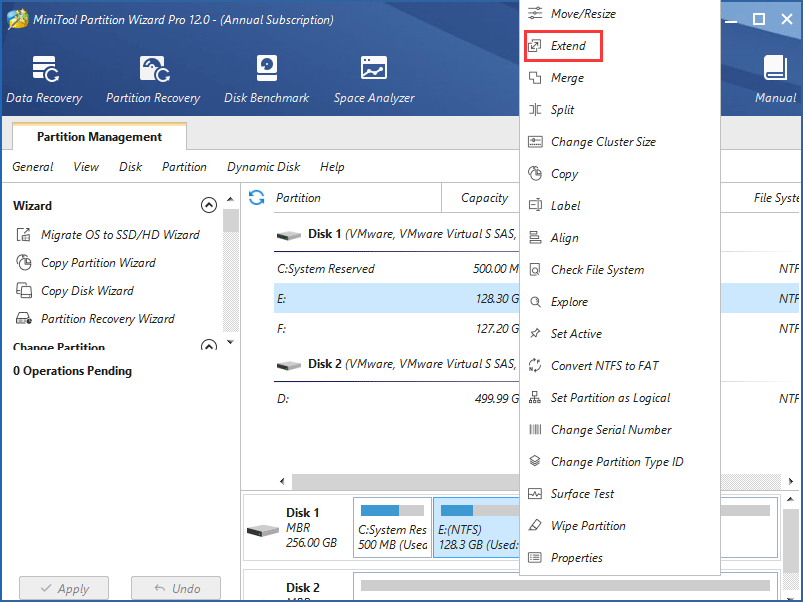
Step 1: Select C drive and choose “Extend Partition” from the left action panel, or click “Extend” from the context menu.
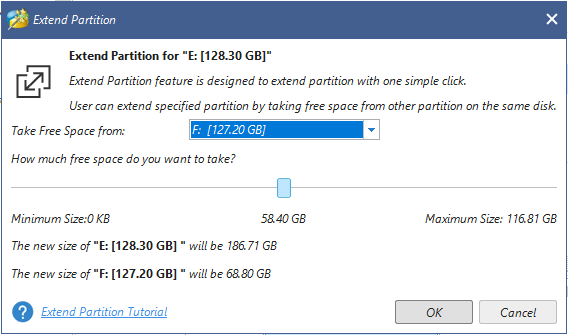
Step 2: Choose an existing partition (can be any partition other than itself that is suitable according to the partition situations) or unallocated space to borrow free space from, then drag the sliding button to decide the amount of free space required. After that, click “OK” to go back to the main interface.
Step 3: Click “Apply” to perform all changes.
If there is unallocated space next to C drive, you can use the “Move/Resize Partition” feature to directly extend C partition in Windows 10/8/7.
Method 5: Add Extra Storage Space
If your entire disk is full, a longer-term strategy for expanding your PC’s storage capacity is to turn to another removable storage, including external/internal hard drive, SD cards, USB flash drives, DVDs or CDs.
(1) Add another new drive
If your hard drive is full, you can add another external or internal hard drive as a secondary storage device to store data without deleting any files saved on the full hard drive.
(2) Replace the full drive with a large one
If your full hard drive is very small, you may want to consider replacing it with one that has higher capacity. However, this option would require reinstalling the operating system. Is it possible to replace the entire drive with a new one without reinstalling the OS in Windows 7/8/10?
Fortunately, the professional disk cloning software, MiniTool Partition Wizard, can help you transfer all your data – including your operating systems – to a new drive without affecting the original data.
The detailed steps to upgrade smaller, oldder hard disk to larger, newer one can be found here. Connect the large disk to your computer first before copying the disk.
MiniTool Partition Wizard DemoClick to Download100%Clean & Safe
Step 1: After launching MiniTool Partition Wizard, right-click on the full disk and then choose “Copy Disk” from the left action panel.
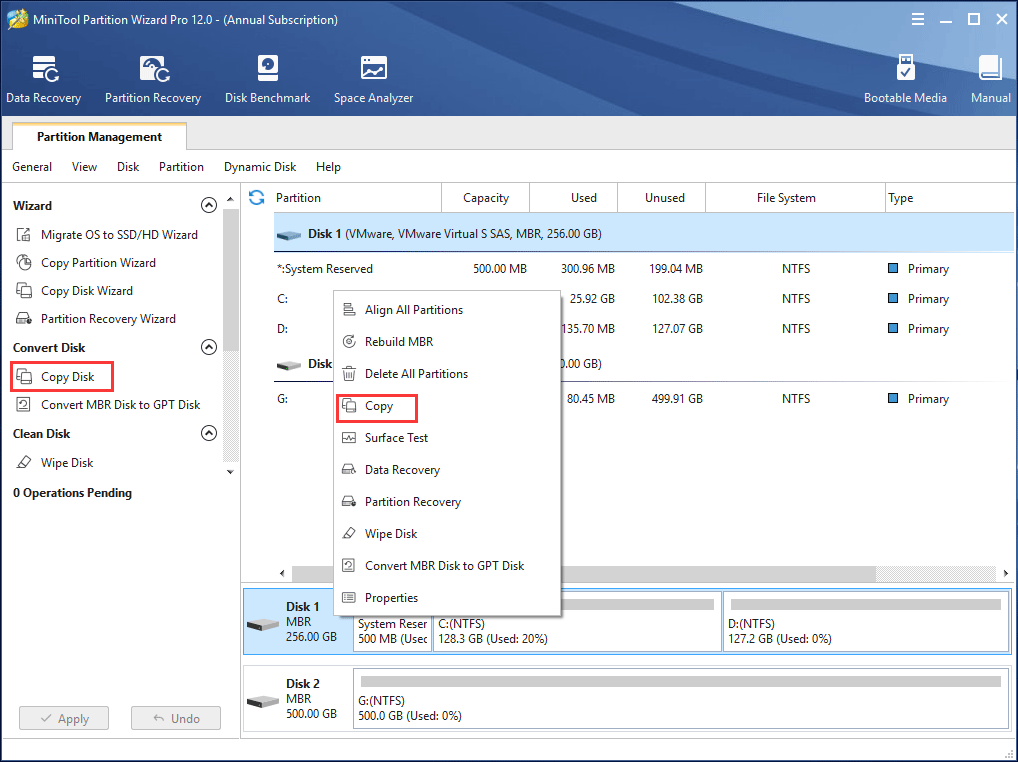
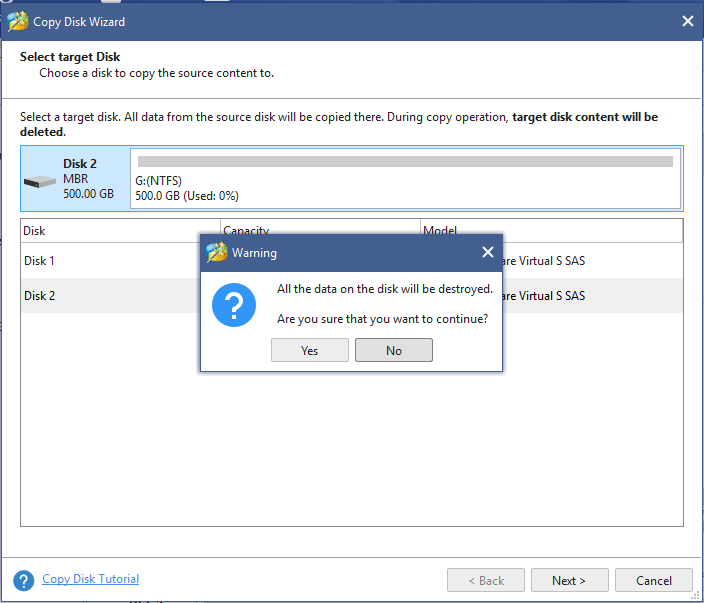
Step 2: Select the target disk to save the copy of the full hard drive to, then click “Next”.
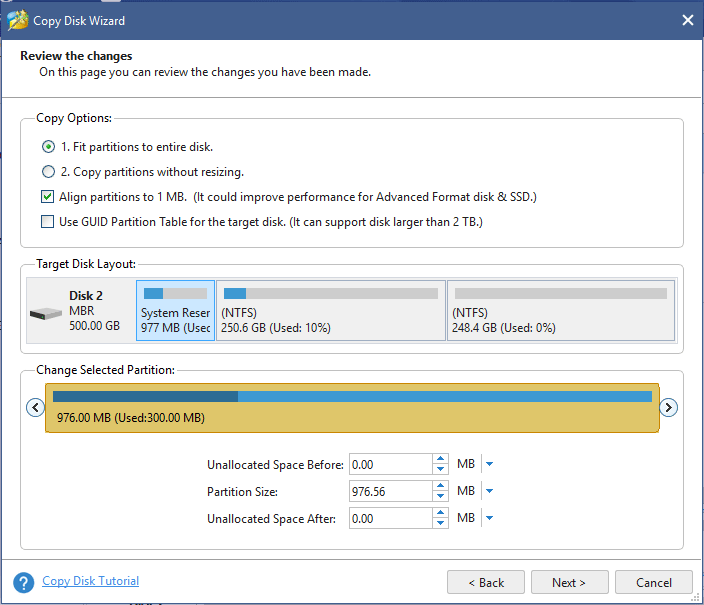
Step 3: Choose a copying method (fit partitions to entire disk and copy partitions without resizing) to decide the layout of the target disk and then click “Next“.
If you choose the first one, the entire space on the target disk will be utilized. The second method will copy all the partitions to the disk without changing their sizes.
If you are copying the drive to SSD or Advanced Format disk, it is best to keep the option “Align partitions to 1MB” checked.
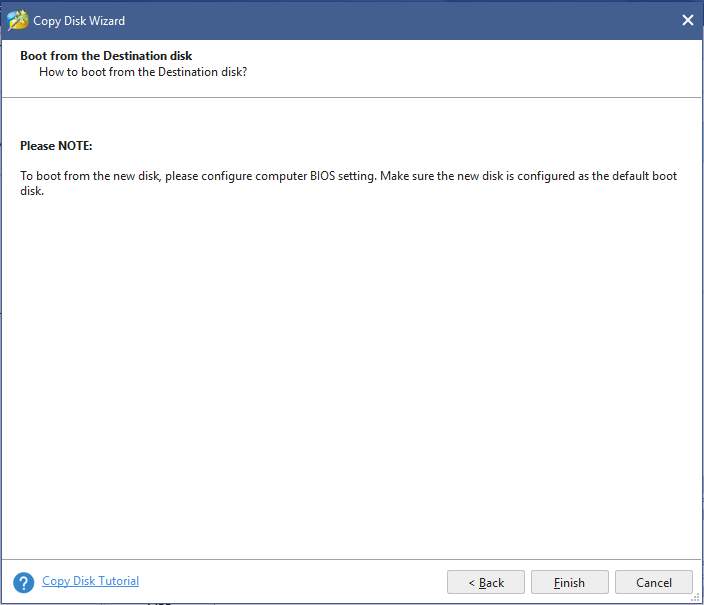
Step 4: Then MiniTool Partition Wizard will remind you to change the BIOS setting so that your computer can boot from this new and large disk. Click “Finish” and go back to the main interface of this software.
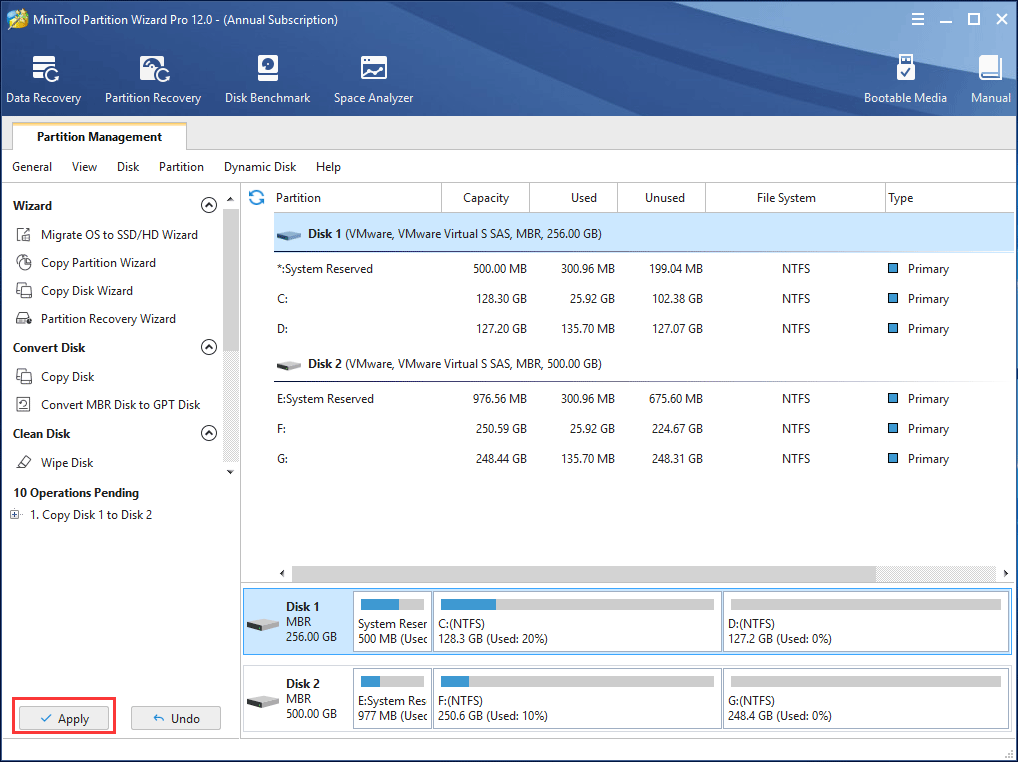
Step 5: Click “Apply” and tap “Yes” to apply all changes. Next, you will be asked to restart. Since you are copying system disk, you can do as told.
Using the MiniTool Partition Wizard now, you can easily solve the issue of hard drive full, especially C drive full in Windows 7/8/10. If you find this tool interesting, please share it with your friends.
Four Possible Solutions for Disk Drive Full Issue
Method 1: Run Disk Cleanup
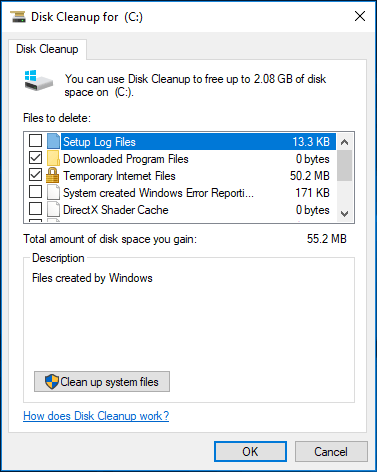
If “my C drive is full without reason” issue appears in Windows 7/8/10, you can delete temporary files and other unimportant data to free up hard disk space. Windows includes a built-in tool, Disk Cleanup, to help you clear your disk of unnecessary files.
Step 1: Right-click one of your hard drives in the Computer (Windows 7) or This PC(Windows 10) window and select Properties, then click Disk Cleanup in the disk properties window.
(Alternatively, you can type Disk Cleanup in the search box, and right-click and run it as Administrator. After that, select the drive you want to clean up and click OK. Disk Cleanup will scan and calculate how much space you can free up on that drive.)
Step 2: In this window, select the types of files you want to delete and click OK. This includes temporary files, log files, files in your recycle bin, and other unimportant files.
Related article: 9 Ways to Clean up Disk Space in Windows 10, #1 Is Excellent
Method 2: Reduce The Size of The WinSxS Folder
The WinSxS folder, located in the Windows folder on your PC (ex, C:WindowsWinSxS), stores the Windows Component Store files used to support functions needed to customize and update Windows.
Over time, you might notice the C:Windowswinsxs directory using lots of disk space. This post will tell you everything you want to know.
You can reduce the size of this folder to free up space using the following steps.
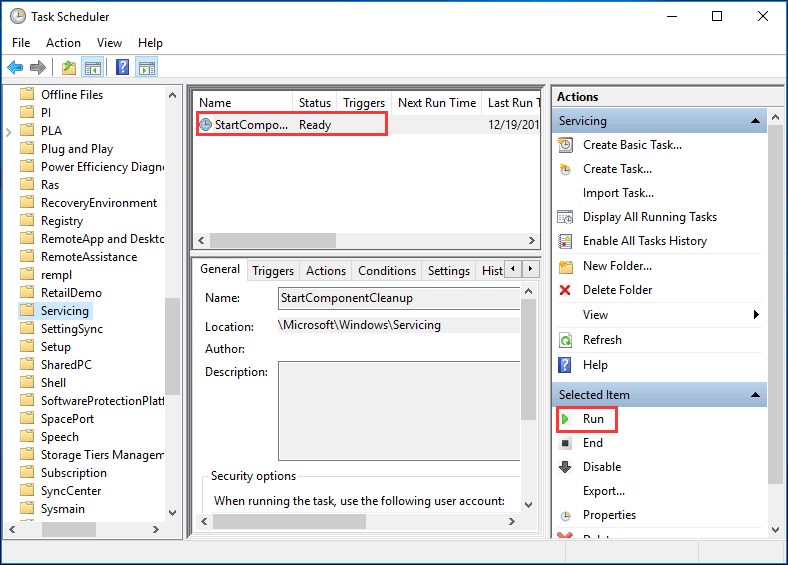
Step 1: Type task scheduler in the search box in Windows 10/8/7 and right-click on this app to open it.
Step 2: Click Task Scheduler Library > Microsoft > Windows > Servicing.
Step 3: Tap StartComponentCleanup, and then tap Run under the Selected Item section.
Method 3: Make OneDrive Files Online-Only
Offline files take up more space on your PC; additionally, OneDrive needs 200 MB of free space to sync your files. Therefore, making some files or folders online-only will free up some space.
- If your “access all files offline” setting is turned on, you need to turn it off before you can make the files online-access only.
- If you have pending uploads to OneDrive, you need to wait until they are completed before making files online-only.
Method 4: Reduce the Amount of Space Used for System Restore
System Restore is a feature in Microsoft Windows that allows the user to revert their computer’s state (including system files, installed applications, Windows Registry, and system settings) to that of a previous point in time, which can be used to recover from system malfunctions or other problems.
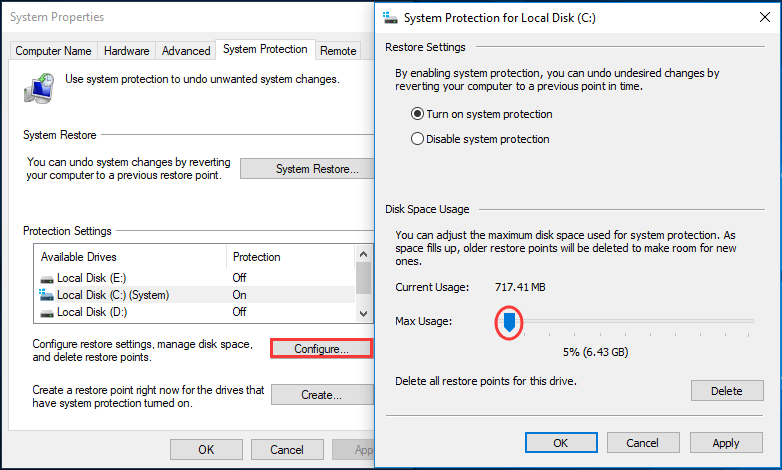
In general, System Restore does this by saving the changes made to system files in a restore point. Therefore, if System Restore takes up a lot of hard drive space for restore points, you can use the following steps to reduce its size.
Step 1: Right-click the Computer or This PC icon, choose Properties.
Step 2: Click System protection.
Step 3: Click Configure.
Step 4: In this window, you can turn off system protection entirely, delete all but the latest restore points, change it to only restore files (and not settings), or drag the slider to use more or less space.
Although these methods can help to free up some hard disk space, they are not the best since you may continue to store data and files on it, thereby making it full again eventually.
Therefore, if you find your disk is frequently running out of disk space or the recommendations in this section did not resolve your issue, please ask this third-party partition manager – MiniTool Partition Wizard for help in Windows 7/8/10.
Conclusion
Is your hard drive full in Windows Windows 7/8/10? Is only the C drive full for no reason? Now try the solutions above to get rid of the trouble!
If you have any good ideas or questions about a full hard drive, please leave comments below or email us via [email protected]. Much appreciated!
About The Author

Position: Columnist
Vera is an editor of the MiniTool Team since 2016 who has more than 5 years’ writing experiences in the field of technical articles. Her articles mainly focus on disk & partition management, PC data recovery, video conversion, as well as PC backup & restore, helping users to solve some errors and issues when using their computers. In her spare times, she likes shopping, playing games and reading some articles.