Resize Partition
- Resize a partition in Windows 8
- Windows 8 boot disk
- Resize partitions in Windows 8
- Shrink partition Windows 8
- Windows 8 expand partition
- Resize partition Windows 8
- Resize Windows 8 partition
- Resizing partitions in Windows 8
- Expand partition Windows 8
- Resize partition for Windows 8
- Expand system partition
- Free extend boot partition
- Extend partition windows 8
- Windows server 2003 increase partition size
- How to increase partition size
- Increase windows partition
- Increase partition xp
- Free increase windows partition
- XP increase partition size
- Increase disk partition
- Increase partition size vista
- Increase partition size
- Windows XP increase partition size
- Increase partition size XP
- Free shrink windows partition
- Windows 7 increase partition size
- Windows 2003 extend partition free
- Partition in windows 7
- Extend partition vista
- Extend primary partition Windows 7
- Extend Windows partition
- Extend system partition safely
- Shrink partition Windows 7
- Shrink partition XP
- Windows 7 extend partition free
- Windows 7 shrink partition
- Windows server 2003 extend partition
- Extend boot partition free
- Windows 7 extend system partition
- Extend OS partition Server 2003
- Resize partition server 2008
- Extended partition
- Free resize partition
- Resize partition for windows
- Resize partitions
- How to resize a partition
- Expand partition
- Windows resize partition
- Resize partition in windows 2003 safely
- Resize OS partition efficiently
- Resize a partition
- NTFS resize partition
- Resize windows 2003 partition
- How to resize partition windows server 2003
- Resize partition ubuntu
- Resize extended partition
- Vista resize partition
- Server 2003 resize partition
- Resize partition in windows 2003
- How to resize Windows partition
- How to resize ntfs partition
- Partition ntfs resize
- Win7 resize partition
- Resize win7 partition
- Windows 2003 extend partition
- Extended partitions
- Extend boot partition
- Resize server 2003 partition
- Resize disk partition
- Server 2003 partition resize
- Resize partitions server 2003
- Resize Windows server partition
- Resize partition server 2003
- Low disk space
- Manage partition C drive run out of space
- Resize Windows 7 partition
- How to repartition a hard drive
- Extend Windows 7 system partition
- Resize partition server
- Primary extended partition
- Windows 7 system partition increase
- Windows 7 partition resize
- Extend NTFS system partition without reboot
- Extend Partition Server 2008
- XP partition resize
- Windows 7 extend partition
- Resize Partition with partition magic
- Repartition Hard Drive
- Windows 7 resize partition
- Resizing partition
- Windows partition resize
- Resize windows partition
- Resize partition windows
- Window 7 partition resize
- Adjust Partition Size
- Add Space to System C Drive Partition
- Redistribute free disk space
- Reduce Drive Partition Size
- Moving Partition
- Shrink partition wizard
- Shrink Partition Under Windows
- How to show extend partition
- Shrink Windows Server 2003 Partition
- Shrink windows partition
- Windows server 2003 resize partition
- Split partition
- System disk full
- Free up disk space
- Resize GPT disk partitions
- How to resize external hard drive
- Increase disk space
- Increase c drive partition
- Expand partitions under windows
- Resize system partition
- Partition 64
- About Windows Server 2003
- Convert fat32 to NTFS
- Create a Partition in Windows Server 2003
- Disk copy
- Disk manager
- Drive copy
- Free download Partition Wizard
- Magic software for partition management
- 64bit Partition Manager
- Clone disk
- Copy partitions
- Disk copy manager
- Partition manager
- Format partition
- Free partition manager to resize partitions
- How to resize partitions
- Free partition software
- Magic software for hard disk repartition
- Resize system primary partition
- Resize partition on windows server
- Resize partition freeware
- How to resize Windows Server 2000 partitions?
- Resize partition server 2008 64bit
- Resize Server 2008 partition
- Resize system boot partition
- Resize os partition
- Resize sbs 2008 system partition
- Windows server 2003 resize partition
- Resize partition windows 2003 server
- How to resize raid 1 without data loss?
- Resize Windows server 2003 partition
- Resize RAID partition
- Resize NTFS partition
- Resizing and moving partition
- Resize partition Windows 7
- Resize partition under Window operating system.
- Resize partition Windows server 2003?
- Resize and move partition
- Resize Vista partition
- Resize partition on Vista.
- Server 2008 Resize partition
- Resize external hard drive
- Server partition resize
- Resize GPT disk partition
- Resize dynamic disk
- Resize boot partition 2
- Resize RAID 5
- Resize RAID
- Resize FAT32
- Resize FAT32 partition
- Resize partition for FAT32
- FAT32 partition resizing
- Free partition resizing software
- Free software to resize partition
- Free resizing partitions
- Resize partition on windows server operating system
- Resize partition of Windows server
- Resize server partition on Windows
- Partition resize windows 2003
- Resize partition
- Windows partition
- Extend windows 7 partition free
- Increase raid 5 size
- Extend system partition server 2003
- Extend system partition
- Increase partition size windows 7
- Extend simple volume
- Extend server 2008 boot partition
- Extend SBS 2003 server
- Increase partition size server 2008
- Increase hard disk space
- Increase free disk space on the system partition
- Increase partition capacity
How to resize Windows partition
-
System partition is a commonly used term in Windows operating systems, and it mainly refers to the partition used to boot Windows. Generally, system partition stores boot files of operating system, and most users put system partition and boot partition on the same partition, namely C partition. Along with long-term use of the computer, we will find there is less and less available space left on C partition, and the size of partition C will influence operating system's running speed. If we just transfer files on partition C to another partition, these files are easy to be lost or damaged in the process of transferring, which may result in running fault. In fact, besides this troublesome method, there is another safer and more effective method, namely resizing Windows partition. We can shrink the partition adjacent to the partition which is short of space, and then use the shrunk space to extend the destination partition. As a result, we can store more data on destination partition. Now, just a piece of professional partition magic can help us resize Windows partition quickly and easily.
MiniTool Partition Wizard is your best choice
Among partition magic series, MiniTool Partition Wizard is a piece of partition magic suitable for most users. And continuous optimization makes it easy to operate this partition magic. At the same time, it can be compatible with the majority of operating systems without bringing any data damage or data loss. Besides, with this partition magic, we can resize partition, copy partition, create partition, delete partition, convert file system, and perform much other partition management. If you install it on your computer, you can manage and optimize disk partition at any time, making good use of the disk space to improve disk use ratio.
Resize Windows partition with MiniTool Partition Wizard
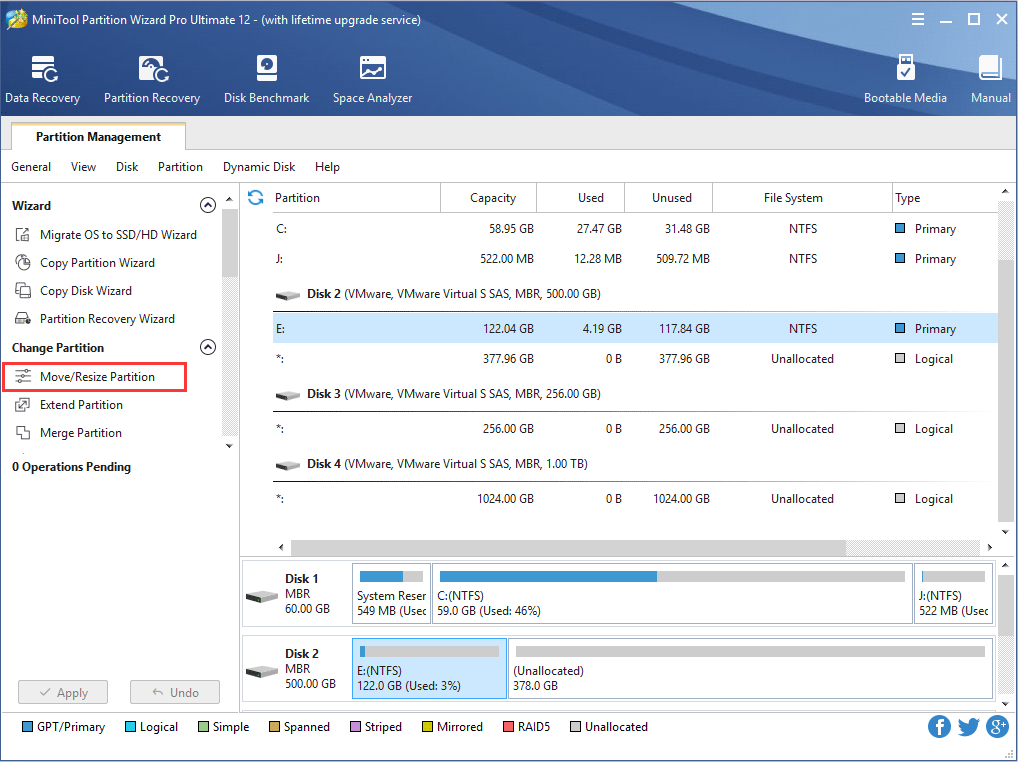
The principle of resizing Windows partition is very simple, namely shrinking and extending partition (extending partition means dividing a part of space from one partition to create an unallocated space which is used for other partitions). To use MiniTool Partition Wizard, users do not need to know professional knowledge. The following interface is the main interface of this partition magic:
First, we need to get an unallocated space which can be got from other partitions. Supposing we divide a part of space from D partition to get unallocated space, operations are as follows:
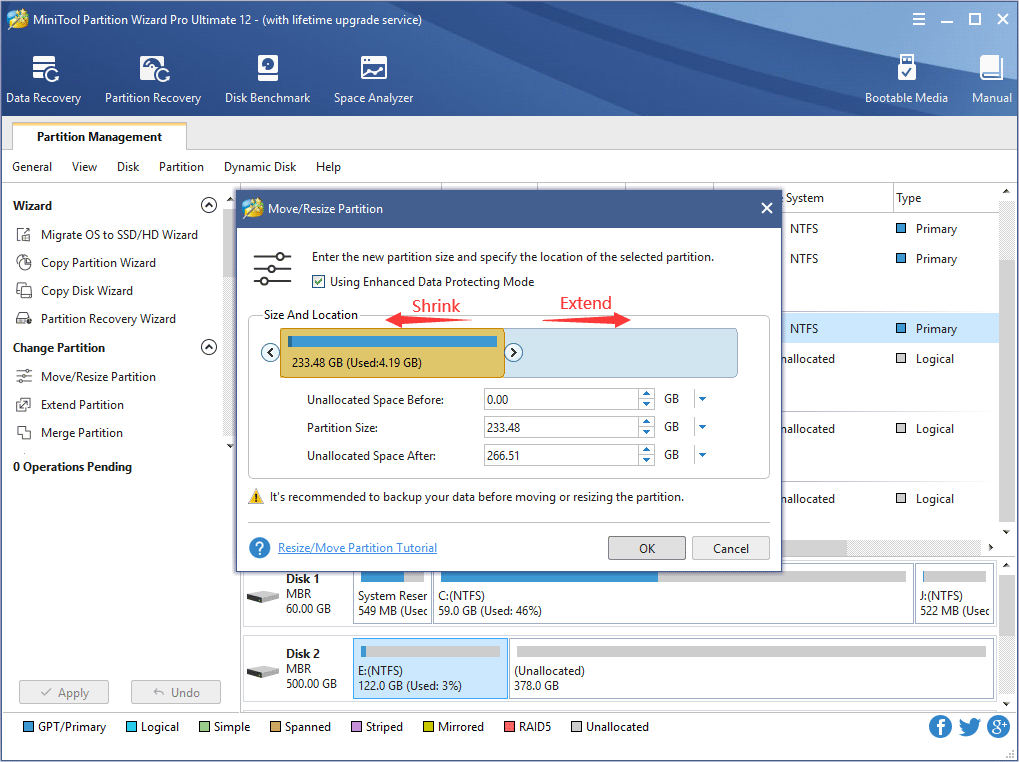
Select D partition, and then click "Move/Resize" button. After entering resizing interface, we will see the following interface:
Here, drag the left triangle rightwards to shrink D partition. Then, click "OK" to go back to the main interface.
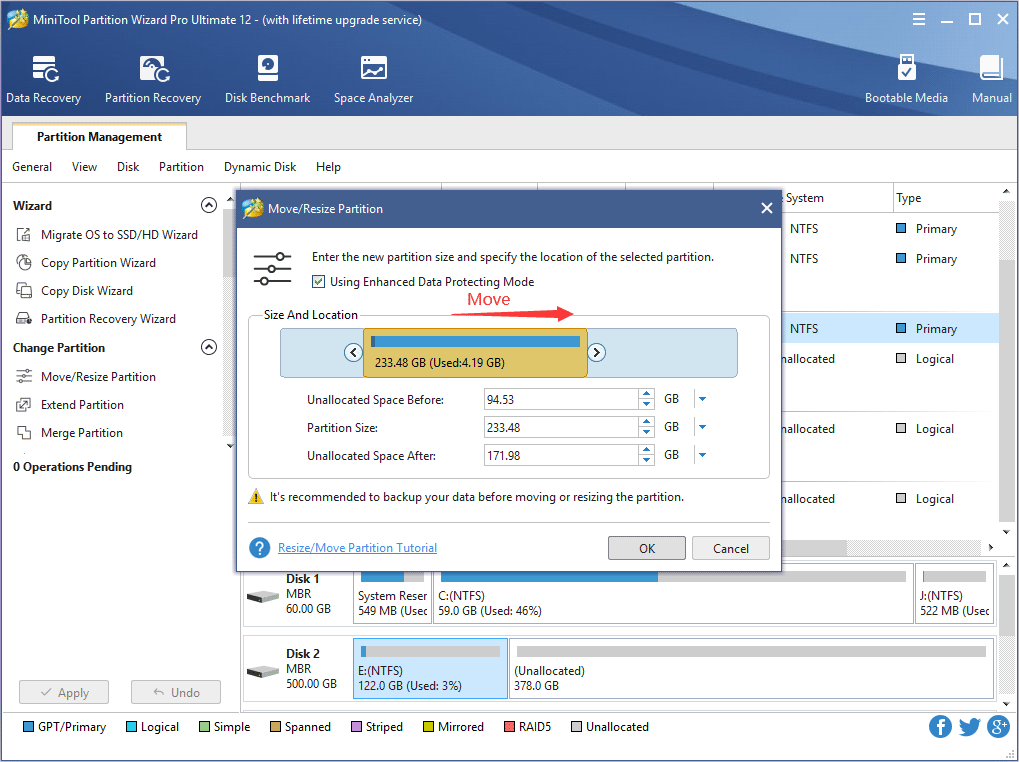
From the main interface, we can see an unallocated space before D partition, which is divided from D partition. Then, we can extend C partition. Select C partition, and then click "Move/Resize" to get the following interface of "Move/Resize Partition" function:
In this interface, the gray area next to the partition handle is the unallocated space. At this time, drag the right black triangle rightwards to extend C partition. Then, click "OK" to go back to the main interface again:
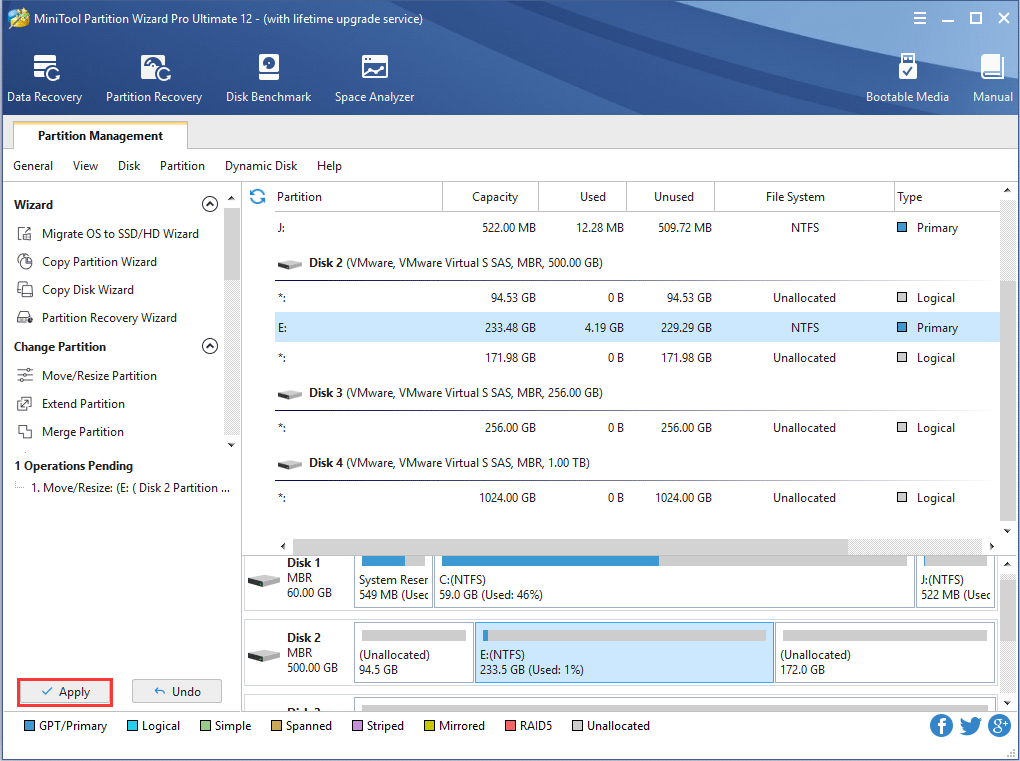
Next, we will find the unallocated space disappears and C partition has been extended. And the space added to C partition has the same size as the unallocated space. However, we can not exit from the software hurriedly, because this is just a preview effect this partition magic offers. Only after we click "Apply" to perform all recorded operations can our task be accomplished.
From the above introduction, I believe you have had a basic understanding of this professional partition magic MiniTool Partition Wizard. When facing numerous kinds of partition magic, you should select this professional partition magic without any hesitation. If you want to know more information about this partition magic, please visit its official website http://www.partitionwizard.com.
Free Partition Manager Free Partition Magic Partition Manager Server Partition Magic Server
Common problems related to partition management and our solutions:
- How to resize Windows Server 2000 partitions?
- Resize Windows SBS system partition with MiniTool Partition Wizard Server Edition.
- Resize Windows server 2003 partition with MiniTool Partition Wizard Server Edition.
- Resize Windows server 2003 partition by merging partitions.