
How to manage disk partition in Windows Server 2003? Although Windows Server 2003 is rather old, a lot of users stick on using it. MiniTool developed a good Server partition manager which enables users to manage their hard drives on Windows Server with ease.
“My C drive runs out of space and only 500MB free space remaining, I’ve tried partition magic, but it cannot be installed on server, does anyone know other partition magic for windows server 2003?”–By Jordan 23 from Tomshardware

Undoubtedly, Windows Server 2003 is considered as one of the classic Microsoft operating systems, and is still enjoying millions of users due to its high security, wide compatibility, great reliability, wonderful expandability, etc.
However, such an excellent operating system also has a big defect: both Windows built-in Disk Management utility and Diskpart can’t accomplish partitioning well. Let’s take Disk Management for example since both programs have similar limits.
Windows Disk Management Tool Is Not Perfect for Partitioning
After opening Disk Management we will see the following interface:
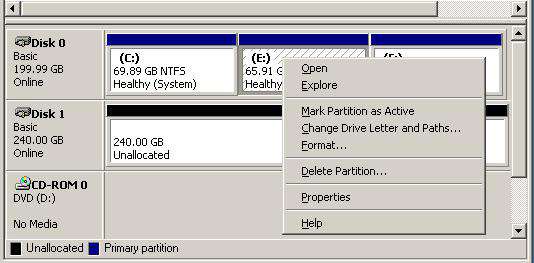
Right click a partition and we will see all partitioning options: Open, Explore, Mark Partition as Active, Change Drive Letter and Paths, Format, and Delete. That is to say users will be unable to extend partition, set partition logical/primary, convert file system, recover lost partition, and so on. In addition, there will be no official solutions from Microsoft, because the support for Windows Server 2003 ended on July 14, 2015.
Under this situation, if Server 2003 users want to do partitioning well, they badly need a third party partition magic (we also call it partitioning program) for Windows Server 2003, because this kind of utilities will provide users with all-sided functions.
Partition Magic Server 2003 Does Much Better in Partitioning
As quoted at the beginning of this post, the excellent Partition Magic can help users accomplish wonderful partitioning operations, but cannot be installed on Windows Server – which is really a great pity.
So here we recommend another Server 2003 partition magic called MiniTool Partition Wizard Server. This software supports all editions of Windows Server 2003/2008/2012 as well as Windows Vista/XP/7/8/8.1/10, both 32 bit and 64 bit.
Then how powerful it is indeed and what advantages it has over Disk Management? Does it satisfy all our partition needs? Take it easy, let’s take a look at the FREE Demo version of MiniTool Partition Wizard Server.
MiniTool Partition Wizard DemoClick to Download100%Clean & Safe
After running the program successfully we will see its main interface as follow.
When we select a partition, all-sided partition management operations will emerge, including Format Partition, Move/Resize Partition, Merge Partition, Extend Partition, Copy Partition, Change Cluster Size, Convert FAT to NTFS or NTFS to FAT, etc.
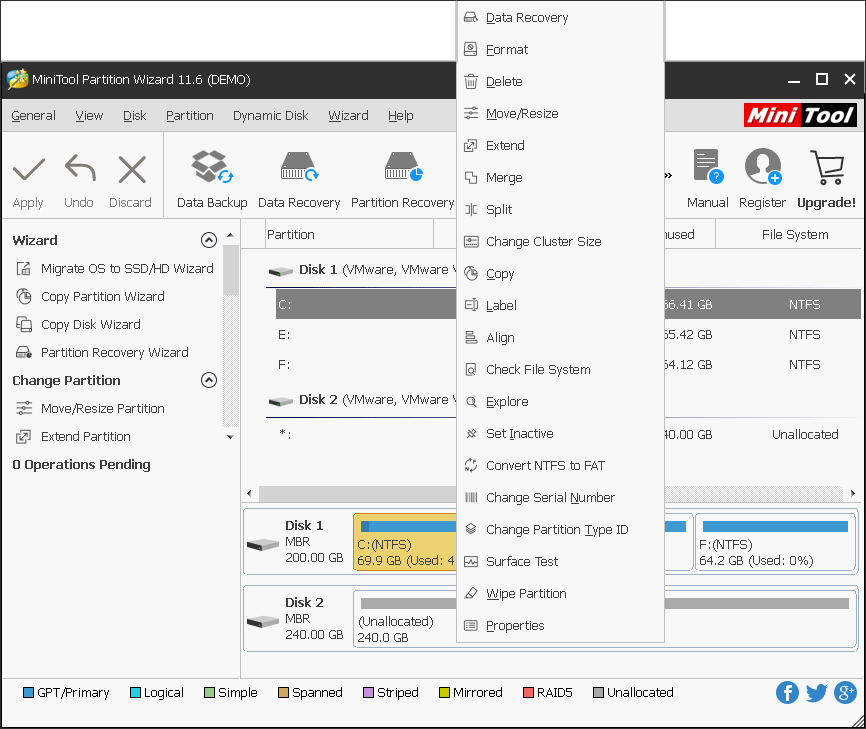
All these partitioning functions are useful and powerful. Fox example, Format Partition is capable of formatting system partition while Disk Management cannot do it; Extend Partition helps enlarge a partition by borrowing free space from any other partition or unallocated space when it is running out of space; Copy Partition makes it easy and safe to create a backup for an existing partition.
As long as we select a disk, multiple disk management functions will appear on the left action pane, including Align All Partitions (especially for SSD), Rebuild MBR, Delete All Partitions, Copy Disk, Partition Recovery (recover lost/deleted partition), Wipe Disk, and Convert MBR Disk to GPT Disk.
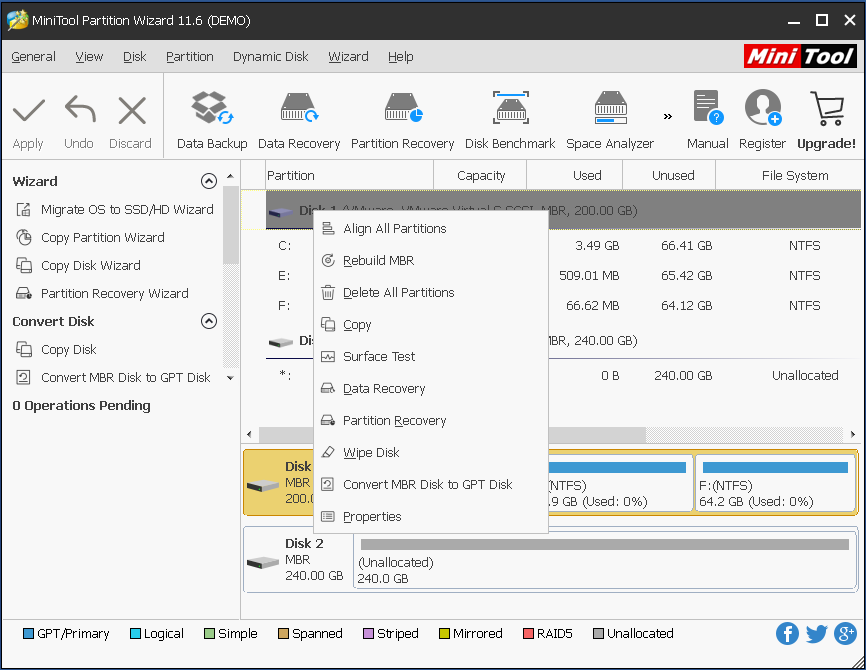
By making use of these functions, we can solve lots of problems. For example, with MiniTool Partition Wizard Server, we are able to copy a disk for backup or recover the partition which is deleted by mistake but stores a sea of important files.
Try It out
Now that third party partition manager for Server 2003 does much better in partitioning compared with Server 2003 snap-in Disk Management utility, it’s worth trying. Furthermore, this recommended software can also be applied on any other Windows OS apart from Windows Server 2003.
If you think this program is of great value, why not purchase one to help you better manage the disks and partitions in Windows Server 2003? We really want to see your success.
About The Author

Position: Columnist
Rodin is an enthusiastic IT writer focusing on Windows trends, disk partition management and data recovery. She loves to write and share her idea about the useful tips and tricks on personal computers' maintenance. If you are looking for methods to improve your computer performance, manage hard drives and recover data from different devices, Rodin can provide reliable solutions for data management.
User Comments :