
Change Partition Label feature is rather helpful in quickly identifying a partition from many partitions. MiniTool Partition Wizard tutorial here shows users the best way to change partition label in Windows OS.
About Change Partition Label
Partition label is an optional name assigned to a partition to help users identify a certain partition quickly. Although partition label is not required, it makes it easier to keep track of what data is stored on each partition, especially when users have got many partitions.
Once the data saved in a partition are not matched with the partition label (for instance, the partition which is used to store working files is labeled Game), users can change it.
MiniTool Partition Wizard FreeClick to Download100%Clean & Safe
How to Change Partition Label
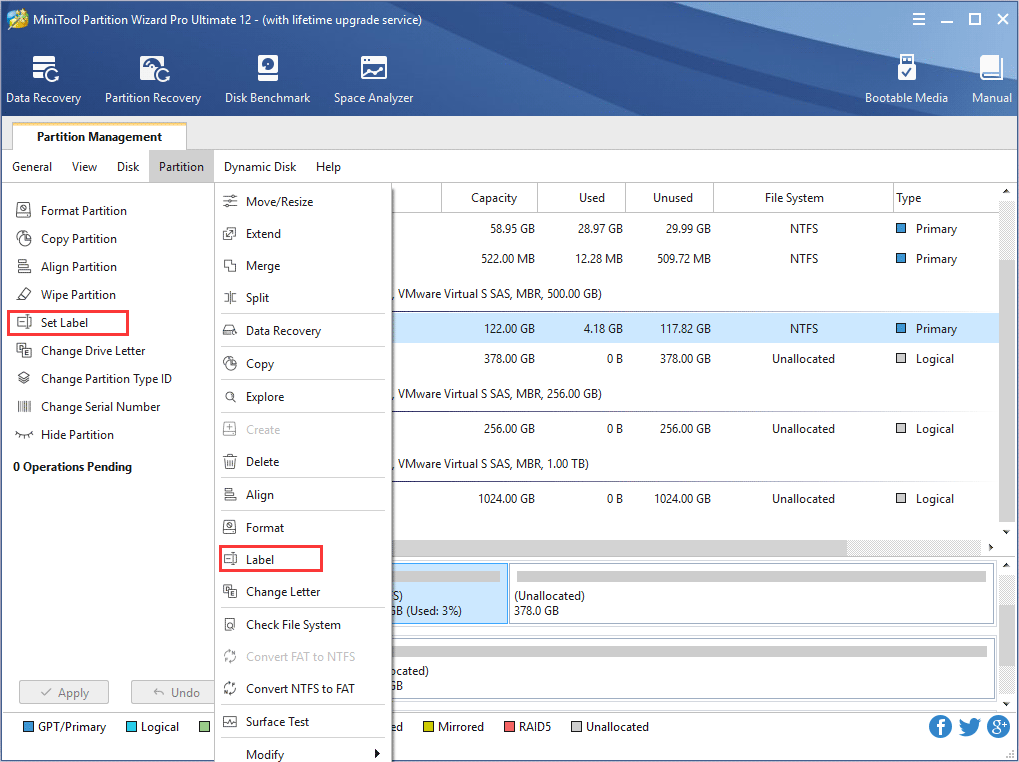
Step 1. Select the target partition, and click Set Label from the Partition Management group of the left action panel or click Label from the submenu of Partition.
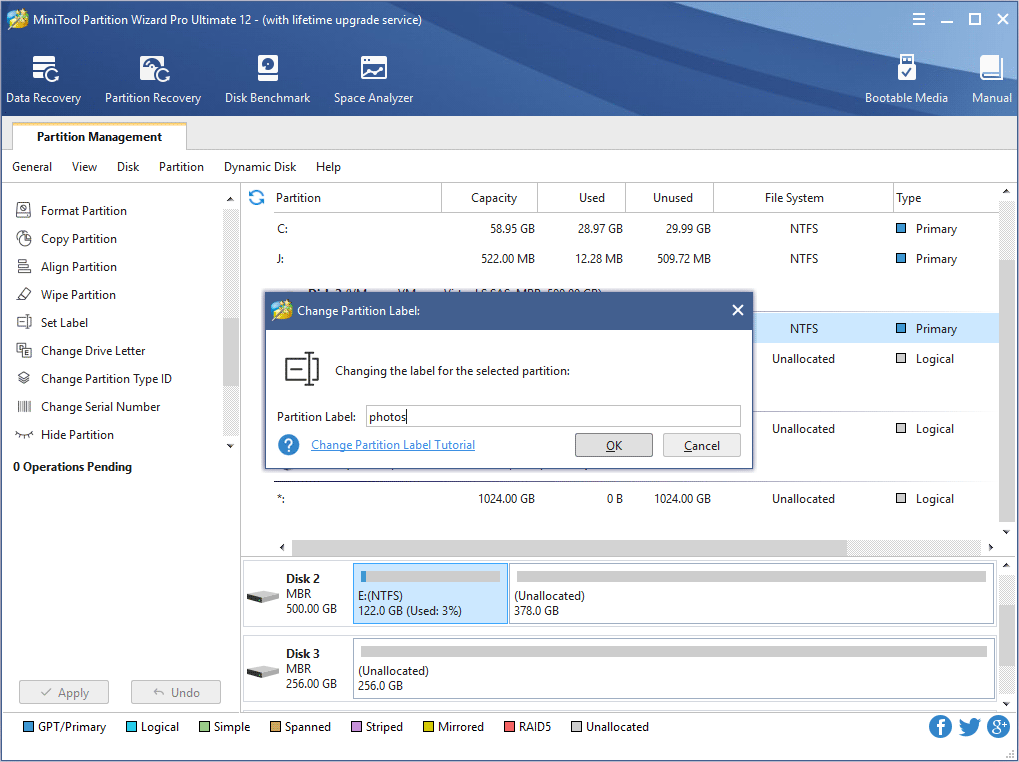
Step 2. A dialog box appears. Now, users can label/relabel the selected partition, and then click OK button to go back to the main interface.
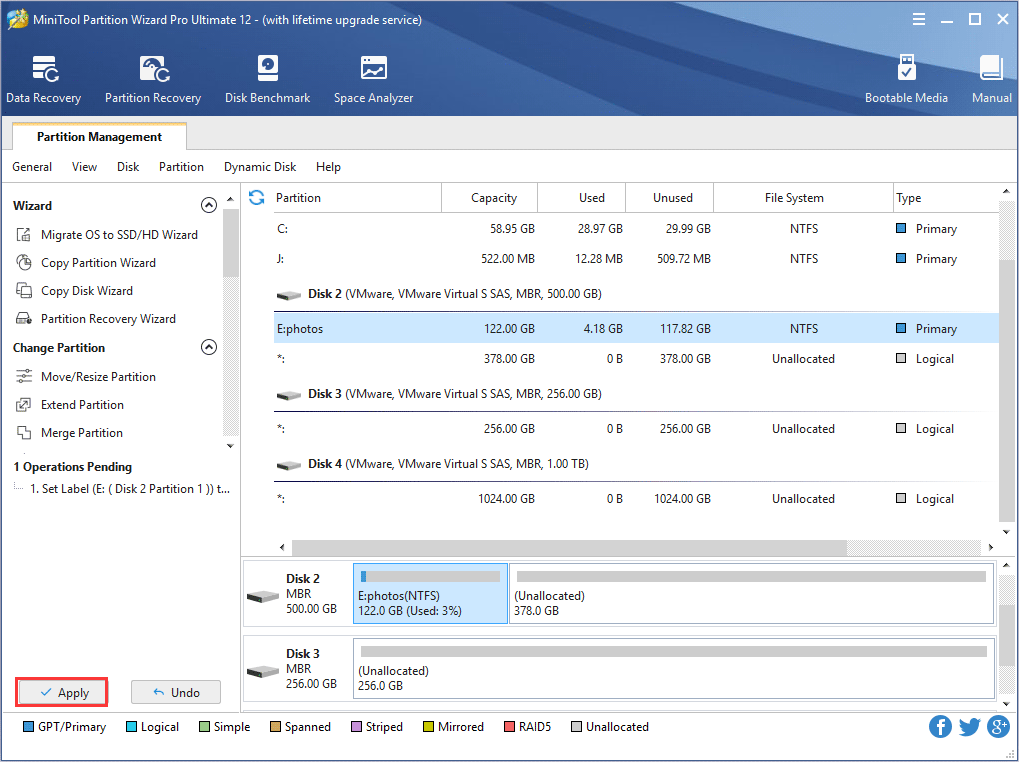
Step 3. Finally, click Apply to execute all changes.
About The Author

Position: Columnist
Rodin is an enthusiastic IT writer focusing on Windows trends, disk partition management and data recovery. She loves to write and share her idea about the useful tips and tricks on personal computers' maintenance. If you are looking for methods to improve your computer performance, manage hard drives and recover data from different devices, Rodin can provide reliable solutions for data management.
User Comments :