Partition Magic
- Windows 8 disk management
- Windows 8 partition management
- Partition in windows 7
- Active partition
- Disk partition software
- Hidden partition
- Disk partitioning software
- Hard drive partitions
- Partition server magic
- Portable partition magic
- How to remove partition
- Partition magic 6.0 download
- Formatting partitions
- Disk copy software
- Disk Partition In DOS Windows linux unix2
- Delete files permanently
- Delete Partition Windows 7
- Delete Hard Drive
- Dual boot Windows XP Windows 7
- Initialize to GPT disk
- Wipe partition in windows
- Partition recovery wizard
- Partition hard disk
- Perform windows xp hard drive partitioning
- Partition external hard drive
- Recover deleted NTFS partition
- Windows server partition magic
- Recover lost partitions
- Harddisk partition recovery
- Rebuild MBR
- FDISK format tools
- Initialize to MBR disk
- Partitioning basics
- Partition copy software
- Windows 2003 server partition magic
- NTFS hard disk recovery
- Recover fat32 partition
- Windows server 2003 partition magic
- Recover Hard Disk Partition
- Windows 2000 Server Partition Magic
- Server Partition Magic
- Partition Magic Server Torrent
- Partition Magic Server Rapid share
- Partition Magic Server 2000
- Partition Magic for Server 2008
- Server 2008 partition magic
- Partition magic server free
- Partition magic server edition
- Partition magic for Windows 2003 Server
- Partition magic for server 2003
- Symantec partition magic server
- Partition magic Windows Server 2008
- Partition magic server
- Partition magic server version
- Partition magic for Windows 2000 server
- Remove partition
- Undo Format
- Partition Magic 8 Windows Server 2003
- 2003 Server Partition Magic
- Undo last operation
- Partition magic 8 server 2003
- Vista 64 bit partition
- View partition properties
- Partition magic for server
- Partition magic for 2003
- Free partition magic for server
- Support hardware raid
- Partition magic for server 2000
- Wipe partition
- Wipe disk
- Windows xp hard drive partitioning
- Windows 7 partition software
- Reload disk information
- Clone Dynamic Disk
- SBS 2008 server partition
- Repartition server
- Bootable CD
- C drive is out of space
- C drive full
- SBS server low disk space
- Selecting Harddisk Partition
- Recover Files by Partition Recovery
- Safely upgrade disk by cloning disk
- Repartition raid
- Free Partition Recovery from Unallocated Space
- Partition Magic for Windows Server 2003
- Partition Windows 2008 64Bit
- Hiding Partitions
- Partition 2003 server
- Partition servers
- Windows Server 2003 Partitions Software
- Windows Server 2008 partition
- Windows 2008 disk management
- Windows 2003 server partition manager
- Small business server 2003 partition
- Partitioning
- Partition server 2008
- Switch from FAT32 to NTFS
- Partition Server 2003
- Supported hard disk type
- Supported file system
- Windows XP FAT to NTFS
- Windows 32 Or 64 Bit
- Server partition
- Server magic alternative
- Server disk partition software
- Server 2003 repartition dynamic disk
- Partition Windows 7 system
- Partition Windows 7 64 bit
- Partition Wizard Server
- Free upgrade
- Set driver letter
- Partition Windows 7
- Partition Windows 7 32bit for free
- Magic partition download
Selecting Harddisk Partition
-
Partition is part of physical disk. It functions like a physical separation unit. If we want to partition hard disk, many things should be concerned. After partition, we can create different file systems for different partitions, making it more convenience to manage data files. As for individual users, hard disk is usually separated into 5 partitions where different data was separately stored, such as: file system, movie, music, work document or study files, downloaded software. However, reasonable partition to disk is significant because too few partitions may cause bad sort management of our data and data loss. According to relevant test shows, too more partition also decreases hard disk performance, and the effect is obvious. Because system will load information from every partition when boot, too more partition also lead to loading system slowly, effecting boot speed. Loading is complete, we can boot process to enter system. So, if we want to partition a hard disk, firstly, we must analyze it about which partitions are needed, so that reasonable arrangement can keep our computers run fluently and efficiently. As for reasonable partition to hard disk, I recommend you to use MiniTool Partition Wizard. Advantages of reasonable partition mode are introduced below.
Advantages of reasonablely selecting harddisk partition mode
With the data age coming, multi-disks installed in the chassis is not minority, and data storage categories the users need is increasing, so the advantages of the reasonable partition operation reflected in:
1. Advantages of reasonable partition mode will appear when we kill viruses in the computer. It decreases the invasion chance of file-type viruses, greatly improving the data security.
2. It is convenient to store different types of data file in different partition when we search and manage data. And after disk partitioning, cluster size will be changed, improving access speed and computer efficient.
3. Installing multiple operating system inquires different types of file systems and this can be realized only when a couple of partitions exist.
4. File fragmentation may be produced along with deleting or loading file, while partitioning could prevent data loss caused by factors such as: disk errors, file fragmentations.
5. Partitioning can distribute different permissions to different users, ensuring file security performance in a large extent.
6. The main function of reasonable partition operation is to provide convenient disk scheme and file management, storing different types of software and data files into different partitions.
Reasonablely plan the hard disk partition with MiniTool Partition Wizard
Maybe users are confused that why we should choose MiniTool Partition Wizard among various partition magic. Now, I'll solve the doubt. Actually, there is too much tool software for disk partitioning among which the MiniTool Partition Wizard is a very practical yet professional partition magic. Its detailed function will be seen when we operate with MiniTool Partition Wizard.
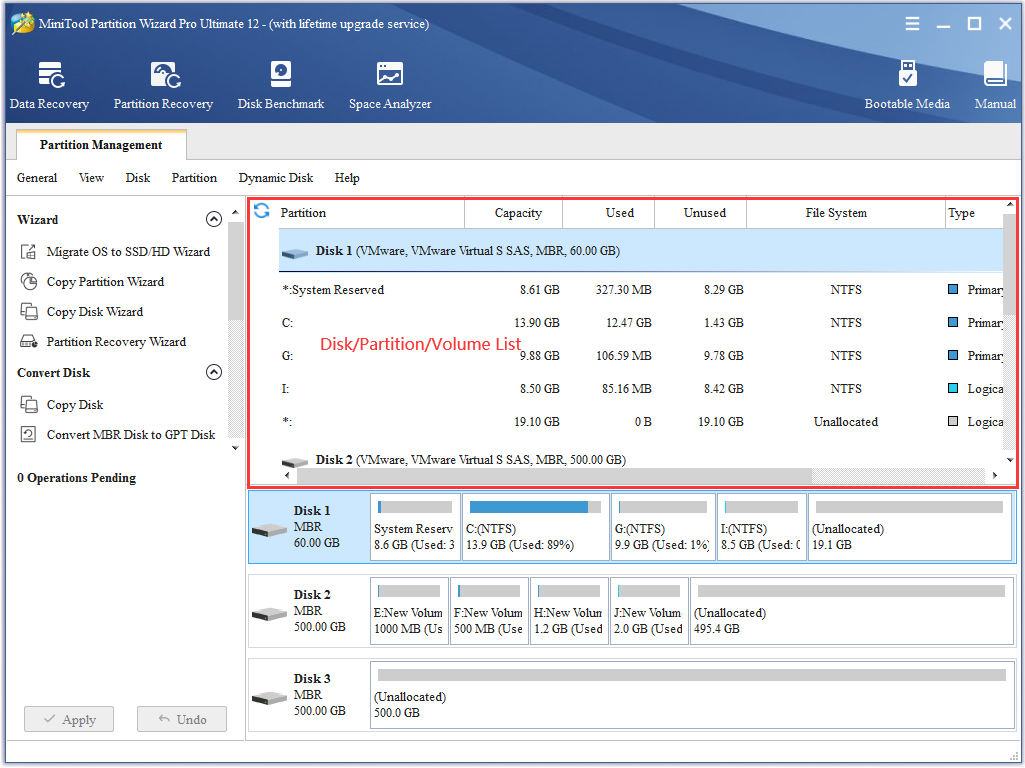
Firstly, we enter official website of MiniTool Partition Wizard by visiting http://www.partitionwizard.com/ with browser to download it. After that, install and run it to enter its main interface, just as the below picture shows:

Now we enter the main interface of MiniTool Partition Wizard, there are four partitions on "DISK 1" with different capabilities. F: partition occupies too large space while plenty of space is not well utilized, therefore we partition F: into two partitions. Detailed operating steps are shown below about resizing partition to create two partitions:

Firstly, select F: partition which is to be operated, then click "Partition" option in the menu above the interface. Once a pull-down menu appears, select "Move/Resize" option to enter resize partition function module. Or we can click "Move/Resize" on the left of the interface to gain the same effect.

In this interface, the partition magic informs us of setting partition size and location. We can resize partition by adjusting length of lateral column in "Size and Location" area, or directly inputting value in "Partition Size" area to resize partition. After that, we can set our partition location by dragging the location of lateral column. All the settings are complete, click "OK" button to confirm and return to main interface.
Caution: "Using Enhanced Data Protecting Mode" option should be selected when we resize partition. Selection of this option is to ensure data security when we resize the partition.

Returning to the main interface again, an unallocated space appears. Select it, and then click "Create Partition" in the left "Operations" option to create a new partition.

On the "Create New Partition" interface, click "OK" to enter next step after all the information of new partition is set.

We can see that the F: partition with high capability has been partitioned into F: partition and H: partition. There are two non-executed operations on the bottom of left "Operations Pending" area. They are operations we just set to resize partition and create partition. After all the settings are confirmed, execute the operations by clicking "Apply", so that the high capability partition is partitioned into two partitions.
Above operating demo just apply two simple functions of MiniTool Partition Wizard. What's more, the software has dozens of disk management funtions, such as: copy partition, merge partition, wipe partition, resize partition, convert disk types, recover partition. And it can be operated under multiple operating systems. If you want to learn more, please login official website of MiniTool Partition Wizard. With MiniTool Partition Wizard, there is no trouble of computer partition management again!
Common problems related to partition management and our solutions:
- Supported hard disk type on partition magic software - MiniTool Partition Wizard.
- Magic software for hard disk repartition