
How to combine two partitions? With professional partition manager, users will find it easy to complete this job. Now MiniTool Partition Wizard tutorial shows the detailed steps.
About Merge Partition
Merge Partition function helps users merge two adjacent partitions. It is noteworthy that this function only works for NTFS partitions. If the target partition is formatted with FAT12/FAT16/FAT32 file system, please use Convert FAT to NTFS function of the software to convert the partition to NTFS at first.
How to Merge Partition
Please view the MiniTool Partition Wizard tutorial for partition incorporation here:
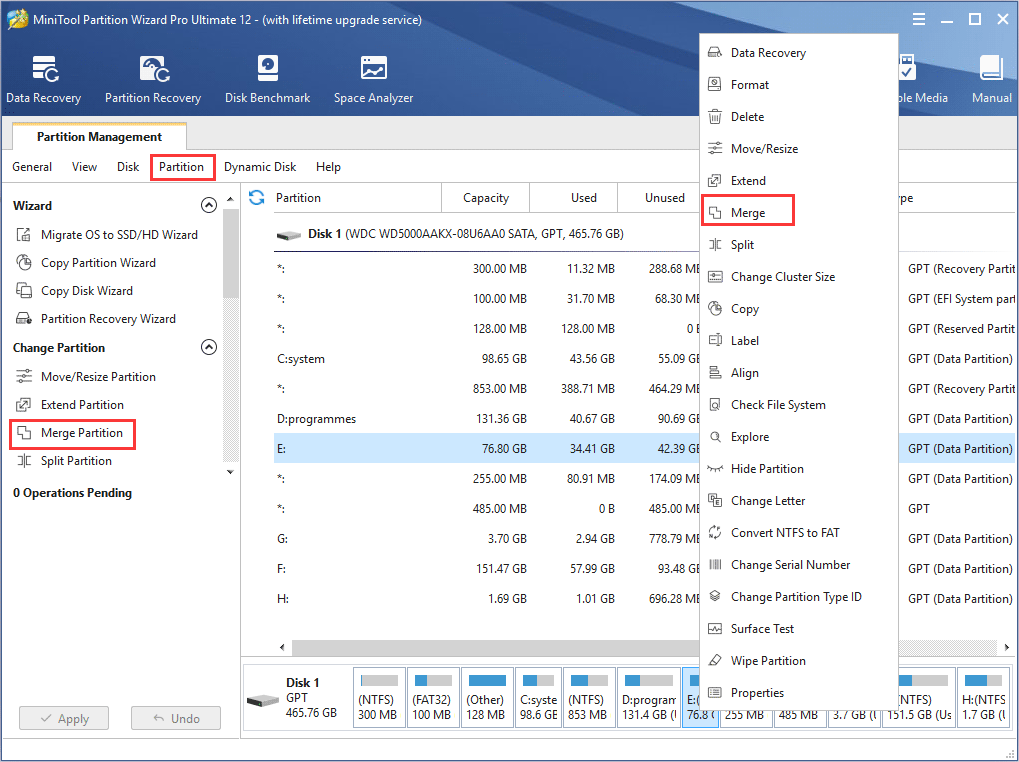
Step 1: Choose a preferred way to start partition merging operation from the listed ones:
- Select the source partition and click Merge Partition from left action panel.
- Select the source partition and click Partition from the menu bar. Then, click Merge from the drop-down menu.
- Right click source partition and click Merge from the drop-up menu.
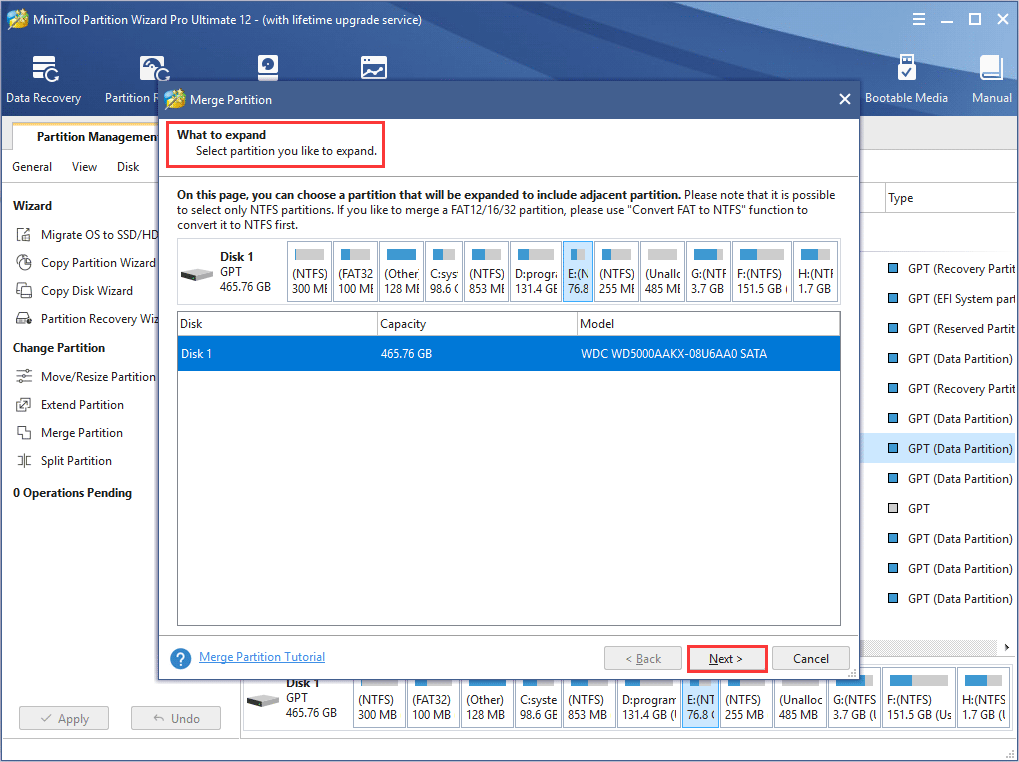
Step 2: In this interface, users can find the software has specified the selected partition to be expanded already. So users only need to click Next button to continue.
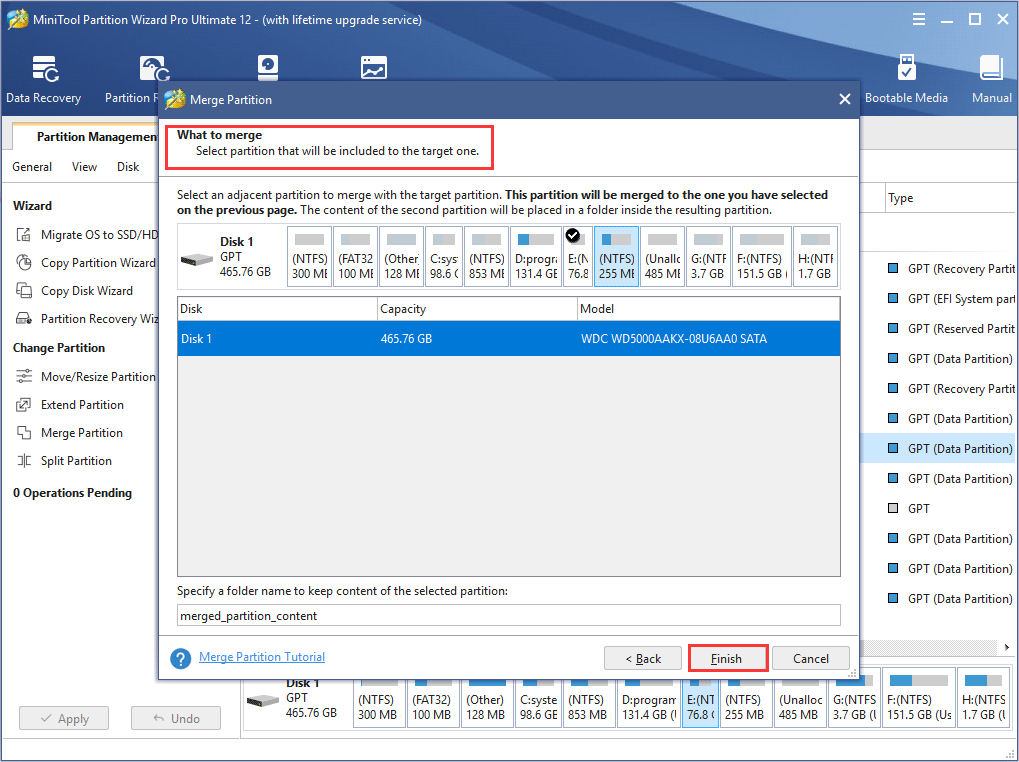
Step 3: Here, choose the partition which will be included in the previously chosen partition and name the folder which will contain the content of the selected partition. After that, click Finish button to go back to the main interface of the software.
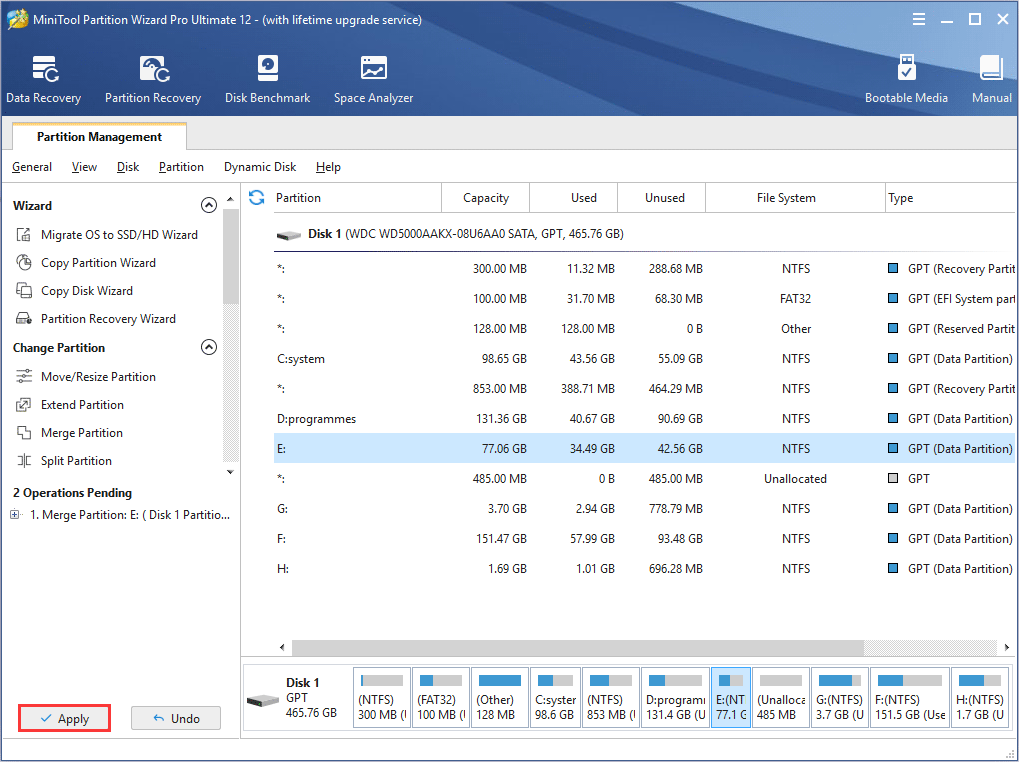
Step 4: In the main interface, check the partition merging effect. If it is as expected, users can click Apply button to confirm.
About The Author

Position: Columnist
Rodin is an enthusiastic IT writer focusing on Windows trends, disk partition management and data recovery. She loves to write and share her idea about the useful tips and tricks on personal computers' maintenance. If you are looking for methods to improve your computer performance, manage hard drives and recover data from different devices, Rodin can provide reliable solutions for data management.