
Cluster is the smallest logical unit of disk space that can be allocated to hold and manage a file in Windows operating systems. Cluster size can influence data read-write speed and disk space. In this case, to change cluster size in a reasonable way is very important. If you don't know how to change cluster size, you may read this post.
About Change Cluster Size
As we know, cluster is the smallest logical unit of disk space that can be allocated to hold and manage a file in Windows operating systems. One cluster can only hold one file, but one file can take up multiple clusters.
If users save large files to file system with small clusters, data read-write speed will be reduced. If they save small files to file system with large clusters, a lot of disk space will be wasted. Therefore, it is very necessary to change cluster size reasonably, and Change Cluster Size feature in MiniTool Partition Wizard can help do this operation with ease.
How to Change Cluster Size
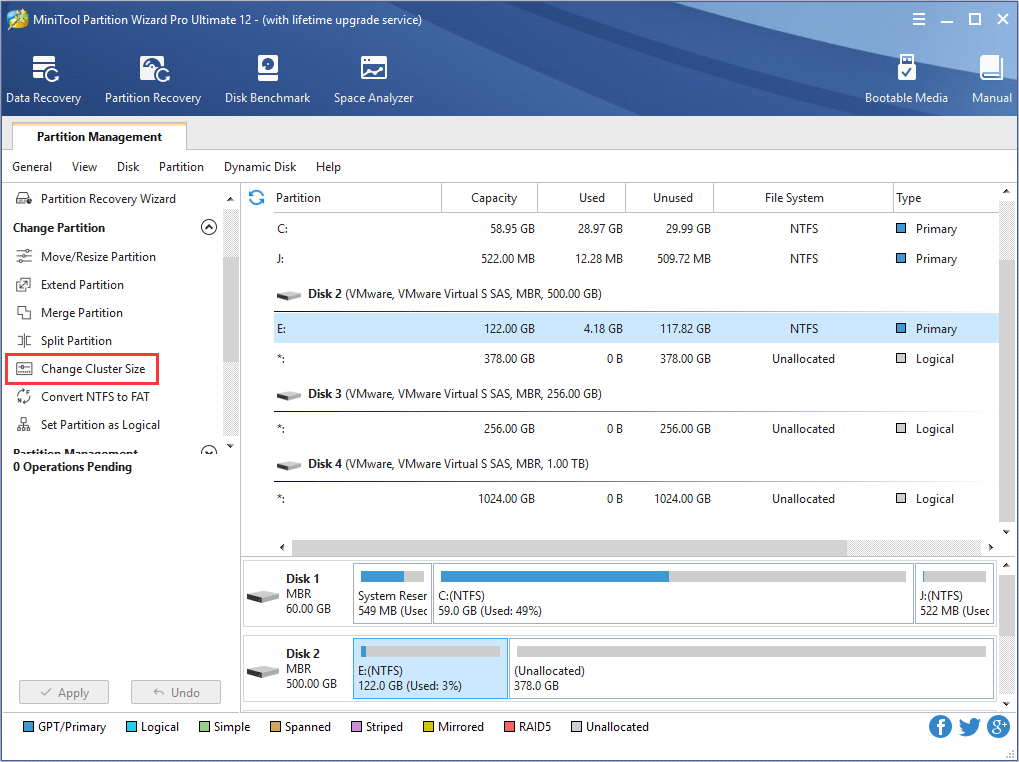
Step 1. Launch MiniTool Partition Wizard, then select the partition whose cluster size is not reasonable and choose Change Cluster Size from the left pane.
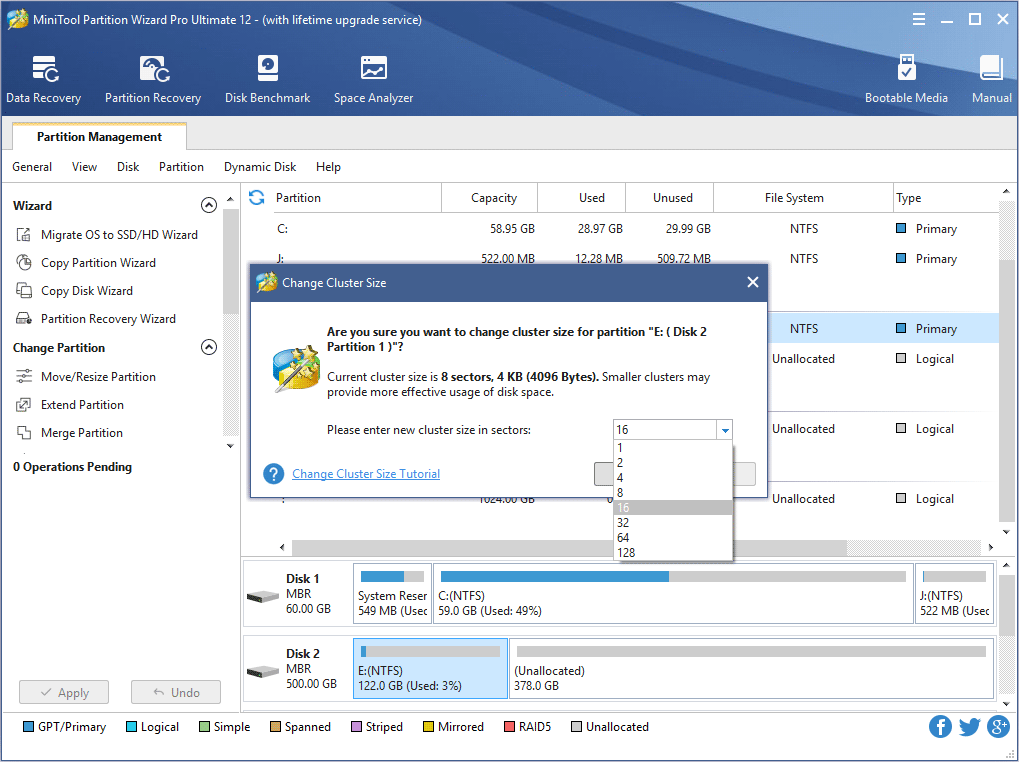
Step 2. Choose a suitable cluster size from the drop-down list and click Yes to go back to the main interface.
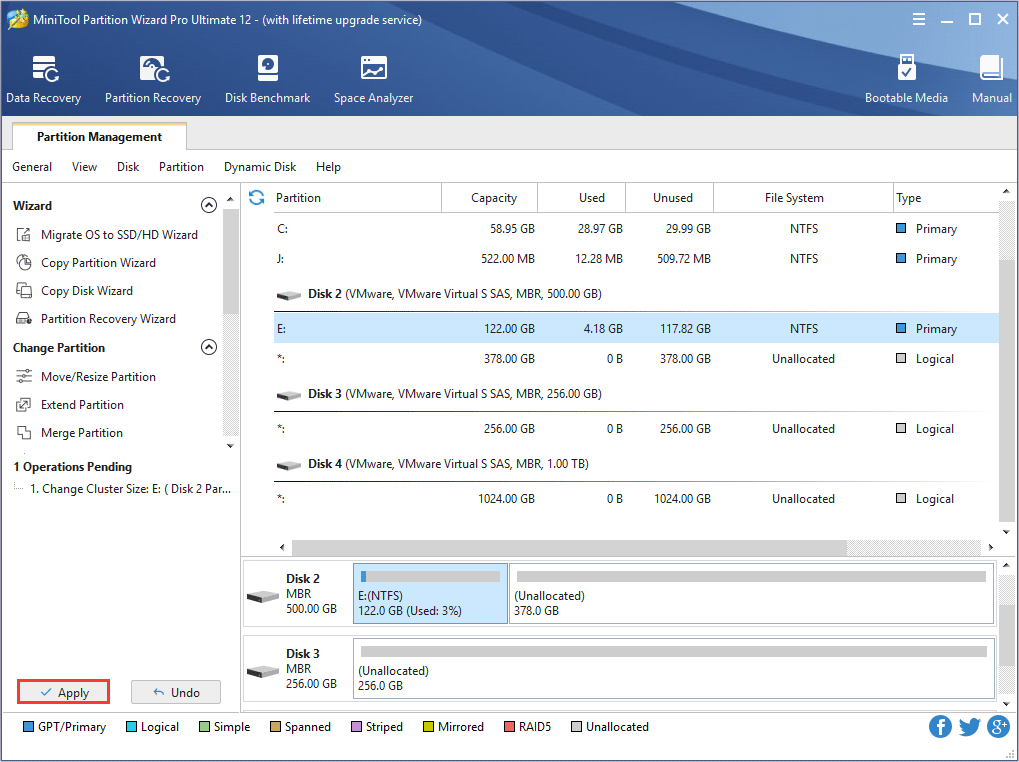
Step 3. Click Apply button to perform pending operations.
Tricks
- If the purpose of increasing cluster size is to break the 16TB partition size limit, users can extend this partition directly with the Move/Resize Partition or Extend Partition feature. During this process, MiniTool Partition Wizard will increase cluster size automatically. With the added free space, the program should complete the increasing faster.
- If the partition doesn’t have much free space left, MiniTool Partition Wizard may fail to change cluster size. In this case, we suggest extending the partition first, and then change cluster size manually.