
Need to convert FAT32 to NTFS? We offer you the best solutions here to convert FAT32 to NTFS without losing data. Download the best partition manager MiniTool Partition Wizard Free to help you now.
Why Convert FAT32 to NTFS
FAT32 Is Losing Advantages
With the continuous development of computer technology, FAT32 is unable to cater to the needs of most computer users. For example, the game development companies who want to obtain more spectacular graphic effects are producing game programs with increasingly larger size, which results in storage failure due to unknown reasons.
Many gamers think it is their computer hardware configuration problem that leads to this dilemma. In fact, individual files more than 4GB cannot be allowed to be stored on FAT32 partition is the possible reason.
Why Should We Convert FAT32 to NTFS
In comparison with FAT32, the biggest advantage of NTFS is the security performance as it provides security insurance needed by servers or workstation.
Meanwhile, NTFS is a recoverable file system with self-repairing function and users seldom need to run disk repair programs. NTFS uses log files and checkpoint information to automatically recover consistency of file system in case of system failure.
In addition, NTFS can set access permissions for sharing resources and files and adopts smaller cluster to manage disk space more efficiently.
Last, it can also compress disk, encrypt data, allocate disk quota and manage dynamic disk, etc. Therefore, the majority of users are willing to convert FAT32 to NTFS.
Then how can you reformat a drive from FAT32 to NTFS without losing the existing data? As the traditional reformatting methods will definitely lead to data, we introduce two flexible ways to help you convert FAT32 to NTFS without losing data in windows 10/8.1/7.
2 Ways that Helps Convert FAT32 to NTFS without Losing Data
Way 1. Use CMD
Before you start, run “diskmgmt.msc” to open Disk Management and view the drive letter of the partition you want to convert its file system. Please keep it in mind for you will use it later.
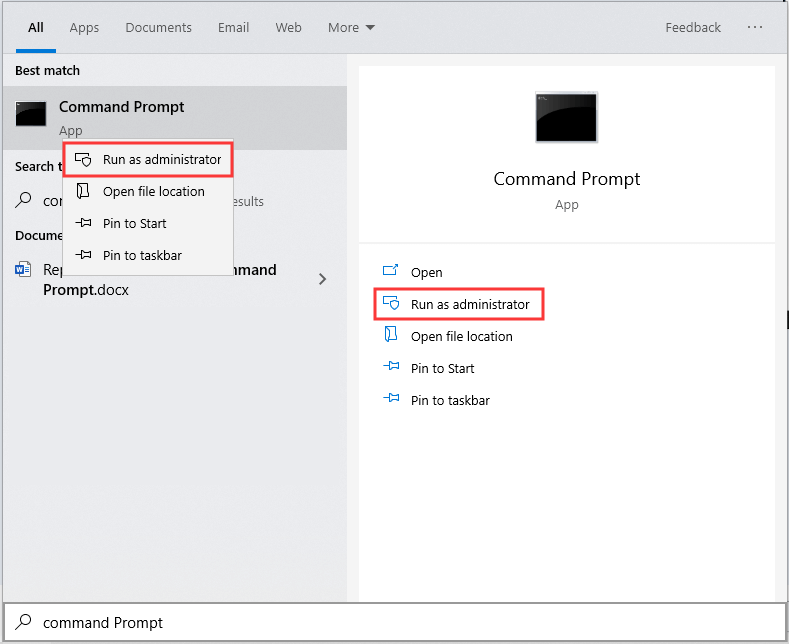
Step 1. Search for Command Prompt and run it as Admin.
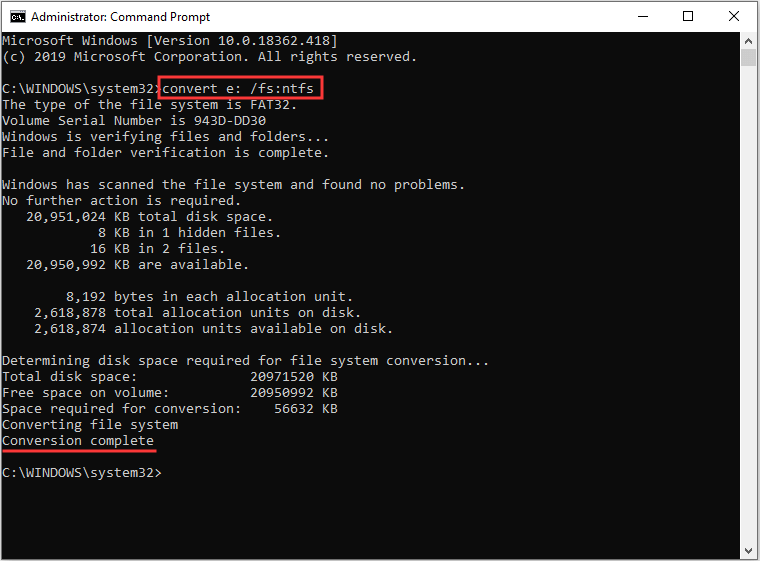
Step 2. In the command prompt window, type convert driveletter /fs:ntfs without quote and press Enter key. Be assured that you type the correct drive letter of the target partition (image attached). The conversion process will be finished quickly.
Way 2. Use MiniTool Partition Wizard
Converting file system with system built-in tool requires complicated Commands and users who are unfamiliar with these Commands will easily damage partition data. Considering this pains-taking problem, we would like to recommend a more flexible solution, namely employing the best free partition manager – MiniTool Partition Wizard Free- to help convert FAT32 to NTFS safely.
MiniTool Partition Wizard Free not only helps convert FAT32 to NTFS but also possesses comprehensive disk partition management functions, such as copy partition, merge partitions, create partition, resize partition, wipe partition, etc. All these operations under MiniTool Partition Wizard Free are quite simple.
Currently, a large number of users are employing this partition magic to manage disk partitions and convert FAT32 to NTFS without formatting. Just download this free FAT32 converter and have a try.
MiniTool Partition Wizard FreeClick to Download100%Clean & Safe
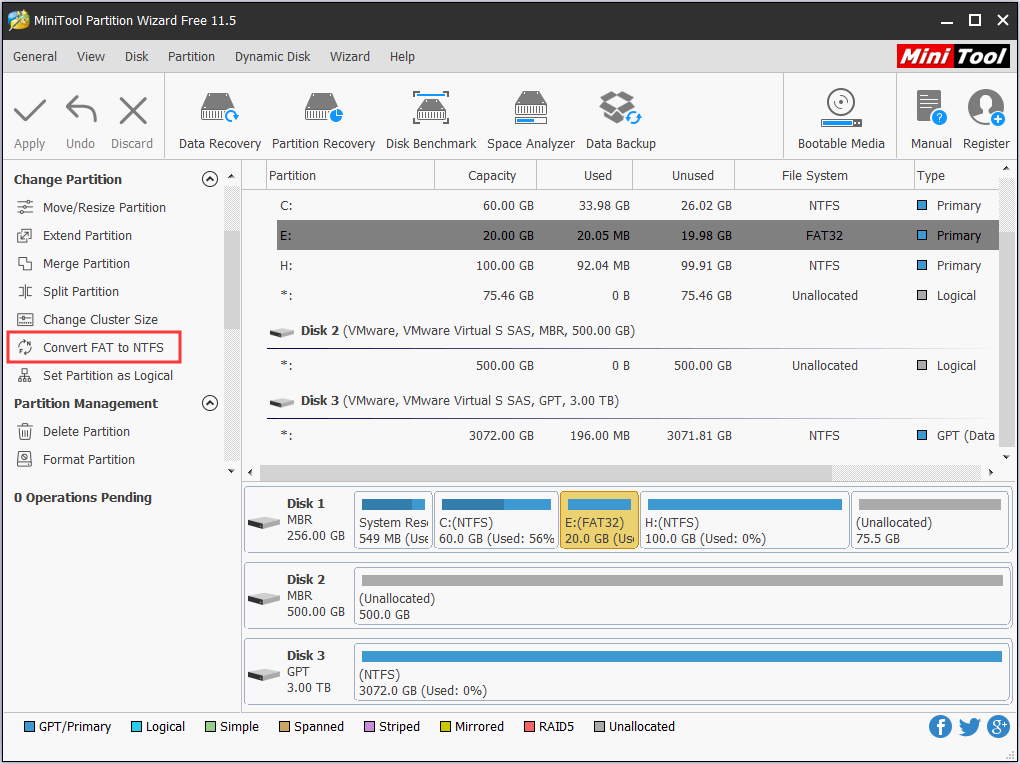
Step 1. Run MiniTool Partition Wizard Free to the main interface. Then select the FAT32 partition and choose Convert FAT to NTFS feature from the action panel.
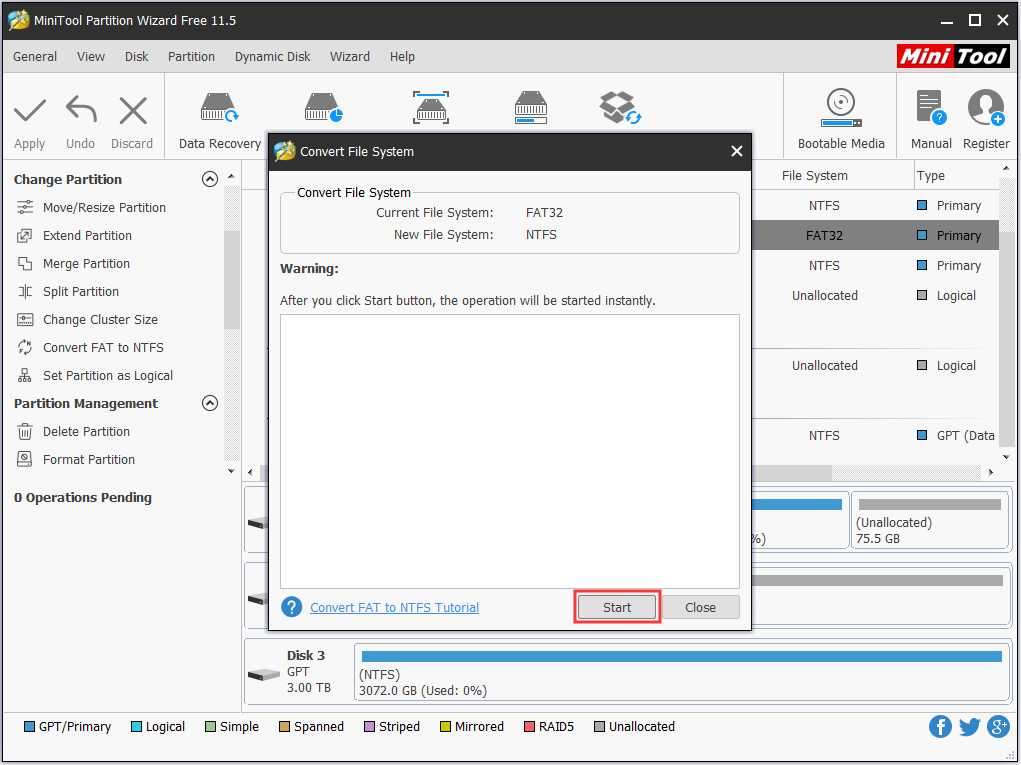
Step 2. In the pop-up window, you can view the current file system and the target file system. Then click Start button to begin the conversion process.
When all is done, exit MiniTool Partition Wizard and check whether the conversion is lossless.
MiniTool Partition Wizard FreeClick to Download100%Clean & Safe
Conclusion
How can you reformat a drive from FAT32 to NTFS without losing the existing data? Above are the top 2 methods we put forward to help. Hope you can resolve this issue after following our guide.
If they are proved to be helpful, share to help more users. If you have other nice suggestions towards how to convert FAT32 to NTFS without losing data, let us know by typing your thoughts in the comment section. Thanks!
About The Author

Position: Columnist
Rodin is an enthusiastic IT writer focusing on Windows trends, disk partition management and data recovery. She loves to write and share her idea about the useful tips and tricks on personal computers' maintenance. If you are looking for methods to improve your computer performance, manage hard drives and recover data from different devices, Rodin can provide reliable solutions for data management.
User Comments :